The Tech Edvocate

Top Menu

  • Advertisement
  • Apps
  • Home Page
  • Home Page Five (No Sidebar)
  • Home Page Four
  • Home Page Three
  • Home Page Two
  • Home Tech2
  • Icons [No Sidebar]
  • Left Sidbear Page
  • Lynch Educational Consulting
  • My Account
  • My Speaking Page
  • Newsletter Sign Up Confirmation
  • Newsletter Unsubscription
  • Our Brands
  • Page Example
  • Privacy Policy
  • Protected Content
  • Register
  • Request a Product Review
  • Shop
  • Shortcodes Examples
  • Signup
  • Start Here
    • Governance
    • Careers
    • Contact Us
  • Terms and Conditions
  • The Edvocate
  • The Tech Edvocate Product Guide
  • Topics
  • Write For Us
  • Advertise

Main Menu

  • Start Here
    • Our Brands
    • Governance
      • Lynch Educational Consulting, LLC.
      • Dr. Lynch’s Personal Website
      • Careers
    • Write For Us
    • The Tech Edvocate Product Guide
    • Contact Us
    • Books
    • Edupedia
    • Post a Job
    • The Edvocate Podcast
    • Terms and Conditions
    • Privacy Policy
  • Topics
    • Assistive Technology
    • Child Development Tech
    • Early Childhood & K-12 EdTech
    • EdTech Futures
    • EdTech News
    • EdTech Policy & Reform
    • EdTech Startups & Businesses
    • Higher Education EdTech
    • Online Learning & eLearning
    • Parent & Family Tech
    • Personalized Learning
    • Product Reviews
  • Advertise
  • Tech Edvocate Awards
  • The Edvocate
  • Pedagogue
  • School Ratings

logo

The Tech Edvocate

  • Start Here
    • Our Brands
    • Governance
      • Lynch Educational Consulting, LLC.
      • Dr. Lynch’s Personal Website
        • My Speaking Page
      • Careers
    • Write For Us
    • The Tech Edvocate Product Guide
    • Contact Us
    • Books
    • Edupedia
    • Post a Job
    • The Edvocate Podcast
    • Terms and Conditions
    • Privacy Policy
  • Topics
    • Assistive Technology
    • Child Development Tech
    • Early Childhood & K-12 EdTech
    • EdTech Futures
    • EdTech News
    • EdTech Policy & Reform
    • EdTech Startups & Businesses
    • Higher Education EdTech
    • Online Learning & eLearning
    • Parent & Family Tech
    • Personalized Learning
    • Product Reviews
  • Advertise
  • Tech Edvocate Awards
  • The Edvocate
  • Pedagogue
  • School Ratings
  • 100 Best Apps for Goal Setting

  • 100 Best Apps for Embalmers

  • 100 Best Apps for Actuaries

  • 100 Best Apps for Documentation Specialists

  • 100 Best Apps for Code Enforcement Officers

  • 100 Best Apps for Instructional Designers

  • 100 Best Apps for Customer Support Engineers

  • 100 Best Apps for YouTubers

  • 100 Best Apps for Clinical Research Coordinators

  • 100 Alternatives to AWS

Digital & Mobile Technology
Home›Digital & Mobile Technology›How to Change Startup Programs in Windows

How to Change Startup Programs in Windows
By Matthew Lynch
June 12, 2023
0
Spread the love

Windows, like any other operating system, has a set of processes and programs that start up automatically when you turn on your computer. These programs have been chosen by the system to improve overall performance but too many programs could cause slow startup times or the slowing of your system. In order to keep your startup process optimized, it is necessary to manage the programs that are allowed to startup.
Fortunately, Windows provides an easy way to manage startup programs. Here’s how you can change them.

1. Open Task Manager

Task Manager is a built-in feature of Windows that allows you to manage running programs, view usage statistics, and more. To open it, right-click your taskbar and select Task Manager, or press the Ctrl + Shift + Esc keys on your keyboard.

2. Select the Startup tab

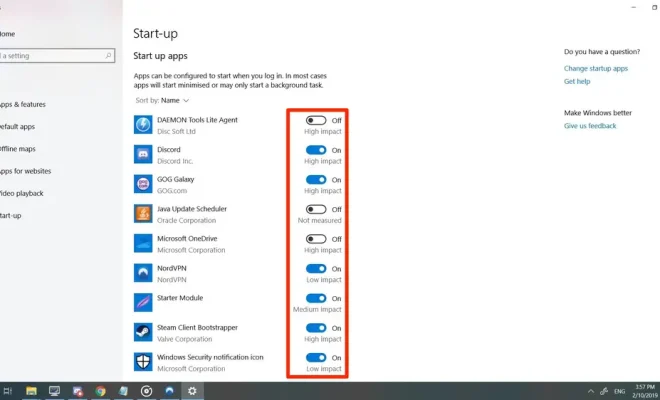
In the Task Manager window, navigate to the Startup tab. Here you’ll see a list of all the programs that start automatically when you turn on your computer.

3. Disable programs from starting up

If you see a program that you don’t want starting up automatically, select it and click Disable. This will tell Windows not to start up that particular program the next time you turn on your computer. If you ever want to enable it again, repeat the process and click Enable instead.

4. Change programs to run with more or less priority

Some programs might be more or less important than others, or might require more or less system resources. To adjust their priority, select the program and then click the “Startup impact” column. This will sort the startup programs by the amount of resources they require. To give a program more priority, you can select “High” from the drop-down menu. To give a program less priority, you can select “Low” instead.

5. Remove unwanted Programs

If you don’t want a program on your computer at all, consider uninstalling it. To do this, go to the Control Panel and select Programs and Features (or Add or Remove Programs, depending on your Windows version). Here you’ll see a list of all the programs installed on your computer. Select the one you want to uninstall and click Uninstall.
By managing your startup programs properly, you can significantly improve your computer’s performance and startup time. It’s worth taking a few minutes to review your startup programs and ensure your computer is running smoothly.

Previous Article

How to Get fuboTV on Fire Stick

Next Article

How to Add Line Numbers to a ...

Matthew Lynch

Related articles More from author

  • Digital & Mobile Technology

    How to Thoroughly Clean Your Dirty Desktop Computer

    May 29, 2023
    By Matthew Lynch
  • Digital & Mobile Technology

    How to Move a DirecTV HD Receiver to Another Room

    April 30, 2023
    By Matthew Lynch
  • Digital & Mobile Technology

    How to Insert a Horizontal or Vertical Line in Microsoft Word

    June 8, 2023
    By Matthew Lynch
  • Digital & Mobile Technology

    How to Stop Your Phone’s Charger Cables From Breaking

    May 9, 2023
    By Matthew Lynch
  • Digital & Mobile Technology

    HDR Gaming: What You Need to Know

    June 26, 2023
    By Matthew Lynch
  • Digital & Mobile Technology

    Is It Worth Upgrading From PS4 to PS5?

    August 5, 2023
    By Matthew Lynch

Search

Login & Registration

  • Log in
  • Entries feed
  • Comments feed
  • WordPress.org

Newsletter

Signup for The Tech Edvocate Newsletter and have the latest in EdTech news and opinion delivered to your email address!

About Us

Since technology is not going anywhere and does more good than harm, adapting is the best course of action. That is where The Tech Edvocate comes in. We plan to cover the PreK-12 and Higher Education EdTech sectors and provide our readers with the latest news and opinion on the subject. From time to time, I will invite other voices to weigh in on important issues in EdTech. We hope to provide a well-rounded, multi-faceted look at the past, present, the future of EdTech in the US and internationally.

We started this journey back in June 2016, and we plan to continue it for many more years to come. I hope that you will join us in this discussion of the past, present and future of EdTech and lend your own insight to the issues that are discussed.

Newsletter

Signup for The Tech Edvocate Newsletter and have the latest in EdTech news and opinion delivered to your email address!

Contact Us

The Tech Edvocate
910 Goddin Street
Richmond, VA 23231
(601) 630-5238
[email protected]

Copyright © 2026 Matthew Lynch. All rights reserved.