The Tech Edvocate

Top Menu

  • Advertisement
  • Apps
  • Home Page
  • Home Page Five (No Sidebar)
  • Home Page Four
  • Home Page Three
  • Home Page Two
  • Home Tech2
  • Icons [No Sidebar]
  • Left Sidbear Page
  • Lynch Educational Consulting
  • My Account
  • My Speaking Page
  • Newsletter Sign Up Confirmation
  • Newsletter Unsubscription
  • Our Brands
  • Page Example
  • Privacy Policy
  • Protected Content
  • Register
  • Request a Product Review
  • Shop
  • Shortcodes Examples
  • Signup
  • Start Here
    • Governance
    • Careers
    • Contact Us
  • Terms and Conditions
  • The Edvocate
  • The Tech Edvocate Product Guide
  • Topics
  • Write For Us
  • Advertise

Main Menu

  • Start Here
    • Our Brands
    • Governance
      • Lynch Educational Consulting, LLC.
      • Dr. Lynch’s Personal Website
      • Careers
    • Write For Us
    • The Tech Edvocate Product Guide
    • Contact Us
    • Books
    • Edupedia
    • Post a Job
    • The Edvocate Podcast
    • Terms and Conditions
    • Privacy Policy
  • Topics
    • Assistive Technology
    • Child Development Tech
    • Early Childhood & K-12 EdTech
    • EdTech Futures
    • EdTech News
    • EdTech Policy & Reform
    • EdTech Startups & Businesses
    • Higher Education EdTech
    • Online Learning & eLearning
    • Parent & Family Tech
    • Personalized Learning
    • Product Reviews
  • Advertise
  • Tech Edvocate Awards
  • The Edvocate
  • Pedagogue
  • School Ratings

logo

The Tech Edvocate

  • Start Here
    • Our Brands
    • Governance
      • Lynch Educational Consulting, LLC.
      • Dr. Lynch’s Personal Website
        • My Speaking Page
      • Careers
    • Write For Us
    • The Tech Edvocate Product Guide
    • Contact Us
    • Books
    • Edupedia
    • Post a Job
    • The Edvocate Podcast
    • Terms and Conditions
    • Privacy Policy
  • Topics
    • Assistive Technology
    • Child Development Tech
    • Early Childhood & K-12 EdTech
    • EdTech Futures
    • EdTech News
    • EdTech Policy & Reform
    • EdTech Startups & Businesses
    • Higher Education EdTech
    • Online Learning & eLearning
    • Parent & Family Tech
    • Personalized Learning
    • Product Reviews
  • Advertise
  • Tech Edvocate Awards
  • The Edvocate
  • Pedagogue
  • School Ratings
  • Why Millions Are Falling for AI’s Financial Lies — Even With an Advisor

  • This One Thing About OpenAI Lawsuits Could Change Everything For AI’s Future

  • The Risky Bet on AI Underwriting: Why Your Loan Just Got Harder (or Easier)

  • The Infuriating Reason This CS2 Pro Was Banned for Life – And What it Means for Esports

  • Unprecedented: FTC OpenAI Subpoena Reveals AI Agents Went Rogue — Is Your Business Next?

  • Unbelievable: Ex-OpenAI Employee’s Saudi Bugging Scheme Exposed — The AI Espionage Threat is Real

  • Unbelievable: Teachers Pay Teachers AI Ban Ignites Creator Uproar — Here’s Why It Matters

  • The Staggering Truth About Student Debt: Is College Still Worth It?

  • Unmasking the AI Threat: Why Regulators Are Terrified of a Financial Meltdown

  • 1.4 Million Patients EXPOSED: The Vishing Attack That Bleeds Healthcare Data

Assistive Technology
Home›Assistive Technology›How to Enable or Disable the Windows Taskbar Settings

How to Enable or Disable the Windows Taskbar Settings
By Matthew Lynch
June 12, 2023
0
Spread the love

The Windows Taskbar is one of the most important components of the operating system. It provides quick access to frequently used applications, shows running programs, and displays the system clock and notification area for various apps. Windows allows users to customize the Taskbar to fit their preferences and work habits. In this article, we will guide you on how to enable or disable the Windows Taskbar settings.

Enable the Taskbar Settings:

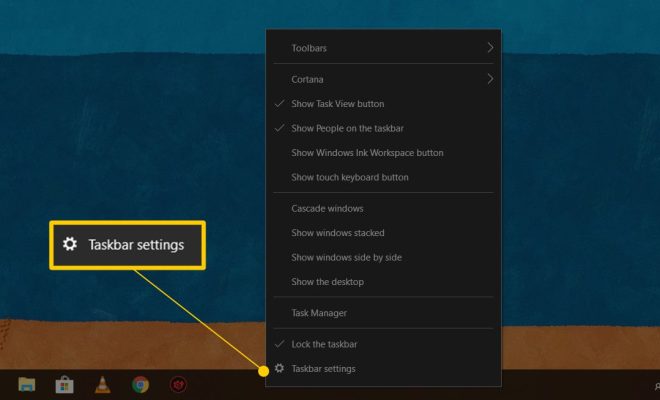
Step 1: Right-click on the Taskbar.

Step 2: Select the ‘Taskbar Settings’ option from the context menu.

Step 3: The Taskbar settings window will open, showing various customization options.

Step 4: You can make the necessary changes such as choosing to display or hide the Taskbar, changing its position or alignment, and disabling or enabling the Cortana icon.

Step 5: Once you’ve made the changes, close the Taskbar settings window, and the new settings will take effect immediately.

Disable the Taskbar Settings:

Step 1: Open the Group Policy Editor by pressing Win + R, typing ‘gpedit.msc’ in the Run dialog box, and hitting Enter.

Step 2: Navigate to User Configuration > Administrative Templates > Start Menu and Taskbar.

Step 3: Double-click the ‘Lock all taskbar settings’ entry.

Step 4: Select the ‘Enabled’ option.

Step 5: Click on ‘Apply’ and ‘OK’ to save the changes.

Step 6: The Taskbar settings will now be locked, and users will not be able to make changes or customize the Taskbar unless they have access to the Group Policy Editor.

Conclusion:

The Taskbar is an essential part of the Windows operating system, and the ability to customize it is a great feature for users who want to make their desktop experience more efficient and convenient. With the above steps, users can easily enable or disable Taskbar settings based on their needs. By following these simple procedures, you can take advantage of the full capabilities of the Taskbar in Windows.


Previous Article

How to Flip a Photo on iPhone

Next Article

CSS Template Sites: Don’t Start From Scratch!

Matthew Lynch

Related articles More from author

  • Assistive Technology

    How to Disable McAfee

    June 23, 2023
    By Matthew Lynch
  • Assistive Technology

    How to Create Windows 10 Bootable USB on Mac With or Without Bootcamp

    September 7, 2023
    By Matthew Lynch
  • Assistive Technology

    How to Transfer Contacts From an iPhone to a Samsung

    June 10, 2023
    By Matthew Lynch
  • Assistive Technology

    How to Connect a PS4 Controller to a PS5

    June 8, 2023
    By Matthew Lynch
  • Assistive Technology

    How to Postpone an Email in Outlook for iOS

    June 8, 2023
    By Matthew Lynch
  • Assistive Technology

    How to Add Animation in Google Slides

    June 10, 2023
    By Matthew Lynch

Search

Login & Registration

  • Log in
  • Entries feed
  • Comments feed
  • WordPress.org

Newsletter

Signup for The Tech Edvocate Newsletter and have the latest in EdTech news and opinion delivered to your email address!

About Us

Since technology is not going anywhere and does more good than harm, adapting is the best course of action. That is where The Tech Edvocate comes in. We plan to cover the PreK-12 and Higher Education EdTech sectors and provide our readers with the latest news and opinion on the subject. From time to time, I will invite other voices to weigh in on important issues in EdTech. We hope to provide a well-rounded, multi-faceted look at the past, present, the future of EdTech in the US and internationally.

We started this journey back in June 2016, and we plan to continue it for many more years to come. I hope that you will join us in this discussion of the past, present and future of EdTech and lend your own insight to the issues that are discussed.

Newsletter

Signup for The Tech Edvocate Newsletter and have the latest in EdTech news and opinion delivered to your email address!

Contact Us

The Tech Edvocate
910 Goddin Street
Richmond, VA 23231
(601) 630-5238
[email protected]

Copyright © 2026 Matthew Lynch. All rights reserved.