The Tech Edvocate

Top Menu

  • Advertisement
  • Apps
  • Home Page
  • Home Page Five (No Sidebar)
  • Home Page Four
  • Home Page Three
  • Home Page Two
  • Home Tech2
  • Icons [No Sidebar]
  • Left Sidbear Page
  • Lynch Educational Consulting
  • My Account
  • My Speaking Page
  • Newsletter Sign Up Confirmation
  • Newsletter Unsubscription
  • Our Brands
  • Page Example
  • Privacy Policy
  • Protected Content
  • Register
  • Request a Product Review
  • Shop
  • Shortcodes Examples
  • Signup
  • Start Here
    • Governance
    • Careers
    • Contact Us
  • Terms and Conditions
  • The Edvocate
  • The Tech Edvocate Product Guide
  • Topics
  • Write For Us
  • Advertise

Main Menu

  • Start Here
    • Our Brands
    • Governance
      • Lynch Educational Consulting, LLC.
      • Dr. Lynch’s Personal Website
      • Careers
    • Write For Us
    • The Tech Edvocate Product Guide
    • Contact Us
    • Books
    • Edupedia
    • Post a Job
    • The Edvocate Podcast
    • Terms and Conditions
    • Privacy Policy
  • Topics
    • Assistive Technology
    • Child Development Tech
    • Early Childhood & K-12 EdTech
    • EdTech Futures
    • EdTech News
    • EdTech Policy & Reform
    • EdTech Startups & Businesses
    • Higher Education EdTech
    • Online Learning & eLearning
    • Parent & Family Tech
    • Personalized Learning
    • Product Reviews
  • Advertise
  • Tech Edvocate Awards
  • The Edvocate
  • Pedagogue
  • School Ratings

logo

The Tech Edvocate

  • Start Here
    • Our Brands
    • Governance
      • Lynch Educational Consulting, LLC.
      • Dr. Lynch’s Personal Website
        • My Speaking Page
      • Careers
    • Write For Us
    • The Tech Edvocate Product Guide
    • Contact Us
    • Books
    • Edupedia
    • Post a Job
    • The Edvocate Podcast
    • Terms and Conditions
    • Privacy Policy
  • Topics
    • Assistive Technology
    • Child Development Tech
    • Early Childhood & K-12 EdTech
    • EdTech Futures
    • EdTech News
    • EdTech Policy & Reform
    • EdTech Startups & Businesses
    • Higher Education EdTech
    • Online Learning & eLearning
    • Parent & Family Tech
    • Personalized Learning
    • Product Reviews
  • Advertise
  • Tech Edvocate Awards
  • The Edvocate
  • Pedagogue
  • School Ratings
  • The Hidden Cost of EVs: Why Your Battery Could Cost More Than Your Car in 2026

  • Jensen Huang’s Shock Exit: This Unbelievable Scandal Just Rocked Nvidia and the AI World

  • Big Walk developer House House Confirms ‘Sparing’ Use of Gen AI – Press Start

  • Baffling: How a Cyber Breach at South Korea’s Top Security Watchdog Exposed Millions

  • Wenn Ordnung den Bildschirm beruhigt: Warum klare Abläufe Casino-Unterhaltung einladender machen

  • Reddit AI Reviews: The Quiet Reshaping of Online Opinion

  • The Chilling Truth: Iran Cyberattacks Europe’s Food and Blood Supplies

  • Anthropic’s $3.4 Billion Bet on Gas: The Unseen Cost of AI’s Future

  • Tribit FlyBuds C3 Earbuds: Premium Features at a Budget-Friendly Price

  • Is AuraCam Pro’s Emotional AI a Privacy Nightmare or Security Breakthrough?

Assistive Technology
Home›Assistive Technology›How to Connect Your 8-Bit & 16-Bit Consoles to an HDTV

How to Connect Your 8-Bit & 16-Bit Consoles to an HDTV

By Matthew Lynch
June 12, 2023
0
Spread the love

With advancements in technology, the gaming industry has come a long way from the days of 8-bit and 16-bit consoles. However, many gamers still hold a special place in their heart for these classics. Connecting these consoles to a modern HDTV can pose some challenges, but with the right tools and setups, it’s possible to experience retro gaming on your high-definition television.

Here are some steps to connect your 8-bit and 16-bit consoles to an HDTV.

Step 1: Check Your Console’s Output

First, you’ll need to check the output of your console. If you have a console that uses analog output, such as the NES or the SNES, you’ll need to take some extra steps. For example, you’ll need a composite or component cable to connect your console to your TV. If you have a console that uses digital output, such as the Sega Genesis or the Super Nintendo (if you have the later models with S-video out), you’ll need to check if your HDMI converter supports that type of output.

Step 2: Decide on an HDMI Converter

To connect an 8-bit or 16-bit console to your HDTV, you’ll need an HDMI converter. There are many different types of HDMI converters available, and the one you choose will depend on your console and how you want to set it up.

One popular HDMI converter is the RetroTINK. It offers high-quality analog-to-digital conversion and supports a wide range of consoles. Another great option is the Framemeister, which is known for its high-quality upscaling of retro games.

Step 3: Connect Your Console to the HDMI Converter

Next, connect your console to the HDMI converter using the appropriate cables. Make sure to follow the instructions that came with your HDMI converter.

Step 4: Connect the HDMI Converter to Your HDTV

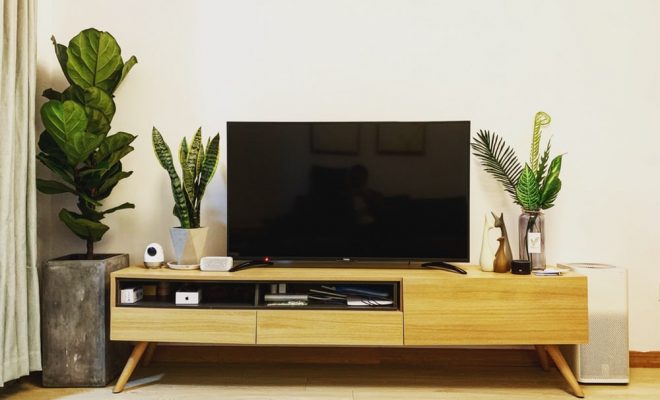
Now it’s time to connect your HDMI converter to your HDTV using an HDMI cable. Plug one end of the HDMI cable into the HDMI converter and the other end into your HDTV’s HDMI port. If you have multiple HDMI ports on your TV, make sure to select the correct one.

Step 5: Configure Your HDTV

Finally, configure your HDTV to display the retro console’s output. Each HDTV is different, so consult your TV’s manual for specific instructions on how to set up your HDMI converter. Some HDTVs may automatically recognize the HDMI converter, while others may require you to manually select it as a source.

Once you’ve completed these steps, you should be ready to start playing your retro games on your HDTV. Keep in mind that while connecting 8-bit and 16-bit consoles to an HDTV can provide a convenient way to revisit classic games, it will not perfectly replicate the original experience of playing on a CRT TV. Still, this setup provides a great way to enjoy retro games with modern convenience.


Previous Article

How to Transfer Pokémon From Pokémon GO ...

Next Article

Should You Always Put Tape Over Your ...

Matthew Lynch

Related articles More from author

  • Assistive Technology

    How to Connect a Landline Phone to a Modem

    June 11, 2023
    By Matthew Lynch
  • Assistive TechnologyDisabilitiesEarly Childhood & K-12 EdTech

    6 of the Best Apps and Tools for Special Needs Students

    June 23, 2017
    By Matthew Lynch
  • Assistive Technology

    How to Remove Any Items From Your Mac’s Menu Bar

    June 15, 2023
    By Matthew Lynch
  • Assistive Technology

    How to Unsave Messages on Snapchat

    June 12, 2023
    By Matthew Lynch
  • Assistive Technology

    How to Merge PDF Documents Together in Windows 11

    June 14, 2023
    By Matthew Lynch
  • Assistive Technology

    How to Fix Vizio TV Black Screen of Death

    June 6, 2023
    By Matthew Lynch

Search

Login & Registration

  • Log in
  • Entries feed
  • Comments feed
  • WordPress.org

Newsletter

Signup for The Tech Edvocate Newsletter and have the latest in EdTech news and opinion delivered to your email address!

About Us

Since technology is not going anywhere and does more good than harm, adapting is the best course of action. That is where The Tech Edvocate comes in. We plan to cover the PreK-12 and Higher Education EdTech sectors and provide our readers with the latest news and opinion on the subject. From time to time, I will invite other voices to weigh in on important issues in EdTech. We hope to provide a well-rounded, multi-faceted look at the past, present, the future of EdTech in the US and internationally.

We started this journey back in June 2016, and we plan to continue it for many more years to come. I hope that you will join us in this discussion of the past, present and future of EdTech and lend your own insight to the issues that are discussed.

Newsletter

Signup for The Tech Edvocate Newsletter and have the latest in EdTech news and opinion delivered to your email address!

Contact Us

The Tech Edvocate
910 Goddin Street
Richmond, VA 23231
(601) 630-5238
[email protected]

Copyright © 2026 Matthew Lynch. All rights reserved.