The Tech Edvocate

Top Menu

  • Advertisement
  • Apps
  • Home Page
  • Home Page Five (No Sidebar)
  • Home Page Four
  • Home Page Three
  • Home Page Two
  • Home Tech2
  • Icons [No Sidebar]
  • Left Sidbear Page
  • Lynch Educational Consulting
  • My Account
  • My Speaking Page
  • Newsletter Sign Up Confirmation
  • Newsletter Unsubscription
  • Our Brands
  • Page Example
  • Privacy Policy
  • Protected Content
  • Register
  • Request a Product Review
  • Shop
  • Shortcodes Examples
  • Signup
  • Start Here
    • Governance
    • Careers
    • Contact Us
  • Terms and Conditions
  • The Edvocate
  • The Tech Edvocate Product Guide
  • Topics
  • Write For Us
  • Advertise

Main Menu

  • Start Here
    • Our Brands
    • Governance
      • Lynch Educational Consulting, LLC.
      • Dr. Lynch’s Personal Website
      • Careers
    • Write For Us
    • The Tech Edvocate Product Guide
    • Contact Us
    • Books
    • Edupedia
    • Post a Job
    • The Edvocate Podcast
    • Terms and Conditions
    • Privacy Policy
  • Topics
    • Assistive Technology
    • Child Development Tech
    • Early Childhood & K-12 EdTech
    • EdTech Futures
    • EdTech News
    • EdTech Policy & Reform
    • EdTech Startups & Businesses
    • Higher Education EdTech
    • Online Learning & eLearning
    • Parent & Family Tech
    • Personalized Learning
    • Product Reviews
  • Advertise
  • Tech Edvocate Awards
  • The Edvocate
  • Pedagogue
  • School Ratings

logo

The Tech Edvocate

  • Start Here
    • Our Brands
    • Governance
      • Lynch Educational Consulting, LLC.
      • Dr. Lynch’s Personal Website
        • My Speaking Page
      • Careers
    • Write For Us
    • The Tech Edvocate Product Guide
    • Contact Us
    • Books
    • Edupedia
    • Post a Job
    • The Edvocate Podcast
    • Terms and Conditions
    • Privacy Policy
  • Topics
    • Assistive Technology
    • Child Development Tech
    • Early Childhood & K-12 EdTech
    • EdTech Futures
    • EdTech News
    • EdTech Policy & Reform
    • EdTech Startups & Businesses
    • Higher Education EdTech
    • Online Learning & eLearning
    • Parent & Family Tech
    • Personalized Learning
    • Product Reviews
  • Advertise
  • Tech Edvocate Awards
  • The Edvocate
  • Pedagogue
  • School Ratings
  • Miro vs Conceptboard for project management

  • How to use Teamwork for resource management

  • How much does Procore cost per month

  • How to organize Microsoft Planner buckets

  • Is Teamwork good for billable hours

  • Procore vs Buildertrend which is better

  • Airtable project management templates

  • Can Miro track project progress

  • How to use Basecamp for client work

  • Can Lucidchart create swimlane diagrams

Assistive Technology
Home›Assistive Technology›How to Refresh Your Xbox Home Screen and Fix Dashboard Issues

How to Refresh Your Xbox Home Screen and Fix Dashboard Issues
By Matthew Lynch
June 10, 2023
0
Spread the love

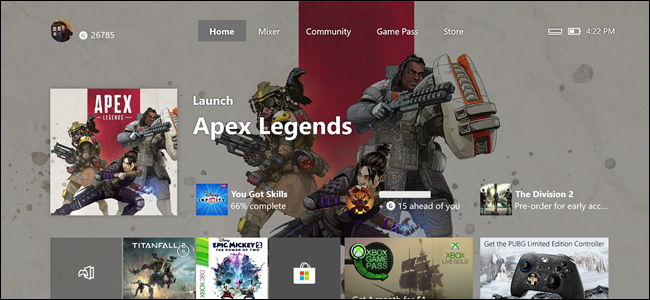
The Xbox home screen, commonly known as the dashboard, is the first thing you see when you turn on your console. It is where you access your games, apps, and settings. However, like any software, it can encounter glitches, causing it to lag or freeze, making it almost impossible to navigate. In this article, we’ll outline a few steps you can take to refresh your Xbox home screen and fix any dashboard issues you may be experiencing.

Step 1: Clear Your Console Cache

The cache on your Xbox One or Xbox Series X|S stores temporary data that helps your console work more efficiently. However, over time, the cache can become cluttered, causing your console to slow down, freeze, or even crash. To clear your cache, simply hold down the power button on your console until it turns off completely. Then, unplug the power cable from the back of the console and wait for at least 10 seconds before plugging it back in again. Finally, turn on your console, and your cache will have been cleared.

Step 2: Reboot Your Console

If clearing your cache doesn’t work, you may need to reboot your console. This involves a hard reset, which forces your console to shut down and restart, almost like turning your computer on and off again. To do this, press and hold the power button on your console until it turns off completely. Wait for a few seconds before pressing the power button again to turn it back on.

Step 3: Check for Updates

Microsoft frequently releases updates for both the Xbox One and Xbox Series X|S console, which can help fix dashboard issues and improve performance. To check for updates manually, go to the settings app on your console and select “System.” From there, select “Updates & Downloads” and click on “Check for Updates.” If there are any available, make sure to download and install them.

Step 4: Reset Your Console to Factory Settings

Resetting your console to its factory settings should be a last resort when trying to fix dashboard issues. This action will wipe all data from your console, including games, apps, and all user data, so be sure to make a backup before proceeding. To reset your console to its factory settings, go to the settings app on your console and select “System.” From there, select “Console Info,” and finally, “Reset Console.”

In conclusion, refreshing your Xbox home screen and fixing dashboard issues will help ensure that your console is running at optimal performance. By following these simple steps, you can quickly regain control of your console and enjoy seamless gameplay without any glitches or frustrating lags.


Previous Article

Is Cyberbullying a Crime?

Next Article

The Best Social Media Platforms for Business

Matthew Lynch

Related articles More from author

  • Assistive Technology

    How to Perform a Windows XP Repair Install

    June 12, 2023
    By Matthew Lynch
  • Assistive Technology

    How to Use Web Notes in Microsoft Edge

    June 12, 2023
    By Matthew Lynch
  • Assistive Technology

    How to Run Multiple Commands in Linux at Once

    June 10, 2023
    By Matthew Lynch
  • Assistive Technology

    How to Fix an Xbox One Controller That Won’t Turn On

    June 6, 2023
    By Matthew Lynch
  • Assistive Technology

    How to Connect a Microphone to a Computer

    August 5, 2023
    By Matthew Lynch
  • Assistive Technology

    How to Change the Boot Screen Logo on Windows with HackBGRT

    June 6, 2023
    By Matthew Lynch

Search

Login & Registration

  • Log in
  • Entries feed
  • Comments feed
  • WordPress.org

Newsletter

Signup for The Tech Edvocate Newsletter and have the latest in EdTech news and opinion delivered to your email address!

About Us

Since technology is not going anywhere and does more good than harm, adapting is the best course of action. That is where The Tech Edvocate comes in. We plan to cover the PreK-12 and Higher Education EdTech sectors and provide our readers with the latest news and opinion on the subject. From time to time, I will invite other voices to weigh in on important issues in EdTech. We hope to provide a well-rounded, multi-faceted look at the past, present, the future of EdTech in the US and internationally.

We started this journey back in June 2016, and we plan to continue it for many more years to come. I hope that you will join us in this discussion of the past, present and future of EdTech and lend your own insight to the issues that are discussed.

Newsletter

Signup for The Tech Edvocate Newsletter and have the latest in EdTech news and opinion delivered to your email address!

Contact Us

The Tech Edvocate
910 Goddin Street
Richmond, VA 23231
(601) 630-5238
[email protected]

Copyright © 2026 Matthew Lynch. All rights reserved.