The Tech Edvocate

Top Menu

  • Advertisement
  • Apps
  • Home Page
  • Home Page Five (No Sidebar)
  • Home Page Four
  • Home Page Three
  • Home Page Two
  • Home Tech2
  • Icons [No Sidebar]
  • Left Sidbear Page
  • Lynch Educational Consulting
  • My Account
  • My Speaking Page
  • Newsletter Sign Up Confirmation
  • Newsletter Unsubscription
  • Our Brands
  • Page Example
  • Privacy Policy
  • Protected Content
  • Register
  • Request a Product Review
  • Shop
  • Shortcodes Examples
  • Signup
  • Start Here
    • Governance
    • Careers
    • Contact Us
  • Terms and Conditions
  • The Edvocate
  • The Tech Edvocate Product Guide
  • Topics
  • Write For Us
  • Advertise

Main Menu

  • Start Here
    • Our Brands
    • Governance
      • Lynch Educational Consulting, LLC.
      • Dr. Lynch’s Personal Website
      • Careers
    • Write For Us
    • The Tech Edvocate Product Guide
    • Contact Us
    • Books
    • Edupedia
    • Post a Job
    • The Edvocate Podcast
    • Terms and Conditions
    • Privacy Policy
  • Topics
    • Assistive Technology
    • Child Development Tech
    • Early Childhood & K-12 EdTech
    • EdTech Futures
    • EdTech News
    • EdTech Policy & Reform
    • EdTech Startups & Businesses
    • Higher Education EdTech
    • Online Learning & eLearning
    • Parent & Family Tech
    • Personalized Learning
    • Product Reviews
  • Advertise
  • Tech Edvocate Awards
  • The Edvocate
  • Pedagogue
  • School Ratings

logo

The Tech Edvocate

  • Start Here
    • Our Brands
    • Governance
      • Lynch Educational Consulting, LLC.
      • Dr. Lynch’s Personal Website
        • My Speaking Page
      • Careers
    • Write For Us
    • The Tech Edvocate Product Guide
    • Contact Us
    • Books
    • Edupedia
    • Post a Job
    • The Edvocate Podcast
    • Terms and Conditions
    • Privacy Policy
  • Topics
    • Assistive Technology
    • Child Development Tech
    • Early Childhood & K-12 EdTech
    • EdTech Futures
    • EdTech News
    • EdTech Policy & Reform
    • EdTech Startups & Businesses
    • Higher Education EdTech
    • Online Learning & eLearning
    • Parent & Family Tech
    • Personalized Learning
    • Product Reviews
  • Advertise
  • Tech Edvocate Awards
  • The Edvocate
  • Pedagogue
  • School Ratings
  • 100 Best Apps for Active Recall

  • 100 Best Apps for Spaced Repetition

  • 100 Best Apps for Building a Second Brain

  • 100 Best Apps for Second Brain

  • A Casino Bonus Is Not Its Cash Value: How to Read Reviews Clearly

  • 100 Best Apps for Zettelkasten

  • 100 Best Apps for Bullet Journaling

  • 100 Best Apps for Getting Things Done

  • 100 Best Apps for GTD Method

  • 100 Best Apps for Overcoming Writer’s Block

Digital & Mobile Technology
Home›Digital & Mobile Technology›How to Add a Website to Your Chromebook Shelf

How to Add a Website to Your Chromebook Shelf
By Matthew Lynch
June 9, 2023
0
Spread the love

Chromebooks are sleek, lightweight laptops that are popular among students, commuters, and frequent travelers. However, despite being great for browsing the web or working on Google Docs, Chromebooks can sometimes feel like they’re missing something. If you’re looking to take full advantage of your Chromebook’s web capabilities, you might want to consider adding your favorite websites to your shelf.

Adding a website to your Chromebook shelf lets you quickly access it with a single click, just like you would on a smartphone or tablet. Here’s how you can add a website to your Chromebook shelf:

Step 1: Open the website you want to add to your shelf in a new tab

The first step is to open the website you want to add to your shelf in a new tab. To do this, click on the “+” button on the right-hand side of your existing tabs.

Step 2: Click the three-dotted menu button

Once you have your website open in a new tab, you need to click the three-dotted menu button located in the top right corner of the Chrome browser window.

Step 3: Select “More Tools” and then “Add to shelf”

A drop-down menu will appear when you click the three-dotted button. Look for the “More Tools” option, and then click on “Add to shelf”.

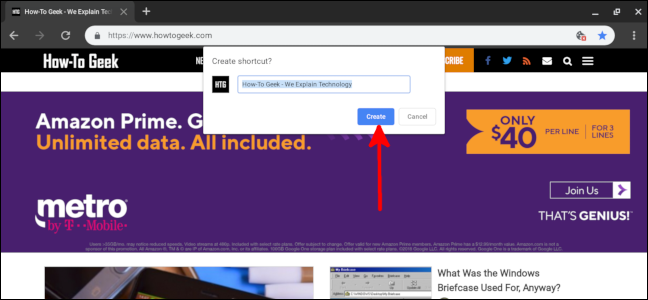
Step 4: Name your shortcut and choose an icon

You will now be presented with a window where you can customize the shortcut that will be added to your shelf. You can name your shortcut whatever you want, and you can also choose from a variety of icons to represent the shortcut on your shelf.

Step 5: Click “Add”

Finally, click the “Add” button to add the shortcut to your Chromebook shelf. You should now see the shortcut on your shelf next to the other apps and tools.

Adding a website to your Chromebook shelf is a simple process that can save you time and effort when browsing the web on your computer. Whether you’re a student or a busy professional, having quick access to your favorite websites can help you stay organized and efficient throughout the day. With these steps, you can quickly add any website to your shelf and start enjoying a more streamlined browsing experience.


Previous Article

Where to Find Internet Explorer’s Temporary Internet ...

Next Article

How to Create a New Folder in ...

Matthew Lynch

Related articles More from author

  • Digital & Mobile Technology

    Best Google Home Games of 2023

    June 10, 2023
    By Matthew Lynch
  • Digital & Mobile Technology

    How to Fix the “Printer in Error State” in Windows 10

    September 8, 2023
    By Matthew Lynch
  • Digital & Mobile Technology

    Can’t Select or Highlight Text in a PDF on Windows? Here’s How to Fix It

    June 15, 2023
    By Matthew Lynch
  • Digital & Mobile Technology

    Most Popular Nintendo DS Games of All Time

    June 26, 2023
    By Matthew Lynch
  • Digital & Mobile Technology

    Safest Free Mac Software Download Sites

    August 5, 2023
    By Matthew Lynch
  • Digital & Mobile Technology

    Is the Windows Auto-Rotation Lock Grayed Out? Here Are Easy Fixes

    June 5, 2023
    By Matthew Lynch

Search

Login & Registration

  • Log in
  • Entries feed
  • Comments feed
  • WordPress.org

Newsletter

Signup for The Tech Edvocate Newsletter and have the latest in EdTech news and opinion delivered to your email address!

About Us

Since technology is not going anywhere and does more good than harm, adapting is the best course of action. That is where The Tech Edvocate comes in. We plan to cover the PreK-12 and Higher Education EdTech sectors and provide our readers with the latest news and opinion on the subject. From time to time, I will invite other voices to weigh in on important issues in EdTech. We hope to provide a well-rounded, multi-faceted look at the past, present, the future of EdTech in the US and internationally.

We started this journey back in June 2016, and we plan to continue it for many more years to come. I hope that you will join us in this discussion of the past, present and future of EdTech and lend your own insight to the issues that are discussed.

Newsletter

Signup for The Tech Edvocate Newsletter and have the latest in EdTech news and opinion delivered to your email address!

Contact Us

The Tech Edvocate
910 Goddin Street
Richmond, VA 23231
(601) 630-5238
[email protected]

Copyright © 2026 Matthew Lynch. All rights reserved.