The Tech Edvocate

Top Menu

  • Advertisement
  • Apps
  • Home Page
  • Home Page Five (No Sidebar)
  • Home Page Four
  • Home Page Three
  • Home Page Two
  • Home Tech2
  • Icons [No Sidebar]
  • Left Sidbear Page
  • Lynch Educational Consulting
  • My Account
  • My Speaking Page
  • Newsletter Sign Up Confirmation
  • Newsletter Unsubscription
  • Our Brands
  • Page Example
  • Privacy Policy
  • Protected Content
  • Register
  • Request a Product Review
  • Shop
  • Shortcodes Examples
  • Signup
  • Start Here
    • Governance
    • Careers
    • Contact Us
  • Terms and Conditions
  • The Edvocate
  • The Tech Edvocate Product Guide
  • Topics
  • Write For Us
  • Advertise

Main Menu

  • Start Here
    • Our Brands
    • Governance
      • Lynch Educational Consulting, LLC.
      • Dr. Lynch’s Personal Website
      • Careers
    • Write For Us
    • The Tech Edvocate Product Guide
    • Contact Us
    • Books
    • Edupedia
    • Post a Job
    • The Edvocate Podcast
    • Terms and Conditions
    • Privacy Policy
  • Topics
    • Assistive Technology
    • Child Development Tech
    • Early Childhood & K-12 EdTech
    • EdTech Futures
    • EdTech News
    • EdTech Policy & Reform
    • EdTech Startups & Businesses
    • Higher Education EdTech
    • Online Learning & eLearning
    • Parent & Family Tech
    • Personalized Learning
    • Product Reviews
  • Advertise
  • Tech Edvocate Awards
  • The Edvocate
  • Pedagogue
  • School Ratings

logo

The Tech Edvocate

  • Start Here
    • Our Brands
    • Governance
      • Lynch Educational Consulting, LLC.
      • Dr. Lynch’s Personal Website
        • My Speaking Page
      • Careers
    • Write For Us
    • The Tech Edvocate Product Guide
    • Contact Us
    • Books
    • Edupedia
    • Post a Job
    • The Edvocate Podcast
    • Terms and Conditions
    • Privacy Policy
  • Topics
    • Assistive Technology
    • Child Development Tech
    • Early Childhood & K-12 EdTech
    • EdTech Futures
    • EdTech News
    • EdTech Policy & Reform
    • EdTech Startups & Businesses
    • Higher Education EdTech
    • Online Learning & eLearning
    • Parent & Family Tech
    • Personalized Learning
    • Product Reviews
  • Advertise
  • Tech Edvocate Awards
  • The Edvocate
  • Pedagogue
  • School Ratings
  • Miro vs Conceptboard for project management

  • How to use Teamwork for resource management

  • How much does Procore cost per month

  • How to organize Microsoft Planner buckets

  • Is Teamwork good for billable hours

  • Procore vs Buildertrend which is better

  • Airtable project management templates

  • Can Miro track project progress

  • How to use Basecamp for client work

  • Can Lucidchart create swimlane diagrams

Assistive Technology
Home›Assistive Technology›How to Find Windows Spotlight Images

How to Find Windows Spotlight Images

By Matthew Lynch
June 8, 2023
0
Spread the love

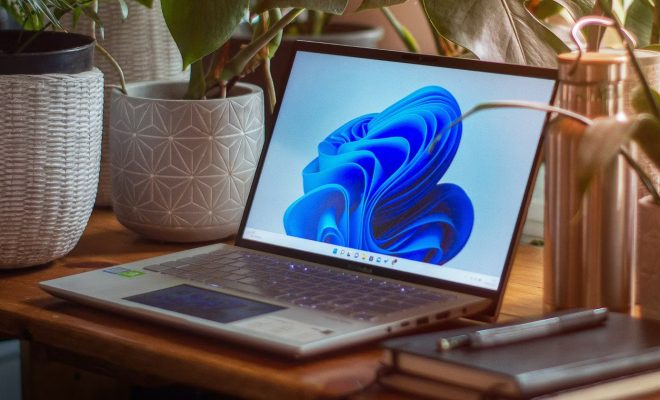
If you’re using Windows 10, you’ve probably seen the stunning images that appear on the lock screen when you start up or unlock your device. These images, called Windows Spotlight images, can range from landscape photographs to stunning digital art pieces. If you’ve ever wondered where these images come from or how to find them, here’s your guide.

What Are Windows Spotlight Images?

Windows Spotlight images are high-quality images that are curated by Microsoft and appear on the lock screen of your Windows 10 device. They are specifically chosen to bring a bit of beauty to your daily routine.

How to Find Windows Spotlight Images

1. The first way to find Windows Spotlight images is to check the lock screen of your Windows 10 device. If there is an image that catches your eye, click on the “Like what you see?” message on the bottom right corner of your screen. This will take you to the Microsoft Store, where you can download the image as a wallpaper.

2. If you want to find all the past Windows Spotlight images that have appeared on your device, go to the following folder in your file explorer: C:\Users\UserName\AppData\Local\Packages\Microsoft.Windows.ContentDeliveryManager_cw5n1h2txyewy\LocalState\Assets. Note that you will need to replace “UserName” with your actual username.

3. Once you have accessed this folder, you will see a list of files that have random names with no extensions. These files are actually image files, but they are not recognizable as such. To turn them into images, simply copy them to another folder and add “.jpg” at the end of each file name. You can then view them as image files.

4. If you don’t want to manually add “.jpg” to the end of every file name, you can use a third-party program to help you with the process. One such program is called SpotBright, which can be downloaded for free from the Microsoft Store.

Final Thoughts

Windows Spotlight images add a nice touch of beauty to our daily routines. Whether you want to use one as a wallpaper, or just appreciate digital art, there are many ways to access these images. The folder mentioned in this article is the best way to access these images, but if you’re not comfortable with that, use a third-party app


Previous Article

How to Use the Charms Bar in ...

Next Article

Best Free PDF Creators

Matthew Lynch

Related articles More from author

  • Assistive Technology

    How to Get Full-Screen Pictures for iPhone Calls

    June 6, 2023
    By Matthew Lynch
  • Assistive Technology

    What Is the Start Menu Critical Error and How Do You Fix It?

    June 6, 2023
    By Matthew Lynch
  • Assistive Technology

    How to Make Your Own Personal Movie Lists: The Best Sites

    June 12, 2023
    By Matthew Lynch
  • Assistive Technology

    How to Get a YouTube Premium Student Discount

    June 10, 2023
    By Matthew Lynch
  • Assistive Technology

    How to Fix Counter-Strike: Global Offensive Not Opening in Windows 11

    June 14, 2023
    By Matthew Lynch
  • Assistive Technology

    How to Delete a Reddit Account

    June 23, 2023
    By Matthew Lynch

Search

Login & Registration

  • Log in
  • Entries feed
  • Comments feed
  • WordPress.org

Newsletter

Signup for The Tech Edvocate Newsletter and have the latest in EdTech news and opinion delivered to your email address!

About Us

Since technology is not going anywhere and does more good than harm, adapting is the best course of action. That is where The Tech Edvocate comes in. We plan to cover the PreK-12 and Higher Education EdTech sectors and provide our readers with the latest news and opinion on the subject. From time to time, I will invite other voices to weigh in on important issues in EdTech. We hope to provide a well-rounded, multi-faceted look at the past, present, the future of EdTech in the US and internationally.

We started this journey back in June 2016, and we plan to continue it for many more years to come. I hope that you will join us in this discussion of the past, present and future of EdTech and lend your own insight to the issues that are discussed.

Newsletter

Signup for The Tech Edvocate Newsletter and have the latest in EdTech news and opinion delivered to your email address!

Contact Us

The Tech Edvocate
910 Goddin Street
Richmond, VA 23231
(601) 630-5238
[email protected]

Copyright © 2026 Matthew Lynch. All rights reserved.