The Tech Edvocate

Top Menu

  • Advertisement
  • Apps
  • Home Page
  • Home Page Five (No Sidebar)
  • Home Page Four
  • Home Page Three
  • Home Page Two
  • Home Tech2
  • Icons [No Sidebar]
  • Left Sidbear Page
  • Lynch Educational Consulting
  • My Account
  • My Speaking Page
  • Newsletter Sign Up Confirmation
  • Newsletter Unsubscription
  • Our Brands
  • Page Example
  • Privacy Policy
  • Protected Content
  • Register
  • Request a Product Review
  • Shop
  • Shortcodes Examples
  • Signup
  • Start Here
    • Governance
    • Careers
    • Contact Us
  • Terms and Conditions
  • The Edvocate
  • The Tech Edvocate Product Guide
  • Topics
  • Write For Us
  • Advertise

Main Menu

  • Start Here
    • Our Brands
    • Governance
      • Lynch Educational Consulting, LLC.
      • Dr. Lynch’s Personal Website
      • Careers
    • Write For Us
    • The Tech Edvocate Product Guide
    • Contact Us
    • Books
    • Edupedia
    • Post a Job
    • The Edvocate Podcast
    • Terms and Conditions
    • Privacy Policy
  • Topics
    • Assistive Technology
    • Child Development Tech
    • Early Childhood & K-12 EdTech
    • EdTech Futures
    • EdTech News
    • EdTech Policy & Reform
    • EdTech Startups & Businesses
    • Higher Education EdTech
    • Online Learning & eLearning
    • Parent & Family Tech
    • Personalized Learning
    • Product Reviews
  • Advertise
  • Tech Edvocate Awards
  • The Edvocate
  • Pedagogue
  • School Ratings

logo

The Tech Edvocate

  • Start Here
    • Our Brands
    • Governance
      • Lynch Educational Consulting, LLC.
      • Dr. Lynch’s Personal Website
        • My Speaking Page
      • Careers
    • Write For Us
    • The Tech Edvocate Product Guide
    • Contact Us
    • Books
    • Edupedia
    • Post a Job
    • The Edvocate Podcast
    • Terms and Conditions
    • Privacy Policy
  • Topics
    • Assistive Technology
    • Child Development Tech
    • Early Childhood & K-12 EdTech
    • EdTech Futures
    • EdTech News
    • EdTech Policy & Reform
    • EdTech Startups & Businesses
    • Higher Education EdTech
    • Online Learning & eLearning
    • Parent & Family Tech
    • Personalized Learning
    • Product Reviews
  • Advertise
  • Tech Edvocate Awards
  • The Edvocate
  • Pedagogue
  • School Ratings
  • 100 Best Apps for Data Backup

  • 100 Best Apps for Data Migration

  • 100 Best Apps for Data Transformation

  • 100 Best Apps for Data Cleaning

  • 100 Best Apps for Data Entry

  • 100 Best Apps for Business Process Automation

  • 100 Best Apps for Operational Efficiency

  • 100 Best Apps for Improving Processes

  • 100 Best Apps for Scaling Operations

  • 100 Best Apps for Community-Led Growth

Digital & Mobile Technology
Home›Digital & Mobile Technology›How to Connect a Honeywell Thermostat to Wi-Fi

How to Connect a Honeywell Thermostat to Wi-Fi
By Matthew Lynch
June 1, 2023
0
Spread the love

Honeywell is a popular and trusted brand when it comes to thermostats. One of the latest innovations in their product line is the ability to connect your thermostat to Wi-Fi. This allows you to remotely control the temperature of your home or schedule adjustments, which can save you money in the long run. Here’s how to connect your Honeywell thermostat to Wi-Fi.

1. Verify compatibility: The first and most important step is to ensure that your Honeywell thermostat is compatible with Wi-Fi connectivity. Check the model number and its documentation. If it is compatible, you will have to install a specific app (e.g. Honeywell Home) on your phone to connect your thermostat with your Wi-Fi network.

2. Power on the thermostat: Make sure your thermostat is powered on and connected to your HVAC system. If it is not connected to the system, contact a qualified HVAC technician to make the necessary installation.

3. Turn off the Wi-Fi radio’s airplane mode: Many Wi-Fi thermostats have a mode where the radio is off to conserve battery power. Make sure to turn off airplane mode.

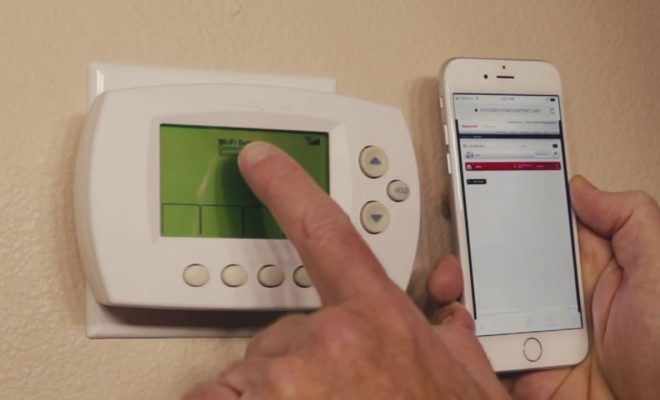
4. Connect to Wi-Fi network: Access the app on your phone and follow the on-screen instructions to connect your thermostat to your Wi-Fi network. This process may require you to enter a password, so make sure you have it handy.

5. Create or log in to an account: Using an exclusive account, you can log in and access your thermostat remotely. You can create one right inside the phone app, or use your existing account if you already have one.

6. Test the connection: Once you’ve successfully connected your thermostat to Wi-Fi, test the connection. Adjust the temperature, set schedules, or do any other actions available from the phone app.

7. Set up devices: You may have other smart home devices like Google Home or Amazon Alexa that also permit you to access your connected thermostat. Check out the Honeywell documentation for directions on connecting to these devices.

Connecting your Honeywell thermostat to Wi-Fi is an easy and cost-effective way to manage your home heating and cooling system remotely. It’s always best to consult the user manual before taking any steps if you’re uncertain about compatibility or the installation process. Using this step-by-step guide, you can get started with your Honeywell thermostat and make efficient use of energy in your home. With Wi-Fi technology supporting your thermostat, maintaining a comfortable home temperature is just a click away.


Previous Article

How to Retrieve a Deleted Voicemail on ...

Next Article

Ways to Fix It When Android Auto ...

Matthew Lynch

Related articles More from author

  • Digital & Mobile Technology

    The Layers of the OSI Model Illustrated

    June 23, 2023
    By Matthew Lynch
  • Digital & Mobile Technology

    How to Play Minecraft in VR

    June 23, 2023
    By Matthew Lynch
  • Digital & Mobile Technology

    Best Party-planning Apps For

    March 19, 2023
    By Matthew Lynch
  • Digital & Mobile Technology

    DSLR Camera Maintenance Tips

    June 15, 2023
    By Matthew Lynch
  • Digital & Mobile Technology

    What Is A Processor Core?

    June 23, 2023
    By Matthew Lynch
  • Digital & Mobile Technology

    Why Twitter’s Third-Party App Ban Is Terrible for Users

    June 3, 2023
    By Matthew Lynch

Search

Login & Registration

  • Log in
  • Entries feed
  • Comments feed
  • WordPress.org

Newsletter

Signup for The Tech Edvocate Newsletter and have the latest in EdTech news and opinion delivered to your email address!

About Us

Since technology is not going anywhere and does more good than harm, adapting is the best course of action. That is where The Tech Edvocate comes in. We plan to cover the PreK-12 and Higher Education EdTech sectors and provide our readers with the latest news and opinion on the subject. From time to time, I will invite other voices to weigh in on important issues in EdTech. We hope to provide a well-rounded, multi-faceted look at the past, present, the future of EdTech in the US and internationally.

We started this journey back in June 2016, and we plan to continue it for many more years to come. I hope that you will join us in this discussion of the past, present and future of EdTech and lend your own insight to the issues that are discussed.

Newsletter

Signup for The Tech Edvocate Newsletter and have the latest in EdTech news and opinion delivered to your email address!

Contact Us

The Tech Edvocate
910 Goddin Street
Richmond, VA 23231
(601) 630-5238
[email protected]

Copyright © 2026 Matthew Lynch. All rights reserved.