The Tech Edvocate

Top Menu

  • Advertisement
  • Apps
  • Home Page
  • Home Page Five (No Sidebar)
  • Home Page Four
  • Home Page Three
  • Home Page Two
  • Home Tech2
  • Icons [No Sidebar]
  • Left Sidbear Page
  • Lynch Educational Consulting
  • My Account
  • My Speaking Page
  • Newsletter Sign Up Confirmation
  • Newsletter Unsubscription
  • Our Brands
  • Page Example
  • Privacy Policy
  • Protected Content
  • Register
  • Request a Product Review
  • Shop
  • Shortcodes Examples
  • Signup
  • Start Here
    • Governance
    • Careers
    • Contact Us
  • Terms and Conditions
  • The Edvocate
  • The Tech Edvocate Product Guide
  • Topics
  • Write For Us
  • Advertise

Main Menu

  • Start Here
    • Our Brands
    • Governance
      • Lynch Educational Consulting, LLC.
      • Dr. Lynch’s Personal Website
      • Careers
    • Write For Us
    • The Tech Edvocate Product Guide
    • Contact Us
    • Books
    • Edupedia
    • Post a Job
    • The Edvocate Podcast
    • Terms and Conditions
    • Privacy Policy
  • Topics
    • Assistive Technology
    • Child Development Tech
    • Early Childhood & K-12 EdTech
    • EdTech Futures
    • EdTech News
    • EdTech Policy & Reform
    • EdTech Startups & Businesses
    • Higher Education EdTech
    • Online Learning & eLearning
    • Parent & Family Tech
    • Personalized Learning
    • Product Reviews
  • Advertise
  • Tech Edvocate Awards
  • The Edvocate
  • Pedagogue
  • School Ratings

logo

The Tech Edvocate

  • Start Here
    • Our Brands
    • Governance
      • Lynch Educational Consulting, LLC.
      • Dr. Lynch’s Personal Website
        • My Speaking Page
      • Careers
    • Write For Us
    • The Tech Edvocate Product Guide
    • Contact Us
    • Books
    • Edupedia
    • Post a Job
    • The Edvocate Podcast
    • Terms and Conditions
    • Privacy Policy
  • Topics
    • Assistive Technology
    • Child Development Tech
    • Early Childhood & K-12 EdTech
    • EdTech Futures
    • EdTech News
    • EdTech Policy & Reform
    • EdTech Startups & Businesses
    • Higher Education EdTech
    • Online Learning & eLearning
    • Parent & Family Tech
    • Personalized Learning
    • Product Reviews
  • Advertise
  • Tech Edvocate Awards
  • The Edvocate
  • Pedagogue
  • School Ratings
  • A Visitors Guide to Santa Maria, Brazil

  • Uncovering the Truth: This Salmonella Outbreak Sprouts Warning You Can’t Ignore

  • This One Flaw Just Melted an RTX 5090 — What Happens Next?

  • This Startup Just Raised $40 Million to Revolutionize Women’s Health

  • This AI Coding Startup Just Tripled Its Value to $5 Billion Overnight

  • The Blood Of Dawnwalker: 10 Burning Questions After Its Console Demo Scandal

  • Gamers vs. Critics: Why Wolverine Game Reviews Are Sparking a Culture War

  • AI-Generated Content Is Flooding Social Media, Research Shows

  • Florida’s Latest Education Scandal: The Climate Change Curriculum You Won’t Believe

  • Millions Face a Brutal Student Loan Payment Hike — What You MUST Do Now

Digital & Mobile Technology
Home›Digital & Mobile Technology›How to Install Android Studio and SDK Tools in Windows

How to Install Android Studio and SDK Tools in Windows

By Matthew Lynch
April 27, 2023
0
Spread the love

Android Studio is a powerful Integrated Development Environment (IDE) used for developing Android applications. The software comes with various tools that allow developers to build, test, and debug their applications effectively. If you are new to Android development, this article will guide you on how to install Android Studio and SDK Tools in Windows.

Step 1: Download and Install Java Development Kit

Before installing Android Studio, you need to download and install the Java Development Kit (JDK). The JDK is necessary for running the Android Studio and it’s also required to compile and run the Java code. Follow the steps below to download and install JDK on your Windows PC:

1. Go to the Oracle JDK download page (https://www.oracle.com/java/technologies/javase-downloads.html) and select the appropriate version of JDK for your Windows operating system.

2. Accept the license agreement and click on the download button.

3. Once the download is complete, double-click the downloaded executable file and follow the on-screen instructions to install JDK on your system.

Step 2: Download and Install Android Studio

After installing JDK, the next step is to download and install Android Studio. To install Android Studio, follow the steps below:

1. Go to the Android Studio download page (https://developer.android.com/studio) and click on the download button.

2. Once the download is complete, double-click on the downloaded executable file to start the installation process.

3. Follow the on-screen instructions to complete the installation process. You can customize the installation process based on your preferences.

Step 3: Install Android SDK Tools

After installing Android Studio, you need to install the Android SDK Tools. The SDK Tools contains various tools and resources that are required for developing Android applications. Follow the steps below to install the Android SDK Tools:

1. Open Android Studio and click on the “Configure” button in the welcome screen.

2. Select “SDK Manager” from the drop-down menu.

3. In the SDK Manager window, select the “SDK Platforms” tab and select the Android versions you want to develop for.

4. Next, select the “SDK Tools” tab and select the various tools and resources you need. You can install all the tools and resources or select the ones you need.

5. Click on the “Apply” button to start the installation process.

6. Once the installation is complete, click on the “Finish” button to exit the SDK Manager.

Conclusion

In conclusion, Android Studio is a powerful IDE used for developing Android applications. The software comes with various tools and resources that make Android development easy and efficient. Follow the steps outlined in this article to install Android Studio and SDK Tools in Windows. With Android Studio, you can develop high-quality Android applications that meet the needs of your users.


Previous Article

How to Install and Use wget on ...

Next Article

How to Install APKs on Wear OS ...

Matthew Lynch

Related articles More from author

  • Digital & Mobile Technology

    How to Add Numbers in Excel Using a Formula

    June 9, 2023
    By Matthew Lynch
  • Digital & Mobile Technology

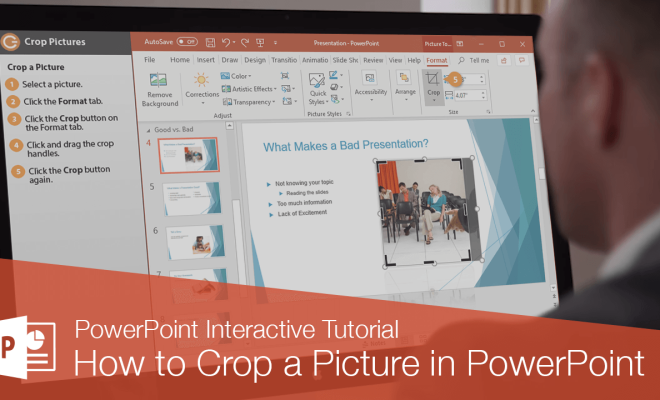
    How to Crop a Picture in PowerPoint

    June 9, 2023
    By Matthew Lynch
  • Digital & Mobile Technology

    Should You Partition Your Hard Drive? The Pros and Cons

    August 3, 2023
    By Matthew Lynch
  • Digital & Mobile Technology

    Spotify vs. Apple Music: Which Is the Best Music Streaming Service?

    April 10, 2023
    By Matthew Lynch
  • Digital & Mobile Technology

    How to Use Siri on iPhone 11

    June 9, 2023
    By Matthew Lynch
  • Digital & Mobile Technology

    5 Best Ways to Find Lost Windows Passwords

    July 25, 2023
    By Matthew Lynch

Search

Login & Registration

  • Log in
  • Entries feed
  • Comments feed
  • WordPress.org

Newsletter

Signup for The Tech Edvocate Newsletter and have the latest in EdTech news and opinion delivered to your email address!

About Us

Since technology is not going anywhere and does more good than harm, adapting is the best course of action. That is where The Tech Edvocate comes in. We plan to cover the PreK-12 and Higher Education EdTech sectors and provide our readers with the latest news and opinion on the subject. From time to time, I will invite other voices to weigh in on important issues in EdTech. We hope to provide a well-rounded, multi-faceted look at the past, present, the future of EdTech in the US and internationally.

We started this journey back in June 2016, and we plan to continue it for many more years to come. I hope that you will join us in this discussion of the past, present and future of EdTech and lend your own insight to the issues that are discussed.

Newsletter

Signup for The Tech Edvocate Newsletter and have the latest in EdTech news and opinion delivered to your email address!

Contact Us

The Tech Edvocate
910 Goddin Street
Richmond, VA 23231
(601) 630-5238
[email protected]

Copyright © 2026 Matthew Lynch. All rights reserved.