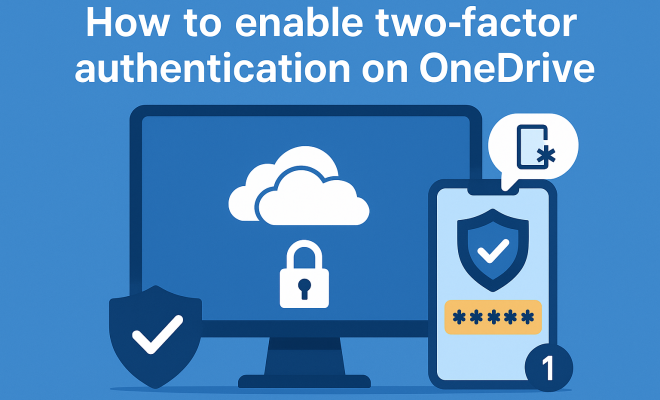
How to enable two-factor authentication on OneDrive
“`html
In an age where data breaches and cyber threats loom large, securing your personal and professional information has never been more critical. OneDrive, Microsoft’s cloud storage solution, is an excellent platform for storing files, but to keep your data safe, it’s essential to enable two-factor authentication (2FA). In this article, we’ll take you through the comprehensive steps and insights needed to enable two-factor authentication on OneDrive, ensuring your files are well-protected.
1. Understanding Two-Factor Authentication
Two-factor authentication serves as an extra layer of security, requiring not only a password and username but also something that only the user has on hand. This could be a physical device like a smartphone or a hardware token. The goal? To make it significantly harder for unauthorized users to gain access to your account, even if they have your password.
By enabling two-factor authentication, you significantly reduce the risk of identity theft and unauthorized access. According to a report by Microsoft, accounts that use 2FA are 99.9% less likely to be compromised. This statistic alone highlights how vital 2FA is for anyone using cloud services like OneDrive.
2. Why Enable Two-Factor Authentication on OneDrive?
There are myriad reasons to enable two-factor authentication on OneDrive. For starters, the service is used for both personal and business purposes, often storing sensitive documents and private files. The potential consequences of a security breach can be severe, ranging from identity theft to data loss.
Moreover, Microsoft has been actively encouraging users to adopt stronger authentication methods, integrating 2FA not just across OneDrive, but throughout its ecosystem, including Outlook, Office 365, and more. This initiative reflects a broader industry trend towards enhancing security measures for cloud services.
3. Prerequisites for Enabling Two-Factor Authentication
Before you dive into the steps to enable two-factor authentication on OneDrive, there are a few prerequisites to keep in mind:
- Microsoft Account: Ensure you have a valid Microsoft account. If you don’t have one, you can easily create it.
- Mobile Device: You’ll need access to a mobile device to receive authentication codes. This could be through SMS or an authenticator app.
- Internet Connection: A stable internet connection will be necessary to facilitate the setup process.
Once you have these prerequisites in place, you’re ready to proceed.
4. Step-by-Step Guide to Enable Two-Factor Authentication on OneDrive
Now that you’re equipped with the essentials, let’s go through the process to enable two-factor authentication on OneDrive:
- Log into Your Microsoft Account: Start by logging into your Microsoft account through the OneDrive website or app.
- Access Security Settings: Navigate to the “Security” section, which is usually found in the account settings.
- Start the Setup: Look for the option labeled “Two-step verification” or “Two-factor authentication”. Click to begin the setup process.
- Choose Your Verification Method: Depending on your preference, select SMS, email, or an authenticator app for receiving your verification codes.
- Verify Your Identity: Follow the prompts to verify your identity using your chosen method. This may involve entering a code sent to your phone or email.
- Backup Codes: After successful verification, you will be given backup codes. Store these in a safe place, as they can be used to access your account if you lose access to your primary verification method.
- Enable the Setting: Confirm your choice to enable two-factor authentication. You should receive a confirmation message notifying you that 2FA is now active.
- Test the Setup: Log out of your account and attempt to log back in. You should be prompted for your password, followed by a request for your second factor.
- Keep Your Information Updated: Make sure to update your security information as needed, especially if you change your phone number or the device you use for authentication.
This straightforward guide will empower you to secure your OneDrive account effectively.
5. Choosing the Right Verification Method
As you enable two-factor authentication on OneDrive, one of the most crucial decisions you’ll make is selecting your verification method. Microsoft offers a couple of options: SMS messages, email, and authenticator apps like Microsoft Authenticator or Google Authenticator.
Authenticator apps are often the preferred choice for many users due to their enhanced security. Unlike SMS, which can be intercepted, authenticator apps generate codes that are unique and time-sensitive. If you’re looking for an extra layer of security, this method is highly recommended.
However, if you prefer the simplicity of receiving a text message, that’s also a perfectly valid choice. Just be aware of the potential vulnerabilities related to SMS messaging. Whichever method you choose, ensure that it aligns with your lifestyle and security needs. (See: importance of data security measures.)
6. What to Do If You Lose Access to Your Verification Method
Life happens, and sometimes you may lose access to your verification method, whether it’s your phone or email. So what do you do if you find yourself locked out of your OneDrive account? Fortunately, Microsoft has established protocols to help you regain access.
First, the backup codes you generated during the setup process come into play. These codes were designed precisely for situations like this. If you saved them securely, you can use any of these codes to log in. Related reading: resolving OneDrive errors.
If you’ve lost access to both your verification method and backup codes, you will have to follow Microsoft’s account recovery steps. This might involve answering security questions or providing additional information to verify your identity. While it can be a hassle, it’s crucial to ensure your account remains secure.
7. Managing Your Two-Factor Authentication Settings
Once you’ve successfully enabled two-factor authentication on OneDrive, the work doesn’t stop there. Regularly managing your settings is key to maintaining your account’s security. You should periodically review and update your connected verification methods and backup codes.
Microsoft allows you to modify your security settings at any time from the security section of your account. Here, you can remove old devices, switch your verification method, or disable two-factor authentication if needed. However, be cautious about disabling 2FA, as it significantly lowers your account’s security.
Always stay informed about new security features that Microsoft rolls out, as they can offer new ways to keep your data safe.
8. Common Issues and Troubleshooting Tips
While enabling two-factor authentication on OneDrive is generally smooth, you may encounter some common issues. Let’s look at a few troubleshooting tips to help you address them:
- Not Receiving Codes: Double-check that your phone number or email address is entered correctly. Also, ensure your device is connected to the Internet and not on airplane mode.
- Backup Codes Not Working: If your backup codes are not functioning, ensure you’re using the correct code for the right situation, as they are case-sensitive and time-limited.
- Locked Out of Account: If you find yourself locked out, follow the recovery steps mentioned earlier or contact Microsoft Support for additional assistance.
By being proactive and knowing how to troubleshoot common problems, you can swiftly regain access to your OneDrive account.
9. The Future of Account Security and Two-Factor Authentication
As we move deeper into a digital-first world, the need for robust security measures is only going to grow. Two-factor authentication is likely to become a standard practice across all online platforms, including cloud services like OneDrive.
Moreover, technology is evolving. We might soon see more advanced forms of authentication, such as biometrics, which use fingerprint or facial recognition in addition to traditional methods. These innovations aim to increase user security while also enhancing the overall user experience.
For now, enabling two-factor authentication on OneDrive is one of the most straightforward and effective ways to safeguard your data. Embracing 2FA today means you’re taking a proactive step toward a more secure digital future.
10. Statistics on Cybersecurity and Two-Factor Authentication
Understanding the broader context of cybersecurity can help emphasize the importance of enabling two-factor authentication on OneDrive. According to a report from Cybersecurity Ventures, the global cost of cybercrime is projected to reach $10.5 trillion annually by 2025. This staggering figure represents a massive increase from $3 trillion in 2015, illustrating the growing threat posed by cybercriminals.
Additionally, the 2021 Verizon Data Breach Investigations Report highlighted that 61% of all breaches involved credentials, underscoring the vulnerability of traditional password-only systems. This is where 2FA can make a significant impact by adding that crucial additional layer of security. (See: NIST Cybersecurity Framework.) (fixing the tag present issue)
11. Real-World Examples of Cyber Attacks
To further illustrate the importance of two-factor authentication, let’s look at some real-world examples of cyber attacks that could have been mitigated by its use:
- Twitter Hack (2020): In July 2020, several high-profile Twitter accounts were compromised, including those of Elon Musk and Barack Obama. The attackers used social engineering to gain access to Twitter’s internal systems but could have faced greater difficulty if 2FA were mandatory across all accounts.
- Uber Data Breach (2016): An attacker gained access to the personal data of 57 million Uber users and drivers. The breach was traced back to a compromised account which, if protected by 2FA, might not have been exploited.
- Yahoo Data Breach (2013-2014): This infamous breach involved over 3 billion accounts being hacked. The lack of two-factor authentication during that period allowed attackers to exploit credentials freely.
These incidents highlight the necessity of using two-factor authentication to help safeguard personal and organizational data against unauthorized access.
12. Expert Perspectives on Two-Factor Authentication
Experts in the field of cybersecurity largely agree on the importance of two-factor authentication. According to Troy Hunt, a well-known cybersecurity expert and the creator of the Have I Been Pwned service, “Two-factor authentication is one of the most effective ways to improve the security of your online accounts. It’s not a silver bullet, but it’s certainly a strong deterrent against many types of attacks.”
Another valuable perspective comes from Bruce Schneier, a renowned security technologist, who emphasizes that while two-factor authentication is beneficial, it’s vital to remain aware of its limitations: “2FA is a great tool, but it’s not foolproof. You have to use it in conjunction with other security practices.”
These insights reinforce the idea that while 2FA significantly enhances security, it should be part of a broader strategy for protecting your online identity.
13. FAQs about Two-Factor Authentication on OneDrive
What is two-factor authentication (2FA)?
Two-factor authentication is a security process that requires two forms of identification before granting access to an account. Typically, this includes something you know (like a password) and something you have (like a phone for a verification code).
How does enabling 2FA protect my OneDrive account?
Enabling 2FA adds an extra layer of security, making it much harder for unauthorized users to access your account, even if they have your password. This helps protect sensitive information stored in OneDrive from being compromised.
Can I use 2FA on mobile devices for OneDrive?
Yes, you can enable two-factor authentication on mobile devices. You can receive verification codes via SMS or through an authenticator app, both of which can be used to access your OneDrive account securely.
What if I change my phone number?
If you change your phone number, you should update your security settings in your Microsoft account to ensure that your 2FA method continues to work. It’s crucial to keep your verification methods up to date.
Are there any downsides to enabling 2FA?
While two-factor authentication significantly enhances security, some users find it slightly inconvenient due to the extra steps involved during login. However, the benefits far outweigh the inconvenience, especially concerning data protection.
What should I do if I can’t access my 2FA method?
If you cannot access your verification method, use your backup codes if you saved them. If not, follow Microsoft’s account recovery process to regain access.
Is two-factor authentication free to use?
Yes, enabling two-factor authentication on OneDrive is free. Microsoft provides this feature at no additional cost to enhance the security of its users’ accounts.
14. Advanced Security Features in OneDrive
In addition to two-factor authentication, OneDrive offers several advanced security features that enhance data protection. These include:
- File Encryption: OneDrive encrypts files both in transit and at rest, meaning your files are protected whether they are being uploaded, downloaded, or stored on Microsoft’s servers.
- Ransomware Detection: OneDrive has built-in capabilities to detect ransomware attacks. If it identifies suspicious activity, it can automatically pause syncing to protect your files.
- Version History: You can access the version history of files stored in OneDrive, allowing you to restore previous versions in case of accidental deletion or unwanted changes.
- Personal Vault: This feature allows you to store sensitive files in a highly secure area within OneDrive. It requires additional identity verification to access.
Using these features alongside two-factor authentication creates a robust security framework for your OneDrive account.
15. How Businesses Can Benefit from Two-Factor Authentication on OneDrive
Businesses using OneDrive for storing and sharing sensitive information can particularly benefit from enabling two-factor authentication. Here’s how:
- Enhanced Data Protection: With employees often accessing corporate data remotely, 2FA helps to mitigate risks associated with weak passwords, making it harder for cybercriminals to gain unauthorized access.
- Compliance Requirements: Many industries are subject to compliance regulations that require organizations to implement strong security measures. Adopting 2FA can help meet these regulations, providing an additional layer of defense for sensitive business information.
- Employee Training: Encouraging employees to use 2FA can lead to better security practices overall. Providing training sessions on how to enable and manage 2FA creates a culture of security awareness within the organization.
Overall, integrating two-factor authentication into your business’s OneDrive usage can significantly reduce the likelihood of data breaches and strengthen your organization’s overall security posture.
16. Conclusion: The Imperative of Two-Factor Authentication
In today’s digital age, where cyber threats are constantly evolving, enabling two-factor authentication on OneDrive isn’t just an option; it’s a necessity. With simple steps, you can substantially enhance your account’s security, making it far more challenging for unauthorized users to access your sensitive data. As we’ve covered, the protective measures provided by 2FA, coupled with OneDrive’s additional security features, create a formidable line of defense against cyber threats.
As you navigate through your online activities, remember that security is an ongoing process. By regularly reviewing your security settings, updating your verification methods, and staying informed about new developments in cybersecurity, you can ensure that your digital life remains protected.
With the digital landscape continuously evolving, taking proactive steps to secure your data is paramount. Enabling two-factor authentication on OneDrive is one of the simplest and most effective methods to protect your information from unauthorized access. Whether you’re using OneDrive for personal, educational, or business purposes, adopting 2FA will significantly enhance your security posture.
“`
Trending Now
Frequently Asked Questions
What is two-factor authentication on OneDrive?
Two-factor authentication (2FA) on OneDrive adds an extra layer of security by requiring not only your password but also a second form of verification, such as a code sent to your smartphone. This helps protect your account from unauthorized access, significantly reducing the risk of identity theft.
Why should I enable two-factor authentication for OneDrive?
Enabling two-factor authentication for OneDrive is crucial because it protects sensitive personal and business data from unauthorized access. With 2FA, your account is 99.9% less likely to be compromised, making it a vital security measure in today's digital landscape.
How do I enable two-factor authentication on OneDrive?
To enable two-factor authentication on OneDrive, go to your Microsoft account security settings. Look for the 'Two-step verification' option and follow the prompts to set it up. You’ll need to provide a secondary verification method, such as a phone number or authentication app.
What are the benefits of using two-factor authentication?
The benefits of using two-factor authentication include enhanced security for your accounts, reduced risk of unauthorized access, and increased protection against identity theft. It provides peace of mind knowing that even if your password is compromised, your account remains secure.
Can I use my smartphone for two-factor authentication on OneDrive?
Yes, you can use your smartphone for two-factor authentication on OneDrive. During the setup process, you can choose to receive verification codes via SMS or use an authentication app, adding an extra layer of security to your account.
Have you experienced this yourself? We'd love to hear your story in the comments.