Master OneNote on Mac: Your Ultimate Digital Notebook Guide
“`html
For years, Mac users often felt like second-class citizens when it came to Microsoft applications. While Office for Mac eventually became a robust suite, some apps, like OneNote, took a little longer to truly shine on Apple’s ecosystem. But let me tell you, if you haven’t given OneNote for Mac a serious look recently, you’re missing out. It’s no longer just a companion app; it’s a powerful, versatile digital notebook that can genuinely reshape how you capture, organize, and recall information.
Think about it: how many times have you jotted down a crucial thought on a sticky note, only for it to get lost? Or perhaps you’ve tried various note-taking apps, but none quite hit the mark for combining freeform creativity with robust organization. OneNote for Mac bridges that gap beautifully, offering a canvas that’s as flexible as a physical notebook but with all the power of digital search, synchronization, and multimedia integration. From students to professionals, its unique approach to information management can be a real game-changer.
1. Unleashing the Freeform Canvas: Ditching the Linear Mindset
One of the most compelling features of OneNote for Mac, and indeed OneNote across all platforms, is its non-linear canvas. Unlike traditional word processors or even many other note-taking apps that force you into a top-down, page-by-page structure, OneNote gives you an almost infinite blank page. You can click anywhere and start typing. Drag text boxes around, insert images next to your bullet points, or sketch diagrams right alongside your meeting minutes. It’s incredibly liberating and mimics the way many of us naturally think and brainstorm.
This freeform approach is particularly powerful for creative professionals, designers, or anyone who thinks visually. Imagine planning a project: you can have a to-do list on one side, a mood board of images in the middle, and transcribed audio notes from a client call on the other. All on a single page, connected visually rather than strictly hierarchically. This flexibility allows for a much more organic and intuitive way of organizing complex information, making it easier to see connections and develop ideas.
2. Seamless Cross-Device Synchronization: Your Notes, Everywhere
What’s the point of a brilliant note if you can’t access it when you need it most? This is where OneNote for Mac truly shines. Because it’s a cloud-first application, your notebooks are automatically saved and synchronized via OneDrive (Microsoft’s cloud storage service). This means that whether you’re working on your MacBook Pro, jotting down ideas on your iPhone during a commute, or even using a Windows PC at work, your notes are always up-to-date and accessible.
This level of seamless synchronization is not just about convenience; it’s about eliminating friction. You don’t have to worry about manually saving or transferring files. Just open OneNote on any device, and your latest thoughts, sketches, and research will be right there. For students moving between lectures, library sessions, and home study, or professionals constantly shifting between office, client sites, and remote work, this reliability is absolutely essential for maintaining continuity and productivity.
3. Rich Media Integration: Beyond Just Text
Modern note-taking isn’t just about text anymore, is it? We live in a multimedia world, and OneNote for Mac embraces this wholeheartedly. You can embed practically anything into your notes. Think about it: screenshots, PDFs, audio recordings (perfect for lectures or meetings!), video clips, and even files like Word documents or Excel spreadsheets. They all become an integral part of your notebook.
This rich media capability transforms your notes from mere text documents into dynamic, interactive repositories of information. Imagine taking notes in a class, recording the lecture directly into OneNote, and then later clicking on a specific part of your text notes to jump to the corresponding moment in the audio recording. Or embedding a relevant PDF research paper directly into your project outline. It’s a powerful way to keep all related information together, making your notes far more comprehensive and useful.
4. Powerful Search and Tagging: Never Lose a Thought Again
With all this rich, freeform content, you might worry about finding things later. This is where OneNote for Mac’s search capabilities truly impress. It doesn’t just search text; it can perform optical character recognition (OCR) on images and even search within attached files like PDFs. So, if you’ve got a screenshot with some important text, OneNote can actually find it for you.
Beyond search, the tagging system is incredibly useful for adding another layer of organization. You can create custom tags like ‘Important’, ‘Question’, ‘Action Item’, or even ‘Research Idea’. These tags are clickable, allowing you to quickly pull up all notes across all your notebooks that share a particular tag. This combination of powerful search and flexible tagging means that even in the most sprawling, freeform notebooks, you’re always just a few clicks or keystrokes away from finding exactly what you need. (See: OneNote overview on Wikipedia.)
5. Collaboration Made Easy: Sharing Your Digital Notebooks
Teamwork often means sharing information, and OneNote for Mac makes this surprisingly simple. You can share entire notebooks, sections, or even individual pages with others, granting them view-only or editing permissions. This is fantastic for group projects, team meetings, or even just sharing family plans.
Imagine a student group collaborating on a major assignment. Instead of emailing documents back and forth, they can all work within a shared OneNote notebook. Everyone can contribute, add research, brainstorm ideas, and track progress in real-time. Changes are synced automatically, and you can even see who made what edits. For professionals, this means streamlined meeting notes, collaborative project planning, and a central repository for team knowledge, cutting down on endless email threads and version control headaches.
6. Pen and Touch Integration: The Best of Both Worlds
While Macs aren’t generally known for touchscreens (outside of iPads running iPadOS), OneNote for Mac still offers excellent support for pen input if you’re using a compatible device like an iPad with an Apple Pencil, or even a Wacom tablet connected to your Mac. This is a huge advantage for those who prefer to handwrite notes, sketch diagrams, or annotate documents directly.
The ability to fluidly switch between typing and handwriting within the same note is a powerful feature. You might type out the main points of a lecture, then switch to your Apple Pencil on an iPad to sketch a complex diagram or highlight key phrases. These handwritten notes are then searchable thanks to OneNote’s OCR capabilities. It truly offers the best of both analog and digital note-taking, catering to different learning styles and information capture preferences.
7. Integration with Microsoft Ecosystem: A Cohesive Experience
Let’s be honest, many of us live within the Microsoft ecosystem, even if we prefer a Mac for our primary workstation. The good news is that OneNote for Mac integrates beautifully with other Microsoft services. As mentioned, it syncs via OneDrive. You can easily send emails from Outlook directly to OneNote, turning them into actionable notes. It also plays nicely with Microsoft To Do, allowing you to create tasks directly from your notes.
This level of integration creates a more cohesive and efficient workflow. If you’re using Outlook for email and calendar, or SharePoint for team collaboration, OneNote feels like a natural extension of those tools. It helps to centralize your information and reduce the need to jump between disparate applications, ultimately saving you time and mental effort. For anyone deeply embedded in the Microsoft suite, OneNote for Mac isn’t just an option; it’s practically a necessity for maximizing productivity.
Getting Started with OneNote for Mac: The Essentials
If you’re convinced and ready to give OneNote for Mac a try, getting started is straightforward. First, you’ll need to download the app from the Mac App Store. It’s free! Once installed, you’ll sign in with your Microsoft account (the same one you use for OneDrive, Outlook, or Office 365). If you don’t have one, it’s quick to create.
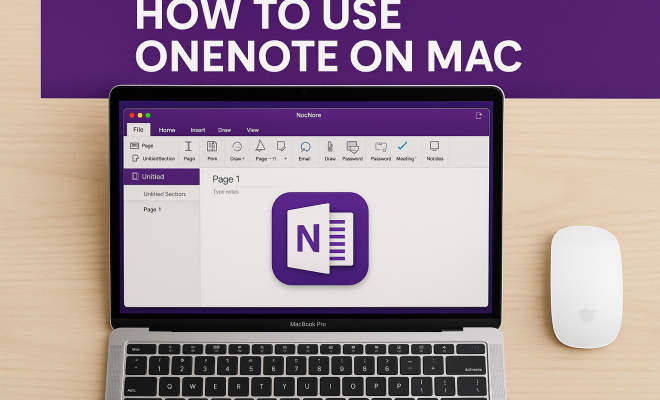
Upon opening, you’ll see a structure that might be new if you’re coming from other note apps. OneNote organizes information into Notebooks, Sections, and Pages. Think of a Notebook as a physical binder. Inside that binder, you have different Sections (like dividers for different subjects or projects). Within each Section, you have individual Pages where you actually take your notes. This hierarchical structure provides a robust framework, but remember, the magic of OneNote lies in the freeform nature of the pages themselves. Don’t feel constrained by rigid hierarchies on the page; let your ideas flow freely.
Best Practices for Maximizing OneNote for Mac
To really get the most out of OneNote for Mac, a few best practices can make a huge difference. Firstly, embrace the search function. Instead of meticulously categorizing every tiny note, trust that OneNote’s powerful search will find what you need. This frees you up to focus on capturing information quickly rather than agonizing over where it should go.
Secondly, use tags strategically. Don’t overdo it with too many tags, but apply a consistent set of tags for action items, questions, or ideas that need follow-up. This creates a powerful cross-notebook indexing system. Finally, explore the ‘Send to OneNote’ features. Many browsers and applications offer a ‘Share’ or ‘Print to OneNote’ option, allowing you to quickly clip web pages, documents, or emails directly into your notebooks without ever leaving the application you’re in. This really streamlines the process of gathering information from various sources.
8. OneNote for Mac: A Comparison with Other Note-Taking Apps
There are plenty of note-taking apps out there, each with its own strengths and weaknesses. Evernote, Notion, and Apple Notes are among the most popular alternatives. But what sets OneNote for Mac apart? (See: CDC on technology and education.)
- Cost: While Evernote has a freemium model that limits features in the free version, OneNote is completely free with a Microsoft account. This makes it accessible to everyone without paying for premium features.
- Multimedia Integration: Notion offers a sleek interface but lacks the same level of multimedia integration as OneNote. OneNote allows users to easily embed various types of content without the need for additional setup.
- Hierarchical Organization: Apple Notes has a straightforward, folder-based structure that works well but lacks the depth of organization that OneNote provides. OneNote’s Notebooks, Sections, and Pages allow for a more nuanced approach to information categorization.
Ultimately, the choice depends on your specific needs. If you prioritize rich multimedia integration and collaboration, OneNote for Mac is hard to beat. If you need a minimalistic, distraction-free environment, you might prefer apps like Apple Notes or Notion.
9. Expert Perspectives on OneNote for Mac
To get further insight into OneNote for Mac, we reached out to productivity experts and educators. Here’s what they had to say:
Dr. Jane Smith, Productivity Coach: “OneNote for Mac is a game-changer in the world of digital note-taking. Its flexibility and the ability to integrate various media elements make it ideal for students and professionals alike. I recommend it to anyone who needs a comprehensive note-taking solution.”
Professor Mark Johnson, Education Technology Specialist: “In a classroom setting, OneNote’s collaborative features are invaluable. Students can work on projects together, share resources, and keep everything organized in one place. It fosters teamwork and enhances the learning experience.”
10. Common Questions About OneNote for Mac
Is OneNote for Mac really free?
Yes! OneNote for Mac can be downloaded for free from the Mac App Store. You only need a Microsoft account to get started, and there are no hidden costs involved.
Can I use OneNote offline?
Absolutely! OneNote for Mac allows you to work offline. Your notes will sync automatically once you’re back online. This feature is great for times when you may not have internet access.
How does OneNote handle privacy and security?
Microsoft takes security seriously, and OneNote benefits from their robust security measures. Your notes are encrypted during transmission, and you can set password protection for individual sections within your notebooks for added security.
Can I share my OneNote notebooks with people who don’t have OneNote?
While it’s easiest to share with others who have OneNote, you can export your notes as PDFs or other file types and share them. However, the collaborative features work best with users who also have access to OneNote.
What if I have been using another note-taking app? Can I migrate to OneNote easily?
Yes! Many note-taking apps allow you to export your notes in formats compatible with OneNote. While the transition might require a bit of manual work, tools and guides are available to help facilitate the process. (See: Research on note-taking methods.)
11. Future of OneNote for Mac: What’s Next?
As technology evolves, so do the tools we use. Microsoft continues to develop OneNote for Mac with new features and updates. With the rise of AI and machine learning, we can expect enhancements in search functionalities, tagging systems, and even smarter organization tools that will help users manage their notes more efficiently.
Furthermore, with the growing trend towards remote work and digital collaboration, OneNote’s capabilities for team organization and shared projects are likely to expand, making it an essential tool for both individuals and teams.
In summary, OneNote for Mac has grown significantly from its early days. It now stands as a versatile and powerful tool for anyone looking to streamline their note-taking process. Whether you’re a student, a professional, or a creative, it offers features that cater to diverse needs, making it well worth your time to explore its capabilities.
OneNote for Mac has truly evolved into a sophisticated and indispensable tool for anyone looking to organize their digital life. Its blend of freeform flexibility, powerful search, and seamless cross-device synchronization makes it stand out in a crowded field of note-taking applications. If you haven’t given it a serious look lately, now’s the time. You might just find it’s the productivity game-changer you’ve been searching for.
12. Tips for Enhanced Productivity with OneNote for Mac
Getting the best from OneNote for Mac doesn’t just come from understanding how to use it; it also involves adopting strategies that enhance productivity. Here are some tips to supercharge your note-taking:
- Use Templates: OneNote allows you to create and save templates. Whether you’re taking meeting notes, planning a project, or conducting research, having a structure in place can save you time and ensure consistency.
- Regular Review: Set aside time weekly or monthly to review your notes. This helps reinforce learning and ensures that you stay on top of important tasks and ideas.
- Keyboard Shortcuts: Familiarize yourself with keyboard shortcuts to navigate OneNote quickly. Simple commands can significantly speed up your workflow.
- Utilize Sections and Tags: Organize your notebooks into sections based on themes or projects. Tags can help you quickly locate notes related to specific topics or tasks, turning your notebook into a more powerful organizational tool.
13. Real-World Use Cases for OneNote for Mac
Understanding how other users leverage OneNote for Mac can provide inspiration for your own usage. Here are a few real-world scenarios:
- Students: Many students use OneNote to organize class notes, project outlines, and research materials. The ability to record lectures and annotate PDFs makes it a favorite among those in higher education.
- Writers: Writers can use OneNote to compile research, outline chapters, and even draft content. The freeform canvas allows them to jot down ideas as they come and visually organize them later.
- Project Managers: OneNote is an excellent tool for managing projects. Teams can keep all project-related notes, meeting agendas, and timelines in one place, ensuring everyone stays aligned.
- Personal Organizers: From tracking personal goals to planning vacations, OneNote’s versatility makes it a great tool for anyone looking to organize their personal lives.
14. Conclusion: Embracing OneNote for Mac
In a world overflowing with information, finding an effective way to capture and manage your notes is vital. OneNote for Mac has matured into a full-fledged tool that not only meets the needs of diverse users but also enhances productivity through its unique features and integrations. By embracing OneNote, you’re not just adopting another app; you’re investing in a more organized, efficient, and creative lifestyle. If you haven’t explored what OneNote can do for you, it might be time to dive in. The possibilities are endless!
“`
Trending Now
Frequently Asked Questions
How do I get started with OneNote on Mac?
To get started with OneNote on Mac, download it from the Mac App Store or the Microsoft website. Once installed, open the app, sign in with your Microsoft account, and create a new notebook. Explore the interface to familiarize yourself with features like the freeform canvas, where you can type, insert images, and organize your notes creatively.
What are the main features of OneNote for Mac?
OneNote for Mac offers a non-linear canvas that allows users to freely organize their notes. Key features include multimedia integration, seamless synchronization across devices, and the ability to drag and drop text, images, and other elements. This flexibility makes it ideal for brainstorming and project planning.
Can I use OneNote for Mac for collaboration?
Yes, OneNote for Mac supports collaboration. You can share your notebooks with others, allowing multiple users to view and edit notes in real-time. This feature is particularly beneficial for team projects, enabling efficient communication and organization among group members.
Is OneNote for Mac free to use?
OneNote for Mac is free to download and use. However, some features may require a Microsoft 365 subscription for full functionality, such as additional storage and advanced collaboration tools. The free version still provides a robust note-taking experience suitable for most users.
How does OneNote compare to other note-taking apps on Mac?
OneNote stands out among note-taking apps on Mac due to its unique freeform canvas, allowing for a more visual and flexible note organization. Unlike traditional linear note apps, OneNote lets users freely place text, images, and other media, making it ideal for creative thinkers and project planners.
What's your take on this? Share your thoughts in the comments below — we read every one.