How to add notes in PowerPoint
“`html
Creating an effective PowerPoint presentation is an art that combines clarity, visual appeal, and a strong delivery. One often-overlooked feature that can significantly enhance your presentation skills is the ability to add notes in PowerPoint. These notes serve as your guide, helping you remember key points and maintain a smooth flow during your presentation. In this article, we’ll explore the importance of using notes, the various ways to add them, and tips for making the most out of this feature.
1. The Importance of Presentation Notes
Presentation notes are essential for anyone looking to deliver a successful speech or lecture. They serve multiple purposes, from keeping the presenter organized to providing valuable information to enhance audience engagement. When you add notes in PowerPoint, you’re not just jotting down reminders; you’re creating a personalized script that will help you stay on track.
Research indicates that presenters who utilize speaker notes tend to perform better than those who don’t. This is because notes help reduce anxiety, allowing you to focus on your delivery rather than trying to remember every detail. Moreover, having structured notes can lead to a more coherent and impactful presentation.
Using speaker notes can also help you better connect with your audience. When you have essential points and anecdotes at your fingertips, you’re more likely to engage in a natural dialogue rather than reading verbatim from your slides. This connection can make a significant difference in how your message is received.
2. Accessing the Notes Pane in PowerPoint
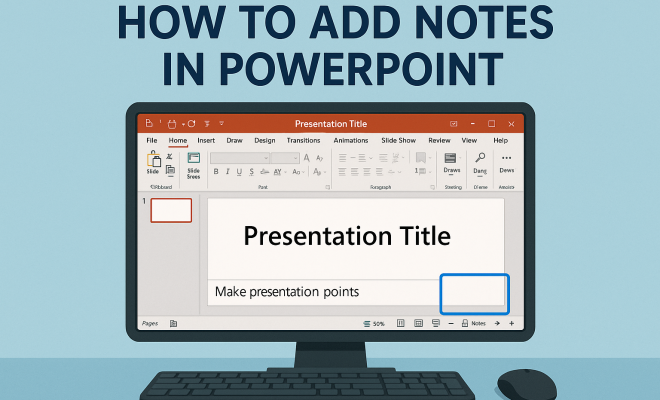
Adding notes in PowerPoint is relatively straightforward. To get started, you first need to access the notes pane. This can be done by opening your PowerPoint presentation and selecting the slide you wish to add notes to.
At the bottom of the PowerPoint window, you’ll notice a section labeled “Click to add notes.” If you don’t see the notes pane, go to the “View” tab in the ribbon and click on “Notes.” This will open up the pane, allowing you to type directly into it. Each slide can have its own set of notes, making it easier to customize your content for each part of your presentation. We covered top presentation examples in more detail.
It’s worth noting that the notes pane is not just for text. You can also insert hyperlinks, references, and even small images if needed. This flexibility allows you to create a more comprehensive and engaging set of notes tailored to your presentation style.
3. How to Add Notes in PowerPoint: Step-by-Step Guide
To effectively add notes in PowerPoint, follow these simple steps:
- Select Your Slide: Open the presentation and click on the specific slide where you want to add notes.
- Open the Notes Pane: If it’s not visible, click “View” in the ribbon and select “Notes.”
- Type Your Notes: Click in the notes pane and start typing. You can write down key points, statistics, anecdotes, or any other information you find relevant.
- Format Your Notes: Just like in Word, you can format your notes using the toolbar. Bold important terms, or create bullet points for clarity.
- Save Your Presentation: Don’t forget to save your work to ensure your notes are preserved.
This step-by-step guide offers a clear pathway to adding notes, ensuring you have everything you need at your fingertips during your presentation. microlearning with PowerPoint offers useful background here.
Consider also using color coding in your notes. For example, you could highlight key points in one color and supporting details in another. This visual differentiation can make it easier to quickly scan your notes during a presentation.
4. Tips for Effective Use of Notes
While adding notes is beneficial, how you use them is equally critical. Here are some tips to enhance your note-taking process: (See: effective presentation techniques.)
- Keep It Concise: Avoid lengthy paragraphs. Bullet points or short phrases work better, making it easier to glance at your notes without losing your train of thought.
- Use Keywords: Focus on keywords related to your content. This not only helps in quickly locating the information but also aids memory retention.
- Practice with Your Notes: Rehearsing your presentation using your notes allows you to become familiar with the content and boosts your confidence.
- Update as Needed: If something changes after your initial presentation preparation, be sure to update your notes accordingly.
- Use Visual Aids: Consider incorporating diagrams or charts in your notes that align with your slides. This can provide additional context and make it easier to explain complex topics.
These strategies will maximize the effectiveness of your notes, helping you deliver a more polished presentation.
5. Utilizing Speaker Notes for Online Presentations
In the age of remote work and virtual presentations, knowing how to add notes in PowerPoint also applies to online meetings. Many platforms like Zoom and Microsoft Teams allow you to share your screen while keeping your speaker notes hidden from the audience. This ensures you can use your notes without them being visible on the shared screen.
To achieve this, when you’re ready to present, select the “Presentation Mode” in PowerPoint. This will allow you to see your notes on one screen while the audience sees only the slides on another. It’s a neat trick that makes online presentations smoother and keeps you organized.
Additionally, consider the importance of your workspace setup. Ensure your viewing screen is positioned so that you can easily glance between your notes and your slides without straining or losing eye contact with your audience.
6. Printing Your Notes: A Helpful Strategy
Sometimes, having a physical copy of your notes can enhance your presentation experience. PowerPoint provides an option to print your notes alongside your slides. To do this, go to the “File” menu, select “Print,” and in the settings, choose “Notes Pages.” This will print each slide as well as its corresponding notes.
This tactic can be particularly useful in scenarios where you won’t have access to a projector or need to present in a setting where digital devices are impractical. Having hard copies ensures that you’re prepared, regardless of the circumstances.
When printing, you might also consider using a double-sided print option to save paper while ensuring that your notes and slides are easily accessible in hand. This way, you can flip through them just like a book.
7. Using Speaker Notes for Team Collaboration
If you’re working as part of a team, notes can serve as a collaborative tool. By adding notes in PowerPoint, you can share insights, updates, and reminders with your team members. This is especially useful in larger projects where multiple people contribute to the presentation.
Consider using the “Comments” feature in addition to your notes. This allows team members to leave feedback or suggestions right on the slide, making collaboration more dynamic. Combining speaker notes and comments ensures everyone is on the same page, leading to a more cohesive final product.
Furthermore, tools like OneDrive or SharePoint enable multiple users to access and edit the same presentation simultaneously. This fosters real-time collaboration, ensuring that all team members can contribute their expertise in creating effective notes. As changes are made, everyone can adapt their notes accordingly, keeping the project aligned.
8. Common Mistakes to Avoid
While adding notes can be incredibly useful, there are pitfalls to be aware of. Here are some common mistakes to avoid:
- Overloading Your Notes: Trying to write down everything can lead to cluttered notes that are hard to read. Stick to essential points.
- Neglecting to Review: Failing to review your notes before the presentation can lead to gaps in your delivery. Make it a habit to go over them multiple times.
- Ignoring Feedback: If you’re collaborating with others, disregarding their comments or suggestions can impact the quality of your presentation. Be open to constructive feedback.
- Using Too Much Jargon: If your audience is not familiar with specific terminologies, ensure your notes are comprehensible to them. Use plain language wherever possible.
Avoiding these mistakes ensures that your notes serve their intended purpose without complicating your preparation process. (See: how memory affects presentations.)
9. The Future of Presentation Notes
As technology evolves, so do the tools that support effective presentations. The future may see even more sophisticated ways to add notes in PowerPoint with integrated AI-driven suggestions and real-time collaboration features. Tools like Microsoft 365 are already experimenting with intelligent design suggestions and speech-to-text features that may soon influence how we approach notes.
Keep an eye on emerging features that can simplify the process even further, allowing you to focus more on delivering your message rather than managing your slide deck. Whether through mobile apps or enhanced desktop features, the evolution of presentation technology promises to make speaking easier and more effective.
Additionally, advancements in virtual and augmented reality could change how we perceive and utilize presentation notes. Imagine a future where notes appear holographically in front of you, seamlessly integrating with your slides and allowing for an even more interactive presentation experience. These innovations could redefine engagement, making your presentations more dynamic and memorable.
10. Frequently Asked Questions (FAQ)
1. Can I add images or links in my PowerPoint notes?
Yes, you can include images, hyperlinks, and other elements in your notes. This can make your notes more informative and easier to use.
2. How can I ensure my notes are secure when sharing my presentation?
When sharing your PowerPoint presentation, ensure to set permissions carefully. You can also export your presentation as a PDF without notes if you want to keep them private.
3. Will my audience see my notes during the presentation?
No, your audience will only see the slides unless you choose to share your notes screen. Make sure to use the Presenter View in PowerPoint to keep your notes private.
4. Is it possible to use my notes on a mobile device?
Yes, if you have the PowerPoint app on your mobile device, you can access your notes while presenting. Just make sure you’re comfortable with the smaller screen.
5. How can I effectively practice with my notes?
Rehearse your presentation multiple times while referring to your notes. This will help you become familiar with the flow and make adjustments as needed.
11. Advanced Techniques for Using Speaker Notes
Once you’re comfortable with the basics of adding notes in PowerPoint, consider implementing advanced techniques to further enhance your presentations. Here are some strategies:
- Time Management: Use your speaker notes to include timing cues. For example, if a slide requires more explanation, you can jot down a note that says “Discuss for 2 minutes” to help you manage your time effectively during the presentation.
- Audience Feedback: Create a section in your notes for anticipated audience questions or feedback. This prepares you in advance for any inquiries that might arise and showcases your expertise.
- Interactive Elements: If you plan to incorporate interactive elements like polls or quizzes, include prompts in your notes. For instance, you can note “Ask the audience for their opinion on this topic” to engage them actively during your presentation.
- Highlighting Transitions: Use your notes to remind yourself how to transition smoothly from one slide to another. A simple cue like “Link this point to the next slide” can help maintain continuity in your narrative.
- Backstage Planning: If you’re presenting in front of a large audience, mention any specific actions you may need to take, like adjusting the microphone or interacting with the tech team. Having these reminders in your notes can make the process less stressful.
These advanced techniques will help create a more polished and engaging presentation, enhancing your overall delivery and audience experience.
12. Case Study: Effective Use of PowerPoint Notes in Practice
To illustrate the impact of using notes effectively, let’s consider a case study of a corporate presentation conducted by a team at a technology company. The team was tasked with pitching a new product to potential investors.
Before the presentation, each team member added specific notes to their slides. They included not just product details but also anticipated questions from the investors. During their rehearsals, they practiced with these notes, allowing them to refine their responses and anticipate areas of interest.
On the day of the presentation, the use of speaker notes proved invaluable. As investor questions arose, team members effortlessly referenced their notes to provide detailed responses. They had included statistics on market trends and competitor analysis, which they could easily pull up when asked. This preparation led to a successful pitch, resulting in significant investment in their product.
The key takeaway from this case study is that effective use of notes can enhance the clarity and confidence of presenters, ultimately leading to more successful outcomes.
13. Best Practices for Online and Hybrid Presentations
With the shift towards online and hybrid presentations, adapting your note-taking strategies can make a significant difference. Here are some best practices to consider:
- Familiarize Yourself with Technology: Before your presentation, ensure you are comfortable with the platform you will be using (Zoom, Microsoft Teams, etc.). Test the Presenter View feature and check how your notes will appear during the presentation.
- Engagement Strategies: Plan how to engage your online audience. Your notes can include reminders to pose questions or polls throughout your presentation, fostering interaction.
- Backup Plans: In case of technical issues, having printed notes can save you. A backup plan ensures you’re never left in a lurch, regardless of any technology failures.
- Utilize Chat Functions: If your platform allows, keep an eye on chat for real-time questions or comments. You can add cues in your notes to remind yourself to check chat interactions at certain points.
- Record Your Presentations: Consider recording your online sessions. Afterward, review the video alongside your notes to identify areas for improvement in both your presentation style and content.
By implementing these best practices, you can ensure that your online and hybrid presentations are just as effective as in-person ones.
14. Conclusion: Mastering the Art of Notes in PowerPoint
Mastering how to add notes in PowerPoint is a crucial skill that can elevate your presentation game. By using notes strategically, practicing, and avoiding common pitfalls, you can transform your presentations into impactful communication tools. Remember, the right notes not only help guide your delivery but also enhance your connection with your audience. So, the next time you prepare to present, take full advantage of those valuable speaker notes and watch how they can transform your presentation!
“`
Trending Now
Frequently Asked Questions
How do I add notes in PowerPoint?
To add notes in PowerPoint, open your presentation and select the slide where you want to add notes. Look for the 'Click to add notes' section at the bottom of the window. If the notes pane is not visible, go to the 'View' tab and select 'Notes.' You can then type your notes directly into the pane.
What is the purpose of speaker notes in PowerPoint?
Speaker notes in PowerPoint serve to help presenters stay organized, reduce anxiety, and enhance audience engagement. They allow presenters to keep key points and anecdotes handy, facilitating a more natural dialogue rather than just reading from slides.
Can you see PowerPoint notes while presenting?
Yes, you can view your PowerPoint notes while presenting by using Presenter View. This mode displays your slides on the main screen while showing your notes on your personal screen, allowing you to reference them without the audience seeing.
Why should I use notes during a presentation?
Using notes during a presentation can significantly improve your delivery. They help reduce anxiety, aid in maintaining a coherent flow, and ensure you don't miss important points. Presenters who utilize notes often engage better with their audience.
Is there a way to print PowerPoint notes?
Yes, you can print your PowerPoint notes by going to the 'File' menu, selecting 'Print,' and then choosing 'Notes Pages' under the print layout options. This will print each slide along with its corresponding notes.
What's your take on this? Share your thoughts in the comments below — we read every one.