Master Dropbox Offline: Access & Edit Files Anywhere
“`html
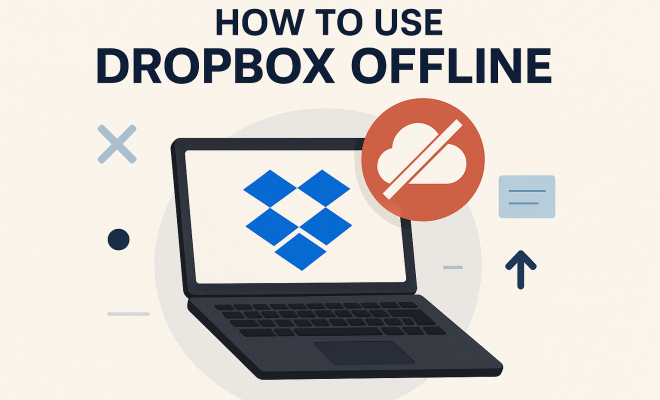
Dropbox has revolutionized the way we store and share files, making it a staple for both personal and professional use. But did you know that you can use Dropbox offline? This ability can be a game-changer for individuals who frequently find themselves in areas with spotty internet connections or those who simply prefer to work without distractions. In this article, we’ll explore how to effectively use Dropbox offline, covering everything from setup and benefits to troubleshooting tips and best practices.
1. Understanding Dropbox Offline Functionality
Dropbox is primarily known for its cloud-based storage solution, allowing users to access their files from anywhere with an internet connection. However, you can also access files offline, which is essential for seamless work when connectivity is limited. This functionality allows you to sync files stored in your Dropbox account to your local device, making it possible to work without the internet.
To use Dropbox offline effectively, you need to ensure that your files are synced prior to losing internet access. Once they are downloaded, you can access, edit, and create files as needed. Any changes made will sync automatically the next time your device reconnects to the internet, ensuring you never lose your progress.
2. Setting Up for Offline Use
Before you can use Dropbox offline, it’s crucial to set it up properly. Start by downloading and installing the Dropbox application on your device. The desktop application is available for Windows and Mac, while the mobile app can be found on both iOS and Android platforms. Once you have the app installed, sign in to your account, and you’re ready to start syncing files.
To ensure specific folders are available offline, navigate to the folder you want to sync, right-click (or tap and hold on mobile), and select the option to make it available offline. This will download the entire folder to your device, allowing you to access all its contents, even when you’re not connected to the internet. Make sure to do this for any folders you anticipate needing while offline.
3. Syncing Files for Offline Access
Once you’ve set up Dropbox and selected the folders you want to have available offline, it’s time to sync your files. Dropbox typically syncs automatically, but it’s wise to check the sync status, especially if you’ve made significant changes recently. You can do this by clicking on the Dropbox icon in your system tray or menu bar.
If you notice that your files aren’t syncing, you may need to troubleshoot your internet connection or ensure that the Dropbox application is running. When everything is functioning correctly, you’ll see a green checkmark icon next to your files, indicating that they are synced and available offline. It’s a good practice to regularly check this status to ensure you have access to your files whenever you need them.
4. Editing Files Offline
One of the key benefits of using Dropbox offline is the ability to edit files without needing to be online. Whether you’re working on a document, spreadsheet, or presentation, you can make changes just as if you were connected to the internet. All edits you make while offline will be saved to your local device.
Once you reconnect to the internet, Dropbox will automatically sync your changes to the cloud. However, be aware that if you’re collaborating with others, changes made by other users while you were offline may lead to conflicts. Dropbox does an excellent job of handling these situations, typically allowing you to choose which version to keep. Still, it’s a good idea to communicate with your team to minimize these conflicts.
5. Mobile Access and Offline Files
For those always on the move, Dropbox offers robust mobile applications that allow you to work offline as well. The process is similar to the desktop version: you can select specific files or folders to be available offline. This is particularly useful for accessing important documents during travel, meetings, or in areas with unreliable internet.
To manage offline access on mobile, open the Dropbox app and navigate to the file or folder you wish to make available offline. Tap on the three dots next to the file name and select ‘Make Available Offline.’ This action downloads the file to your device, allowing you to view and edit it without an internet connection. Just remember to monitor your device’s storage space, as large files can quickly take up room.
6. Benefits of Using Dropbox Offline
Using Dropbox offline offers several benefits that enhance user experience. Firstly, it allows for uninterrupted productivity, especially when working in areas with limited internet access. This flexibility is invaluable for freelancers, traveling professionals, and students who need to access their files on the go.
Additionally, offline access can lead to improved organization. By determining which files to make available offline, you can streamline your workflow and ensure that you always have the most critical documents at your fingertips. This organized approach helps in minimizing distractions and keeping your focus on the tasks at hand. (See: Wikipedia article on Dropbox.)
Moreover, offline access can boost your confidence in your ability to work under any circumstances. Knowing that you have the files you need, regardless of your internet connectivity, can reduce anxiety and improve overall work quality.
7. Common Troubleshooting Tips
Even with the best set-up, you may encounter issues while trying to use Dropbox offline. One common problem is files not syncing correctly. If you find that some files are missing or not up to date, start by checking your internet connection to ensure it’s stable. If it is, you might need to force a sync by closing the application and reopening it.
Another issue users face is storage limitations. If your device is low on storage, Dropbox may not be able to download more files. To resolve this, consider deleting unnecessary files or freeing up space on your device. Lastly, if you’re experiencing an unusual number of file conflicts, review the version history of your documents to manage changes and ensure everyone is on the same page.
Finally, if you’re still having trouble, don’t hesitate to check Dropbox’s support page or community forum for specific solutions or updates that could resolve your issues.
8. Alternatives to Dropbox Offline
While Dropbox is a fantastic solution for offline file access, there are alternatives worth considering. Google Drive, for example, offers offline capabilities that allow users to access and edit Google Docs, Sheets, and Slides without an internet connection. The setup process is somewhat similar to Dropbox, where you need to enable offline access through the settings.
Another option is Microsoft OneDrive, which offers seamless integration with Microsoft Office applications. With OneDrive, you can access Office files offline and sync changes once you reconnect to the internet. Each alternative has its own set of features and benefits, so it’s worth exploring to see which one aligns best with your workflow and preferences.
In addition, services like Box and pCloud also provide offline capabilities but might have different syncing procedures or limitations. It’s essential to evaluate your specific needs and choose the platform that suits your work style best.
9. Best Practices for Working Offline with Dropbox
To maximize your efficiency while using Dropbox offline, there are several best practices to keep in mind. First, regularly review and update your offline files. This ensures that you’re always working with the latest versions and that your documents remain current.
Secondly, keep a clear organization system for your files. Use folders and naming conventions that make it easy to identify what’s available offline. This organization will save you time and prevent frustration when you’re trying to locate specific files in a hurry. Lastly, regularly back up your files to ensure that you have an additional layer of protection against data loss.
Consider setting a routine for reviewing your offline files. This could include checking your offline files weekly or before any significant trip. By doing so, you can ensure you have everything you need without unexpected surprises.
10. Understanding the Synchronization Process
Synchronization in Dropbox can feel like magic. However, it’s essential to understand how it works, especially when you’re using Dropbox offline. When you decide to work offline, Dropbox creates a local copy of your files. This means any changes you make while offline won’t directly affect the version in the cloud until you connect again.
Dropbox uses a selective sync feature, allowing you to choose which folders and files you want to sync to your device. This is particularly useful for conserving space on your device. When you reconnect to the internet, Dropbox will reconcile your local changes with the versions stored in the cloud. If there are conflicting changes (if someone else modified the same file while you were offline), Dropbox will create conflict copies of the file, allowing you to decide what to keep.
Regularly syncing your files is essential, not just for accessing updated documents but also for maintaining a backup of your work. Consider setting reminders to connect to reliable internet every now and then to allow for this syncing process.
Lastly, if you frequently use Dropbox offline, familiarize yourself with the sync status icons. Understanding what each icon means can save you time and confusion when working on important documents.
11. Dropbox Offline for Team Collaboration
Collaboration often presents its own unique challenges, even more so when working offline. Dropbox’s offline capabilities can help but it’s essential to establish some ground rules. For teams that frequently work remotely or travel together, it’s crucial to communicate clearly about which files need to be accessed offline.
Coordinate with your team to ensure everyone is on the same page regarding the latest updates to shared documents. This way, when you’re working offline, you won’t be surprised by conflicting changes. Furthermore, consider designating a team member to act as the “sync manager,” responsible for checking in and merging changes once everyone is back online. (See: CDC on telework and productivity.)
Utilizing Dropbox Paper can also enhance collaboration. This tool allows teams to brainstorm and create within the same document in real-time. Even when offline, you can make edits and propose changes, which can then be discussed and finalized once everyone is back online.
Additionally, consider setting up regular check-ins to ensure that everyone understands the current state of shared files. This proactive communication can help mitigate confusion and streamline the collaboration process.
12. Security Considerations for Offline Use
One aspect often overlooked is the security of your files when using Dropbox offline. When files are downloaded to your device, they are vulnerable to loss, theft, or unauthorized access. It’s crucial to ensure that your device is secure, especially if it contains sensitive information.
Consider using strong passwords and enabling device encryption features to protect your files. Regularly update your Dropbox app to benefit from the latest security features, and think about using two-factor authentication to add an additional layer of protection. Remember, while Dropbox takes care of file security on its end, the responsibility also lies with you to secure your local device.
It’s also a good idea to perform regular security audits on your devices. This can involve checking for malware, ensuring your software is up to date, and reviewing your app permissions. Taking these extra steps can help protect your data both online and offline.
13. More Insights on Offline Functionality
While we’ve covered a lot about using Dropbox offline, let’s take a moment to address some specific insights and statistics regarding offline functionality. According to a study by the Cloud Industry Forum, around 40% of workers often find themselves in locations with unreliable internet connections. This shows a significant portion of the workforce that can benefit from offline capabilities like those offered by Dropbox.
In addition, a survey revealed that 70% of remote workers prefer tools that support offline access. This statistic highlights the importance of Dropbox’s offline functionality, particularly for teams that are frequently on the move or working in varying environments. Providing offline access not only enhances productivity but also contributes to overall employee satisfaction and efficiency.
Interestingly, research shows that the productivity of workers who can access files offline increases by 25%. This highlights the clear advantages of having a reliable offline solution, especially for teams that prioritize flexibility and efficiency in their workflows.
14. Frequently Asked Questions (FAQ)
1. Can I access all my Dropbox files offline?
No, only the files and folders that you have marked as available offline will be accessible when you’re not connected to the internet. Make sure to select the essential folders before you go offline.
2. What happens if I edit a file offline and someone else edits it at the same time?
If conflicting edits occur, Dropbox will create a conflict copy of the file. You will have the option to choose which version to keep when you reconnect to the internet.
3. How can I check if my files are synced before going offline?
Click the Dropbox icon in your system tray or menu bar; the green checkmark next to your files indicates they are synced and available offline.
4. Is there a limit to how many files I can have offline?
There is no specific limit imposed by Dropbox, but the amount of offline storage available will depend on the storage capacity of your device. Keep an eye on your device’s storage space. (See: New York Times tips for using Dropbox.)
5. What should I do if I can’t find a file I know I synced for offline access?
First, check your Dropbox app to see if the file is still marked for offline access. If it isn’t, you may need to mark it again. If it is, try searching for it within the app or browse through your folders to locate it.
6. Can I create new files while offline?
Yes, you can create new files while offline. However, they will only sync to the cloud once you reconnect to the internet.
7. How do offline changes affect my storage space?
Any changes made offline will take up space on your device. If you create new files, they will consume additional storage. Be mindful of your device’s available space.
8. Are there any additional apps that enhance Dropbox’s offline capabilities?
There are several productivity apps that integrate with Dropbox, enhancing its functionality. For instance, using note-taking applications like Evernote or Microsoft OneNote can offer robust offline access when linked with Dropbox.
9. How often should I connect to the internet when using Dropbox offline?
It’s advisable to connect to the internet periodically to sync your changes and ensure your files are updated. This will help prevent conflicts and ensure you have the latest version of your documents.
10. What are the risks of using Dropbox offline?
The primary risks include potential data loss or corruption due to conflicts or syncing errors. Always ensure your device is secure and that you are managing file versions carefully.
11. Can I use Dropbox offline on multiple devices?
Yes, you can use Dropbox offline on multiple devices, as long as you have installed the Dropbox application and synced your desired files. Just remember that each device needs to manage its own offline sync settings.
12. How can I ensure my offline files are always up to date?
To keep your offline files current, make it a habit to connect to the internet regularly. This will ensure that any changes you made offline are synced back to the cloud. You might also want to set reminders to check for updates before significant work sessions.
13. Does Dropbox offer customer support for offline issues?
Yes, Dropbox provides customer support for any issues you encounter, including those related to offline access. You can visit their help center for articles, community forums, or contact their support team directly for assistance.
14. What should I do if I don’t have enough space for offline files?
If you’re running low on space, consider deleting files you no longer need or moving some to other storage solutions. Regularly reviewing your offline files will help keep your storage optimized.
“`
Trending Now
Frequently Asked Questions
How do I access Dropbox offline?
To access Dropbox offline, first ensure that you've synced the files or folders you need while connected to the internet. Once synced, you can access, edit, and create files without an internet connection. Any changes made will automatically sync when you reconnect to the internet.
Can I use Dropbox without internet?
Yes, you can use Dropbox without internet access by syncing your files or folders to your device beforehand. This allows you to view and edit your files offline, and any changes will sync automatically once you are back online.
How do I set up Dropbox for offline use?
To set up Dropbox for offline use, download and install the Dropbox application on your device. Sign in to your account, then navigate to the folder you wish to sync. Right-click (or tap and hold on mobile) and select the option to make it available offline.
What happens to my files when I use Dropbox offline?
When you use Dropbox offline, you can access and edit your synced files. Changes made while offline are saved locally and will sync to your Dropbox account automatically once you reconnect to the internet, ensuring no progress is lost.
Is there a limit to using Dropbox offline?
While you can use Dropbox offline, the primary limitation is that you must first sync files while connected to the internet. Additionally, any new files created offline will not be available to other users until your device is back online and the changes are synced.
What did we miss? Let us know in the comments and join the conversation.