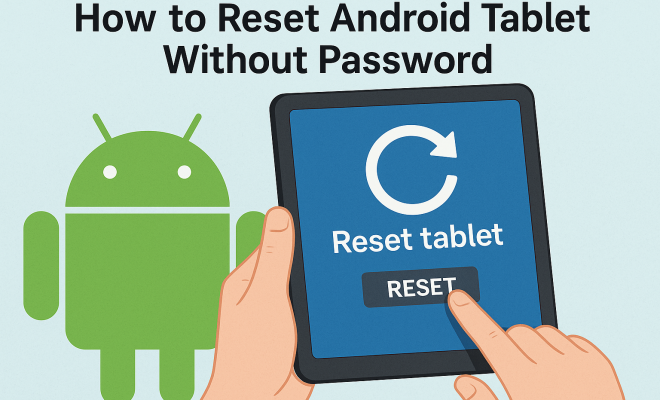
How to reset Android tablet without password
“`html
Whether you’ve forgotten your password, or your Android tablet is acting up, knowing how to reset your Android tablet without a password can save you from frustration. Many users face the challenge of being locked out of their devices due to a lost passcode. Fortunately, there are several methods available that can help you regain access. In this article, we’ll explore these methods in detail, delving into the nuances of each technique while ensuring you have a comprehensive guide to follow.
1. Understanding the Need for a Factory Reset
Before diving into the how-tos, it’s crucial to understand why you might need to reset your Android tablet. A factory reset wipes all data, settings, and applications from your device, effectively returning it to its original state. This is particularly helpful when dealing with performance issues, persistent bugs, or if you’re preparing to sell the device. However, if you’re locked out, it can also be the only way to regain access.
While factory resetting can solve many problems, it’s essential to remember that it will erase everything on your tablet. Thus, if you have any important data stored on the device, you won’t be able to retrieve it afterward. Consider backing up your data regularly to avoid such situations in the future. Now, let’s look at the methods for performing a reset.
2. Utilizing the Android Device Manager
One of the simplest methods to reset your Android tablet without a password is by using the Android Device Manager, also known as Find My Device. This Google service allows you to manage your device remotely, which includes the option to erase all data. To utilize this method, you’ll need another device with internet access.
First, go to the Android Device Manager website and log in with the Google account linked to your locked tablet. Once logged in, select your device from the list. You will see options such as “Ring,” “Lock,” or “Erase.” Click on “Erase,” and follow the prompts to confirm your choice. This action will factory reset your tablet, removing the password and all data but giving you access again.
3. Resetting via Recovery Mode
If you can’t access the Android Device Manager, another option is to reset your tablet using Recovery Mode. This method is particularly useful if your device isn’t connected to the internet or if you can’t access your Google account. To do this, you’ll need to turn off your tablet completely first.
Once your tablet is off, you will need to press a combination of buttons specific to your device’s brand. Common combinations include Power + Volume Up or Power + Volume Down. Hold these buttons until you see the Android logo or a recovery screen. Use the volume buttons to navigate to the “Wipe data/factory reset” option and confirm with the Power button. This process effectively resets your device without requiring a password.
4. Using ADB (Android Debug Bridge)
For more tech-savvy users, ADB can be a powerful tool to reset an Android tablet without a password. ADB is a command-line tool that allows you to communicate with your device from a computer. However, this method requires that USB debugging was previously enabled on your tablet.
To use ADB, connect your tablet to your computer via USB. Open a command prompt or terminal window on your computer and type in the command “adb devices” to check if your tablet is recognized. If so, use the command “adb shell am broadcast -a android.intent.action.MASTER_CLEAR” to initiate a factory reset. This method is efficient and effective, but it does come with the prerequisite of having ADB set up beforehand. (See: Technology and child development.)
5. Accessing Manufacturer-Specific Reset Options
Some manufacturers, like Samsung or LG, offer their own software solutions for resetting devices. For example, Samsung users can utilize the Smart Switch application to reset their tablets without needing a password. This method is straightforward and can often be done via a PC.
To reset using Smart Switch, download the application onto your computer, connect your tablet, and choose the option to perform a factory reset. This method is beneficial as it can also help recover your system if it has software issues. Always refer to your manufacturer’s guidelines for specific instructions.
6. Seeking Professional Help
If you’re uncomfortable with any of the above methods, or they haven’t worked for you, seeking professional assistance is always an option. Many repair shops specialize in Android devices and can help reset your tablet without losing data. They can often retrieve valuable data before performing a reset if that’s a concern.
When considering professional help, ensure you’re choosing a reputable service. Look for customer reviews and experiences to gauge their reliability. Additionally, some smartphone manufacturers have authorized service providers that can assist you. This option might come at a cost but they typically ensure your device is handled with care.
7. Preventive Measures for Future Access Issues
To avoid getting locked out of your tablet in the future, consider implementing preventive measures. Regularly updating your device’s software can help prevent bugs that may lead to access issues. Additionally, setting up backup recovery options, such as security questions or trusted contacts, can ease the process if you ever forget your password.
Make it a habit to back up your data either through cloud services like Google Drive or by performing manual backups on your computer. This way, even if a reset becomes necessary, you can restore your valuable information quickly. Creating strong passwords that are memorable but not easily guessed can also help you maintain access without frustration.
8. Exploring Alternative Solutions
While the previously mentioned methods provide effective solutions for resetting your tablet, there are alternative approaches that some users may find beneficial. For instance, certain apps designed for device management can help reset your device remotely or assist in recovering passwords without a factory reset. However, these apps must be installed prior to being locked out. Examples include Samsung’s Find My Mobile, which offers features like unlocking the device or backing up data.
If your tablet is rooted, you may also explore custom recovery options like TWRP. This advanced recovery tool enables you to perform operations that stock recovery does not allow, including backing up your data before performing a factory reset. However, rooting can void warranties and should be approached with caution.
9. The Importance of Regular Updates
Keeping your Android tablet up to date is more than just about ensuring you have the latest features; it’s also crucial for security and stability. Manufacturers regularly release updates that patch vulnerabilities that could lead to unauthorized access or bugs that might lock you out of your device. Regularly checking for and installing these updates can help prevent many issues, including forgotten passwords.
To update your tablet, navigate to Settings > System > System Update. If an update is available, download and install it. This might also provide you with new security features that enhance your device’s protection against unauthorized access. (See: Tips for using Android tablets.)
10. FAQs About Resetting Your Android Tablet Without a Password
Can I reset my Android tablet without losing data?
Generally, a factory reset will erase all data on your device. However, if you have enabled backup options like Google Drive or manufacturer-specific cloud services, you may be able to restore your data after the reset. For non-destructive reset methods, try alternatives like using Android Device Manager or ADB if you have data access beforehand.
Will resetting my tablet remove all my apps?
Yes, a factory reset will remove all apps, settings, and personal data. It restores the tablet to its original factory state. This is why it’s important to back up any crucial information before proceeding with a reset.
How can I prevent forgetting my password in the future?
To prevent future issues with forgotten passwords, consider enabling biometric options like fingerprint or facial recognition if available. Additionally, using a password manager can help you keep track of your passwords without having to remember them all. Setting up security questions or a recovery phone number can also provide additional layers of access recovery.
Are there any risks associated with factory resetting my tablet?
The primary risk is data loss. If you haven’t backed up your information, a factory reset will result in losing everything stored on the device. Additionally, if performed incorrectly, there’s a chance of bricking your device, making it inoperable. Always follow guidelines closely and ensure you’re using the correct method for your specific tablet model.
What should I do if I can’t reset my tablet using any method?
If you’re unable to reset your tablet using any of the standard methods, consider reaching out to customer support for your tablet’s brand. They may have additional solutions or tools to help reset the device. Alternatively, visiting a professional repair service can provide more personalized assistance and troubleshooting for your specific situation.
11. Embrace Your Device’s Resilience
Being locked out of your Android tablet can feel overwhelming, but with the right knowledge, you can easily reset your Android tablet without a password. Whether you choose to use Google’s Android Device Manager, Recovery Mode, or seek professional guidance, there are effective solutions available. Remember, the key is understanding the tools at your disposal and maintaining regular backups to ensure a smoother experience.
With these steps, you can regain control of your tablet and use it to its full potential, free from the hassle of forgotten passwords. So, the next time you find yourself locked out, you’ll know exactly what to do to get back in!
12. Understanding the Implications of a Reset
When you decide to reset your Android tablet, it’s important to thoroughly understand the consequences of such action. Aside from losing all your data, resetting your device can also temporarily disrupt access to services linked to your Google account, including apps, contacts, and calendar events. This means that if you rely heavily on these services, you may need to take extra steps to restore your settings and preferences post-reset.
Moreover, if you have two-factor authentication enabled on your Google account, you may encounter difficulties signing back in immediately after the reset. It’s advisable to have recovery options readily available, such as backup codes or access to your recovery email.
13. Analyzing Common Reasons for Being Locked Out
Understanding why you may find yourself locked out of your Android tablet can be helpful in preventing this issue in the future. Some common reasons include:
- Forgotten Password: This is perhaps the most common reason. Users may have set a password they can no longer remember.
- Children or Other Users: If you share your tablet, other users might inadvertently change the password or lock you out.
- Software Glitches: Occasionally, software bugs may prevent you from entering the correct password or affect the touchscreen’s functionality.
- Malware or Viruses: If your tablet gets infected, it might affect how the device operates, causing lockouts or failures.
Recognizing these issues can help you take preventive measures, such as setting up alternative access options or regularly backing up your settings.
14. Tips for Better Password Management
To ensure you don’t end up locked out of your device in the future, consider implementing better password management strategies. Here are some tips:
- Use Password Managers: These tools securely store your passwords and can generate strong passwords for you.
- Keep a Written Record: In a secure location, maintain a list of passwords that are difficult to remember.
- Set Reminders: If you change your password, set a reminder to note the change or update it in your password manager.
- Regular Updates: Regularly changing your passwords can help keep your device secure while reducing the chances of forgetting them.
15. The Role of Customer Support
If you’re completely stumped and cannot reset your tablet on your own, don’t hesitate to contact customer support for assistance. They can provide tailored help and may have access to tools and resources that aren’t available to the general public. Each manufacturer usually has a dedicated support line or online chat service that can guide you through the reset process.
Before reaching out, be ready to provide information about your device, such as the model and operating system version. This will help their support team assist you more effectively and efficiently.
16. Conclusion
Resetting your Android tablet without a password may seem daunting, but with the right information and tools, it’s entirely achievable. Whether you decide to use built-in recovery options, software solutions, or seek professional help, understanding your choices empowers you to regain access to your device quickly. Always remember to back up important information to prevent data loss in the future. By implementing good password management practices and staying informed about your device’s updates, you can enhance your overall experience and avoid similar issues down the line.
“`
Trending Now
- our breakdown of narwal freo z10 turbo robot vacuum & mop: the future of autonomous home cleaning
- this guide on ultenic u18 powerpro cordless vacuum: the budget-friendly powerhouse that challenges premium brand
- this guide on how to fix canon printer error codes
- our breakdown of how to fix epson printer error codes
- How to fix HP printer error codes
Frequently Asked Questions
How can I reset my Android tablet without a password?
You can reset your Android tablet without a password by using the Android Device Manager. By logging into the service with your Google account on another device, you can select your locked tablet and choose the 'Erase' option to perform a factory reset remotely.
What happens when I factory reset my Android tablet?
Factory resetting your Android tablet erases all data, settings, and applications, returning the device to its original state. This process is useful for fixing performance issues, but it will also delete all your personal data, so make sure to back it up if possible.
Is it possible to recover data after a factory reset on Android?
No, once you perform a factory reset on your Android tablet, all data is permanently erased and cannot be recovered. It's recommended to regularly back up important data to avoid losing it in such situations.
Can I use Find My Device to reset my tablet?
Yes, Find My Device allows you to reset your Android tablet remotely. By accessing the Android Device Manager website and logging in with the associated Google account, you can select your device and choose the 'Erase' option to perform a factory reset.
Why would I need to reset my Android tablet?
You might need to reset your Android tablet to resolve performance issues, fix persistent bugs, or if you are locked out due to a forgotten password. A factory reset helps restore the device to its original settings, but it will erase all personal data.
Agree or disagree? Drop a comment and tell us what you think.