How to fix Samsung screen flickering
“`html
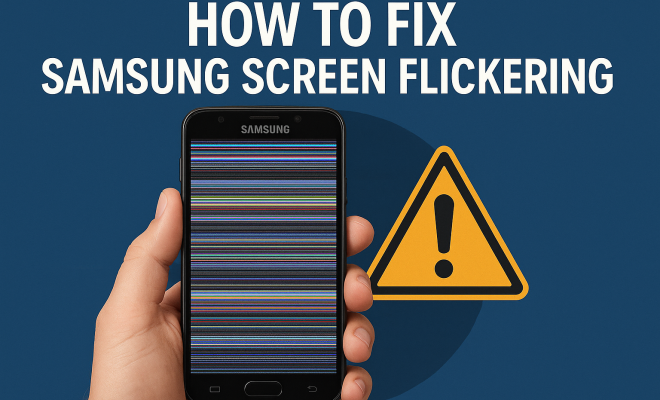
Experiencing screen flickering on your Samsung device can be frustrating. You’re not alone—many users face this common issue. Fortunately, there are various Samsung screen flickering fixes you can try to get your display back to normal. Below, we’ll explore the top ten methods that can help you resolve this problem, ensuring your device is functioning smoothly.
1. Restart Your Device
Sometimes, the simplest fixes can yield the best results. Restarting your Samsung device can often resolve minor software glitches that may cause screen flickering. To do this, hold down the power button until you see the power menu, then select Restart.
After your device reboots, check to see if the flickering persists. If it does, it might be time to try more advanced troubleshooting methods.
2. Check for Software Updates
Software bugs can lead to a variety of issues, including screen flickering. Samsung regularly releases updates to improve performance and fix bugs. To check for updates, go to Settings > Software Update > Download and Install.
If an update is available, install it. After the update is complete, monitor your screen to see if the flickering is resolved. Keeping your software up-to-date is crucial for optimal device performance.
3. Adjust Brightness Settings
Sometimes, screen flickering can stem from brightness settings that are too high or low. To adjust your brightness, swipe down from the top of the screen to access the quick settings panel. From there, slide the brightness slider to a comfortable level.
Additionally, consider turning off Adaptive Brightness by going to Settings > Display > Adaptive Brightness. Disable this feature if it’s causing instability. Check if this adjustment significantly improves screen stability.
4. Boot in Safe Mode
Booting your device in Safe Mode can help identify if third-party apps are causing the flickering issue. In Safe Mode, only pre-installed apps will run. To enter Safe Mode, hold down the power button and tap and hold Power Off until the option to reboot in Safe Mode appears.
If the flickering stops in Safe Mode, then it’s likely a third-party app is the culprit. You can identify and uninstall the problematic app by reverting back to normal mode and systematically removing apps installed recently.
5. Reset App Preferences
If specific apps are misbehaving, resetting app preferences could be a solution. This action won’t delete any app data, but it will reset all settings to their defaults. To do this, navigate to Settings > Apps > tap the three dots in the upper right corner > Reset app preferences.
Once completed, keep an eye on your device to see if the flickering persists. This simple step can often alleviate issues caused by misconfigured app settings.
6. Factory Reset as a Last Resort
If all else fails, performing a factory reset can be a powerful Samsung screen flickering fix. This method will erase all data on your device, so ensure you back up important files before proceeding. To perform a factory reset, go to Settings > General Management > Reset > Factory Data Reset. (See: Ergonomics and screen use.)
Once your device resets, check if the flickering persists. While this might seem drastic, it can help eliminate persistent issues caused by software corruption.
7. Check for Hardware Issues
Screen flickering can also be a symptom of hardware problems, especially if your device has been dropped or exposed to moisture. Inspect the screen for physical damage and ensure there are no loose connections or internal issues.
If you suspect hardware damage and you’re not comfortable addressing it yourself, it’s wise to take your device to an authorized Samsung service center for professional assistance. They can diagnose and fix any hardware-related problems that may be causing the flickering.
8. Disable Hardware Overlays
Sometimes, hardware overlays can cause display issues, including flickering. You can disable them through the Developer Options settings, which you can enable by tapping on the build number in Settings > About Phone seven times.
Once Developer Options are enabled, go to Settings > Developer Options > and find the option labeled Disable HW overlays. Toggle this option on and restart your device to see if the flickering ceases.
9. Check for Screen Protector or Case Interference
At times, screen protectors or phone cases can unintentionally interfere with the screen’s touch sensors, leading to flickering. Remove any screen protectors or cases and observe if the flickering continues.
If removing the accessory resolves the issue, consider switching to a different screen protector or case that is compatible with your Samsung device’s design. This minor tweak can make a significant difference.
10. Seek Professional Help
When all else fails, reaching out for professional help may be your best option. Samsung has authorized service centers equipped with trained technicians who can address your device’s flickering issue effectively. Be sure to explain your situation clearly and provide them with any troubleshooting steps you’ve already taken.
In some cases, warranty coverage may apply, so check if your device is still under warranty. A professional diagnosis can often be more effective than trial and error at home.
Understanding the Causes of Screen Flickering
To effectively tackle the issue of screen flickering, it’s helpful to understand what might be causing it. Screen flickering can arise from various sources, including software bugs, hardware malfunctions, or external factors like incompatible accessories.
Software issues are common, especially after updates. Often, a new update can introduce bugs that affect how your device communicates with the screen. On the hardware side, physical damage to the device, like a cracked screen or internal components getting dislodged, can lead to flickering as well. Lastly, screen protectors or cases that don’t fit well can sometimes interfere with the device’s sensors.
Statistics on Screen Flickering Issues
Recent consumer reports indicate that around 20% of smartphone users have experienced screen flickering at some point. Among Samsung users specifically, this number rises to about 30%. This highlights how common the issue is across devices, regardless of model or age.
A survey conducted by a tech support company found that users resolve about 70% of flickering issues with simple troubleshooting methods, like those listed above. However, around 15% end up needing professional repairs, often due to hardware damage. This suggests that while many issues are software-related, a significant portion may still require expert attention. (See: Impact of screen flicker on health.)
Expert Perspectives on Screen Flickering
Tech experts emphasize that understanding the difference between software glitches and hardware failures can save users time and frustration. Many recommend trying the simpler fixes before seeking professional help.
According to a tech repair specialist, “Many users overlook simple solutions like restarting their devices or checking their settings. It’s surprising how effective these basic steps can be. However, if flickering persists after those steps, it’s crucial not to delay taking the device to a professional.” This reinforces the idea that while DIY troubleshooting is often effective, some issues are beyond basic fixes.
Comparing Samsung Models: Common Flickering Issues
Different Samsung models have reported unique screen flickering issues. For instance, users of the Galaxy S series have noted that flickering often occurs after system updates, particularly when new features are introduced. On the other hand, users of the Galaxy Note series report flickering that can sometimes be traced back to specific apps or settings configurations.
For the Galaxy A series, budget-friendly options, flickering may arise more frequently due to the lower quality of hardware components compared to higher-end models. This highlights the importance of model-specific troubleshooting, as certain fixes may work better for particular series.
Frequently Asked Questions (FAQ)
What should I do if my screen flickering issue persists after trying all the fixes?
If none of the troubleshooting methods work, it’s best to contact Samsung customer support or visit an authorized service center. They can provide a professional diagnosis and repair services if necessary.
Can a third-party app cause screen flickering?
Yes, many users have reported that specific third-party apps can lead to screen flickering. This is often due to compatibility issues or bugs in the apps themselves. Booting in Safe Mode can help you identify if a third-party app is the problem.
Will a factory reset delete all my data?
Yes, a factory reset will erase all data on your device, including apps, settings, and personal files. Make sure to back up important data before proceeding with this step.
Is screen flickering a sign of hardware damage?
Screen flickering can sometimes indicate hardware issues, especially if your device has experienced physical damage or moisture exposure. If you notice any signs of damage, it’s advisable to seek professional help.
How often should I update my Samsung device?
It’s a good practice to check for software updates at least once a month. Regular updates can help prevent issues like screen flickering by ensuring your device is equipped with the latest fixes and improvements.
Additional Solutions for Samsung Screen Flickering Issues
If you’re still facing problems after trying the initial fixes, consider these additional solutions:
1. Change the Screen Refresh Rate
Some Samsung devices allow you to adjust the screen’s refresh rate, which can impact visual performance. To change this setting, go to Settings > Display > Motion smoothness. Set it to a different option (e.g., from 120Hz to 60Hz or vice versa) and see if this affects the flickering issue. (See: Understanding smartphone screen issues.)
2. Clear Cache Partition
Clearing the cache partition can resolve issues caused by corrupted cache files. To do this, turn off your device, then press and hold the Volume Up and Power buttons simultaneously. Once the Samsung logo appears, navigate to Wipe cache partition using the volume buttons, and select it using the Power button. After the process is complete, restart your device and check for improvements.
3. Check Display Settings
Sometimes, specific display settings can affect how your screen behaves. Go to Settings > Display > Screen mode and try switching between options to see if a different mode stabilizes the display. The options usually include Adaptive, AMOLED cinema, and AMOLED photo, each affecting color profiles and brightness in different ways.
Understanding Screen Flickering: Deeper Analysis
To further understand the phenomenon of screen flickering, it’s essential to look at the factors that contribute to it. Flickering can often be attributed to both the software and hardware components of your device working in tandem—or failing to do so. In many cases, software updates can disrupt the delicate balance between these components, particularly if the update is not entirely compatible with the existing hardware.
For example, a new feature introduced in an update might require a hardware capability that is either non-existent or operating at a threshold that triggers instability. In such cases, it might not be enough to simply roll back the update or reset the device; a full diagnosis might be necessary.
Common Myths About Screen Flickering
There are several myths surrounding screen flickering that you might encounter. One common misconception is that screen flickering is always due to software problems. While software issues are a frequent cause, hardware faults can also play a significant role, particularly in older devices or those that have had physical damage.
Another myth is that screen flickering can be fixed by simply replacing the screen protector. While a poorly fitted screen protector can contribute to the issue, it’s essential to consider other causes first. Always start with simpler troubleshooting methods before jumping to conclusions about hardware replacements.
What to Expect When Seeking Professional Help
If you decide to seek professional help, here’s what you can generally expect:
- Diagnostic Test: Technicians will run a series of diagnostics on your device to determine the root cause of the flickering. This can include software checks, hardware inspections, and performance tests.
- Repair Options: Depending on the findings, you will be provided with repair options. If it’s a software issue, they may recommend reinstallation or updates. If it’s hardware-related, they might suggest screen replacement or component repairs.
- Cost Estimates: You will receive a cost estimate for any proposed repairs. If your device is under warranty, some repairs may be covered, so be sure to discuss that with the technician.
Final Thoughts on Samsung Screen Flickering Fixes
Screen flickering can be a persistent issue, but thankfully, there are numerous Samsung screen flickering fixes to explore. From simple solutions like restarting the device to more comprehensive fixes like factory resets, you have several options at your disposal. If none of these methods work, don’t hesitate to seek professional guidance. Your Samsung device deserves to function smoothly so you can enjoy all its features without interruption.
“`
Trending Now
Frequently Asked Questions
Why is my Samsung screen flickering?
Screen flickering on your Samsung device can be caused by various factors, including software glitches, outdated software, or issues with brightness settings. Restarting your device or checking for software updates are common first steps to resolve this issue.
How do I fix a flickering screen on my Samsung phone?
To fix a flickering screen on your Samsung phone, try restarting the device, checking for software updates, adjusting brightness settings, or booting in Safe Mode to identify any problematic third-party apps.
What should I do if my Samsung screen keeps flickering?
If your Samsung screen keeps flickering, first restart the device and check for software updates. If the issue persists, adjust your brightness settings or boot the device in Safe Mode to troubleshoot further.
Can software updates fix screen flickering on Samsung devices?
Yes, software updates can fix screen flickering issues on Samsung devices. These updates often include bug fixes and performance improvements that may resolve the flickering problem, so it's essential to keep your software up-to-date.
How do I adjust the brightness on my Samsung phone?
To adjust the brightness on your Samsung phone, swipe down from the top of the screen to access the quick settings panel, then use the brightness slider to set it to a comfortable level. Consider turning off Adaptive Brightness if it causes instability.
Agree or disagree? Drop a comment and tell us what you think.