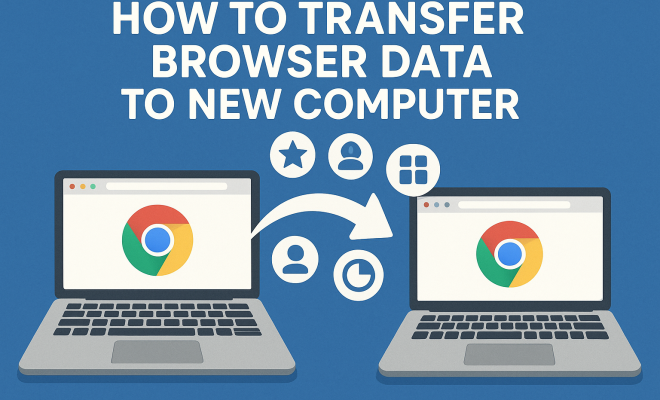
How to transfer browser data to new computer
“`html
Switching to a new computer can be exciting, but it often comes with a daunting task: transferring your browser data to your new machine. Whether you’re moving from an old desktop to a sleek laptop or upgrading to a more powerful device, keeping your bookmarks, history, passwords, and settings intact is crucial for a smooth transition. In this guide, we’ll walk you through the steps to transfer browser data to new computer effectively, ensuring you can pick up right where you left off.
1. Understanding Browser Data: What You Need to Know
Before diving into the transfer process, it’s essential to understand what browser data entails. This data primarily includes your bookmarks, saved passwords, browsing history, extensions, and possibly cookies and cache. Each of these elements plays a significant role in customizing your browsing experience and preserving your online identity.
For instance, bookmarks allow you to save and categorize your favorite websites, while saved passwords simplify logging into various accounts without the hassle of remembering each one. Browsing history helps you recall past visits and the extensions enhance your browser’s functionality. Knowing what data you need to transfer will make the process smoother.
2. Choose the Right Method: Transferring Options
There are several methods to transfer browser data to new computer, and choosing the right one depends largely on your operating system, the browser you use, and your comfort level with technology. Here are some popular options:
- Cloud Sync: Most modern browsers offer a sync feature that allows you to store your data in the cloud. This method is often the simplest, requiring just an account sign-in.
- Export and Import: You can manually export your bookmarks and settings from your old browser and import them into your new one.
- Third-Party Tools: There are several software applications that can help transfer data seamlessly between computers.
Each of these methods has its pros and cons, which we’ll explore in detail later on. But first, let’s take a look at cloud syncing.
3. Using Cloud Sync: Seamless Integration
Cloud sync is arguably the easiest way to transfer browser data to new computer. Browsers like Google Chrome, Firefox, and Microsoft Edge come equipped with built-in syncing capabilities that allow you to access your data across devices. Here’s how you can utilize this feature:
For instance, if you’re using Google Chrome, start by signing into your Google account on your old computer. Navigate to Settings, then select Sync and Google services. Make sure the options for bookmarks, passwords, and history are enabled. When you install Chrome on your new computer, simply sign in again, and all your data will be automatically synced.
This method is particularly beneficial for those who change devices often, as it offers real-time updates and easy access to your data wherever you are.
4. Exporting and Importing Data: A Manual Approach
If you prefer a more hands-on method, exporting and importing your browser data is a reliable option. This method allows you to have a physical backup of your data. Here’s how to go about it:
For example, in Google Chrome, you can export bookmarks by opening the Bookmark Manager (Ctrl + Shift + O), then clicking on the three-dot menu and selecting Export bookmarks. Save the file to a USB drive or external hard disk. On the new computer, open the Bookmark Manager again and select Import bookmarks to restore your data. (See: Understanding web browsers and data.)
This approach is beneficial for users who may not want to store their data in the cloud or prefer to have a manual backup for security reasons.
5. Third-Party Software: Facilitating Data Transfer
For those who may find the above methods cumbersome, third-party tools can simplify the process of transferring browser data to new computer. Applications like PCmover, EaseUS Todo PCTrans, and Transwiz can automate the task of moving your browser data between systems.
These tools typically offer a user-friendly interface where you select what data you want to transfer, including browser settings. While they often require a purchase, the time saved can be worth the investment. It’s wise to read reviews to choose the best tool suitable for your needs and ensure compatibility with your browsers.
6. Browser-Specific Transfers: Tips for Different Browsers
Each browser has its unique nuances when it comes to data transfer. Here are some browser-specific tips for transferring data:
- Google Chrome: As detailed earlier, you can sync via your Google account or manually export and import bookmarks.
- Mozilla Firefox: Firefox allows you to sync your data through a Firefox account or use the Library feature to export bookmarks and history.
- Microsoft Edge: Edge users can sync through their Microsoft account, and it also allows exporting favorites as an HTML file.
- Safari: For Mac users, iCloud can be used for syncing Safari data across devices, or you can export bookmarks through the File menu.
- Opera: Opera also offers syncing through an account, as well as exporting bookmarks via the Bookmarks Manager.
Whether you’re migrating from Chrome to Firefox or from Edge to Chrome, understanding these browser-specific features can enhance the efficiency of your transfer process.
7. Backing Up Your Data: Preventing Future Loss
As you prepare to transfer browser data to new computer, it’s also essential to back up your data. Regular backups can prevent loss due to accidental deletion or technical issues. Here’s how to back up your browser data:
Most browsers allow you to create backups of bookmarks and settings. For example, in Chrome, you can export bookmarks as an HTML file, while Firefox offers the ability to create a full profile backup. Additionally, consider using cloud storage solutions like Google Drive or Dropbox to save exported files securely.
This way, if anything goes wrong during the transfer or if you ever need to access your old data again, you’ll have peace of mind knowing it’s safely stored.
8. Troubleshooting Common Issues: What to Do When Things Go Wrong
Even with careful planning, issues may arise during the transfer process. Here are some common problems and their solutions:
- Missing Bookmarks: If bookmarks aren’t showing up after syncing, ensure you’re signed into the correct account and that sync is enabled for bookmarks.
- Lost Passwords: For lost passwords, check if the password manager is enabled in your browser settings or consider using a third-party password manager for better security.
- Extensions Not Transferring: Some browsers may require you to reinstall extensions manually. Check the browser’s extension store to redownload them.
By anticipating these common pitfalls and knowing how to address them, you can ensure a smoother transition to your new computer.
9. Additional Security Measures: Protecting Your Data
When transferring browser data, security should be a top priority. Here are a few additional measures you can take to ensure your information remains safe:
- Use Encryption: If you are transferring data via USB or external storage, consider encrypting those files. Tools like VeraCrypt can help secure your data against unauthorized access.
- Enable Two-Factor Authentication: When using cloud sync, ensure that your account is protected with two-factor authentication for additional security.
- Regularly Update Your Browser: Keeping your browser updated not only enhances security but also ensures compatibility with the latest transfer methods and features.
By implementing these measures, you can enjoy a smooth transfer process without the fear of compromising your sensitive information. (See: Data management and transfer methods.)
10. Comparing Transfer Methods: Which is Best for You?
Each method of transferring browser data comes with its own set of advantages and disadvantages. Here’s a quick comparison to help you decide which method suits your needs best:
| Method | Pros | Cons |
|---|---|---|
| Cloud Sync | Easy to use, real-time updates, automatic backup | Requires internet, depends on the browser’s sync service |
| Export and Import | Complete control over data, no internet needed | Manual effort required, may miss some data types |
| Third-Party Tools | Automated process, handles multiple data types | May require payment, depends on tool compatibility |
By weighing these pros and cons, you can choose the best method to transfer browser data to your new computer according to your preferences and technical comfort.
11. Frequently Asked Questions
Here are some common questions people have about transferring browser data:
Q1: Can I transfer data from one browser to another?
A: Yes, you can transfer data like bookmarks by exporting from one browser and importing into another. However, passwords and extensions may not be transferable directly, and you might need to set them up again manually.
Q2: Will all my data be transferred if I use cloud sync?
A: Most cloud sync services will transfer bookmarks, passwords, browsing history, and some settings, but specific data like extensions may not always sync. It’s essential to check your browser’s documentation for details on what is included in the sync.
Q3: How often should I back up my browser data?
A: It’s good practice to back up your browser data regularly, especially before major updates or transfers. Consider doing it monthly or anytime you make significant changes to your bookmarks or stored passwords.
Q4: Is it safe to use third-party tools for data transfer?
A: While many third-party tools are secure, it’s crucial to choose reputable software. Check reviews, look for recommendations, and ensure the tool is from a trusted source to protect your data from potential risks.
Q5: What should I do if I forgot my password during the transfer?
A: Most browsers provide options to reset your password, often via your email account associated with your browser’s sync feature. Make sure you have access to your email to facilitate this process.
12. Embracing Your New Setup: A Smooth Transition
Transferring browser data to a new computer doesn’t have to be a daunting task. Whether you choose cloud syncing, manual export and import, or a third-party application, each method has its advantages. The key is finding the one that works best for your needs and preferences. With a little preparation, you can seamlessly transition to your new device without losing any valuable data.
13. Advanced Sync Features: Taking Full Advantage of Your Browser
In addition to basic syncing capabilities, many browsers offer advanced features that can enhance your overall experience. For example, Google Chrome includes options like syncing open tabs and settings, while Firefox allows you to customize which types of data you want to sync. (See: Backup and transfer data effectively.)
By exploring these advanced features, you can fine-tune your browser experience to better fit your needs. Did you know that you can sync your passwords across devices and have instant access to them without having to remember each one? This is particularly useful for users with numerous online accounts.
14. Statistics on Browser Data Migration: Why It Matters
A recent study indicated that over 70% of users reported losing important browser data during a computer transition. This statistic underscores the importance of understanding the various methods available for transferring browser data. Keeping your bookmarks, passwords, and settings intact not only saves you time but also helps maintain your productivity.
Furthermore, research shows that users who regularly back up their data are 50% less likely to experience significant data loss. This is a compelling reason to adopt a regular backup routine as you prepare to switch devices.
15. Expert Tips for a Smooth Transfer
Experts in IT and data management emphasize the importance of planning before you start the transfer process. Here are a few tips from the pros:
- Plan Ahead: Make a checklist of the data you need to transfer, so you don’t miss anything crucial.
- Check Compatibility: Ensure that any tools or methods you choose are compatible with both your old and new systems.
- Test Before Finalizing: If possible, test the transfer process with a small amount of data to identify any potential issues early on.
By incorporating these tips, you’ll reduce the chances of encountering problems during the transfer.
16. Final Thoughts: The Importance of Staying Updated
As technology continues to evolve, browsers frequently update their features, including data transfer methods. Staying informed about these updates can help you take advantage of the latest security measures and efficiency improvements. Keep an eye on your browser’s announcements and updates, and don’t hesitate to explore new features that can enhance your browsing experience.
Don’t forget to take the time to back up your data regularly. It’s a small effort that goes a long way toward ensuring your browsing experience remains uninterrupted, no matter where you are or what device you’re using. Happy browsing on your new computer!
“`
Trending Now
Frequently Asked Questions
How do I transfer my browser data to a new computer?
To transfer your browser data to a new computer, you can use cloud sync features offered by modern browsers, export and import bookmarks and settings manually, or utilize third-party tools designed for data transfer. Choose the method that best fits your needs and technical comfort level.
What browser data can I transfer to a new computer?
You can transfer various types of browser data to a new computer, including bookmarks, saved passwords, browsing history, extensions, and sometimes cookies and cache. Understanding what data you need to keep will help streamline the transfer process.
Is it safe to transfer browser data to a new computer?
Yes, transferring browser data to a new computer is generally safe, especially when using built-in cloud sync features or reputable third-party tools. Just ensure that you are using secure connections and trusted software to protect your personal information.
Can I transfer browser data from one browser to another?
Yes, you can transfer browser data from one browser to another by exporting bookmarks and settings from the old browser and importing them into the new one. Some browsers also offer direct import options for easier migration.
What is the easiest way to transfer browser data?
The easiest way to transfer browser data is by using the cloud sync feature available in most modern browsers. Simply sign in to your browser account on the new computer, and your data will automatically sync, allowing for a seamless transition.
Agree or disagree? Drop a comment and tell us what you think.