How to sync folders between computers
“`html
1. The Importance of Syncing Folders Between Computers
In today’s digital age, where many of us own multiple devices, the need to sync folders between computers has never been more crucial. Whether you’re working from home, traveling, or simply switching between a desktop and laptop, keeping your files and folders updated is essential for productivity. Imagine being able to access your important documents from any device without the hassle of manual transfers. That’s where folder syncing comes in.
Folder synchronization allows you to create a seamless workflow, ensuring that all your important files are up-to-date and accessible whenever and wherever you need them. The convenience of having an identical copy of your folders across different systems can greatly reduce the risk of file loss and improve your overall efficiency.
2. Understanding the Basics of Folder Synchronization
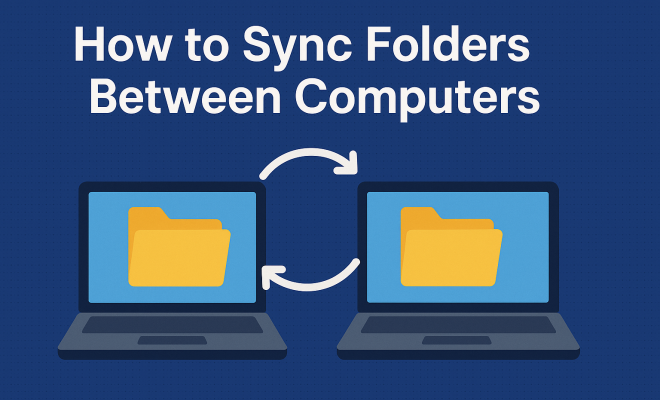
Before we dive into the various methods to sync folders between computers, it’s essential to grasp the fundamental concepts behind folder synchronization. Essentially, folder syncing involves comparing files in two or more locations and ensuring they are identical. This process can be one-way, where updates are made from one folder to another, or two-way, where changes are reflected in both locations.
There are different synchronization strategies, including:
- Real-time Sync: Automatically updates changes as soon as they are made.
- Scheduled Sync: Runs at specified intervals, such as daily or weekly.
- Selectively Sync: Allows you to choose specific files or folders to sync rather than everything.
Understanding these strategies helps you select the best method that fits your workflow and needs.
3. Using Cloud Storage Solutions
One of the most popular ways to sync folders between computers is by utilizing cloud storage services. Providers such as Google Drive, Dropbox, and OneDrive allow users to store files online and access them from multiple devices. The beauty of cloud storage is that it offers automatic syncing; any changes made in one location are reflected in the cloud and thus available on other devices.
For instance, if you are working on a document in Google Drive on your laptop, you can easily access that same document from your smartphone or desktop without any additional effort. Most cloud services also provide a certain amount of free storage, with paid plans available for larger storage needs. However, remember to check the privacy policies of these services, as storing sensitive information in the cloud can pose security risks.
Statistics show that over 80% of businesses rely on cloud storage solutions for their file management needs, indicating a significant shift towards these technologies for both personal and professional applications. The accessibility and ease of use offered by cloud services have made them a preferred choice for many users.
4. Using File Synchronization Software
If you prefer a more traditional approach without relying on the cloud, file synchronization software is an excellent option. Programs like FreeFileSync, SyncBack, and Beyond Compare offer robust synchronization features that can handle large volumes of data and complex folder structures.
These programs often provide advanced features, such as:
- Version Control: Keeps track of different versions of files.
- Conflict Resolution: Helps manage file conflicts when changes are made in both locations.
- Filters: Allows you to exclude certain files or folders from synchronization.
By leveraging file synchronization software, you gain greater control over how and when your folders sync, which can be particularly beneficial for users with specific needs. For example, businesses that handle sensitive data may prefer to use software that allows for more stringent control over file access and sharing.
5. Manual Syncing: A Simple Yet Effective Method
For those who may not require constant synchronization, manual syncing can be an effective solution. This involves copying files and folders from one computer to another via USB drives or external hard drives. While it may not be as convenient as automatic syncing methods, it provides a higher degree of control over what gets transferred.
Manual syncing is particularly useful for occasional file transfers or when you want to maintain a backup of important documents. However, this method can be time-consuming and prone to human error, especially if you forget to update files regularly. Therefore, it’s best suited for users who prefer a hands-on approach. A study found that nearly 40% of users still rely on manual syncing methods for their less frequent file transfers, highlighting its continued relevance.
6. Network File Sharing: Syncing within a Local Network
If both computers are connected to the same local network, you can set up network file sharing to sync folders between computers. This method is especially beneficial in home offices or small businesses. By sharing folders over the network, you can access files from any connected computer without needing cloud services or external drives.
To set this up, you typically need to:
- Enable file sharing on the host computer.
- Set permissions for the shared folder.
- Access the shared folder from the second computer using the network path.
Although this approach avoids the need for internet access, it does require both computers to be on the same network, which can limit its applicability for users who are frequently on the move. Still, many small businesses utilize this method for its speed and reliability, particularly when transferring large files.
7. Using rsync for Advanced Users
For tech-savvy individuals comfortable with command-line interfaces, rsync is a powerful tool for synchronizing folders across computers, especially in Unix-like systems. This command-line utility allows users to perform incremental backups and syncs only the files that have changed, which speeds up the process significantly.
With rsync, you can specify various options, such as:
- –delete: Removes files from the destination that no longer exist in the source.
- –archive: Preserves file permissions, timestamps, and symbolic links.
- –compress: Compresses file data during the transfer to save bandwidth.
Utilizing rsync can be complex for beginners, but it offers unparalleled control for advanced users who want a customized solution for syncing their folders. It’s estimated that over 30% of system administrators use rsync due to its flexibility and efficiency, particularly in server environments.
8. Choosing the Right Method for Your Needs
Ultimately, the choice of method to sync folders between computers will depend on your specific needs and workflow. Here are some factors to consider:
- Frequency of Updates: If you update files frequently, consider automated solutions like cloud storage or synchronization software.
- File Size and Volume: Large files may benefit from local network sharing or rsync to avoid cloud storage limitations.
- Security Concerns: If you’re dealing with sensitive information, opt for local solutions or secure cloud providers that offer encryption.
By considering these factors, you can select the most efficient and effective way to keep your files in sync, ensuring that you have access to the most current versions across all your devices.
9. Exploring Third-Party Syncing Solutions
Beyond the well-known cloud services and software solutions, there are other third-party options worth exploring. Tools like Resilio Sync or GoodSync provide a different angle on folder synchronization. Resilio Sync, for example, operates on a peer-to-peer architecture, allowing for fast and secure sharing of files without the need for a central server. This method can be particularly useful for collaborative projects where multiple users need to access and edit files simultaneously.
GoodSync, on the other hand, is known for its robust backup capabilities alongside its sync features. It allows users to create backups to various locations, including cloud, local, or network drives, which adds an extra layer of data security. Many users appreciate these third-party solutions for their flexibility and additional features that go beyond standard syncing methods.
10. Common Challenges in Syncing Folders
While syncing folders between computers can vastly improve your workflow, it’s not without its challenges. Here are a few common issues you might encounter:
- File Conflicts: When the same file is modified in different locations, it can lead to conflicts that require resolution. Most sync tools offer options to handle conflicts, but understanding how to resolve them is essential.
- Network Issues: Relying on cloud or network-based solutions means you can face connectivity issues that hinder syncing. Always ensuring a reliable internet connection or local network can help mitigate this.
- Data Corruption: Occasionally, files can become corrupted during syncing, particularly if interrupted. Regularly checking the integrity of your files helps to avoid this problem.
- Storage Limitations: Many cloud services come with storage limits, which can affect your ability to sync large files. Planning for storage needs ahead of time is crucial.
Being aware of these common challenges can prepare you for troubleshooting when issues arise, ensuring a smoother syncing experience.
11. Benefits of Syncing Folders with Business Use Cases
For businesses, syncing folders between computers is not just a convenience; it’s a necessity. Here are some benefits and practical use cases:
- Enhanced Collaboration: Syncing allows multiple team members to access and modify documents in real-time, streamlining collaboration. For example, marketing teams can work on campaign materials simultaneously, ensuring everyone is on the same page.
- Data Backup and Recovery: Regular syncing can serve as a backup method, protecting against data loss. If a team member accidentally deletes a file, they can easily retrieve it from the most recent sync.
- Increased Productivity: By eliminating the need to manually transfer files, employees can focus on their core tasks, leading to improved overall productivity. This is especially true in industries where time is critical, such as finance or healthcare.
- Remote Work Enablement: As remote work becomes more common, syncing enables employees to access important files from anywhere. This flexibility can lead to improved job satisfaction and performance.
These use cases illustrate just how integral syncing can be to modern business operations, emphasizing its role in fostering efficiency and collaboration.
12. FAQs About Syncing Folders Between Computers
What are the benefits of syncing folders between computers?
Syncing folders ensures that you have the latest version of your files across all devices, reducing the risk of data loss and improving your efficiency. It also allows for easier collaboration, as team members can access the same files in real-time.
Is cloud storage safe for sensitive files?
While cloud storage is convenient, it’s crucial to evaluate the security measures of the provider. Look for services that offer end-to-end encryption and robust privacy policies to protect sensitive information.
Can I sync folders without an internet connection?
Yes! You can use local network sharing or file synchronization software that operates offline to sync files between computers without needing an internet connection.
How do I choose the best syncing method for my needs?
Consider factors such as how often you need to sync files, the size of the files, and any security concerns. Each method has its advantages and drawbacks, so analyze your workflow to find the best fit.
Can I sync files between different operating systems?
Yes, many cloud services and file synchronization software are designed to work across different operating systems. However, it’s essential to verify compatibility before proceeding with your files.
What happens if a file gets deleted from one device?
This depends on the syncing method you are using. Most cloud services will remove the file from other devices, while some software options allow for version control and recovery of deleted files. Always check the settings of your syncing tool for file recovery options.
How often should I sync my files?
The frequency of syncing can depend on your needs. For professional use, real-time or daily syncing might be necessary. For personal use or less frequent updates, weekly or manual syncing may suffice.
Final Thoughts
As technology continues to evolve, having the ability to sync folders between computers is essential for both personal and professional use. There are a variety of methods available, each with its advantages and disadvantages. Whether you choose cloud solutions, file synchronization software, or manual methods, the key is to find an approach that fits your unique workflow. With the right tools and strategies in place, you’ll enjoy a seamless experience accessing and managing your files across multiple devices.
“`
Trending Now
Frequently Asked Questions
How do I sync folders between two computers?
To sync folders between two computers, you can use cloud storage solutions like Google Drive, Dropbox, or OneDrive. These services allow you to store files online and access them from multiple devices, ensuring your folders are always updated and accessible.
What is the best way to sync files between computers?
The best way to sync files between computers depends on your needs. Cloud storage solutions offer real-time syncing, while local software like Resilio Sync can provide more control over file transfers. Assess your workflow to choose the most suitable method.
Can I sync folders without using the cloud?
Yes, you can sync folders without using the cloud by utilizing software like FreeFileSync or rsync. These programs allow you to sync files directly between computers over a local network or through external drives.
What is real-time folder synchronization?
Real-time folder synchronization automatically updates changes as soon as they are made. This method ensures that all devices have the latest version of files, making it ideal for collaborative work and keeping data consistent across platforms.
Is folder syncing safe?
Folder syncing is generally safe, especially when using reputable cloud services that offer encryption and security measures. However, it’s essential to regularly back up your data and be cautious about syncing sensitive information.
What’s your take on this? Share your thoughts in the comments below — we read every one.