How to use WhatsApp on computer
“`html
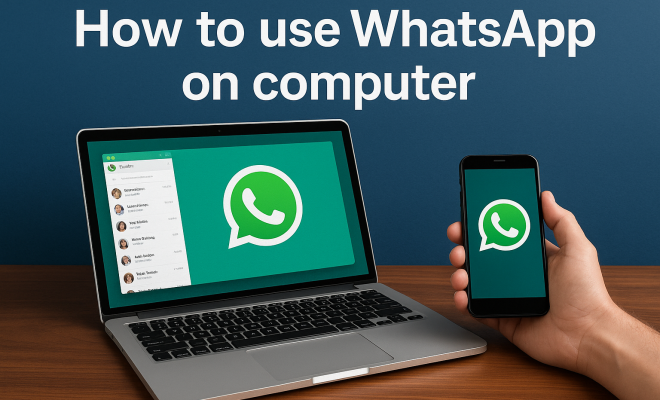
WhatsApp has transformed the way we communicate, allowing users to send messages, make calls, and share media seamlessly on their smartphones. But did you know that you can also use WhatsApp on computer? This functionality can enhance your productivity, especially for those who spend long hours working at a desk. In this comprehensive guide, we’ll explore the various ways you can access WhatsApp on your computer, the benefits of doing so, and tips for making the most of this powerful messaging platform.
1. Understanding WhatsApp Web and Desktop App
WhatsApp offers two main methods to use WhatsApp on computer: WhatsApp Web and the dedicated WhatsApp Desktop app. Both options provide similar functionalities, but they cater to different user preferences. WhatsApp Web is a browser-based version, while the Desktop app is specifically designed for Windows and Mac operating systems.
WhatsApp Web allows users to mirror their mobile app on their computer, providing real-time access to chats and notifications. On the other hand, the Desktop app comes with additional features like keyboard shortcuts, a better interface for managing chats, and the ability to send larger files. Regardless of your choice, both options require an active WhatsApp account linked to your mobile device.
2. Setting Up WhatsApp Web
To use WhatsApp on computer via WhatsApp Web, follow these simple steps:
- Open your preferred web browser and navigate to web.whatsapp.com.
- You’ll see a QR code on your screen. Open WhatsApp on your smartphone.
- For Android, tap the three-dot menu in the top right corner, then select “WhatsApp Web.” For iOS, go to “Settings” and tap on “Linked Devices.”
- Scan the QR code displayed on your computer screen with your smartphone.
- Once scanned, your WhatsApp chats will appear on your computer.
It’s important to remember that your phone must remain connected to the internet for WhatsApp Web to function. If your phone loses connectivity, you won’t be able to send or receive messages on your computer.
3. Downloading the WhatsApp Desktop App
If you prefer a standalone application, downloading the WhatsApp Desktop app might be the better option. Here’s how you can get started:
- Visit the official WhatsApp download page at whatsapp.com/download.
- Select the app version that matches your operating system (Windows or Mac).
- Download and install the application by following the on-screen instructions.
- Once installed, open the app and you’ll see a QR code, similar to WhatsApp Web.
- Open WhatsApp on your mobile device and scan the QR code as described in the previous section.
The Desktop app has a sleek design, making it easy to navigate through your chats and contacts. The added benefit of notifications means you won’t miss any messages while working.
4. Key Features of WhatsApp on Computer
Using WhatsApp on your computer unlocks several features that enhance your messaging experience. Here are some of the key functionalities you can take advantage of:
- Media Sharing: You can easily drag and drop files, images, and videos from your computer to your chats, streamlining the sharing process.
- Keyboard Shortcuts: The Desktop app supports keyboard shortcuts, making it faster to navigate and respond to messages. For example, you can press “Ctrl + N” to start a new chat.
- Group Chats: Manage group contacts more efficiently from your desktop, allowing you to send messages to multiple people simultaneously.
- Notifications: Receive desktop notifications for incoming messages, ensuring you stay connected even when not actively checking the app.
These features significantly improve the experience for users who rely on WhatsApp for personal or work-related communication.
5. Common Issues and Troubleshooting
Despite its user-friendly nature, you may encounter some issues while trying to use WhatsApp on computer. Here are a few common problems and how to troubleshoot them:
- Connection Problems: If WhatsApp Web or the Desktop app isn’t loading, ensure your phone is connected to the internet. Restarting both devices can often resolve this issue.
- QR Code Scanning Not Working: Make sure your camera lens is clean and adequately focused on the QR code. If problems persist, try refreshing the QR code on the web page or app.
- Notifications Not Appearing: Check your notification settings on your computer and within the app to ensure they are enabled.
If you follow these troubleshooting steps and still encounter issues, visiting the WhatsApp Help Center can provide additional support.
6. Enhancing Your Experience with WhatsApp Extensions
For those looking to extend the functionality of WhatsApp, various browser extensions and third-party applications can help. Tools like “WhatsApp Desktop for Windows” and browser extensions such as “WA Web Plus for WhatsApp” add features like custom themes, message scheduling, and even automated replies. (See: WhatsApp overview on Wikipedia.)
These enhancements allow for a more personalized messaging experience and can help automate tasks for businesses using WhatsApp for customer communication. However, be cautious when using third-party tools, as they may require access to your account information.
7. Security Considerations When Using WhatsApp on Computer
As with any messaging platform, security should be a top priority. Here are some key points to consider when using WhatsApp on computer:
- Device Security: Ensure your computer has up-to-date antivirus software and a firewall enabled to protect against malware.
- Log Out When Done: If you’re using a public or shared computer, always log out of WhatsApp Web when you finish to secure your account.
- Two-Step Verification: Enable two-step verification on your WhatsApp account for added security. This requires a second authentication step when logging in on a new device.
By taking these precautions, you can enjoy the convenience of WhatsApp on your computer while keeping your information secure.
8. Using WhatsApp for Business on Computer
Many businesses leverage WhatsApp for customer communication, and using it on a computer can streamline these interactions. With the Desktop app or Web version, businesses can easily manage multiple conversations at once, respond quickly to inquiries, and even keep track of customer feedback.
WhatsApp Business accounts come with features tailored for commercial use, such as automated greetings, quick replies, and business analytics. These tools enable businesses to maintain a professional presence while providing excellent customer service.
9. Future of WhatsApp on Desktop
As technology continues to evolve, so too does WhatsApp. Future updates may bring even more functionality to the desktop platform, including improved video calling capabilities, enhanced group management tools, and better integration with other applications. Staying updated with the latest features and changes can help you maximize your use of WhatsApp on your computer.
In conclusion, whether you’re looking to boost productivity or maintain communication with friends and family, knowing how to use WhatsApp on computer can significantly enhance your experience. By exploring the features, troubleshooting common issues, and prioritizing security, you can make the most out of this versatile messaging platform.
10. Comparing WhatsApp to Other Messaging Platforms
While WhatsApp is a popular choice for messaging, there are several other platforms available that offer similar functionalities. Understanding how WhatsApp compares to these alternatives can help you decide if it’s the right app for your needs. Here’s a quick look at some competitors:
Telegram
Telegram is known for its focus on speed and security. It offers cloud-based messaging, meaning you can access your chats from multiple devices without needing your phone. Telegram also allows for larger file transfers and has a strong emphasis on privacy, with features like self-destructing messages.
Signal
Signal is often praised for its high level of security and privacy. The app uses end-to-end encryption for all communications, making it a go-to choice for users concerned about their data privacy. While it doesn’t have as many features as WhatsApp, it is straightforward and effective for secure messaging.
Facebook Messenger
Facebook Messenger integrates seamlessly with Facebook, allowing users to send messages to friends on the platform. It offers unique features such as games and chatbots but lacks the same level of privacy as WhatsApp, as it is tied to Facebook’s data policies.
Each of these platforms has its own strengths and weaknesses, and the best choice depends on your specific needs, such as security, ease of use, or additional features.
11. Statistics on WhatsApp Usage
WhatsApp has amassed a vast user base, with over 2 billion active users as of 2023. This number represents a significant portion of the global population, highlighting the app’s popularity. Here are some interesting statistics about WhatsApp:
- Over 100 billion messages are sent via WhatsApp daily.
- Users spend an average of 30 minutes per day on the app.
- Approximately 60% of WhatsApp users are based outside the United States, with significant usage in countries like India, Brazil, and Indonesia.
- The app is available in over 180 countries, making it a truly global messaging platform.
- WhatsApp is the most popular messaging app in many countries, surpassing competitors in user engagement and functionality.
12. Frequently Asked Questions (FAQ)
Can I use WhatsApp on my computer without my phone?
No, you cannot use WhatsApp on your computer without your phone being connected to the internet. The Web and Desktop versions are extensions of the mobile app and require an active WhatsApp account linked to your mobile device. (See: CDC tips on using messaging apps.)
Is my data secure on WhatsApp Web?
Yes, WhatsApp Web uses the same end-to-end encryption as the mobile app. However, it’s essential to ensure your computer is secure and that you log out from public computers to protect your data.
Can I make voice or video calls on WhatsApp Desktop?
As of now, the WhatsApp Desktop app supports voice and video calls, making it easier to connect with friends and family directly from your computer.
What do I do if I forget to log out of WhatsApp Web?
If you forget to log out, you can do so remotely from your mobile app. Go to “Linked Devices” in your WhatsApp settings, and you can log out of any sessions that are still active.
Can I use WhatsApp on multiple devices?
WhatsApp currently allows users to link their account to one phone and up to four other devices for Web or Desktop use. However, you cannot simultaneously use the same account on two phones.
Are there limits on file sharing?
Yes, there are limits on file sizes when sharing media. You can send files up to 100 MB, which includes videos, documents, and images. Make sure to compress larger files before sending them.
13. Tips for Maximizing Your WhatsApp Experience on Computer
To get the most out of WhatsApp on your computer, consider these tips:
- Organize Your Chats: Use the pinning feature to keep essential conversations at the top of your chat list for quick access.
- Utilize Search: The search bar can help you find messages, photos, and contacts faster, especially in busy group chats.
- Customize Notifications: Set specific notification tones for different chats to help you distinguish between personal and work messages quickly.
- Regular Backups: Make sure to back up your chats on your mobile app regularly to avoid losing important messages.
- Engage in Group Chats: Use group chats to streamline communication among teams or friends, allowing for faster responses and information sharing.
14. Advanced Features: WhatsApp Business Tools
If you’re using WhatsApp for business purposes, the platform provides several advanced features to help you manage customer interactions more effectively. One of the standout tools is the WhatsApp Business API, which allows larger companies to automate responses and manage large volumes of messages.
The API can integrate with existing CRM systems, enabling businesses to track customer inquiries and respond promptly. This feature is particularly beneficial for companies handling high traffic, as it improves response times and customer satisfaction.
Additionally, you can use labels to organize chats and contacts. This makes it easier to distinguish between different customer inquiries, follow-ups, and support tickets. Organizing your communication can significantly enhance your customer service experience.
15. Understanding Message Encryption and Privacy
WhatsApp takes user privacy seriously, which is evident in its end-to-end encryption feature. This means that messages are encrypted on your device and only decrypted on the recipient’s device. Not even WhatsApp can read these messages, adding another layer of security to your conversations.
This encryption applies to all forms of communication on the platform, including text messages, voice notes, video calls, and shared media. While this level of privacy is comforting, users should still be mindful of sharing sensitive information online and remain aware of phishing attempts that may target their data. (See: New York Times on WhatsApp privacy.)
Staying educated about privacy settings and regularly reviewing your app permissions can further enhance your security when using WhatsApp on computer.
16. WhatsApp and Remote Work: A Game Changer
The rise of remote work has made WhatsApp an essential tool for many teams and organizations. It allows for quick communication, which is critical for collaboration among remote employees. With features like group chats, voice messaging, and file sharing, teams can stay connected and productive from anywhere in the world.
WhatsApp’s ability to facilitate instant communication helps reduce the time spent on emails and meetings. Instead of lengthy email threads, teams can quickly consult each other through WhatsApp, speeding up decision-making processes. This can be particularly advantageous for project management, where quick updates and feedback can significantly impact timelines.
For teams with members across different time zones, WhatsApp allows for asynchronous communication, meaning that team members can respond to messages on their schedule without needing everyone to be online at the same time.
17. Integration with Other Productivity Tools
For those who want to use WhatsApp on computer while also managing tasks or projects, integrating with other productivity tools can be beneficial. While WhatsApp doesn’t have built-in integrations with tools like Slack or Trello, you can use third-party services such as Zapier to create automated workflows.
For instance, you could set up an automation that notifies you on WhatsApp when a task is created in Trello or when there are updates in your project management tools. This can help you stay on top of your responsibilities without constantly switching between apps.
Moreover, using tools like WhatsApp’s web links can help create clickable buttons for businesses to direct users to chat with them directly on WhatsApp from their websites or emails, streamlining customer interactions.
18. Tips for Using WhatsApp Safely on Computer
While WhatsApp is generally secure, users should adopt best practices to enhance their safety further, especially when accessing the platform on a computer. Here are some tips:
- Use Strong Passwords: Ensure your computer is password-protected, and use strong, unique passwords for your accounts.
- Keep Software Updated: Regularly update your operating system and software to patch any security vulnerabilities.
- Be Wary of Public Wi-Fi: If you’re using WhatsApp on public Wi-Fi, consider using a VPN to encrypt your internet connection, protecting your data from potential snoopers.
- Regularly Monitor Account Activity: Check for any unauthorized access to your WhatsApp account by reviewing linked devices through your mobile app.
- Educate Yourself About Phishing: Be aware of common phishing scams that may attempt to steal your account information, and never share your verification codes with anyone.
By implementing these safety measures, you can enjoy all the features that WhatsApp offers while minimizing risks associated with online communication.
“`
Trending Now
Frequently Asked Questions
How can I use WhatsApp on my computer?
You can use WhatsApp on your computer by accessing WhatsApp Web through your browser or by downloading the dedicated WhatsApp Desktop app. Both methods require scanning a QR code with your mobile device to link your account.
What is the difference between WhatsApp Web and the desktop app?
WhatsApp Web is a browser-based version that mirrors your mobile app, while the Desktop app is specifically designed for Windows and Mac. The Desktop app offers additional features like keyboard shortcuts and a better interface for managing chats.
Do I need my phone to use WhatsApp Web?
Yes, your phone must remain connected to the internet for WhatsApp Web to function. The service relies on a connection to your mobile device to sync messages and notifications.
Can I send files using WhatsApp on my computer?
Yes, you can send files using both WhatsApp Web and the Desktop app. However, the Desktop app allows you to send larger files, making it a better option for file sharing.
Is it safe to use WhatsApp Web?
Yes, using WhatsApp Web is generally safe as long as you access it through a secure internet connection. Always ensure you log out after use, especially on shared or public computers, to protect your account.
Have you experienced this yourself? We’d love to hear your story in the comments.