How to check data usage on iPhone
“`html
In today’s data-driven world, keeping track of your mobile data usage is more important than ever. With the rising costs of cellular plans and the ever-increasing demand for streaming services, it’s vital to know how to check data usage on iPhone. Many users find themselves surprised when they receive their monthly bills, often exceeding their data limits. Fortunately, Apple has built intuitive tools into the iPhone that make monitoring your data usage straightforward. This comprehensive guide will walk you through everything you need to know about checking and managing your data on an iPhone.
1. Understanding Mobile Data
Before diving into how to check data usage on iPhone, it’s essential to understand what mobile data is and how it works. Mobile data allows your iPhone to access the internet when you’re not connected to Wi-Fi. Whether you’re browsing the web, using social media, or streaming music and videos, you utilize your data plan. Each time you use your phone to perform these activities, data is consumed. Knowing the basics will help you manage your usage effectively.
Cellular data plans typically come with data caps, which means you have a limit on how much data you can use each month. If you exceed this limit, you may face throttled speeds or additional charges. This is why checking your data usage regularly is important. Not only will this help you avoid unexpected charges, but it can also help you make informed decisions about your data plan.
2. How to Access Data Usage Settings on iPhone
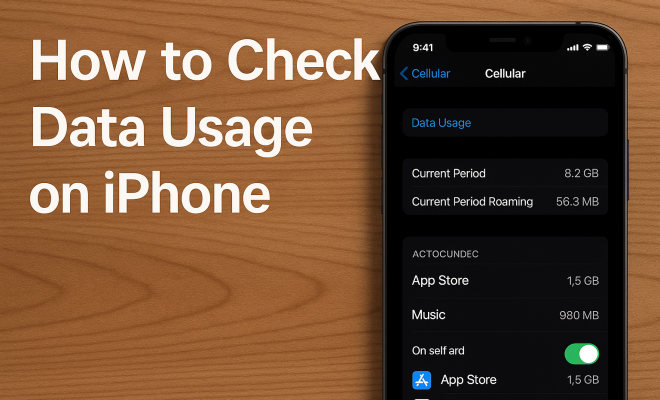
Now that you understand the importance of monitoring your data, let’s explore how to check data usage on iPhone. Start by opening the Settings app on your iPhone. This app provides access to all your iPhone settings, including cellular data usage. Look for the Cellular option, usually located near the top of the menu. Tapping on it will take you to a new screen filled with various options related to your cellular settings.
Once you’re in the Cellular settings, scroll down to the Cellular Data Usage section. Here, you will find the data usage statistics for the current period and the last reset. You can see how much cellular data you’ve used for the current billing cycle, as well as a breakdown of data used by individual applications. This feature allows you to identify which apps consume the most data, guiding you on which ones to monitor closely or adjust usage.
3. Resetting Data Statistics
To keep track of your data usage effectively, it’s a good idea to reset your data statistics regularly. Many users choose to reset their statistics at the start of their billing cycle. To do this, simply scroll to the bottom of the Cellular settings screen and select Reset Statistics. Confirm your choice, and your data usage stats will start fresh. This method allows you to monitor usage based solely on your current billing cycle, providing a clear view of how much data you’re consuming.
Resetting your statistics is particularly useful if you’re trying to stick to a data cap. By resetting your data usage at the beginning of each month, you can easily track your consumption and avoid overage charges. Keeping a close eye on your usage habits will help you establish a better understanding of your data needs.
4. Monitoring Data Usage Over Time
While checking data usage on iPhone provides a snapshot of your current usage, you’ll want to monitor it over time for a more comprehensive understanding. Consider keeping a manual log or using a third-party app to track your consumption. Some popular options include My Data Manager and Data Usage Monitor. These apps can provide in-depth analytics, alerts for high usage, and even forecasts based on your historical data.
Using an app to monitor your data can also help highlight trends in your usage. For example, you may notice that your data consumption spikes during certain months due to increased streaming or social media activity. With this knowledge, you can adjust your habits or consider changing your data plan to better suit your needs. (See: Health data usage guidelines.)
5. Wi-Fi Assist: The Double-Edged Sword
One feature that many iPhone users may overlook is Wi-Fi Assist. This feature is designed to help you maintain a strong internet connection by automatically switching to cellular data when your Wi-Fi connection is poor. While this can help you stay connected, it can also lead to unexpected data usage, particularly if you’re unaware that it’s enabled.
To check if Wi-Fi Assist is turned on, go to Settings, tap on Cellular, and scroll to the bottom of the page. If it’s enabled, consider whether you want it active. If you’re trying to conserve data, it might be wise to disable this feature, especially if you frequently connect to public Wi-Fi networks where the connection can fluctuate.
6. Identifying Data-Hungry Apps
When you check data usage on iPhone, you’ll not only see your overall consumption but also a breakdown by app. This feature can be a lifesaver for identifying which apps are sucking up your data. After accessing the Cellular settings, scroll down to see a list of apps and their respective data usage. Apps like streaming services, social media platforms, and online games typically consume the most data.
Once you identify data-hungry apps, you can make informed decisions about your usage. For instance, if you notice that a particular app consumes significantly more data than you expected, you might consider reducing your usage, switching to Wi-Fi when possible, or even deleting the app altogether if it’s unnecessary.
7. Tips for Reducing Data Usage
Now that you’ve monitored your data usage, it’s time to discuss practical tips to reduce it. Here are several strategies that can help you conserve your data:
- Limit Streaming Quality: Most streaming services allow you to adjust the video quality. Lowering the resolution can significantly decrease data usage.
- Download Content: Whenever possible, download music, videos, or podcasts while connected to Wi-Fi for offline use.
- Turn Off Background App Refresh: This feature allows apps to update in the background, consuming data even when you’re not using them. Disable it under Settings > General > Background App Refresh.
- Use Data Saver Mode: Enable Low Data Mode in your Cellular settings to reduce background data usage automatically.
Implementing these tips can help you stay within your data limits and save money on your monthly cell phone bill. You’ll be amazed at how small changes in your usage habits can add up over time.
8. Understanding Your Data Plan
Your ability to check data usage on iPhone is only as valuable as your understanding of your data plan. Take time to review your current plan and data limits. Many carriers offer various options, from unlimited plans to limited data caps with overage fees. Knowing the details of your plan will empower you to make informed decisions about your usage and whether you need to adjust your plan based on your habits.
Additionally, keep an eye on promotions from your carrier. Many companies periodically offer better deals or loyalty discounts to existing customers. If you find yourself consistently exceeding your data limit, it might be worth discussing options with your provider for a more suitable plan.
9. Common Myths About Mobile Data Usage
When it comes to mobile data usage, there’s a lot of misinformation that can lead to confusion. Here are a few common myths debunked:
- Myth: Streaming is the only way I use data. – While streaming does consume a lot of data, browsing the web, downloading apps, and even sending emails can also contribute significantly to your data usage.
- Myth: Wi-Fi is always unlimited. – Not all Wi-Fi networks are unlimited. Some public Wi-Fi networks may impose limits on data usage, especially in cafes or airports.
- Myth: Having unlimited data means no worries. – Unlimited data plans may come with restrictions, such as deprioritization after a certain usage threshold, meaning your speed may slow down during peak times.
Understanding these myths can help you make better decisions about your data usage and avoid unnecessary surprises on your bill.
10. Frequently Asked Questions
If you have questions about checking data usage on your iPhone, you’re not alone. Here are some frequently asked questions that can help clarify your concerns: (See: Mobile data plans explained.)
Q1: How can I see which apps use the most data on my iPhone?
A1: To check which apps use the most data, go to Settings > Cellular. Scroll down to see a list of apps and the amount of data each has used for the current period.
Q2: Can I set data usage limits on my iPhone?
A2: The iPhone doesn’t allow you to set hard data limits, but you can monitor your usage and reset statistics to track your consumption based on your billing cycle.
Q3: What happens if I exceed my data limit?
A3: Exceeding your data limit may result in throttled speeds, meaning your internet will be slower, or you may incur additional charges, depending on your carrier’s policy.
Q4: Does turning off cellular data save battery life?
A4: Yes, turning off cellular data when you’re not using it can help save battery life, as the device won’t be searching for a signal or maintaining a connection.
Q5: Is there a way to track my data usage over multiple months?
A5: You can track your data usage over time using third-party apps like My Data Manager, which can provide historical data trends and analytics.
11. When to Consider an Upgrade
As technology evolves, so do the demands on data usage. If you find yourself consistently hitting your data cap or struggling to find ways to reduce your usage, it might be time to consider upgrading your plan. Here are some signs that an upgrade could be beneficial:
- Frequent Overages: If you’re frequently exceeding your data limit, even after implementing usage-saving strategies, an unlimited plan could be more cost-effective.
- Increased Streaming Needs: If you’ve started using more data-heavy services, like 4K streaming or online gaming, a more robust plan might be appropriate.
- Family Sharing Plans: Families can often save money by switching to a shared plan, allowing multiple users to pool their data consumption.
Before making any changes, compare plans from different providers and consider your current and future needs. Understanding your usage patterns will ensure you choose a plan that best fits your lifestyle.
12. Understanding Data Usage Reports
Many carriers provide detailed data usage reports that can give you insights into how you’re using your data. These reports can be accessed through your carrier’s app or website. They often include breakdowns by app and time of day, giving you a clearer picture of your habits. For example, you may discover that you consume more data during the evenings when streaming is most prevalent. This can help you strategize your usage during peak hours or shift certain activities to Wi-Fi when possible.
Analytics like this can be eye-opening. If you see that social media apps are taking up a large portion of your data, you might decide to limit your use of those apps or look for Wi-Fi options when browsing social feeds. The point is to utilize these reports to make informed decisions that align with your lifestyle and data plan.
13. Best Practices for Data Management
Effective data management goes beyond just monitoring usage. Here are some best practices that can help you stay on top of your consumption:
- Set Reminders: Use your calendar or a reminder app to alert you when you’re approaching your data limit. This could be a great proactive step to avoid overage fees.
- Educate Family Members: If you share a plan, educate family members about data consumption. Encourage them to download content while on Wi-Fi and be mindful of streaming on cellular networks.
- Regularly Review Your Plan: Check your data plan at least every six months. Data needs can change, and a plan that once served you might no longer be suitable.
- Stay Updated: Keep your iPhone updated, as software updates can include improvements in data management, background refresh controls, and new features that can help limit data use.
By following these best practices, you’ll not only keep your data usage in check but also become more attuned to your digital habits and needs.
14. What to Do If You Run Out of Data
Running out of data can be frustrating, especially if you rely on your phone for everyday tasks. Here’s what you can do if you find yourself in this situation:
- Switch to Wi-Fi: Immediately connect to Wi-Fi when available to conserve your data. This can help you avoid additional charges from your carrier.
- Limit Data Usage: Consider turning off cellular data for specific apps to prevent them from using data until your next billing cycle starts.
- Contact Your Carrier: If you consistently run out of data, contact your carrier. They may offer temporary data boosts or plans tailored to your usage patterns.
- Consider Emergency Data Plans: Some carriers offer emergency data options that allow you to purchase additional data when you run out. This can be helpful in critical situations.
Knowing what to do when you run out of data can alleviate the stress and help you regain control over your usage quickly.
15. Conclusion: Staying in Control of Your Data
Being proactive about monitoring your data is essential for any iPhone user. By knowing how to check data usage on iPhone, resetting your statistics regularly, and adopting smart usage habits, you can take control of your cellular data consumption. Whether it’s through the built-in settings or third-party apps, understanding your data usage will empower you to avoid unexpected charges.
With the right tools and strategies, managing your data becomes a straightforward task. So take the time to explore your iPhone settings and make the adjustments necessary to keep your data usage within check. After all, staying informed is the first step toward responsible mobile data management.
“`
Trending Now
Frequently Asked Questions
How do I check my data usage on iPhone?
To check your data usage on an iPhone, open the Settings app, tap on 'Cellular,' and scroll down to view your data usage statistics. You can see how much data each app has consumed and reset your statistics if needed.
Where can I find data usage settings on my iPhone?
You can find data usage settings by going to the Settings app on your iPhone, then selecting 'Cellular.' This section provides detailed information about your mobile data usage and settings.
What happens if I exceed my data limit on iPhone?
If you exceed your data limit on iPhone, your carrier may throttle your internet speed or charge you extra fees for additional data usage. Regularly checking your data can help you avoid these surprises.
Can I track data usage for specific apps on my iPhone?
Yes, you can track data usage for specific apps on your iPhone. In the Cellular settings, you'll see a list of apps and how much data each one has used, allowing you to manage usage effectively.
How can I reset my data usage statistics on iPhone?
To reset your data usage statistics on iPhone, go to Settings, tap on 'Cellular,' and scroll to the bottom. There, you'll find the option to 'Reset Statistics,' which will clear your current data usage records.
Agree or disagree? Drop a comment and tell us what you think.