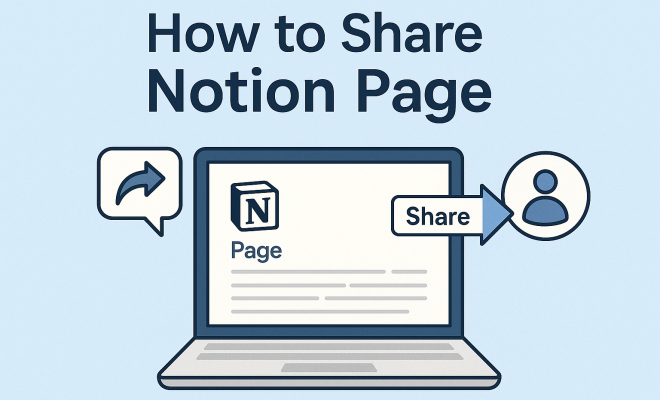
How to share Notion page
“`html
Notion has quickly become a go-to tool for individuals and teams looking to organize their thoughts, projects, and workflows. With its versatile features, users can create everything from simple notes to complex databases. But as powerful as Notion is, one of its standout features is how easily you can share a Notion page with others. Whether you want to collaborate with teammates or just share a read-only link with friends, knowing how to effectively share Notion pages can enhance productivity and streamline communication. In this guide, we’ll explore how to share Notion pages, the various options available, and best practices to ensure you’re maximizing the tool’s potential.
1. Understanding Notion’s Sharing Capabilities
Before diving into the specifics of sharing a Notion page, it’s essential to understand the platform’s sharing capabilities. Notion offers flexibility in how you can share content, whether with individuals, teams, or the public. You can choose to share a page directly with specific users or create a link that allows anyone to view the page.
This versatility is especially useful for teams working on collaborative projects. For example, you might want to share a project plan with your entire department while keeping certain pages private for sensitive information. Familiarizing yourself with these options will help you make the most of Notion’s sharing features.
2. Sharing a Notion Page with Specific Users
If you’re looking to collaborate closely with specific individuals, you can share a Notion page directly with them. To do this, navigate to the page you want to share, then click the “Share” button located at the top right corner. Here, you can enter the email addresses of your collaborators to invite them to the page.
Once invited, you can manage their permissions, allowing them to either view or edit the content. This granular control over permissions means you can maintain oversight of your projects while still enabling team members to contribute their insights. Imagine working on a team proposal where each member can add their input in real-time; this feature makes it seamless.
3. Creating a Public Link for Your Notion Page
Sometimes, you may want to share your Notion page with a broader audience. In this case, you can create a public link. By clicking on the “Share” button, you’ll find an option that allows you to toggle the setting for “Public Access.” Once enabled, Notion generates a unique link that you can share via email, social media, or any other platform.
This feature is particularly beneficial for creators who want to share their work or knowledge with a wider audience. For instance, educators can share course materials or personal projects, allowing anyone with the link to access them. However, it’s crucial to remember that once the page is public, anyone who has the link can view the content, so always double-check for any sensitive information before sharing.
4. Utilizing Notion’s Permissions Settings
Permissions management is one of the most significant aspects of sharing Notion pages. When sharing pages, you have the ability to specify what each user can do. You can set permissions to allow individuals to only view the content, comment, or edit it. This level of customization ensures that everyone has the appropriate access they need.
For instance, if you’re working on a team project, you might want some members to edit while others should only view the page. This helps prevent accidental changes to key documents while keeping the collaboration effective. Miscommunication can often hinder progress, but proper permission settings can alleviate these issues.
5. Collaborative Features for Effective Teamwork
Notion isn’t just about sharing pages; it also includes features that enhance collaboration among users. For example, team members can leave comments directly on the page, allowing for real-time feedback and discussions. This can be incredibly useful when brainstorming ideas or revising documents. (See: Understanding collaboration in technology.)
Additionally, Notion allows for mentions, which lets users tag one another in comments or text. This functionality makes it easy to notify others about specific points, ensuring that no one’s input is overlooked. By leveraging these collaborative features, you can create a more cohesive team environment, promoting productivity and engagement.
6. Exporting Notion Pages for External Sharing
If you want to share your Notion content outside the platform, you can export pages in various formats, including PDF and Markdown. This can be particularly useful for presentations or for sharing with users who may not have a Notion account.
To export a Notion page, simply open the page, click on the three dots in the upper right corner, and select the export option. Choose your desired format, and Notion will compile the content accordingly. This flexibility makes it easier to distribute information gathered in Notion without requiring everyone to adopt the platform.
7. Best Practices for Sharing Notion Pages
While sharing Notion pages can be beneficial, following best practices ensures that your collaboration is effective and secure. First, always review the content you’re sharing to avoid accidentally exposing sensitive information. Consider creating a separate page specifically for sharing with the public, so you can control what information is accessible.
Additionally, regularly reviewing who has access to your pages can help you maintain privacy. As team members come and go, it’s essential to update permissions accordingly. By staying proactive about managing your shared pages, you’ll foster a more secure and organized workspace.
8. Integrating Notion with Other Tools
Notion’s integration capabilities further enhance its sharing features. Notion can work alongside tools like Google Drive, Slack, and Trello, allowing you to link documents or tasks seamlessly. By integrating these services, you can share Notion pages that include links or embeds from other platforms, creating a more comprehensive workflow.
For example, you might have a Notion page that lays out a project plan and includes links to relevant Google Docs or Trello boards. This integration allows team members to access all necessary resources from one central location, improving efficiency and reducing the time spent navigating between different tools.
9. The Future of Sharing in Notion
As Notion continues to evolve, so too will its sharing capabilities. Recent updates have focused on enhancing user experience and collaboration tools. Future developments may further streamline the process of sharing pages, making it even easier for users to connect and collaborate.
Moreover, as remote work and online collaboration become increasingly prevalent, tools like Notion that prioritize sharing and teamwork will remain vital. By staying updated on Notion’s advancements, users can ensure they are leveraging the platform effectively to foster collaboration and organization.
10. Common Use Cases for Sharing Notion Pages
Understanding how to share Notion pages effectively can greatly enhance your productivity. Here are some common use cases:
- Project Management: Share a project tracker with your team to monitor progress. This can include deadlines, assigned tasks, and status updates.
- Knowledge Sharing: Create a shared knowledge base for your organization. This could include onboarding documents, best practices, and FAQs.
- Event Planning: Collaborate on event details by sharing a Notion page that includes timelines, venue information, and tasks assigned to different team members.
- Content Creation: Writers can share drafts, review comments, and final versions, streamlining the feedback process.
Each of these scenarios highlights how the sharing capabilities in Notion can be harnessed for effective collaboration and productivity. (See: Impact of technology on communication.)
11. Advanced Sharing Techniques in Notion
For users looking to take their sharing capabilities to the next level, consider these advanced techniques:
- Creating Shared Templates: If you frequently share similar pages, consider creating templates that can be reused. This saves time and ensures consistency in formatting.
- Using Databases for Dynamic Sharing: Notion databases can be shared dynamically, allowing users to see real-time updates. This is especially useful for tracking metrics or maintaining a living document that evolves over time.
- Embedding Notion Pages in Other Platforms: You can embed Notion pages into websites or other platforms, increasing accessibility for users unfamiliar with Notion.
These techniques can help you maximize the impact of your Notion sharing, enhancing collaboration and information flow.
12. Frequently Asked Questions (FAQ)
How can I share a Notion page with someone who doesn’t have a Notion account?
You can create a public link for your Notion page. By enabling “Public Access” in the sharing settings, anyone with the link can view the content, even without a Notion account.
Can I change permissions after sharing a Notion page?
Yes, you can change permissions at any time. Simply return to the sharing settings of the page and adjust the access levels for each user as needed.
Is it possible to share a Notion page with a group of users?
Absolutely! When sharing a page, you can enter multiple email addresses separated by commas. This allows you to invite several users at once.
What happens if I remove someone from a shared Notion page?
If you remove someone from a shared Notion page, they will no longer have access to that page. It’s a good practice to notify users if they’re being removed, to avoid confusion.
Can I set different permissions for different sections of a page?
Notion does not currently support setting permissions at a subsection level within a single page. Permissions apply to the entire page, so if you need section-specific access, you may want to create separate pages.
How can I ensure the privacy of sensitive information when sharing?
Review your content thoroughly before sharing, and consider creating a parallel page for public access that contains only non-sensitive information. This helps maintain privacy while still sharing useful resources.
Can I revoke access to a public link once it’s been shared?
Yes, you can revoke access to a public link by turning off “Public Access” in the sharing settings. This will prevent anyone from viewing the page via that link.
13. Real-World Examples of Notion Page Sharing
Many organizations and individuals have successfully utilized Notion’s sharing capabilities to foster collaboration. Here are a few compelling examples: (See: Harvard's research on productivity tools.)
- Educational Institutions: Teachers utilize Notion to share course syllabi, assignments, and resources with students. With public links, students can access materials at any time, enhancing their learning experience.
- Creative Teams: Designers and writers share project briefs and creative assets. This allows for seamless feedback cycles and ensures everyone has the latest information.
- Startup Teams: Startups often share business plans and investor pitch decks within their team on Notion, allowing for real-time collaboration and updates as the project evolves.
These examples illustrate just how versatile Notion can be in various contexts, making it a valuable tool for sharing information effectively.
14. Tips for Optimizing Your Notion Pages Before Sharing
Before sharing your Notion pages, consider these tips to ensure your content is not only comprehensive but also user-friendly:
- Organize Content Logically: Structure your pages with headers, subheaders, and bullet points. This makes information easier to navigate, especially for external users who may not be familiar with your layout.
- Use Visual Aids: Incorporate images, charts, or diagrams where applicable. Visual elements can enhance understanding and engagement, making complex information more digestible.
- Add Descriptive Text: Provide context for your content, especially when sharing with new users. Descriptive text can guide them on how to interact with the page or what to look for.
- Regular Updates: Keep shared pages current. Users will appreciate having the most relevant information, which can improve collaboration and reduce confusion.
By following these tips, you can make your Notion pages more effective and accessible, improving the user experience for everyone involved.
15. Future Trends in Page Sharing and Collaboration Tools
The landscape of collaboration tools is constantly evolving. As technology advances, we can expect several trends to shape how we share information in platforms like Notion:
- Increased AI Integration: As artificial intelligence becomes more embedded in productivity tools, expect features that assist with organizing, summarizing, and even creating content automatically, enhancing the sharing process.
- Enhanced Security Features: With growing concerns over data privacy, more advanced security options will likely emerge. These features could include encrypted sharing options or more granular permissions settings.
- Greater Customization: Users may have more control over how their shared content appears, allowing for tailored experiences that better suit audiences or specific use cases.
- Improved Cross-Platform Functionality: As integration with other tools deepens, expect smoother transitions between different platforms, making it easier to share and collaborate across various applications.
Staying ahead of these trends will help you leverage Notion and similar tools effectively, ensuring you’re always equipped for productive collaboration.
16. Conclusion: The Power of Sharing in Notion
Being able to share Notion pages effectively opens up a world of possibilities for collaboration. Whether you’re working within a team or sharing insights with a larger community, understanding how to harness Notion’s sharing capabilities can make a significant difference in your productivity and communication. By following best practices, utilizing advanced techniques, and staying aware of privacy considerations, you can maximize the impact of your shared content.
As you explore the potential of sharing Notion pages, you’ll likely find new ways to enhance not only your personal workflow but also the collaborative efforts of your entire team.
“`
Trending Now
Frequently Asked Questions
How do I share a Notion page with others?
To share a Notion page, open the page you wish to share and click the 'Share' button in the top right corner. You can then enter the email addresses of individuals you want to invite, set their permissions, and send the invitation for collaboration.
Can I share a Notion page publicly?
Yes, you can share a Notion page publicly by creating a shareable link. After clicking the 'Share' button, toggle the option to allow anyone with the link to view the page. This is useful for sharing read-only content with a broader audience.
What permissions can I set when sharing a Notion page?
When sharing a Notion page, you can set different permissions for collaborators. You can allow them to either 'View' or 'Edit' the content. This control helps you manage who can make changes while ensuring sensitive information remains protected.
Is it possible to collaborate on Notion pages in real-time?
Yes, Notion allows real-time collaboration on pages. Once you share a page with specific users, they can view and edit the content simultaneously, making it an effective tool for team projects and discussions.
How do I stop sharing a Notion page?
To stop sharing a Notion page, navigate to the 'Share' settings of the page and remove the email addresses of collaborators or disable the public link. This will revoke access to the page, ensuring that only authorized users can view or edit it.
What did we miss? Let us know in the comments and join the conversation.