The Tech Edvocate

Top Menu

  • Advertisement
  • Apps
  • Home Page
  • Home Page Five (No Sidebar)
  • Home Page Four
  • Home Page Three
  • Home Page Two
  • Home Tech2
  • Icons [No Sidebar]
  • Left Sidbear Page
  • Lynch Educational Consulting
  • My Account
  • My Speaking Page
  • Newsletter Sign Up Confirmation
  • Newsletter Unsubscription
  • Our Brands
  • Page Example
  • Privacy Policy
  • Protected Content
  • Register
  • Request a Product Review
  • Shop
  • Shortcodes Examples
  • Signup
  • Start Here
    • Governance
    • Careers
    • Contact Us
  • Terms and Conditions
  • The Edvocate
  • The Tech Edvocate Product Guide
  • Topics
  • Write For Us
  • Advertise

Main Menu

  • Start Here
    • Our Brands
    • Governance
      • Lynch Educational Consulting, LLC.
      • Dr. Lynch’s Personal Website
      • Careers
    • Write For Us
    • The Tech Edvocate Product Guide
    • Contact Us
    • Books
    • Edupedia
    • Post a Job
    • The Edvocate Podcast
    • Terms and Conditions
    • Privacy Policy
  • Topics
    • Assistive Technology
    • Child Development Tech
    • Early Childhood & K-12 EdTech
    • EdTech Futures
    • EdTech News
    • EdTech Policy & Reform
    • EdTech Startups & Businesses
    • Higher Education EdTech
    • Online Learning & eLearning
    • Parent & Family Tech
    • Personalized Learning
    • Product Reviews
  • Advertise
  • Tech Edvocate Awards
  • The Edvocate
  • Pedagogue
  • School Ratings

logo

The Tech Edvocate

  • Start Here
    • Our Brands
    • Governance
      • Lynch Educational Consulting, LLC.
      • Dr. Lynch’s Personal Website
        • My Speaking Page
      • Careers
    • Write For Us
    • The Tech Edvocate Product Guide
    • Contact Us
    • Books
    • Edupedia
    • Post a Job
    • The Edvocate Podcast
    • Terms and Conditions
    • Privacy Policy
  • Topics
    • Assistive Technology
    • Child Development Tech
    • Early Childhood & K-12 EdTech
    • EdTech Futures
    • EdTech News
    • EdTech Policy & Reform
    • EdTech Startups & Businesses
    • Higher Education EdTech
    • Online Learning & eLearning
    • Parent & Family Tech
    • Personalized Learning
    • Product Reviews
  • Advertise
  • Tech Edvocate Awards
  • The Edvocate
  • Pedagogue
  • School Ratings
  • Shocking: Esports Pros Reveal the Critical Steps to Protect Your Earnings

  • The Staggering Truth About These New Weight Loss Drugs — And Why You Need to Know

  • The Quiet Crisis: Why Your Auto Loan Interest Rates Are Still Skyrocketing

  • Elvis’s Ghost Haunts AI: The $41 Million Anthropic Copyright Lawsuit Explained

  • 7 Micro-SaaS Tools Quietly Transforming Freelance Productivity — Don’t Miss Out!

  • Who Really Owns the Moon? The Shocking Truth About Lunar Real Estate

  • 7 Shocking Ways Trophy Games’ Q3 2026 Earnings Reshape the Industry

  • The Trillion-Dollar Wall: 10 Urgent Steps to Protect Your CRE Investments Now

  • Mind-Blowing: AI in Law Will Unleash a 30% Deluge of New Cases

  • Slik leser du casinovurderinger utover poengsummen

Digital & Mobile Technology
Home›Digital & Mobile Technology›How to Use Search Keywords or Filters in iPhone Messages

How to Use Search Keywords or Filters in iPhone Messages

By Matthew Lynch
February 20, 2024
0
Spread the love

In the world where instant communication is an integral part of our daily lives, the Messages app on iPhone stands as a vital tool for sending and receiving messages. However, as conversations accumulate, finding specific messages can become like searching for a needle in a haystack. Fortunately, Apple provides features to use search keywords or filters to quickly locate the exact message you’re looking for. Here’s a step-by-step guide on how to use these features effectively.

Using Search Keywords in iPhone Messages

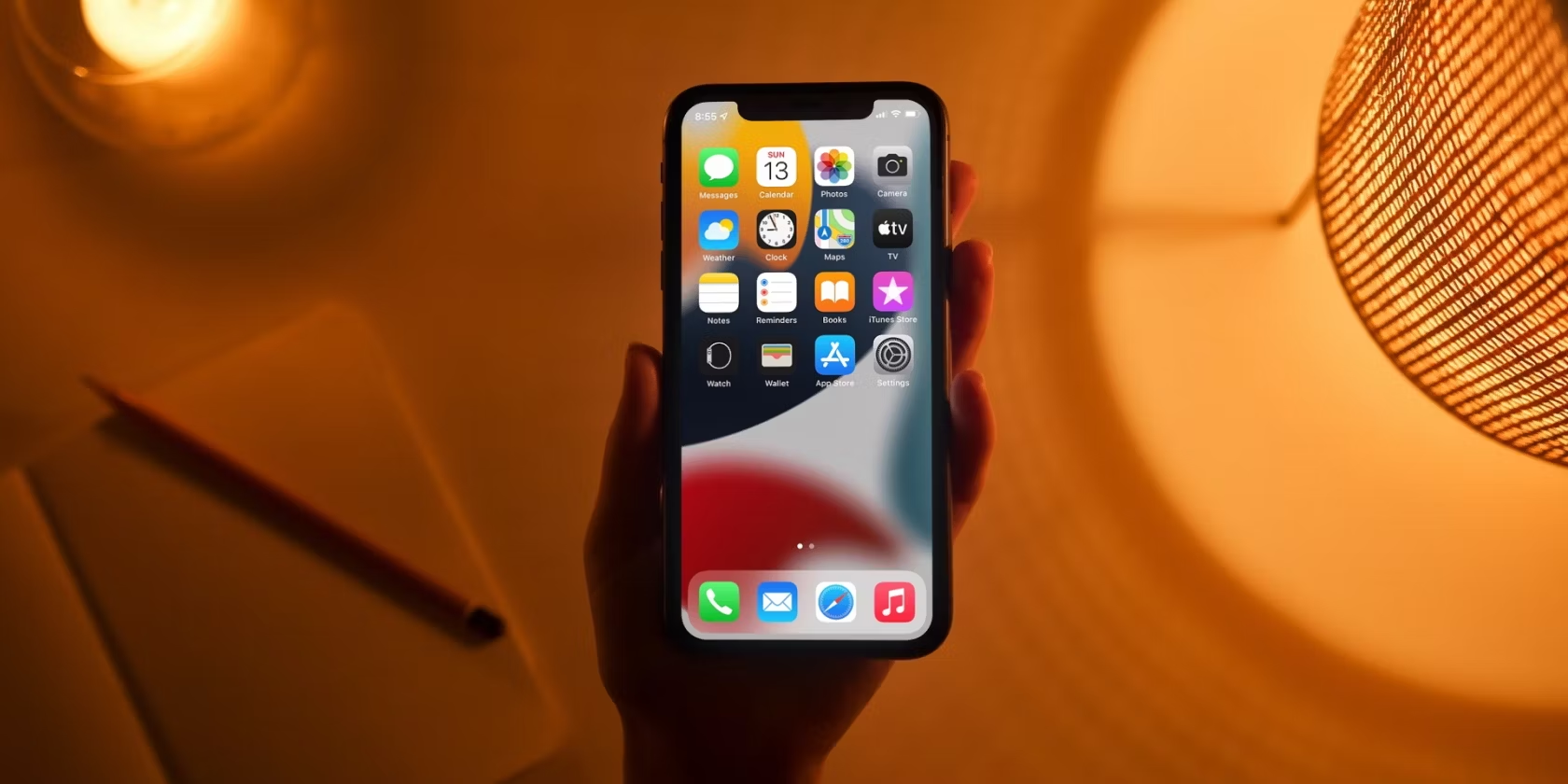
1.Open the Messages App: Tap on the Messages icon on your iPhone’s home screen to launch the app.

2.Access the Search Bar: Pull down from the top of your message list to reveal the search bar. On newer versions of iOS, you might find the search bar already visible at the top of the Messages app.

3.Enter Your Keyword: Tap on the search bar and begin typing the keywords related to the message you want to find. It could be a word, phrase, phone number, or email address.

4.View Results: As you type, results will start appearing in real-time below the search bar. These results will include message excerpts showing where your keyword appears.

5.Filter Results by Contact or Link: You can also see messages from specific contacts or those that contain links by tapping “See All” next to the respective sections that appear below the Search bar while typing.

6.Select a Conversation: Once you see a snippet that seems like it’s from the conversation you were looking for, tap on it to go directly into that part of the message thread.

7.Continue Your Search If Needed: If your first attempt doesn’t yield what you’re looking for, try different keywords or phrases associated with your target message.

Using Filters in iPhone Messages

With iOS 14 and later, Apple introduced a filtering feature that allows users to categorize messages based on known senders and unknown senders.

1.Open Messages and Tap ‘Filters’: In your list of conversations, tap ‘Filters’ in the top left corner.

2.Choose a Filter Option: You’ll have options like ‘Known Senders’, ‘Unknown Senders’, ‘Recently Deleted’, and more. Selecting one of these filters will narrow down your view to only those types of messages.

3.Browse Through Filtered Conversations: After selecting a filter, you’ll only see conversations from that particular category which makes finding certain messages easier if you remember whether it was from a known contact or not.

4.Select Individual Messages: Similar to searching with keywords, tap an individual message within your filtered view to read or respond to it.

By learning how to utilize search keywords and filters within iPhone Messages, managing your communications becomes a much more straightforward task—you’ll spend less time scrolling and more time communicating effectively.


Previous Article

5 Best Upright Vacuum Cleaners in the ...

Next Article

6 Best Neck and Shoulder Massagers to ...

Matthew Lynch

Related articles More from author

  • Digital & Mobile Technology

    What Is Apple’s Continuity Feature? (And How Does It Work?)

    June 13, 2023
    By Matthew Lynch
  • Digital & Mobile Technology

    What is an Enterprise Collaboration System (ECS)?

    May 5, 2023
    By Matthew Lynch
  • Digital & Mobile Technology

    How to Fix High CPU Usage Caused by System Interrupt

    June 22, 2023
    By Matthew Lynch
  • Digital & Mobile Technology

    Which Witch Cat Hat Works Best?

    March 14, 2024
    By Matthew Lynch
  • Digital & Mobile Technology

    What Is an XLM File?

    June 4, 2023
    By Matthew Lynch
  • Digital & Mobile Technology

    The Best Apps for Learning Chess on Your Phone

    June 5, 2023
    By Matthew Lynch

Search

Login & Registration

  • Log in
  • Entries feed
  • Comments feed
  • WordPress.org

Newsletter

Signup for The Tech Edvocate Newsletter and have the latest in EdTech news and opinion delivered to your email address!

About Us

Since technology is not going anywhere and does more good than harm, adapting is the best course of action. That is where The Tech Edvocate comes in. We plan to cover the PreK-12 and Higher Education EdTech sectors and provide our readers with the latest news and opinion on the subject. From time to time, I will invite other voices to weigh in on important issues in EdTech. We hope to provide a well-rounded, multi-faceted look at the past, present, the future of EdTech in the US and internationally.

We started this journey back in June 2016, and we plan to continue it for many more years to come. I hope that you will join us in this discussion of the past, present and future of EdTech and lend your own insight to the issues that are discussed.

Newsletter

Signup for The Tech Edvocate Newsletter and have the latest in EdTech news and opinion delivered to your email address!

Contact Us

The Tech Edvocate
910 Goddin Street
Richmond, VA 23231
(601) 630-5238
[email protected]

Copyright © 2026 Matthew Lynch. All rights reserved.