The Tech Edvocate

Top Menu

  • Advertisement
  • Apps
  • Home Page
  • Home Page Five (No Sidebar)
  • Home Page Four
  • Home Page Three
  • Home Page Two
  • Home Tech2
  • Icons [No Sidebar]
  • Left Sidbear Page
  • Lynch Educational Consulting
  • My Account
  • My Speaking Page
  • Newsletter Sign Up Confirmation
  • Newsletter Unsubscription
  • Our Brands
  • Page Example
  • Privacy Policy
  • Protected Content
  • Register
  • Request a Product Review
  • Shop
  • Shortcodes Examples
  • Signup
  • Start Here
    • Governance
    • Careers
    • Contact Us
  • Terms and Conditions
  • The Edvocate
  • The Tech Edvocate Product Guide
  • Topics
  • Write For Us
  • Advertise

Main Menu

  • Start Here
    • Our Brands
    • Governance
      • Lynch Educational Consulting, LLC.
      • Dr. Lynch’s Personal Website
      • Careers
    • Write For Us
    • The Tech Edvocate Product Guide
    • Contact Us
    • Books
    • Edupedia
    • Post a Job
    • The Edvocate Podcast
    • Terms and Conditions
    • Privacy Policy
  • Topics
    • Assistive Technology
    • Child Development Tech
    • Early Childhood & K-12 EdTech
    • EdTech Futures
    • EdTech News
    • EdTech Policy & Reform
    • EdTech Startups & Businesses
    • Higher Education EdTech
    • Online Learning & eLearning
    • Parent & Family Tech
    • Personalized Learning
    • Product Reviews
  • Advertise
  • Tech Edvocate Awards
  • The Edvocate
  • Pedagogue
  • School Ratings

logo

The Tech Edvocate

  • Start Here
    • Our Brands
    • Governance
      • Lynch Educational Consulting, LLC.
      • Dr. Lynch’s Personal Website
        • My Speaking Page
      • Careers
    • Write For Us
    • The Tech Edvocate Product Guide
    • Contact Us
    • Books
    • Edupedia
    • Post a Job
    • The Edvocate Podcast
    • Terms and Conditions
    • Privacy Policy
  • Topics
    • Assistive Technology
    • Child Development Tech
    • Early Childhood & K-12 EdTech
    • EdTech Futures
    • EdTech News
    • EdTech Policy & Reform
    • EdTech Startups & Businesses
    • Higher Education EdTech
    • Online Learning & eLearning
    • Parent & Family Tech
    • Personalized Learning
    • Product Reviews
  • Advertise
  • Tech Edvocate Awards
  • The Edvocate
  • Pedagogue
  • School Ratings
  • How to use ClickUp goals feature

  • Trello for Business

  • Can Smartsheet do automation

  • How to use Microsoft Planner boards

  • How many transactions in Kashoo

  • Sage

  • Is Sage worth it for accountants

  • How to use Smartsheet templates

  • How many users in Zoho Books free plan

  • Can Wrike integrate with Adobe Creative Cloud

Tech Advice
Home›Tech Advice›How to use an external drive with a Chromebook

How to use an external drive with a Chromebook
By Matthew Lynch
July 13, 2023
0
Spread the love

Introduction

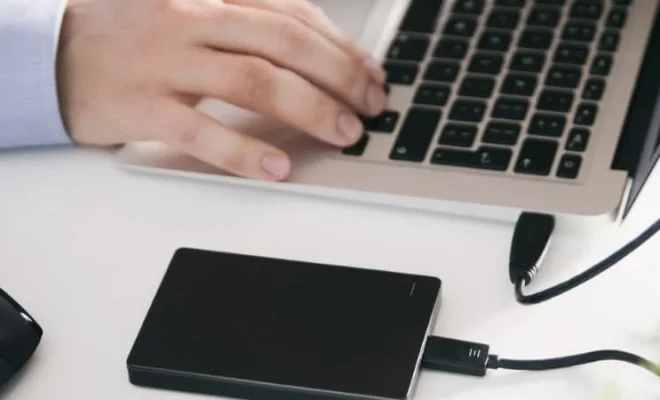
Chromebooks have gained popularity for their simplicity, affordability, and ease of use. While these devices often come with a more limited built-in storage capacity than traditional laptops, they offer a solution for users seeking additional space: the ability to connect an external drive. This article will guide you through the process of using an external drive with your Chromebook, from setup to file management.

Choosing the Right External Drive

When selecting an external drive for your Chromebook, consider whether you want a hard disk drive (HDD) or a solid-state drive (SSD). HDDs are typically less expensive, but SSDs offer faster performance and greater durability. Additionally, ensure that your chosen external drive is compatible with the USB ports on your Chromebook. Many modern Chromebooks use USB-C ports; if this is the case with yours, make sure to choose a compatible external drive or obtain an appropriate adapter.

Connecting the External Drive

1. Power up your Chromebook and log in.

2. Attach one end of the USB cable to the external drive and the other end to an available USB port on your Chromebook.

3. Wait for a few seconds as your Chromebook recognizes and sets up the connected external drive.

Accessing Your Files

1. Open the “Files” app on your Chromebook by clicking on it in the launcher.

2. In the Files app, locate and click on “Devices” in the left-hand column.

3. Under “Devices,” you should see your connected external drive listed by its name or as “External Storage.”

4. Click on this listing to access all folders and files stored on the external device.

File Management

With your external drive accessible through the Files app, you can easily perform file management tasks like creating folders, copying files between devices, or deleting unwanted files as follows:

1. To create a new folder, click on the “+” icon at the top of the app and choose “Create Folder.” Name your folder and press Enter.

2. To copy files between your Chromebook and the external drive, simply drag and drop files from one location to another.

3. To delete files from either device, right-click on the file or select it with a long press (touchscreen) and choose “Delete” from the options that appear.

Safely Ejecting Your External Drive

Before disconnecting your external drive from your Chromebook, you must safely eject it to prevent any potential data loss or corruption:

1. In the Files app, locate your external drive under “Devices.”

2. Click the eject symbol (triangle with a horizontal line below) next to the drive’s listing.

3. Wait for the eject symbol to disappear before physically removing your external drive from your Chromebook’s USB port.

Conclusion

Using an external drive with your Chromebook is a simple and efficient way to expand storage capacity or transfer files between devices. By following these steps, you’ll be well-equipped to make the most of this added functionality.

Previous Article

How to turn on Caps Lock on ...

Next Article

How to use Windows 10 without the ...

Matthew Lynch

Related articles More from author

  • Tech Advice

    Do You Really Need 3 Meals a Day? A Dietitian Cracks the Code

    July 7, 2023
    By Matthew Lynch
  • Tech Advice

    Hilo vs. Kona: Which is Best

    October 20, 2023
    By Matthew Lynch
  • Tech Advice

    Sony’s snap-on PS5 covers reviewed: Adds a splash of console color

    July 16, 2023
    By Matthew Lynch
  • Tech Advice

    2024 Volvo XC90 Recharge Plug-In Hybrid T8 Plus Bright Theme 7-Seater 4dr All-Wheel Drive Sport Utility SUV: Trim Details, Reviews, ...

    August 21, 2023
    By Matthew Lynch
  • Tech Advice

    All About Snowboard Roof Racks

    August 17, 2023
    By Matthew Lynch
  • Tech Advice

    Final Days to Use Your FSA Money: Here’s What You Could Get

    July 11, 2023
    By Matthew Lynch

Search

Login & Registration

  • Log in
  • Entries feed
  • Comments feed
  • WordPress.org

Newsletter

Signup for The Tech Edvocate Newsletter and have the latest in EdTech news and opinion delivered to your email address!

About Us

Since technology is not going anywhere and does more good than harm, adapting is the best course of action. That is where The Tech Edvocate comes in. We plan to cover the PreK-12 and Higher Education EdTech sectors and provide our readers with the latest news and opinion on the subject. From time to time, I will invite other voices to weigh in on important issues in EdTech. We hope to provide a well-rounded, multi-faceted look at the past, present, the future of EdTech in the US and internationally.

We started this journey back in June 2016, and we plan to continue it for many more years to come. I hope that you will join us in this discussion of the past, present and future of EdTech and lend your own insight to the issues that are discussed.

Newsletter

Signup for The Tech Edvocate Newsletter and have the latest in EdTech news and opinion delivered to your email address!

Contact Us

The Tech Edvocate
910 Goddin Street
Richmond, VA 23231
(601) 630-5238
[email protected]

Copyright © 2026 Matthew Lynch. All rights reserved.