
The Tech Edvocate

Top Menu

  • Advertisement
  • Apps
  • Home Page
  • Home Page Five (No Sidebar)
  • Home Page Four
  • Home Page Three
  • Home Page Two
  • Home Tech2
  • Icons [No Sidebar]
  • Left Sidbear Page
  • Lynch Educational Consulting
  • My Account
  • My Speaking Page
  • Newsletter Sign Up Confirmation
  • Newsletter Unsubscription
  • Our Brands
  • Page Example
  • Privacy Policy
  • Protected Content
  • Register
  • Request a Product Review
  • Shop
  • Shortcodes Examples
  • Signup
  • Start Here
    • Governance
    • Careers
    • Contact Us
  • Terms and Conditions
  • The Edvocate
  • The Tech Edvocate Product Guide
  • Topics
  • Write For Us
  • Advertise

Main Menu

  • Start Here
    • Our Brands
    • Governance
      • Lynch Educational Consulting, LLC.
      • Dr. Lynch’s Personal Website
      • Careers
    • Write For Us
    • The Tech Edvocate Product Guide
    • Contact Us
    • Books
    • Edupedia
    • Post a Job
    • The Edvocate Podcast
    • Terms and Conditions
    • Privacy Policy
  • Topics
    • Assistive Technology
    • Child Development Tech
    • Early Childhood & K-12 EdTech
    • EdTech Futures
    • EdTech News
    • EdTech Policy & Reform
    • EdTech Startups & Businesses
    • Higher Education EdTech
    • Online Learning & eLearning
    • Parent & Family Tech
    • Personalized Learning
    • Product Reviews
  • Advertise
  • Tech Edvocate Awards
  • The Edvocate
  • Pedagogue
  • School Ratings

logo

The Tech Edvocate

  • Start Here
    • Our Brands
    • Governance
      • Lynch Educational Consulting, LLC.
      • Dr. Lynch’s Personal Website
        • My Speaking Page
      • Careers
    • Write For Us
    • The Tech Edvocate Product Guide
    • Contact Us
    • Books
    • Edupedia
    • Post a Job
    • The Edvocate Podcast
    • Terms and Conditions
    • Privacy Policy
  • Topics
    • Assistive Technology
    • Child Development Tech
    • Early Childhood & K-12 EdTech
    • EdTech Futures
    • EdTech News
    • EdTech Policy & Reform
    • EdTech Startups & Businesses
    • Higher Education EdTech
    • Online Learning & eLearning
    • Parent & Family Tech
    • Personalized Learning
    • Product Reviews
  • Advertise
  • Tech Edvocate Awards
  • The Edvocate
  • Pedagogue
  • School Ratings
  • Mind-Blowing: These Viral Amazon Products Are NOT What You Expect

  • Bizarre: AI-Generated Fake Health Influencers Are Invading Your Feed – Here’s How to Spot Them

  • Six Startups Launch IPOs in One Day: Is This India’s Most Audacious Bet Yet?

  • The Baffling Twitter Startup Name Change: Why ‘Bluebird’ Had to Die

  • The PlayStation Trump Tariff Refunds You Won’t Get: Why Sony’s Silence Is Infuriating Gamers

  • The White House ‘Arcade’ Scandal: Why the Tetris Controversy Is Just the Beginning

  • The Billion-Dollar Battle: Seattle Times’ AI Lawsuit Could Redefine Digital Rights

  • This OpenAI Pause Reveals a Disturbing Truth About AI’s Future

  • Stunning: Feds Quietly Erase Data on Gender-Based Bullying – What It Means for Vulnerable Students

  • The Raw Truth About the Colorado Student Walkout You Haven’t Heard

Tech Advice
Home›Tech Advice›How to fix a broken iPad screen

How to fix a broken iPad screen
By Matthew Lynch
July 13, 2023
0
Spread the love

Introduction:

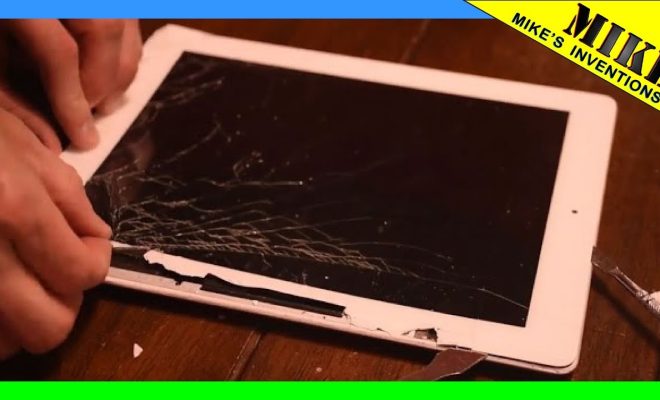
A broken iPad screen can be a constant source of frustration, and it may seem difficult to restore it to its original state. However, there’s no need to worry – with a few tools and some patience, you can repair your iPad screen by following these simple steps.
Please note that this guide is for educational purposes only. If you’re not comfortable with performing the repair or unsure about the process, we recommend taking your device to a professional. Additionally, attempting a repair may void your warranty.

Tools and Materials Needed:

1. Replacement iPad screen

2. Screwdriver (specifically, a Phillips #000 and a tri-point Y00)

3. Plastic opening tools or spudgers

4. Tweezers

5. Heat gun or hair dryer

6. Adhesive strips or glue

Step 1: Turn off the iPad and Remove the SIM Card Tray

Before doing anything else, power off your iPad and remove the SIM card tray (found on the side of the device) using either your SIM card removal tool or a paperclip.

Step 2: Soften the Adhesive Around the Screen

Using a heat gun or hair dryer, gently warm up the edges of your iPad’s screen to soften the adhesive that holds it in place. Make sure not to apply too much heat as it can damage internal components.

Step 3: Lift and Remove the Screen

Carefully work an opening tool or spudger around the edges of your screen without applying too much pressure (this could further crack your display). Once you’ve separated the screen from its frame, slide it off carefully while minding any cables still attached.

Step 4: Detach Internal Cables

You should see several cables connecting your screen to the main body of your iPad. Using tweezers, detach each cable carefully by unlocking the clips holding them in place.

Step 5: Remove the Screen

After detaching the cables, you can now remove your broken iPad screen. Store it in a safe location if you plan to recycle or dispose of it properly.

Step 6: Prepare Your Replacement Screen

Take your new screen out of its packaging and test its functionality by connecting the cables before securing it in place. This will allow you to verify if the screen works as intended.

Step 7: Attach the New Screen

Once you’ve confirmed that your replacement screen is functioning properly, proceed to attach its cables. Then, apply adhesive strips or glue around the edges of the display before carefully lowering it into position. Press down gently around the edges to secure it.

Step 8: Reassemble Your iPad

Now that your new screen is in place, reinsert the SIM card tray and power on your device. If everything appears to be functioning correctly, congratulations! You’ve successfully replaced your broken iPad screen.

Conclusion:

Fixing a broken iPad screen may seem daunting, but with patience and the right tools, it’s an achievable task. Remember to work slowly, follow each step attentively, and take your device to a professional if you’re unsure about handling the repair yourself. Good luck!

Previous Article

How to find your Mac’s Home folder ...

Next Article

How to fix a Windows 10 laptop ...

Matthew Lynch

Related articles More from author

  • Tech Advice

    EufyCam 3 S330 Review

    July 20, 2023
    By Matthew Lynch
  • Tech Advice

    Lenovo IdeaPad 3 Chromebook Review

    July 20, 2023
    By Matthew Lynch
  • Tech Advice

    Can digital weights get you ripped? Tonal thinks so

    July 6, 2023
    By Matthew Lynch
  • Tech Advice

    iLife W400 Floor Washing Robot Review

    July 20, 2023
    By Matthew Lynch
  • Tech Advice

    Discovering the Cheapest Meal Delivery Services for a Nutritious Lifestyle

    July 14, 2023
    By Matthew Lynch
  • Tech Advice

    How to quickly shut down Windows 10

    July 13, 2023
    By Matthew Lynch

Search

Login & Registration

  • Log in
  • Entries feed
  • Comments feed
  • WordPress.org

Newsletter

Signup for The Tech Edvocate Newsletter and have the latest in EdTech news and opinion delivered to your email address!

About Us

Since technology is not going anywhere and does more good than harm, adapting is the best course of action. That is where The Tech Edvocate comes in. We plan to cover the PreK-12 and Higher Education EdTech sectors and provide our readers with the latest news and opinion on the subject. From time to time, I will invite other voices to weigh in on important issues in EdTech. We hope to provide a well-rounded, multi-faceted look at the past, present, the future of EdTech in the US and internationally.

We started this journey back in June 2016, and we plan to continue it for many more years to come. I hope that you will join us in this discussion of the past, present and future of EdTech and lend your own insight to the issues that are discussed.

Newsletter

Signup for The Tech Edvocate Newsletter and have the latest in EdTech news and opinion delivered to your email address!

Contact Us

The Tech Edvocate
910 Goddin Street
Richmond, VA 23231
(601) 630-5238
[email protected]

Copyright © 2026 Matthew Lynch. All rights reserved.
