The Tech Edvocate

Top Menu

  • Advertisement
  • Apps
  • Home Page
  • Home Page Five (No Sidebar)
  • Home Page Four
  • Home Page Three
  • Home Page Two
  • Home Tech2
  • Icons [No Sidebar]
  • Left Sidbear Page
  • Lynch Educational Consulting
  • My Account
  • My Speaking Page
  • Newsletter Sign Up Confirmation
  • Newsletter Unsubscription
  • Our Brands
  • Page Example
  • Privacy Policy
  • Protected Content
  • Register
  • Request a Product Review
  • Shop
  • Shortcodes Examples
  • Signup
  • Start Here
    • Governance
    • Careers
    • Contact Us
  • Terms and Conditions
  • The Edvocate
  • The Tech Edvocate Product Guide
  • Topics
  • Write For Us
  • Advertise

Main Menu

  • Start Here
    • Our Brands
    • Governance
      • Lynch Educational Consulting, LLC.
      • Dr. Lynch’s Personal Website
      • Careers
    • Write For Us
    • The Tech Edvocate Product Guide
    • Contact Us
    • Books
    • Edupedia
    • Post a Job
    • The Edvocate Podcast
    • Terms and Conditions
    • Privacy Policy
  • Topics
    • Assistive Technology
    • Child Development Tech
    • Early Childhood & K-12 EdTech
    • EdTech Futures
    • EdTech News
    • EdTech Policy & Reform
    • EdTech Startups & Businesses
    • Higher Education EdTech
    • Online Learning & eLearning
    • Parent & Family Tech
    • Personalized Learning
    • Product Reviews
  • Advertise
  • Tech Edvocate Awards
  • The Edvocate
  • Pedagogue
  • School Ratings

logo

The Tech Edvocate

  • Start Here
    • Our Brands
    • Governance
      • Lynch Educational Consulting, LLC.
      • Dr. Lynch’s Personal Website
        • My Speaking Page
      • Careers
    • Write For Us
    • The Tech Edvocate Product Guide
    • Contact Us
    • Books
    • Edupedia
    • Post a Job
    • The Edvocate Podcast
    • Terms and Conditions
    • Privacy Policy
  • Topics
    • Assistive Technology
    • Child Development Tech
    • Early Childhood & K-12 EdTech
    • EdTech Futures
    • EdTech News
    • EdTech Policy & Reform
    • EdTech Startups & Businesses
    • Higher Education EdTech
    • Online Learning & eLearning
    • Parent & Family Tech
    • Personalized Learning
    • Product Reviews
  • Advertise
  • Tech Edvocate Awards
  • The Edvocate
  • Pedagogue
  • School Ratings
  • Urgent Warning: GitLab AI Gateway Flaw Lets Hackers Take Control

  • Aignosis’ Rs 4 Crore Seed Funding: Why This Startup Could Revolutionize Autism Diagnosis

  • The Billionaire’s Bombshell: Why Startup Funding 2024 Could Be a Minefield

  • A Hacker’s Betrayal? Inside the ‘Rey’ Detention That Rocked ShinyHunters

  • The Astonishing Reason Why China’s AI Education Will Leave the West Behind

  • Jaw-Dropping: This Tiny Student Loan Interest Rate Cut Hides a Massive Secret

  • Urgent: FortiMail Zero-Day Vulnerability Under Attack — Here’s What You Must Do Now

  • Mind-Blowing: AI Cybersecurity Threats Are Giving Hackers a 24-Hour Head Start

  • Minneapolis Mayor Vetoes Human-Monitor Requirement for Robotaxis, Sending Driverless-Vehicle Fight Back to Council

  • Honda’s Astonishing Breakthrough: EVs Get 500-Mile Range Sooner Than You Think

Digital & Mobile Technology
Home›Digital & Mobile Technology›How to Use Fortnite Parental Controls

How to Use Fortnite Parental Controls
By Matthew Lynch
June 26, 2023
0
Spread the love

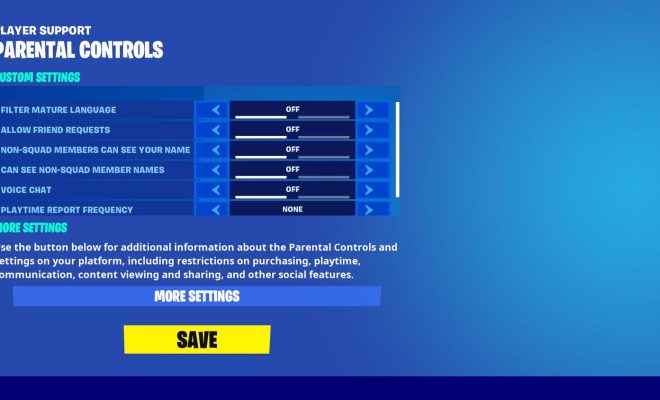
Fortnite is one of the most popular video games in the world, and it’s easy to see why. The game is free to play, has a fun cartoonish art style, and offers a unique blend of shooting and building gameplay. However, like any online game, Fortnite can pose some risks to younger players. That’s where parental controls come in. In this article, we’ll show you how to set up parental controls for Fortnite on the major gaming platforms.

Xbox One

If your child plays Fortnite on an Xbox One console, you can set up parental controls through the Xbox Family Settings app. Here’s how:

1. Download the Xbox Family Settings app on your smartphone or tablet.

2. Sign in with your Microsoft account.

3. Select your child’s account.

4. Choose “Screen time” and set limits on the amount of time your child can play Fortnite.

5. Choose “Content restrictions” and set the appropriate age rating for Fortnite.

6. Choose “Web filtering” and select “Strict” to block inappropriate websites.

PlayStation 4

If your child plays Fortnite on a PlayStation 4 console, you can set up parental controls through the system settings.

Here’s how:

1. Go to “Settings” on the PlayStation 4 home screen.

2. Select “Parental Controls/Family Management.”

3. Choose “PS4 System Restrictions” and set the appropriate age rating for Fortnite.

4. Choose “Web Filter” and select “Restrict” to block inappropriate websites.

Nintendo Switch

If your child plays Fortnite on a Nintendo Switch console, you can set up parental controls through the Nintendo Switch Parental Controls app. Here’s how:

1. Download the Nintendo Switch Parental Controls app on your smartphone or tablet.

2. Sign in with your Nintendo account.

3. Select your child’s profile.
4. Choose “Restriction Level” and set the appropriate age rating for Fortnite.

5. Choose “Communication & User-Generated Content” and select “Restrict” to block inappropriate content.

PC/Mac

If your child plays Fortnite on a PC or Mac, you can set up parental controls through the Epic Games Launcher.

Here’s how:

1. Open the Epic Games Launcher.

2. Click on your username in the bottom left corner.

3. Choose “Account.”

4. Scroll down to “Parental Controls” and click “Enable Parental Controls.”

5. Create a PIN code.

6. Choose “Fortnite” and set the appropriate age rating.

7. Choose “Communication” and select “Block” to block inappropriate messages.

By following these steps, you can help ensure that your child has a safe and enjoyable Fortnite experience.


Previous Article

Best Auto-Runner Games (That Aren’t Endless Runners)

Next Article

How to Reset Nintendo Switch OLED

Matthew Lynch

Related articles More from author

  • Digital & Mobile Technology

    Best Portable Chargers and Power Banks to Buy for Android

    April 11, 2023
    By Matthew Lynch
  • Digital & Mobile Technology

    How to Scrobble Your Spotify Music With Last.fm

    June 23, 2023
    By Matthew Lynch
  • Digital & Mobile Technology

    How to Port Forward on Your Router

    May 1, 2023
    By Matthew Lynch
  • Digital & Mobile Technology

    How to Change File Associations in Windows

    June 12, 2023
    By Matthew Lynch
  • Digital & Mobile Technology

    The 14 Best History Podcasts of 2023

    June 4, 2023
    By Matthew Lynch
  • Digital & Mobile Technology

    What Is an IPSW File?

    June 12, 2023
    By Matthew Lynch

Search

Login & Registration

  • Log in
  • Entries feed
  • Comments feed
  • WordPress.org

Newsletter

Signup for The Tech Edvocate Newsletter and have the latest in EdTech news and opinion delivered to your email address!

About Us

Since technology is not going anywhere and does more good than harm, adapting is the best course of action. That is where The Tech Edvocate comes in. We plan to cover the PreK-12 and Higher Education EdTech sectors and provide our readers with the latest news and opinion on the subject. From time to time, I will invite other voices to weigh in on important issues in EdTech. We hope to provide a well-rounded, multi-faceted look at the past, present, the future of EdTech in the US and internationally.

We started this journey back in June 2016, and we plan to continue it for many more years to come. I hope that you will join us in this discussion of the past, present and future of EdTech and lend your own insight to the issues that are discussed.

Newsletter

Signup for The Tech Edvocate Newsletter and have the latest in EdTech news and opinion delivered to your email address!

Contact Us

The Tech Edvocate
910 Goddin Street
Richmond, VA 23231
(601) 630-5238
[email protected]

Copyright © 2026 Matthew Lynch. All rights reserved.