The Tech Edvocate

Top Menu

  • Advertisement
  • Apps
  • Home Page
  • Home Page Five (No Sidebar)
  • Home Page Four
  • Home Page Three
  • Home Page Two
  • Home Tech2
  • Icons [No Sidebar]
  • Left Sidbear Page
  • Lynch Educational Consulting
  • My Account
  • My Speaking Page
  • Newsletter Sign Up Confirmation
  • Newsletter Unsubscription
  • Our Brands
  • Page Example
  • Privacy Policy
  • Protected Content
  • Register
  • Request a Product Review
  • Shop
  • Shortcodes Examples
  • Signup
  • Start Here
    • Governance
    • Careers
    • Contact Us
  • Terms and Conditions
  • The Edvocate
  • The Tech Edvocate Product Guide
  • Topics
  • Write For Us
  • Advertise

Main Menu

  • Start Here
    • Our Brands
    • Governance
      • Lynch Educational Consulting, LLC.
      • Dr. Lynch’s Personal Website
      • Careers
    • Write For Us
    • The Tech Edvocate Product Guide
    • Contact Us
    • Books
    • Edupedia
    • Post a Job
    • The Edvocate Podcast
    • Terms and Conditions
    • Privacy Policy
  • Topics
    • Assistive Technology
    • Child Development Tech
    • Early Childhood & K-12 EdTech
    • EdTech Futures
    • EdTech News
    • EdTech Policy & Reform
    • EdTech Startups & Businesses
    • Higher Education EdTech
    • Online Learning & eLearning
    • Parent & Family Tech
    • Personalized Learning
    • Product Reviews
  • Advertise
  • Tech Edvocate Awards
  • The Edvocate
  • Pedagogue
  • School Ratings

logo

The Tech Edvocate

  • Start Here
    • Our Brands
    • Governance
      • Lynch Educational Consulting, LLC.
      • Dr. Lynch’s Personal Website
        • My Speaking Page
      • Careers
    • Write For Us
    • The Tech Edvocate Product Guide
    • Contact Us
    • Books
    • Edupedia
    • Post a Job
    • The Edvocate Podcast
    • Terms and Conditions
    • Privacy Policy
  • Topics
    • Assistive Technology
    • Child Development Tech
    • Early Childhood & K-12 EdTech
    • EdTech Futures
    • EdTech News
    • EdTech Policy & Reform
    • EdTech Startups & Businesses
    • Higher Education EdTech
    • Online Learning & eLearning
    • Parent & Family Tech
    • Personalized Learning
    • Product Reviews
  • Advertise
  • Tech Edvocate Awards
  • The Edvocate
  • Pedagogue
  • School Ratings
  • 100 Best Apps for Data Backup

  • 100 Best Apps for Data Migration

  • 100 Best Apps for Data Transformation

  • 100 Best Apps for Data Cleaning

  • 100 Best Apps for Data Entry

  • 100 Best Apps for Business Process Automation

  • 100 Best Apps for Operational Efficiency

  • 100 Best Apps for Improving Processes

  • 100 Best Apps for Scaling Operations

  • 100 Best Apps for Community-Led Growth

Digital & Mobile Technology
Home›Digital & Mobile Technology›How to Remove That Microsoft Warning Alert

How to Remove That Microsoft Warning Alert
By Matthew Lynch
July 31, 2023
0
Spread the love

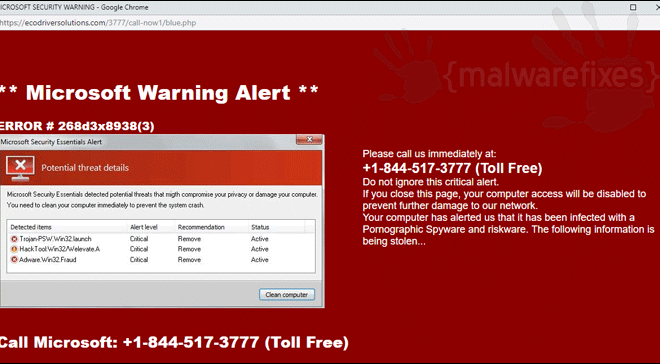
Microsoft warning alerts are notifications that pop up on your computer or mobile device, warning you of a potential security issue. These alerts can be alarming and often prompt users to click on a link or call a phone number to fix the issue. However, many of these pop-ups are actually scams that can compromise the security of your device. In this article, we’ll show you how to remove that Microsoft warning alert and keep your device safe.

Step 1: Don’t panic

The first step to dealing with a fake Microsoft warning alert is to stay calm. These pop-ups are designed to scare you into thinking that your device has been compromised. However, most of the time, they’re not legitimate. So, take a deep breath and don’t panic.

Step 2: Close the pop-up window

The next step is to close the pop-up window. Don’t click on any links or buttons within the warning message. Doing so could cause more harm to your device. Instead, close the window by clicking on the X in the top right corner of the window or pressing Ctrl + Alt + Delete on your keyboard and selecting Task Manager to close the process.

Step 3: Scan your device for malware

After closing the pop-up window, it’s a good idea to scan your device for any malware. Malware is a type of software that can compromise the security of your device. There are several free anti-virus programs available that can scan your device for malware. Some of the most popular ones include Malwarebytes and Norton Security.

Step 4: Use a pop-up blocker

To prevent these fake Microsoft warning alerts from popping up in the future, consider using a pop-up blocker. Most web browsers have a built-in pop-up blocker. To enable it, go to your browser’s settings and look for pop-up settings.

Step 5: Keep your device up-to-date

Finally, it’s important to keep your device up-to-date with the latest security patches and updates. These updates contain important security fixes that can protect your device against new threats. So, make sure to check for updates regularly.

In conclusion, fake Microsoft warning alerts are designed to scare you into clicking on a link or calling a phone number. They can compromise the security of your device, so it’s important to know how to remove them and prevent them from popping up in the future. By following the steps outlined in this article, you can keep your device safe and secure.


Previous Article

How to Clean a Clear Phone Case

Next Article

How to Save Terminal Commands on a ...

Matthew Lynch

Related articles More from author

  • Digital & Mobile Technology

    Is Win32:Bogent Safe? How Do I Remove It?

    July 31, 2023
    By Matthew Lynch
  • Digital & Mobile Technology

    Instapaper vs. Pocket: Which Read-It-Later App Should You Use?

    June 22, 2023
    By Matthew Lynch
  • Digital & Mobile Technology

    What is VMware ESXi Server?

    May 14, 2023
    By Matthew Lynch
  • Digital & Mobile Technology

    How to See Your Subscribers on YouTube

    June 6, 2023
    By Matthew Lynch
  • Digital & Mobile Technology

    Ways to Find Your Lost iPhone

    August 3, 2023
    By Matthew Lynch
  • Digital & Mobile Technology

    USB Physical Compatibility Chart

    June 12, 2023
    By Matthew Lynch

Search

Login & Registration

  • Log in
  • Entries feed
  • Comments feed
  • WordPress.org

Newsletter

Signup for The Tech Edvocate Newsletter and have the latest in EdTech news and opinion delivered to your email address!

About Us

Since technology is not going anywhere and does more good than harm, adapting is the best course of action. That is where The Tech Edvocate comes in. We plan to cover the PreK-12 and Higher Education EdTech sectors and provide our readers with the latest news and opinion on the subject. From time to time, I will invite other voices to weigh in on important issues in EdTech. We hope to provide a well-rounded, multi-faceted look at the past, present, the future of EdTech in the US and internationally.

We started this journey back in June 2016, and we plan to continue it for many more years to come. I hope that you will join us in this discussion of the past, present and future of EdTech and lend your own insight to the issues that are discussed.

Newsletter

Signup for The Tech Edvocate Newsletter and have the latest in EdTech news and opinion delivered to your email address!

Contact Us

The Tech Edvocate
910 Goddin Street
Richmond, VA 23231
(601) 630-5238
[email protected]

Copyright © 2026 Matthew Lynch. All rights reserved.