The Tech Edvocate

Top Menu

  • Advertisement
  • Apps
  • Home Page
  • Home Page Five (No Sidebar)
  • Home Page Four
  • Home Page Three
  • Home Page Two
  • Home Tech2
  • Icons [No Sidebar]
  • Left Sidbear Page
  • Lynch Educational Consulting
  • My Account
  • My Speaking Page
  • Newsletter Sign Up Confirmation
  • Newsletter Unsubscription
  • Our Brands
  • Page Example
  • Privacy Policy
  • Protected Content
  • Register
  • Request a Product Review
  • Shop
  • Shortcodes Examples
  • Signup
  • Start Here
    • Governance
    • Careers
    • Contact Us
  • Terms and Conditions
  • The Edvocate
  • The Tech Edvocate Product Guide
  • Topics
  • Write For Us
  • Advertise

Main Menu

  • Start Here
    • Our Brands
    • Governance
      • Lynch Educational Consulting, LLC.
      • Dr. Lynch’s Personal Website
      • Careers
    • Write For Us
    • The Tech Edvocate Product Guide
    • Contact Us
    • Books
    • Edupedia
    • Post a Job
    • The Edvocate Podcast
    • Terms and Conditions
    • Privacy Policy
  • Topics
    • Assistive Technology
    • Child Development Tech
    • Early Childhood & K-12 EdTech
    • EdTech Futures
    • EdTech News
    • EdTech Policy & Reform
    • EdTech Startups & Businesses
    • Higher Education EdTech
    • Online Learning & eLearning
    • Parent & Family Tech
    • Personalized Learning
    • Product Reviews
  • Advertise
  • Tech Edvocate Awards
  • The Edvocate
  • Pedagogue
  • School Ratings

logo

The Tech Edvocate

  • Start Here
    • Our Brands
    • Governance
      • Lynch Educational Consulting, LLC.
      • Dr. Lynch’s Personal Website
        • My Speaking Page
      • Careers
    • Write For Us
    • The Tech Edvocate Product Guide
    • Contact Us
    • Books
    • Edupedia
    • Post a Job
    • The Edvocate Podcast
    • Terms and Conditions
    • Privacy Policy
  • Topics
    • Assistive Technology
    • Child Development Tech
    • Early Childhood & K-12 EdTech
    • EdTech Futures
    • EdTech News
    • EdTech Policy & Reform
    • EdTech Startups & Businesses
    • Higher Education EdTech
    • Online Learning & eLearning
    • Parent & Family Tech
    • Personalized Learning
    • Product Reviews
  • Advertise
  • Tech Edvocate Awards
  • The Edvocate
  • Pedagogue
  • School Ratings
  • Miro vs Conceptboard for project management

  • How to use Teamwork for resource management

  • How much does Procore cost per month

  • How to organize Microsoft Planner buckets

  • Is Teamwork good for billable hours

  • Procore vs Buildertrend which is better

  • Airtable project management templates

  • Can Miro track project progress

  • How to use Basecamp for client work

  • Can Lucidchart create swimlane diagrams

Digital & Mobile Technology
Home›Digital & Mobile Technology›How to Use Your PS4 or PS5 Controllers With Older PC Games

How to Use Your PS4 or PS5 Controllers With Older PC Games

By Matthew Lynch
June 26, 2023
0
Spread the love

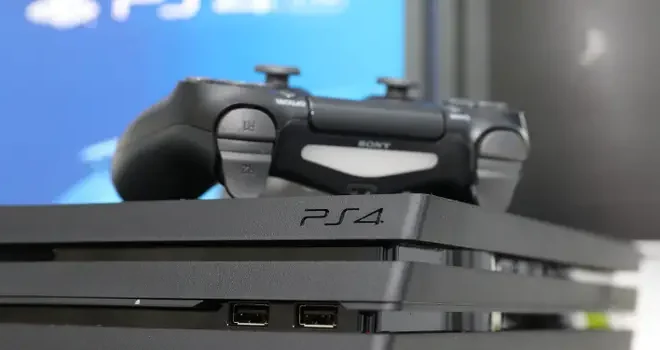
If you own a PS4 or a PS5 controller, you can use it to play older PC games. While the controller is not natively supported for these older titles, there are several workarounds you can use to make your PS4 or PS5 controller work on your PC.

Here’s how to use your PS4 or PS5 controller with older PC games:

Step 1: Download DS4Windows

DS4Windows is a free, open-source program that allows your PC to recognize and use your PS4 or PS5 controller as a native Xbox 360 controller. Download and install DS4Windows from their official website.

Step 2: Connect your controller to your PC

Connect your PS4 or PS5 controller to your PC using a micro-USB cable. If you’re using a PS4 controller, press and hold the PlayStation button and Share button simultaneously until the light bar starts flashing. This indicates that the controller is in pairing mode. If you’re using a PS5 controller, press and hold the PlayStation button and the Create button to enter pairing mode.

Step 3: Configure DS4Windows

Once you’ve connected your controller, open DS4Windows. The program will automatically detect your controller and display a notification in the bottom right-hand corner of your screen.

Click on the notification to open the DS4Windows control panel. Here, you can customize various settings, including the controller’s button layout, vibration intensity, and touchpad sensitivity.

Step 4: Launch your game

DS4Windows should automatically configure your controller to work with most older PC games. However, if your game doesn’t recognize the PS4 or PS5 controller, try using a third-party program like JoyToKey or Xpadder to map the controller’s buttons to keyboard keys.

Using these programs, you can map your controller’s buttons to various keyboard inputs. For example, you can map the Square button to the “E” key or the X button to the spacebar.

Conclusion

Using your PS4 or PS5 controller on older PC games can be a great way to experience classic titles with a more modern controller. While the process may seem daunting at first, it’s actually relatively simple with the help of DS4Windows and other third-party programs. All you need is a few minutes of setup time, and you’ll be gaming with your PS4 or PS5 controller in no time!


Previous Article

How to Connect an Xbox One Controller ...

Next Article

The 11 Best Features in the Windows ...

Matthew Lynch

Related articles More from author

  • Digital & Mobile Technology

    What Size Apple Watch Should You Buy?

    August 3, 2023
    By Matthew Lynch
  • Digital & Mobile Technology

    How to Fix It When a PS4 Controller Won’t Connect to PS4

    May 31, 2023
    By Matthew Lynch
  • Digital & Mobile Technology

    The Best Smart Air Fryers for Easy Cooking

    June 12, 2023
    By Matthew Lynch
  • Digital & Mobile Technology

    How to Monitor (and Reduce) Your Data Usage on the iPhone

    April 30, 2023
    By Matthew Lynch
  • Digital & Mobile Technology

    Best Alternatives to ChatGPT

    August 3, 2023
    By Matthew Lynch
  • Digital & Mobile Technology

    How to Use the Firefox about:config Option browser.download.folderList

    May 31, 2023
    By Matthew Lynch

Search

Login & Registration

  • Log in
  • Entries feed
  • Comments feed
  • WordPress.org

Newsletter

Signup for The Tech Edvocate Newsletter and have the latest in EdTech news and opinion delivered to your email address!

About Us

Since technology is not going anywhere and does more good than harm, adapting is the best course of action. That is where The Tech Edvocate comes in. We plan to cover the PreK-12 and Higher Education EdTech sectors and provide our readers with the latest news and opinion on the subject. From time to time, I will invite other voices to weigh in on important issues in EdTech. We hope to provide a well-rounded, multi-faceted look at the past, present, the future of EdTech in the US and internationally.

We started this journey back in June 2016, and we plan to continue it for many more years to come. I hope that you will join us in this discussion of the past, present and future of EdTech and lend your own insight to the issues that are discussed.

Newsletter

Signup for The Tech Edvocate Newsletter and have the latest in EdTech news and opinion delivered to your email address!

Contact Us

The Tech Edvocate
910 Goddin Street
Richmond, VA 23231
(601) 630-5238
[email protected]

Copyright © 2026 Matthew Lynch. All rights reserved.