
The Tech Edvocate

Top Menu

  • Advertisement
  • Apps
  • Home Page
  • Home Page Five (No Sidebar)
  • Home Page Four
  • Home Page Three
  • Home Page Two
  • Home Tech2
  • Icons [No Sidebar]
  • Left Sidbear Page
  • Lynch Educational Consulting
  • My Account
  • My Speaking Page
  • Newsletter Sign Up Confirmation
  • Newsletter Unsubscription
  • Our Brands
  • Page Example
  • Privacy Policy
  • Protected Content
  • Register
  • Request a Product Review
  • Shop
  • Shortcodes Examples
  • Signup
  • Start Here
    • Governance
    • Careers
    • Contact Us
  • Terms and Conditions
  • The Edvocate
  • The Tech Edvocate Product Guide
  • Topics
  • Write For Us
  • Advertise

Main Menu

  • Start Here
    • Our Brands
    • Governance
      • Lynch Educational Consulting, LLC.
      • Dr. Lynch’s Personal Website
      • Careers
    • Write For Us
    • The Tech Edvocate Product Guide
    • Contact Us
    • Books
    • Edupedia
    • Post a Job
    • The Edvocate Podcast
    • Terms and Conditions
    • Privacy Policy
  • Topics
    • Assistive Technology
    • Child Development Tech
    • Early Childhood & K-12 EdTech
    • EdTech Futures
    • EdTech News
    • EdTech Policy & Reform
    • EdTech Startups & Businesses
    • Higher Education EdTech
    • Online Learning & eLearning
    • Parent & Family Tech
    • Personalized Learning
    • Product Reviews
  • Advertise
  • Tech Edvocate Awards
  • The Edvocate
  • Pedagogue
  • School Ratings

logo

The Tech Edvocate

  • Start Here
    • Our Brands
    • Governance
      • Lynch Educational Consulting, LLC.
      • Dr. Lynch’s Personal Website
        • My Speaking Page
      • Careers
    • Write For Us
    • The Tech Edvocate Product Guide
    • Contact Us
    • Books
    • Edupedia
    • Post a Job
    • The Edvocate Podcast
    • Terms and Conditions
    • Privacy Policy
  • Topics
    • Assistive Technology
    • Child Development Tech
    • Early Childhood & K-12 EdTech
    • EdTech Futures
    • EdTech News
    • EdTech Policy & Reform
    • EdTech Startups & Businesses
    • Higher Education EdTech
    • Online Learning & eLearning
    • Parent & Family Tech
    • Personalized Learning
    • Product Reviews
  • Advertise
  • Tech Edvocate Awards
  • The Edvocate
  • Pedagogue
  • School Ratings
  • How to use ClickUp goals feature

  • Trello for Business

  • Can Smartsheet do automation

  • How to use Microsoft Planner boards

  • How many transactions in Kashoo

  • Sage

  • Is Sage worth it for accountants

  • How to use Smartsheet templates

  • How many users in Zoho Books free plan

  • Can Wrike integrate with Adobe Creative Cloud

How To
Home›How To›4 Ways to Create a Resume in Microsoft Word

4 Ways to Create a Resume in Microsoft Word
By Matthew Lynch
March 23, 2024
0
Spread the love

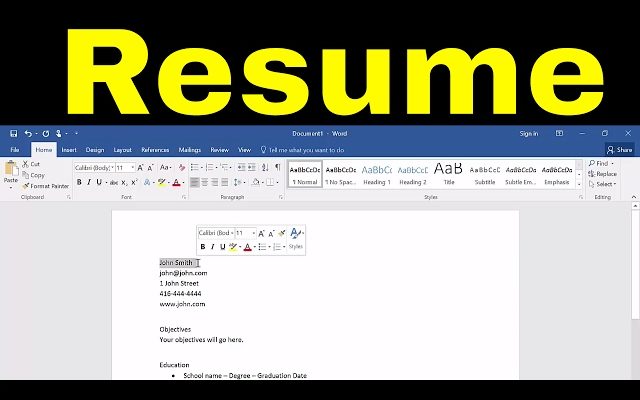
Creating a resume is a crucial step in showcasing your skills and experiences to potential employers. Microsoft Word offers various ways to create an impressive resume that stands out from the crowd. Here are four methods to design a resume in Microsoft Word:

1. Using Built-in Templates

Microsoft Word comes with a variety of built-in templates that can help you create a professional-looking resume with minimal effort. To use these templates:

a. Open Microsoft Word and click on “File” at the top-left corner.

b. Select “New” from the menu to open the templates gallery.

c. Type “Resume” in the search bar and press enter.

d. Browse through the available templates and choose one that suits your preferences.

e. Click on the selected template, and it will open in Word.

f. Update the placeholders with your personal information, work experience, and education.

2. Creating a Custom Template

If you prefer to create a custom resume template tailored to your needs, follow these steps:

a. Open Microsoft Word and click on “File” followed by “New Blank Document.”

b. Set your desired margins, font style, and size under the “Layout” menu.

c. Organize your resume into sections such as contact information, objective or summary, work experience, education, skills, awards or achievements, etc.

d. Add headings for each section using bold or italics for emphasis.

e. Fill in each section with relevant information.

f. Save your custom template so you can easily update it for future job applications.

3.Utilizing Online Templates

Another option is to use online templates specifically designed for MS Word resumes:

a. Search for websites offering free or premium resume templates compatible with Microsoft Word (for example: hloom.com, resumegenius.com).

b.Seek out a design that appeals to you and download the template file (.docx or .dotx).

c. Open the downloaded document in Microsoft Word and update the placeholders with your information.

4. Creating a Resume with MS Word Add-ons

Plug-ins or add-ons can enhance your resume-creation experience in Microsoft Word:

a. Launch Microsoft Word and click on “Insert” followed by “Get Add-ins” or “Store.”

b. Type “Resume” into the search bar and press enter.

c. Browse available add-ons, select a suitable one (for example: Pongo Resume Builder), and click “Add.”

d. Once installed, an icon should appear in your toolbar – click it to start creating your resume.

e. Follow the prompts and fill out all sections with your details.

Whichever method you choose, be sure to proofread your resume for any typos or inconsistencies before submitting it to potential employers. Crafting an organized and professional resume is essential in landing your dream job, so take advantage of these four ways to create one using Microsoft Word.


Previous Article

3 Ways to Set Up an Escrow ...

Next Article

How to Do a Compression Test: 15 ...

Matthew Lynch

Related articles More from author

  • How To

    How to Organize Your Computer: 6 Steps

    November 15, 2023
    By Matthew Lynch
  • How To

    How to Use a Cell Phone

    November 13, 2023
    By Matthew Lynch
  • How To

    3 Ways to Winterize Calla Lily Bulbs

    October 12, 2023
    By Matthew Lynch
  • How To

    3 Ways to Propose to a Woman Creatively

    November 13, 2023
    By Matthew Lynch
  • How To

    How to Make Your Cat Love You

    October 20, 2023
    By Matthew Lynch
  • How To

    How to Plan a Surprise Birthday Party

    April 2, 2024
    By Matthew Lynch

Search

Login & Registration

  • Log in
  • Entries feed
  • Comments feed
  • WordPress.org

Newsletter

Signup for The Tech Edvocate Newsletter and have the latest in EdTech news and opinion delivered to your email address!

About Us

Since technology is not going anywhere and does more good than harm, adapting is the best course of action. That is where The Tech Edvocate comes in. We plan to cover the PreK-12 and Higher Education EdTech sectors and provide our readers with the latest news and opinion on the subject. From time to time, I will invite other voices to weigh in on important issues in EdTech. We hope to provide a well-rounded, multi-faceted look at the past, present, the future of EdTech in the US and internationally.

We started this journey back in June 2016, and we plan to continue it for many more years to come. I hope that you will join us in this discussion of the past, present and future of EdTech and lend your own insight to the issues that are discussed.

Newsletter

Signup for The Tech Edvocate Newsletter and have the latest in EdTech news and opinion delivered to your email address!

Contact Us

The Tech Edvocate
910 Goddin Street
Richmond, VA 23231
(601) 630-5238
[email protected]

Copyright © 2026 Matthew Lynch. All rights reserved.