Yelp not loading fix
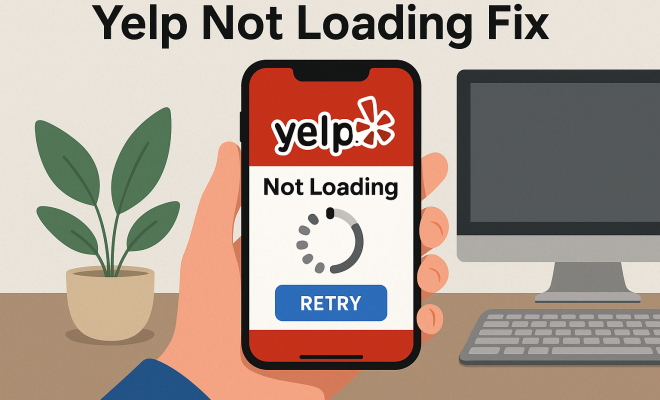
You’re out, you’re hungry, and you need a recommendation. Or maybe you’re planning a trip and want to scope out the best local spots. You pull out your phone, tap that familiar red Yelp icon, and… nothing. Just a spinning wheel, a blank screen, or an error message. It’s frustrating, right? You’re not alone. Many users occasionally encounter issues where their Yelp not loading, whether it’s the app or the website. It can be a minor annoyance or a major roadblock when you’re trying to make quick decisions about where to eat, shop, or find services.
Yelp, launched way back in 2004, has become an indispensable tool for millions. It’s a digital word-of-mouth platform, a community where people share their experiences, good and bad, about local businesses. From restaurants and salons to plumbers and dentists, Yelp’s vast database of reviews and ratings helps us navigate the myriad choices available in our communities. When this vital resource suddenly goes dark, it feels like a small digital crisis. The good news is that most of these loading problems aren’t catastrophic. Often, they’re simple glitches that you can resolve with a few straightforward troubleshooting steps. Let’s dig into why your Yelp might be acting up and, more importantly, how to get it back on track.
Understanding the Common Culprits Behind Yelp Not Loading
Before we jump into solutions, it helps to understand *why* your Yelp might be struggling. Think of it like a car that won’t start: it could be a dead battery, an empty gas tank, or a more complex engine issue. Similarly, the reasons behind your Yelp not loading range from the incredibly simple to slightly more technical. Identifying the potential cause can often point you directly to the fix.
One of the most frequent culprits is your internet connection. Yelp, like virtually all modern apps and websites, needs a stable connection to fetch data – reviews, photos, maps, business information. If your Wi-Fi is spotty, your cellular data is weak, or you’ve accidentally enabled airplane mode, Yelp simply won’t be able to communicate with its servers. Another common issue relates to the app or browser itself. Sometimes, cached data builds up, old versions have bugs, or temporary glitches occur that prevent proper functioning. Server-side problems, though less common for individual users, can also occur where Yelp’s own servers are experiencing downtime or maintenance. Knowing these general categories gives us a framework for effective troubleshooting.
The First Check: Your Internet Connection
This might seem painfully obvious, but it’s astonishing how often a flaky internet connection is the root cause of an app or website not loading. Before you dive into anything more complex, take a moment to confirm your device is actually connected to the internet. If your Yelp not loading, this is always your first port of call.
For mobile users, check your Wi-Fi signal strength. Are you too far from your router? Is your Wi-Fi turned off? If you’re on cellular data, look at your signal bars. Are you in an area with poor coverage? Try switching between Wi-Fi and cellular data to see if one works better. A quick test is to open another demanding app like YouTube or a news website. If those also struggle to load, you’ve likely found your problem: it’s not Yelp, it’s your connection. For desktop users, ensure your Ethernet cable is plugged in or your Wi-Fi is connected and showing a strong signal. Sometimes, a quick toggle of your device’s Wi-Fi (off then on again) can reset the connection and resolve minor hiccups.
Restarting the Yelp App or Your Device
It’s the classic IT advice for a reason: “Have you tried turning it off and on again?” And honestly, it works wonders for digital glitches. If your Yelp not loading, a simple restart can often clear temporary bugs, refresh system resources, and resolve minor conflicts that might be preventing the app from launching correctly.
Force Closing and Reopening the Yelp App
For mobile apps, a full restart means force-closing the application, not just minimizing it. On iPhones, you typically swipe up from the bottom of the screen (or double-press the home button on older models) to bring up the app switcher, then swipe the Yelp app card upwards to dismiss it. On Android, the process is similar: open the recent apps view (often a square button or a swipe up and hold gesture), then swipe the Yelp app away. Once it’s completely closed, wait a few seconds, then tap the Yelp icon again. This gives the app a fresh start, often clearing whatever minor hang-up it was experiencing.
Restarting Your Entire Device
If force-closing the app doesn’t do the trick, the next step is to restart your entire phone, tablet, or computer. A device restart does more than just close apps; it clears your device’s RAM, stops background processes, and reloads the operating system and all its components from scratch. This can resolve deeper system-level issues that might be affecting Yelp or any other app. It’s a bit like giving your brain a quick nap to reset before tackling a new problem. This simple step is surprisingly effective and should always be high on your troubleshooting list.
Clearing Yelp’s Cache and Data
Apps and web browsers store temporary files, known as a cache, to speed up loading times and improve user experience. While generally helpful, a corrupted or overloaded cache can sometimes lead to problems, including your Yelp not loading. Think of it like a cluttered desk – eventually, you can’t find anything, and it slows you down. (See: Yelp overview and history.)
Clearing Cache on Mobile Apps
On Android devices, you can usually clear an app’s cache (and sometimes data) directly from your device settings. Go to Settings > Apps (or Apps & Notifications) > Yelp > Storage & Cache, then tap ‘Clear Cache’. You might also see an option for ‘Clear Data’. Clearing data will log you out of the app and reset it to its initial state, so you’ll need to sign back in. On iOS, there isn’t a direct way to clear an individual app’s cache without uninstalling and reinstalling it, which brings us to our next point.
Clearing Browser Cache (for Yelp website users)
If you’re accessing Yelp through a web browser on your computer or mobile device, clearing your browser’s cache and cookies is the way to go. The exact steps vary slightly by browser, but generally, you’ll find these options in your browser’s settings or history menu, usually under ‘Privacy’ or ‘Security’. For Chrome, it’s often in the three-dot menu > More tools > Clear browsing data. For Firefox, it’s in the three-line menu > Settings > Privacy & Security > Cookies and Site Data > Clear Data. This action will clear the cached Yelp data that your browser has stored, forcing it to fetch fresh information and potentially resolving loading issues.
Updating the Yelp App or Your Browser
Software updates aren’t just about new features; they frequently include crucial bug fixes and performance improvements. If your Yelp not loading, an outdated version of the app or browser could be the culprit. Developers constantly identify and patch issues, so running old software might mean you’re stuck with a known bug that’s already been fixed.
Updating the Yelp App
For mobile users, head to your device’s app store. On iOS, open the App Store, tap your profile picture, and scroll down to see pending updates. On Android, open the Google Play Store, tap your profile icon, and go to ‘Manage apps & device’ to check for updates. If an update is available for Yelp, install it. This ensures you have the latest version with all the current bug fixes and compatibility improvements. Sometimes, older app versions simply stop communicating correctly with updated server-side systems, leading to loading failures.
Updating Your Web Browser
If you’re using Yelp via a web browser, make sure your browser itself is up to date. Chrome, Firefox, Edge, and Safari all release regular updates that improve security, performance, and compatibility with modern web technologies. An outdated browser might struggle to render complex web pages or communicate securely with Yelp’s servers. Most browsers update automatically in the background, but it’s always good to manually check through the browser’s ‘About’ section in its settings if you’re experiencing persistent issues. We covered Chrome loading issues in more detail.
Checking Yelp’s Server Status
While less common, it’s entirely possible that the problem isn’t on your end at all. Sometimes, Yelp’s own servers experience outages, maintenance, or other technical difficulties. If this happens, no amount of troubleshooting on your device will help, because the service itself is down. This is when your Yelp not loading becomes a widespread issue, not just a personal one.
How do you check? There are several third-party websites that track the status of popular online services. Sites like DownDetector.com or IsItDownRightNow.com allow users to report outages and provide real-time status updates. Simply visit one of these sites and search for ‘Yelp’. If you see a spike in reported problems, or an official notice of an outage, then you know to just be patient. The best course of action here is to wait a bit, perhaps an hour or two, and try again. Yelp’s technical teams are usually quick to resolve such issues.
Disabling VPN or Ad Blockers
Virtual Private Networks (VPNs) and ad blockers are fantastic tools for privacy and a cleaner browsing experience. However, they can sometimes interfere with how websites and apps function, occasionally causing your Yelp not loading. It’s a trade-off: enhanced privacy versus potential compatibility issues.
VPNs work by routing your internet traffic through a server in a different location. While this is great for security and accessing geo-restricted content, it can sometimes cause connection instability or trigger security protocols on certain websites that might misinterpret the connection as suspicious. If you’re using a VPN, try temporarily disabling it and then attempting to access Yelp. If it loads correctly, you’ve found your culprit. You might then need to adjust your VPN settings or consider a different server location if you want to continue using it with Yelp.
Ad blockers, on the other hand, prevent certain scripts and content from loading on web pages. While their primary goal is to block advertisements, they can sometimes inadvertently block essential elements of a website, leading to broken layouts or functionality. If you’re using an ad blocker, try disabling it specifically for Yelp.com or for the Yelp app (if your blocker has app-specific controls). Reload the page or app, and see if the issue is resolved. If it is, you might need to whitelist Yelp in your ad blocker’s settings.
Checking Device Storage and Permissions
It’s easy to overlook the basics, but sometimes a full device can wreak havoc on app performance. If your phone or tablet is critically low on storage, apps might struggle to function correctly, update, or even launch. This is because apps need a certain amount of free space to create temporary files, store cached data, and operate smoothly. If your Yelp not loading, and you’ve tried everything else, check your storage. (See: impact of technology on health.)
Go to your device’s settings and check the available storage. If it’s nearly full, try deleting some old photos, videos, unused apps, or large files to free up space. Even a few gigabytes can make a difference. Furthermore, ensure Yelp has the necessary permissions. While less likely to cause a complete loading failure, incorrect permissions (like not allowing network access, though usually granted by default) could technically cause issues. You can check app permissions in your device’s settings under ‘Apps’ > ‘Yelp’ > ‘Permissions’.
Reinstalling the Yelp App
When all else fails, a complete reinstall of the Yelp app is often the most effective solution. This is particularly useful for iOS users, as it’s the primary method to clear an app’s cache and data, bringing it back to a pristine, factory-fresh state. It’s the digital equivalent of giving the app a brand new start, wiping away any corrupted files or deeply ingrained bugs that might be causing your Yelp not loading.
First, uninstall the Yelp app from your device. On iOS, long-press the app icon until it jiggles, then tap the ‘X’ or ‘-‘ sign to delete it. On Android, you can either drag the app icon to the ‘Uninstall’ option or go to Settings > Apps > Yelp > Uninstall. Once it’s gone, restart your device. This step isn’t strictly necessary but can help clear any lingering residual files. After your device restarts, go back to your app store (App Store for iOS, Google Play Store for Android) and search for ‘Yelp’. Download and install the app again. You’ll need to log back in, but this process often resolves persistent loading problems by ensuring you have a clean, uncorrupted installation of the latest version.
Understanding the Impact of Network Congestion
Beyond simply having an active internet connection, the quality and speed of that connection matter a lot. If your Yelp not loading, it could be due to network congestion, especially during peak hours or in crowded public Wi-Fi environments. Imagine a highway during rush hour; even if the road is open, traffic moves slowly, if at all. Your internet connection can experience similar slowdowns.
This is particularly noticeable on shared networks, like those at coffee shops, airports, or large events. Many people simultaneously trying to stream videos, download files, or browse data-heavy sites can choke the available bandwidth. While your device might show a strong Wi-Fi signal, the actual data throughput could be minimal. To test for this, try switching to cellular data (if you have a good signal) or moving to a less congested Wi-Fi network. If Yelp loads fine on a different network, congestion was likely the issue. There’s not much you can do about public network congestion, but knowing it’s the cause saves you from troubleshooting your device endlessly.
Considering Device Compatibility and OS Updates
Just like apps need updating, your device’s operating system (OS) needs to be kept current. If your Yelp not loading, especially on an older device, an outdated OS could be the underlying problem. App developers build their applications to be compatible with a range of OS versions, but they eventually stop supporting very old ones.
For example, if you’re running an ancient version of iOS or Android, the latest Yelp app might not function correctly, or at all. The app might rely on newer system APIs or security protocols that aren’t present in your outdated OS. Check for system updates in your device’s settings: on iOS, it’s usually Settings > General > Software Update; on Android, Settings > System > System update. While updating your OS is a bigger step than updating a single app, it’s crucial for overall device security, performance, and app compatibility. If your device is too old to receive further OS updates, you might find that certain modern apps, including Yelp, eventually become unusable.
What About Specific Error Messages?
Sometimes, instead of just a blank screen, Yelp might present you with an actual error message. These messages, while often cryptic, can be incredibly helpful in narrowing down the problem when your Yelp not loading.
- “Network Error” or “No Internet Connection”: This points directly to your internet connection. Revisit the first troubleshooting step and ensure your Wi-Fi or cellular data is stable and active.
- “Server Error” or “Service Unavailable”: This suggests a problem on Yelp’s end. Check a third-party server status checker like DownDetector.com. If the servers are down, you just need to wait.
- “Login Failed” or “Invalid Credentials”: This isn’t a loading issue per se, but it prevents access. Double-check your username and password. If you’re unsure, try resetting your password through the ‘Forgot Password’ link.
- Generic “Something Went Wrong” or “An Unknown Error Occurred”: These are the trickiest. They could indicate corrupted app data, a temporary glitch, or a conflict with another app or setting. In these cases, restarting the app, clearing cache, and eventually reinstalling are your best bets.
Always make a note of any specific error message you see. If you end up contacting Yelp support, providing the exact wording of the error can significantly speed up their diagnosis.
Seeking Further Assistance from Yelp Support
If you’ve diligently worked through all the troubleshooting steps above – checking your connection, restarting everything, clearing caches, updating, and even reinstalling – and your Yelp not loading issue persists, it might be time to escalate. While most problems are solvable by the user, there are always those rare, stubborn cases that require expert intervention. (See: Yelp's role in consumer behavior.)
Yelp has a dedicated support team that can assist with technical issues. Their website usually has a ‘Help’ or ‘Support’ section, often found in the footer or through your account settings if you can log in via a working browser. Look for options to submit a support ticket, browse their FAQs, or contact them directly. When reaching out, be sure to provide as much detail as possible: what device you’re using (e.g., iPhone 13, Samsung Galaxy S23, MacBook Pro), which operating system version (e.g., iOS 17, Android 14, Windows 11), what steps you’ve already tried, and the exact error message (if any) you’re seeing. The more information you give them, the quicker they can diagnose and help resolve the problem. Sometimes, there might be a very specific bug affecting a particular device or OS combination that only their support team is aware of, or they might be able to check your account status on their end for any anomalies.
Frequently Asked Questions About Yelp Not Loading
Q1: Yelp was working fine yesterday, but now it’s not loading. What changed?
Often, nothing major changed on your end. It could be a temporary internet hiccup, a minor app glitch that a restart can fix, or even a brief server-side issue with Yelp. Start with the simplest steps: check your internet, force close/reopen the app, and restart your device. Most sudden issues resolve with these basic actions.
Q2: My Yelp app loads, but it’s really slow or specific features don’t work. Is this the same as “not loading”?
While not a complete failure to load, slow performance or broken features are often symptoms of similar underlying issues. A poor internet connection, a full device cache, an outdated app version, or even network congestion can cause sluggishness. Follow the same troubleshooting steps, particularly clearing cache and updating the app, as these often improve performance.
Q3: I can access Yelp on my computer browser, but the app isn’t loading on my phone. Why the discrepancy?
This is a strong indicator that the problem is specific to your phone or the app itself, not Yelp’s servers or your overall internet connection. Focus your troubleshooting on the mobile app: force close, clear app cache (Android), check app updates, and consider reinstalling the app. Device-specific issues like low storage or outdated OS versions can also cause this.
Q4: Will clearing Yelp’s data or reinstalling the app delete my reviews or saved businesses?
No, clearing data or reinstalling the app will not delete your Yelp account, reviews, photos, or saved businesses. All that information is stored on Yelp’s servers and linked to your account. You will simply need to sign back into the app after clearing data or reinstalling, and all your personalized content will reappear.
Q5: What if Yelp is blocked in my country or region?
In some regions, access to certain online services might be restricted by local governments or internet service providers. If you suspect this is the case, your Yelp not loading issue is due to a regional block. A VPN *might* help you bypass these restrictions, but be aware of local laws and the terms of service for both your VPN and Yelp. This is a more complex scenario than typical loading problems.
It’s always frustrating when a go-to app like Yelp decides to take an unscheduled break. But armed with these troubleshooting strategies, you’re well-equipped to tackle most instances where your Yelp isn’t loading. From a quick Wi-Fi toggle to a full reinstall, these steps cover the vast majority of common issues. Don’t let a digital hiccup stand between you and your next great local discovery.
Trending Now
Frequently Asked Questions
Why is my Yelp app not loading?
The Yelp app may not be loading due to several reasons, including a poor internet connection, outdated app version, or temporary server issues. Checking your Wi-Fi or cellular data, updating the app, or restarting your device can often resolve these issues.
What should I do if Yelp is not working?
If Yelp is not working, first check your internet connection. If it’s stable, try restarting the app or your device. Additionally, ensure that the app is updated to the latest version. If problems persist, check for any reported outages or issues with Yelp's servers.
How do I fix a blank screen on Yelp?
A blank screen on Yelp can often be fixed by clearing the app's cache, ensuring a stable internet connection, or updating the app. If the problem continues, uninstalling and reinstalling the app may help resolve any underlying issues.
Is there a problem with Yelp today?
To check if there's a problem with Yelp, you can visit websites like DownDetector or check Yelp's official social media channels for any outage reports. If others are experiencing similar issues, it may be a temporary server problem.
Why does Yelp take so long to load?
Yelp may take a long time to load due to a slow internet connection, server issues, or heavy app usage. Ensuring a strong internet connection and closing other apps that may be using bandwidth can help improve loading times.
Agree or disagree? Drop a comment and tell us what you think.