The Tech Edvocate

Top Menu

  • Advertisement
  • Apps
  • Home Page
  • Home Page Five (No Sidebar)
  • Home Page Four
  • Home Page Three
  • Home Page Two
  • Home Tech2
  • Icons [No Sidebar]
  • Left Sidbear Page
  • Lynch Educational Consulting
  • My Account
  • My Speaking Page
  • Newsletter Sign Up Confirmation
  • Newsletter Unsubscription
  • Our Brands
  • Page Example
  • Privacy Policy
  • Protected Content
  • Register
  • Request a Product Review
  • Shop
  • Shortcodes Examples
  • Signup
  • Start Here
    • Governance
    • Careers
    • Contact Us
  • Terms and Conditions
  • The Edvocate
  • The Tech Edvocate Product Guide
  • Topics
  • Write For Us
  • Advertise

Main Menu

  • Start Here
    • Our Brands
    • Governance
      • Lynch Educational Consulting, LLC.
      • Dr. Lynch’s Personal Website
      • Careers
    • Write For Us
    • The Tech Edvocate Product Guide
    • Contact Us
    • Books
    • Edupedia
    • Post a Job
    • The Edvocate Podcast
    • Terms and Conditions
    • Privacy Policy
  • Topics
    • Assistive Technology
    • Child Development Tech
    • Early Childhood & K-12 EdTech
    • EdTech Futures
    • EdTech News
    • EdTech Policy & Reform
    • EdTech Startups & Businesses
    • Higher Education EdTech
    • Online Learning & eLearning
    • Parent & Family Tech
    • Personalized Learning
    • Product Reviews
  • Advertise
  • Tech Edvocate Awards
  • The Edvocate
  • Pedagogue
  • School Ratings

logo

The Tech Edvocate

  • Start Here
    • Our Brands
    • Governance
      • Lynch Educational Consulting, LLC.
      • Dr. Lynch’s Personal Website
        • My Speaking Page
      • Careers
    • Write For Us
    • The Tech Edvocate Product Guide
    • Contact Us
    • Books
    • Edupedia
    • Post a Job
    • The Edvocate Podcast
    • Terms and Conditions
    • Privacy Policy
  • Topics
    • Assistive Technology
    • Child Development Tech
    • Early Childhood & K-12 EdTech
    • EdTech Futures
    • EdTech News
    • EdTech Policy & Reform
    • EdTech Startups & Businesses
    • Higher Education EdTech
    • Online Learning & eLearning
    • Parent & Family Tech
    • Personalized Learning
    • Product Reviews
  • Advertise
  • Tech Edvocate Awards
  • The Edvocate
  • Pedagogue
  • School Ratings
  • A Visitors Guide to Colorado Springs (CO), United States

  • 5 Pairs of Shoes That Will Instantly Step Your Shoe Game Up

  • Radiant Youthful Skin is the Perfect Christmas Gift

  • Give Your Loved One the Gift of Youthful, Radiant Skin this Christmas

  • Give Your Loved One the Gift of a Restful Night Sleep this Christmas

  • Nex Playground’s Holiday Sales Bring Active Play Indoors This Seaso

  • A Visitors Guide to Louisville (KY), United States

  • A Visitor’s Guide to Nashville-Davidson (TN), United States

  • A Visitors Guide to Portland (OR), United States

  • 7 Men’s Bruno Marc Shoes That Are the Perfect Christmas Gift

Tech Advice
Home›Tech Advice›Windows Key

Windows Key

By Matthew Lynch
July 20, 2023
0
Spread the love

The Windows key, one of the most versatile keys on a computer keyboard, has been making our lives easier since its inception in 1994. While it may seem like a small and unassuming key, it holds a treasure trove of shortcuts and functions that can improve your overall productivity, saving you countless time and effort. In this article, we will delve into the many functionalities of the Windows key and reveal how to unlock its full potential.

The Basics

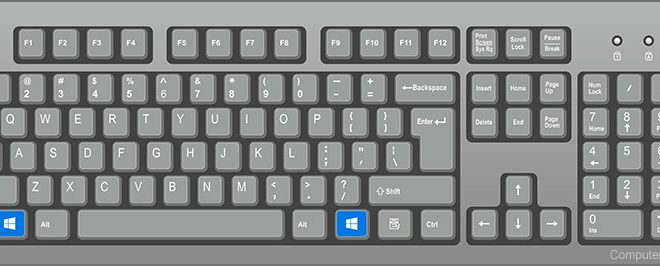
Found between the left Ctrl key and the Alt key on a typical keyboard, the Windows key displays the iconic Windows logo. At its most basic level, pressing this key opens up the Start menu, providing you with instant access to your applications, settings, and documents. However, this is merely scratching the surface of what you can do with this powerful little button.

Windows Key Shortcuts

Below is a list of some essential Windows key shortcuts that could save you time in your daily computing tasks:

1. Win + E: Instantly opens File Explorer.

2. Win + R: Opens up the Run dialog box, where you can enter commands.

3. Win + D: Minimizes or restores all open windows to show or hide the desktop.

4. Win + L: Locks your computer or switches users.

5. Win + M: Minimizes all windows.

6. Win + X: Opens up a menu containing quick access to several system utilities like Device Manager and Disk Management.

7. Win + Tab: Displays all open apps in Task View mode.

8. Win + PrtScn: Captures a screenshot and automatically saves it to the Screenshots folder in Pictures.

9. Win + I: Opens Windows Settings.

Multitasking with Snap Assist

One of the most useful features associated with the Windows key is Snap Assist – an essential multitasking tool that allows you to organize multiple open windows efficiently. To use this function, follow these simple key combinations:

1. Win + Arrow keys: The left or right arrow keys will snap the active window to the left or right half of the screen. Pressing the up arrow key maximizes the window, while the down arrow minimizes/returns it to its normal size.

2. Win + Shift + Arrow keys: Moves the active window to another monitor if you’re using a multi-monitor setup.

Unlocking Advanced Shortcuts with Windows Key + Number Keys

The combination of the Windows key and number keys (1, 2, 3, etc.) unlocks several advanced shortcuts that provide quick access to applications pinned on your taskbar. Here’s how it works:

1. Win + (number): Opens or switches to the corresponding application on your taskbar based on its position – for example, Win + 1 opens or switches to the first app pinned on your taskbar.

2. Win + Shift + (number): Opens a new instance of the corresponding application on your taskbar.

3. Win + Ctrl + (number): Accesses one of the available instances of an application if multiple windows of that app are open.

Conclusion

The Windows key is indeed a versatile and powerful tool that is often underutilized by average computer users. With this newfound knowledge of its various shortcuts and combinations, you can significantly enhance your productivity and efficiency while using your computer. Say goodbye to laborious manual navigation and hello to the powerful world of Windows key shortcuts!

Previous Article

Can Your iPad Run Apple iPadOS 16?

Next Article

Wireless LAN

Matthew Lynch

Related articles More from author

  • Tech Advice

    Soundfreaq Sound Kick SFQ-04 review: Soundfreaq Sound Kick SFQ-04

    July 14, 2023
    By Matthew Lynch
  • Tech Advice

    Best Antivirus Software in Canada for July 2023

    August 9, 2023
    By Matthew Lynch
  • Tech Advice

    Is Your iPhone Good Enough to Be a 3D Scanner?

    July 14, 2023
    By Matthew Lynch
  • Tech Advice

    Apple TV 4K vs. Roku Ultra: Which High-End Streaming Device Is Worth the Price?

    July 16, 2023
    By Matthew Lynch
  • Tech Advice

    Feit IntelliBulb Switch-to-Dim 60W-Replacement LED Review: No Dimmer Switch? No Problem!

    July 12, 2023
    By Matthew Lynch
  • Tech Advice

    How to Factory Reset Your iPad to Sell or Gift It

    July 13, 2023
    By Matthew Lynch

Search

Login & Registration

  • Register
  • Log in
  • Entries feed
  • Comments feed
  • WordPress.org

Newsletter

Signup for The Tech Edvocate Newsletter and have the latest in EdTech news and opinion delivered to your email address!

About Us

Since technology is not going anywhere and does more good than harm, adapting is the best course of action. That is where The Tech Edvocate comes in. We plan to cover the PreK-12 and Higher Education EdTech sectors and provide our readers with the latest news and opinion on the subject. From time to time, I will invite other voices to weigh in on important issues in EdTech. We hope to provide a well-rounded, multi-faceted look at the past, present, the future of EdTech in the US and internationally.

We started this journey back in June 2016, and we plan to continue it for many more years to come. I hope that you will join us in this discussion of the past, present and future of EdTech and lend your own insight to the issues that are discussed.

Newsletter

Signup for The Tech Edvocate Newsletter and have the latest in EdTech news and opinion delivered to your email address!

Contact Us

The Tech Edvocate
910 Goddin Street
Richmond, VA 23231
(601) 630-5238
[email protected]

Copyright © 2025 Matthew Lynch. All rights reserved.