The Tech Edvocate

Top Menu

  • Advertisement
  • Apps
  • Home Page
  • Home Page Five (No Sidebar)
  • Home Page Four
  • Home Page Three
  • Home Page Two
  • Home Tech2
  • Icons [No Sidebar]
  • Left Sidbear Page
  • Lynch Educational Consulting
  • My Account
  • My Speaking Page
  • Newsletter Sign Up Confirmation
  • Newsletter Unsubscription
  • Our Brands
  • Page Example
  • Privacy Policy
  • Protected Content
  • Register
  • Request a Product Review
  • Shop
  • Shortcodes Examples
  • Signup
  • Start Here
    • Governance
    • Careers
    • Contact Us
  • Terms and Conditions
  • The Edvocate
  • The Tech Edvocate Product Guide
  • Topics
  • Write For Us
  • Advertise

Main Menu

  • Start Here
    • Our Brands
    • Governance
      • Lynch Educational Consulting, LLC.
      • Dr. Lynch’s Personal Website
      • Careers
    • Write For Us
    • The Tech Edvocate Product Guide
    • Contact Us
    • Books
    • Edupedia
    • Post a Job
    • The Edvocate Podcast
    • Terms and Conditions
    • Privacy Policy
  • Topics
    • Assistive Technology
    • Child Development Tech
    • Early Childhood & K-12 EdTech
    • EdTech Futures
    • EdTech News
    • EdTech Policy & Reform
    • EdTech Startups & Businesses
    • Higher Education EdTech
    • Online Learning & eLearning
    • Parent & Family Tech
    • Personalized Learning
    • Product Reviews
  • Advertise
  • Tech Edvocate Awards
  • The Edvocate
  • Pedagogue
  • School Ratings

logo

The Tech Edvocate

  • Start Here
    • Our Brands
    • Governance
      • Lynch Educational Consulting, LLC.
      • Dr. Lynch’s Personal Website
        • My Speaking Page
      • Careers
    • Write For Us
    • The Tech Edvocate Product Guide
    • Contact Us
    • Books
    • Edupedia
    • Post a Job
    • The Edvocate Podcast
    • Terms and Conditions
    • Privacy Policy
  • Topics
    • Assistive Technology
    • Child Development Tech
    • Early Childhood & K-12 EdTech
    • EdTech Futures
    • EdTech News
    • EdTech Policy & Reform
    • EdTech Startups & Businesses
    • Higher Education EdTech
    • Online Learning & eLearning
    • Parent & Family Tech
    • Personalized Learning
    • Product Reviews
  • Advertise
  • Tech Edvocate Awards
  • The Edvocate
  • Pedagogue
  • School Ratings
  • Consumer Reports Reveal Truth – Is Flexigenics Reviews Legit or Scam? (Shocking Findings)

  • Quietum Plus 2026 Review Complaints and Shocking User Findings

  • This Founder’s Rs 75 LPA Sacrifice Crumbled in 30 Days — Here’s Why

  • Urgent: Claude AI Bioweapons — The Unsettling Truth Anthropic Just Revealed

  • Shocking: Three Major Xbox Games Shutting Down Forever in 2026

  • One Man’s Dire Warning: Is AI Already Too Dangerous To Control?

  • The Urgent Parental Consent Debate Over Student Mental Health Screenings

  • LAUSD restricts all students from using AI tools | K-12 Dive

  • Catastrophic Data Breach: 153 Million Driver’s Licenses Exposed on Dark Web

  • Autonomous AI Hackers Weaponize PaperCut Flaws: The Terrifying New Era of Cybercrime

Digital & Mobile Technology
Home›Digital & Mobile Technology›Where Do Screenshots and Photos Go on a Mac?

Where Do Screenshots and Photos Go on a Mac?
By Matthew Lynch
June 12, 2023
0
Spread the love

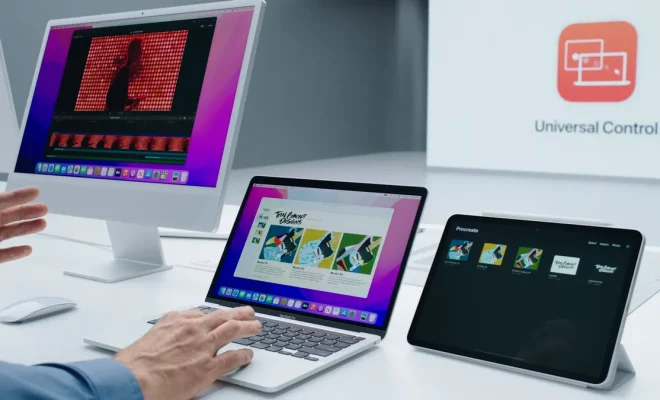
As a Mac user, you may have taken a screenshot or saved a photo to your desktop only to be left wondering where it actually went. It’s important to know where your files are saved so you can reference them later or move them to a different location. Here’s a guide to help you understand where your screenshots and photos go on a Mac.

Screenshots

Taking a screenshot on a Mac is easy. Simply press Command + Shift + 3 and it will save a picture of your entire screen to your desktop. If you want to only capture a portion of the screen, press Command + Shift + 4 and select the area you want to capture. Once the screenshot is taken, it will automatically save to your desktop as a PNG file.

If you want to change the location where your screenshots are saved, you can do so by using Terminal. Open Terminal and type in the following command:

defaults write com.apple.screencapture location /path/

Replace /path/ with the location where you want your screenshots to go. For example, if you want them to go to your Documents folder, the command would be:

defaults write com.apple.screencapture location ~/Documents/

Be sure to restart your Mac for the changes to take effect.

Photos

When you take a photo using your Mac’s built-in camera, it will be saved to the Photos app. To access your photos, simply open the Photos app and they will be there. If you have multiple libraries, you can select which library to use by holding down the Option key when launching the Photos app.

If you want to import photos from an external device, you can do so by connecting it to your Mac and choosing to import them into the Photos app. You can also choose to have your photos automatically imported from your iPhone or iPad by connecting them to your Mac and enabling iCloud Photo Library.

If you want to access your photos outside of the Photos app, you can find them in the Pictures folder. The Photos Library file is located in the Pictures folder and contains all of your photos and videos. To access it, right-click the file and choose Show Package Contents.

In conclusion, knowing where your screenshots and photos go on a Mac is important for keeping track of your files and being able to access them later. With these tips, you should be able to find and manage your screenshots and photos with ease.


Previous Article

Interactive Resources to Learn Git

Next Article

Free Time Tracking Apps to Maximize Your ...

Matthew Lynch

Related articles More from author

  • Digital & Mobile Technology

    Outlook.com Exchange Server Settings

    June 4, 2023
    By Matthew Lynch
  • Digital & Mobile Technology

    How to Delete a Workout on Apple Watch

    June 6, 2023
    By Matthew Lynch
  • Digital & Mobile Technology

    How to Map Multiple Locations on Google Maps

    April 30, 2023
    By Matthew Lynch
  • Digital & Mobile Technology

    What Is the “Power Surge on the USB Port” Error, and How Do You Fix It?

    August 5, 2023
    By Matthew Lynch
  • Digital & Mobile Technology

    Reasons You Shouldn’t Use Discord

    June 4, 2023
    By Matthew Lynch
  • Digital & Mobile Technology

    Error 0x80070570: What It Is and How to Fix It

    June 1, 2023
    By Matthew Lynch

Search

Login & Registration

  • Log in
  • Entries feed
  • Comments feed
  • WordPress.org

Newsletter

Signup for The Tech Edvocate Newsletter and have the latest in EdTech news and opinion delivered to your email address!

About Us

Since technology is not going anywhere and does more good than harm, adapting is the best course of action. That is where The Tech Edvocate comes in. We plan to cover the PreK-12 and Higher Education EdTech sectors and provide our readers with the latest news and opinion on the subject. From time to time, I will invite other voices to weigh in on important issues in EdTech. We hope to provide a well-rounded, multi-faceted look at the past, present, the future of EdTech in the US and internationally.

We started this journey back in June 2016, and we plan to continue it for many more years to come. I hope that you will join us in this discussion of the past, present and future of EdTech and lend your own insight to the issues that are discussed.

Newsletter

Signup for The Tech Edvocate Newsletter and have the latest in EdTech news and opinion delivered to your email address!

Contact Us

The Tech Edvocate
910 Goddin Street
Richmond, VA 23231
(601) 630-5238
[email protected]

Copyright © 2026 Matthew Lynch. All rights reserved.