The Tech Edvocate

Top Menu

  • Advertisement
  • Apps
  • Home Page
  • Home Page Five (No Sidebar)
  • Home Page Four
  • Home Page Three
  • Home Page Two
  • Home Tech2
  • Icons [No Sidebar]
  • Left Sidbear Page
  • Lynch Educational Consulting
  • My Account
  • My Speaking Page
  • Newsletter Sign Up Confirmation
  • Newsletter Unsubscription
  • Our Brands
  • Page Example
  • Privacy Policy
  • Protected Content
  • Register
  • Request a Product Review
  • Shop
  • Shortcodes Examples
  • Signup
  • Start Here
    • Governance
    • Careers
    • Contact Us
  • Terms and Conditions
  • The Edvocate
  • The Tech Edvocate Product Guide
  • Topics
  • Write For Us
  • Advertise

Main Menu

  • Start Here
    • Our Brands
    • Governance
      • Lynch Educational Consulting, LLC.
      • Dr. Lynch’s Personal Website
      • Careers
    • Write For Us
    • The Tech Edvocate Product Guide
    • Contact Us
    • Books
    • Edupedia
    • Post a Job
    • The Edvocate Podcast
    • Terms and Conditions
    • Privacy Policy
  • Topics
    • Assistive Technology
    • Child Development Tech
    • Early Childhood & K-12 EdTech
    • EdTech Futures
    • EdTech News
    • EdTech Policy & Reform
    • EdTech Startups & Businesses
    • Higher Education EdTech
    • Online Learning & eLearning
    • Parent & Family Tech
    • Personalized Learning
    • Product Reviews
  • Advertise
  • Tech Edvocate Awards
  • The Edvocate
  • Pedagogue
  • School Ratings

logo

The Tech Edvocate

  • Start Here
    • Our Brands
    • Governance
      • Lynch Educational Consulting, LLC.
      • Dr. Lynch’s Personal Website
        • My Speaking Page
      • Careers
    • Write For Us
    • The Tech Edvocate Product Guide
    • Contact Us
    • Books
    • Edupedia
    • Post a Job
    • The Edvocate Podcast
    • Terms and Conditions
    • Privacy Policy
  • Topics
    • Assistive Technology
    • Child Development Tech
    • Early Childhood & K-12 EdTech
    • EdTech Futures
    • EdTech News
    • EdTech Policy & Reform
    • EdTech Startups & Businesses
    • Higher Education EdTech
    • Online Learning & eLearning
    • Parent & Family Tech
    • Personalized Learning
    • Product Reviews
  • Advertise
  • Tech Edvocate Awards
  • The Edvocate
  • Pedagogue
  • School Ratings
  • Viaim Opennote Review: The AI Note-Taker That Disappears Into Your Daily Routine

  • A Visitors Guide to Long Beach (CA), United States

  • A Visitor’s Guide to Fresno (CA), United States

  • A Visitors Guide to New Orleans (LA), United States

  • A Visitors Guide to Sacramento (CA), United States

  • A Visitors Guide to Lyon, France

  • JisuLife Ultra2 Portable Fan: A Powerful Multi-Function Cooling Solution

  • A Visitors Guide to Viña del Mar, Chile

  • A Visitors Guide to Århus, Denmark

  • A Visitors Guide to Bakersfield (CA), United States

Digital & Mobile Technology
Home›Digital & Mobile Technology›Tips to Customize the Look of Your Linux Terminal

Tips to Customize the Look of Your Linux Terminal
By Matthew Lynch
June 9, 2023
0
Spread the love

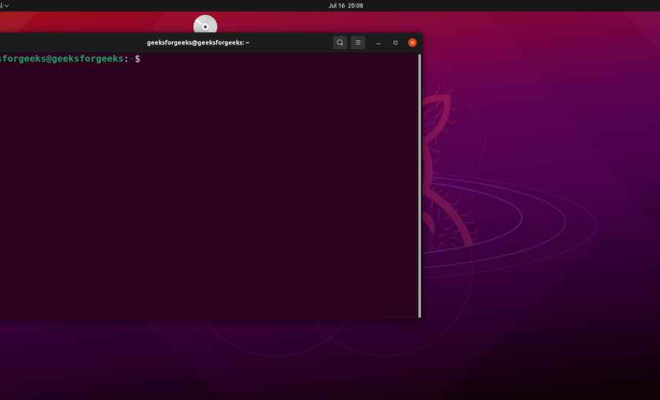
The terminal is an essential tool for any Linux user. It allows you to access the command line and execute various commands. However, the terminal’s default look may not be to everyone’s taste. Fortunately, Linux provides a wide range of customization options for the terminal. This article provides tips on how to customize the look of your Linux terminal.

1. Change the Terminal Theme

The terminal’s theme is a combination of colors, backgrounds, and fonts used in the terminal. It determines the appearance of the terminal. Most Linux distributions provide a wide range of themes that you can choose from, depending on your preference. To change the terminal theme, go to the terminal settings and select the theme that you like.

2. Set a Background Image

Another way to customize the appearance of your Linux terminal is by setting a background image. Most terminal emulators allow you to set a custom background image. You can choose a background image that reflects your personality, mood, or preference. To set a background image, go to the terminal settings and select the option to set a custom background image.

3. Change the Font

The font used in the terminal can also impact its appearance. Most Linux distributions provide a wide range of fonts that you can choose from, depending on your preference. You can choose a font that is easy to read, stylish, or trendy. To change the font, go to the terminal settings and select the font that you like.

4. Customize the Prompt

The prompt is the text that appears in the terminal, indicating that it is ready for a command. By default, the prompt is usually a simple text that may not be to everyone’s taste. You can customize the prompt and add more information, such as the time, date, or your username. To customize the prompt, you need to modify the terminal configuration file.

5. Add Aliases

Aliases are commands that you can create to run frequently used command sequences quickly. For example, you can create an alias for your favorite editor to save typing. Aliases can also personalize your terminal and make it more efficient. To add aliases, you need to modify the terminal configuration file.

In conclusion, customizing the Linux terminal can make it more appealing and personalized to your taste. Follow the tips above to change the theme, font, background, prompt, and add aliases to your terminal. By doing so, you will make your terminal more efficient, aesthetically pleasing, and personalized.

Previous Article

Common Error Codes on Mac and How ...

Next Article

What’s the Best Voice Changer for Discord?

Matthew Lynch

Related articles More from author

  • Digital & Mobile Technology

    How to Reset a Nest Thermostat

    June 10, 2023
    By Matthew Lynch
  • Digital & Mobile Technology

    How to Cast VLC to Chromecast

    May 20, 2023
    By Matthew Lynch
  • Digital & Mobile Technology

    What is a Software-Defined Data Center (SDDC)?

    April 23, 2023
    By Matthew Lynch
  • Digital & Mobile Technology

    How to Use Tinder’s Explore Page

    July 31, 2023
    By Matthew Lynch
  • Digital & Mobile Technology

    What Is Photopea? The Pros and Cons of This Graphics Editor

    June 12, 2023
    By Matthew Lynch
  • Digital & Mobile Technology

    5 Ways to Back up Your Data

    June 4, 2023
    By Matthew Lynch

Search

Login & Registration

  • Register
  • Log in
  • Entries feed
  • Comments feed
  • WordPress.org

Newsletter

Signup for The Tech Edvocate Newsletter and have the latest in EdTech news and opinion delivered to your email address!

About Us

Since technology is not going anywhere and does more good than harm, adapting is the best course of action. That is where The Tech Edvocate comes in. We plan to cover the PreK-12 and Higher Education EdTech sectors and provide our readers with the latest news and opinion on the subject. From time to time, I will invite other voices to weigh in on important issues in EdTech. We hope to provide a well-rounded, multi-faceted look at the past, present, the future of EdTech in the US and internationally.

We started this journey back in June 2016, and we plan to continue it for many more years to come. I hope that you will join us in this discussion of the past, present and future of EdTech and lend your own insight to the issues that are discussed.

Newsletter

Signup for The Tech Edvocate Newsletter and have the latest in EdTech news and opinion delivered to your email address!

Contact Us

The Tech Edvocate
910 Goddin Street
Richmond, VA 23231
(601) 630-5238
[email protected]

Copyright © 2025 Matthew Lynch. All rights reserved.