The Tech Edvocate

Top Menu

  • Advertisement
  • Apps
  • Home Page
  • Home Page Five (No Sidebar)
  • Home Page Four
  • Home Page Three
  • Home Page Two
  • Home Tech2
  • Icons [No Sidebar]
  • Left Sidbear Page
  • Lynch Educational Consulting
  • My Account
  • My Speaking Page
  • Newsletter Sign Up Confirmation
  • Newsletter Unsubscription
  • Our Brands
  • Page Example
  • Privacy Policy
  • Protected Content
  • Register
  • Request a Product Review
  • Shop
  • Shortcodes Examples
  • Signup
  • Start Here
    • Governance
    • Careers
    • Contact Us
  • Terms and Conditions
  • The Edvocate
  • The Tech Edvocate Product Guide
  • Topics
  • Write For Us
  • Advertise

Main Menu

  • Start Here
    • Our Brands
    • Governance
      • Lynch Educational Consulting, LLC.
      • Dr. Lynch’s Personal Website
      • Careers
    • Write For Us
    • The Tech Edvocate Product Guide
    • Contact Us
    • Books
    • Edupedia
    • Post a Job
    • The Edvocate Podcast
    • Terms and Conditions
    • Privacy Policy
  • Topics
    • Assistive Technology
    • Child Development Tech
    • Early Childhood & K-12 EdTech
    • EdTech Futures
    • EdTech News
    • EdTech Policy & Reform
    • EdTech Startups & Businesses
    • Higher Education EdTech
    • Online Learning & eLearning
    • Parent & Family Tech
    • Personalized Learning
    • Product Reviews
  • Advertise
  • Tech Edvocate Awards
  • The Edvocate
  • Pedagogue
  • School Ratings

logo

The Tech Edvocate

  • Start Here
    • Our Brands
    • Governance
      • Lynch Educational Consulting, LLC.
      • Dr. Lynch’s Personal Website
        • My Speaking Page
      • Careers
    • Write For Us
    • The Tech Edvocate Product Guide
    • Contact Us
    • Books
    • Edupedia
    • Post a Job
    • The Edvocate Podcast
    • Terms and Conditions
    • Privacy Policy
  • Topics
    • Assistive Technology
    • Child Development Tech
    • Early Childhood & K-12 EdTech
    • EdTech Futures
    • EdTech News
    • EdTech Policy & Reform
    • EdTech Startups & Businesses
    • Higher Education EdTech
    • Online Learning & eLearning
    • Parent & Family Tech
    • Personalized Learning
    • Product Reviews
  • Advertise
  • Tech Edvocate Awards
  • The Edvocate
  • Pedagogue
  • School Ratings
  • 100 Best Influencer Marketing Apps

  • 100 Best Content Marketing Apps

  • 100 Best SEO Apps

  • 100 Best Social Media Apps

  • 100 Best Email Marketing Apps

  • 100 Best Analytics Apps

  • 100 Best Business Intelligence Apps

  • The Wild West of Weight Loss: Why Millions Are Choosing Semaglutide Oral Alternatives

  • Why Millions Are Racing to Adopt These Game-Changing AI Productivity Tools in 2026

  • GTA 5 Switch Port Killed Days Before Oct. 3 Launch [2026]

Tech Advice
Home›Tech Advice›Taking a Screenshot on Mac: 4 Simple Ways to Do It

Taking a Screenshot on Mac: 4 Simple Ways to Do It
By Matthew Lynch
July 14, 2023
0
Spread the love

Introduction:

Screenshots are essential tools for communication, documentation, and troubleshooting. Whether you want to share a stunning image, document a noteworthy paragraph, or capture an error message, taking screenshots on your Mac is incredibly straightforward. Here are four simple ways to take screenshots on your Mac.

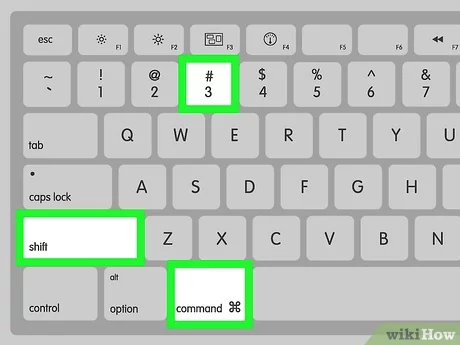
1. Capture the Entire Screen

To take a screenshot of the entire screen on your Mac, follow these steps:

a. Press the keys Cmd + Shift + 3 simultaneously.

b. A snapshot of your entire screen will be taken, and the image file will be saved automatically to your desktop with the format “Screen Shot yyyy-mm-dd at hh.mm.ss am/pm.png”.

2. Capture a Specific Window

If you want to capture a specific window or dialog box, use this method:

a. Open the window you want to capture.

b. Press Cmd + Shift + 4, and then press the Spacebar.

c. The cursor will turn into a camera icon.

d. Hover over the window you want to screenshot and click to capture.

e. The image file will be saved to your desktop in the same format as mentioned above.

3. Capture a Selected Area

To screenshot a custom-selected area of the screen, follow these steps:

a. Press Cmd + Shift + 4 simultaneously.

b. The cursor will change into crosshairs.

c. Click and drag the crosshairs across the area you want to capture, then release the mouse button.

d. The selected area will be captured as an image and saved to your desktop in the same format as above.

4. Use the Built-In Screenshot App (macOS Mojave/Big Sur)

For users running macOS Mojave or later versions, you can take advantage of the built-in Screenshot app for more flexibility, including options like timers and specific file formats. Follow these steps:

a. Press Cmd + Shift + 5 to open the Screenshot app.

b. Choose one of the options from the toolbar—capture entire screen, capture selected window, or capture selected area.

c. You may also click “Options” to set a timer, change the save location, or choose whether to include the pointer in your screenshot.

d. Click “Capture” or press Return to take your screenshot based on your chosen settings.

Conclusion:

With these four simple methods at your disposal, taking screenshots on your Mac has never been easier. Practice using each one of them until you find the one that suits you best. Happy snapping!


Previous Article

The best places to recycle old cables ...

Next Article

TCL’s mirrorshade TV glasses plug an extra ...

Matthew Lynch

Related articles More from author

  • Tech Advice

    Is Apple Pay Safe? What You Need To Know

    August 11, 2023
    By Matthew Lynch
  • Tech Advice

    How to Watch Every Netflix Show in Any Country

    June 14, 2023
    By Matthew Lynch
  • Tech Advice

    8 Ways to Fix “Steam Cloud Error” in Windows

    February 20, 2024
    By Matthew Lynch
  • Tech Advice

    How to Test Drive a Car

    August 19, 2023
    By Matthew Lynch
  • Tech Advice

    How to Track Your Heart Rate Using a Smartphone and Understanding How Your Body Burns Calories

    July 6, 2023
    By Matthew Lynch
  • Tech Advice

    Best Credit Cards for Transit and Commuters

    October 20, 2023
    By Matthew Lynch

Search

Login & Registration

  • Log in
  • Entries feed
  • Comments feed
  • WordPress.org

Newsletter

Signup for The Tech Edvocate Newsletter and have the latest in EdTech news and opinion delivered to your email address!

About Us

Since technology is not going anywhere and does more good than harm, adapting is the best course of action. That is where The Tech Edvocate comes in. We plan to cover the PreK-12 and Higher Education EdTech sectors and provide our readers with the latest news and opinion on the subject. From time to time, I will invite other voices to weigh in on important issues in EdTech. We hope to provide a well-rounded, multi-faceted look at the past, present, the future of EdTech in the US and internationally.

We started this journey back in June 2016, and we plan to continue it for many more years to come. I hope that you will join us in this discussion of the past, present and future of EdTech and lend your own insight to the issues that are discussed.

Newsletter

Signup for The Tech Edvocate Newsletter and have the latest in EdTech news and opinion delivered to your email address!

Contact Us

The Tech Edvocate
910 Goddin Street
Richmond, VA 23231
(601) 630-5238
[email protected]

Copyright © 2026 Matthew Lynch. All rights reserved.