The Tech Edvocate

Top Menu

  • Advertisement
  • Apps
  • Home Page
  • Home Page Five (No Sidebar)
  • Home Page Four
  • Home Page Three
  • Home Page Two
  • Home Tech2
  • Icons [No Sidebar]
  • Left Sidbear Page
  • Lynch Educational Consulting
  • My Account
  • My Speaking Page
  • Newsletter Sign Up Confirmation
  • Newsletter Unsubscription
  • Our Brands
  • Page Example
  • Privacy Policy
  • Protected Content
  • Register
  • Request a Product Review
  • Shop
  • Shortcodes Examples
  • Signup
  • Start Here
    • Governance
    • Careers
    • Contact Us
  • Terms and Conditions
  • The Edvocate
  • The Tech Edvocate Product Guide
  • Topics
  • Write For Us
  • Advertise

Main Menu

  • Start Here
    • Our Brands
    • Governance
      • Lynch Educational Consulting, LLC.
      • Dr. Lynch’s Personal Website
      • Careers
    • Write For Us
    • The Tech Edvocate Product Guide
    • Contact Us
    • Books
    • Edupedia
    • Post a Job
    • The Edvocate Podcast
    • Terms and Conditions
    • Privacy Policy
  • Topics
    • Assistive Technology
    • Child Development Tech
    • Early Childhood & K-12 EdTech
    • EdTech Futures
    • EdTech News
    • EdTech Policy & Reform
    • EdTech Startups & Businesses
    • Higher Education EdTech
    • Online Learning & eLearning
    • Parent & Family Tech
    • Personalized Learning
    • Product Reviews
  • Advertise
  • Tech Edvocate Awards
  • The Edvocate
  • Pedagogue
  • School Ratings

logo

The Tech Edvocate

  • Start Here
    • Our Brands
    • Governance
      • Lynch Educational Consulting, LLC.
      • Dr. Lynch’s Personal Website
        • My Speaking Page
      • Careers
    • Write For Us
    • The Tech Edvocate Product Guide
    • Contact Us
    • Books
    • Edupedia
    • Post a Job
    • The Edvocate Podcast
    • Terms and Conditions
    • Privacy Policy
  • Topics
    • Assistive Technology
    • Child Development Tech
    • Early Childhood & K-12 EdTech
    • EdTech Futures
    • EdTech News
    • EdTech Policy & Reform
    • EdTech Startups & Businesses
    • Higher Education EdTech
    • Online Learning & eLearning
    • Parent & Family Tech
    • Personalized Learning
    • Product Reviews
  • Advertise
  • Tech Edvocate Awards
  • The Edvocate
  • Pedagogue
  • School Ratings
  • Michigan Students Gain Key Insight Through Civic Education Effort

  • The Rise of Day Trips: A New Trend in Travel

  • Navigating AI in Education: Beyond Bans

  • Companies Need a New Playbook to Unlock the Value of AI Agents

  • The New Wave of Soccer Players: Key Habits for Young Athletes

  • BrandPilot AI Expands into European Markets with Performance-Based Advertising

  • The Brutal Truth: Why K-12 Cybersecurity Needs More Than Just Awareness

  • The Unseen Threat: How K-12 Cybersecurity Training Is Quietly Reshaping Education

  • The Staggering Truth: K-12 Cybersecurity Education Is Failing – Here’s How to Fix It

  • Why Millions Are Ditching Degrees For This Career-Boosting Secret

Tech Advice
Home›Tech Advice›How to use your DSLR as a webcam for a PC or Mac

How to use your DSLR as a webcam for a PC or Mac

By Matthew Lynch
July 13, 2023
0
Spread the love

In the era of remote work, video conferencing, and live streaming, having a high-quality webcam is essential. You might be surprised to learn that you can use your DSLR (Digital Single-Lens Reflex) camera as a webcam for your PC or Mac. The process is quite simple, and the results offer a significantly better video quality than most built-in webcams. Here’s how to set up your DSLR camera to be used as a webcam.

1. Gather essentials:

Before you start, make sure you have the following items:

– A DSLR camera with clean HDMI output

– A mini HDMI or HDMI cable

– A capture card/device (HDMI to USB)

– AC power adapter and dummy battery (optional, but recommended for extended use)

2. Ensure Compatibility:

Not all DSLRs are compatible with this process, so check whether your camera has clean HDMI output. This means that the camera can send video through HDMI without any on-screen information displayed.

3. Connect Camera to PC/Mac:

Step 1: Turn off your DSLR camera.

Step 2: Connect the mini HDMI cable (or an HDMI cable depending on your model) to your camera’s HDMI port.

Step 3: Connect the capture card/device to your computer via USB.

Step 4: Plug in the other end of the HDMI cable into the capture card/device.

4. Power Your Camera:

For extended use, it’s best to use an AC power adapter and dummy battery setup. This ensures continuous power supply without exhausting the battery during long video calls or streams.

5. Configure Your Camera and Computer:

Step 1: Turn on your camera and set it to Live View mode or Movie mode.

Step 2: On your computer, download and install software that supports external cameras, such as OBS Studio or third-party apps designed specifically for your camera (e.g., Canon EOS Webcam Utility).

Step 3: Launch the software and select your connected DSLR camera as the video source.

Step 4: Configure video resolution, frame rate, and other settings to optimize video quality.

6. Use Your DSLR as a Webcam:

Now that your DSLR camera is set up as a webcam, you can use it across various video conferencing and video streaming platforms like Zoom, Skype, Microsoft Teams, and OBS Studio.

In conclusion, using a DSLR camera as a webcam offers better video quality compared to most built-in webcams. The process is relatively straightforward once you’ve gathered the necessary equipment and configured both your camera and computer. With these steps in place, you’ll be ready to make a striking impression in all your professional and personal video interactions.

Previous Article

How to use Windows 10 without the ...

Next Article

How to use your monitor or TV ...

Matthew Lynch

Related articles More from author

  • Tech Advice

    Get Organized: How to Set Up Your Phone for International Travel

    July 24, 2023
    By Matthew Lynch
  • Tech Advice

    Basic Driver Hand Signals: A Guide to Effective Communication on the Road

    August 17, 2023
    By Matthew Lynch
  • Tech Advice

    How Deleting Your Android Web Browser’s Cookies and Cache Keeps Junk Out of Your Phone

    July 17, 2023
    By Matthew Lynch
  • Tech Advice

    How to Use Your Digital Camera as a Webcam

    July 23, 2023
    By Matthew Lynch
  • Tech Advice

    Pixel 5 review: Google’s newest phone hasn’t pulled ahead of its rivals

    July 17, 2023
    By Matthew Lynch
  • Tech Advice

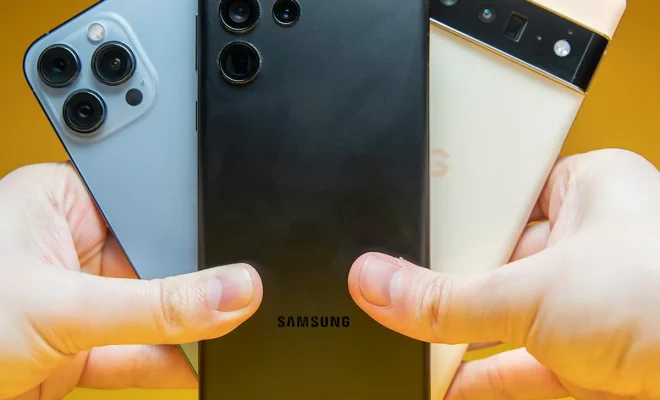
    Is Samsung’s Galaxy S22 Ultra Worth the Upgrade? Let’s Compare it to Older Phones

    July 17, 2023
    By Matthew Lynch

Search

Login & Registration

  • Log in
  • Entries feed
  • Comments feed
  • WordPress.org

Newsletter

Signup for The Tech Edvocate Newsletter and have the latest in EdTech news and opinion delivered to your email address!

About Us

Since technology is not going anywhere and does more good than harm, adapting is the best course of action. That is where The Tech Edvocate comes in. We plan to cover the PreK-12 and Higher Education EdTech sectors and provide our readers with the latest news and opinion on the subject. From time to time, I will invite other voices to weigh in on important issues in EdTech. We hope to provide a well-rounded, multi-faceted look at the past, present, the future of EdTech in the US and internationally.

We started this journey back in June 2016, and we plan to continue it for many more years to come. I hope that you will join us in this discussion of the past, present and future of EdTech and lend your own insight to the issues that are discussed.

Newsletter

Signup for The Tech Edvocate Newsletter and have the latest in EdTech news and opinion delivered to your email address!

Contact Us

The Tech Edvocate
910 Goddin Street
Richmond, VA 23231
(601) 630-5238
[email protected]

Copyright © 2026 Matthew Lynch. All rights reserved.