Master VLOOKUP in Excel: Boost Your Data Analysis Skills
“`html
Excel is a powerful tool utilized by millions for data management and analysis, and one of its most valuable functions is VLOOKUP in Excel. This function allows users to search for a specific piece of information in large datasets efficiently. Whether you’re analyzing sales data, inventory, or any other type of information, mastering VLOOKUP can significantly enhance your productivity and decision-making capabilities. In this article, we’ll explore the ins and outs of VLOOKUP to ensure you can leverage this function effectively in your daily tasks.
1. Understanding VLOOKUP: The Basics
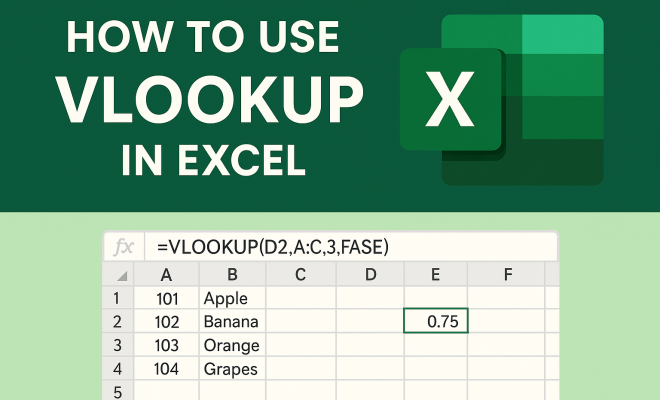
VLOOKUP stands for “Vertical Lookup” and serves to search for a value in the first column of a table and return a corresponding value from another column in the same row. The basic syntax of the VLOOKUP function in Excel is:
VLOOKUP(lookup_value, table_array, col_index_num, [range_lookup])
Each parameter has a specific role:
- lookup_value: The value you want to look up, such as a product ID or name.
- table_array: The range of cells that contains the data you want to search through.
- col_index_num: The column number in the table from which to retrieve the value (the first column is 1).
- [range_lookup]: An optional parameter that defines whether you want an exact match (FALSE) or an approximate match (TRUE).
Understanding these components is crucial for utilizing VLOOKUP effectively. A well-structured lookup can streamline your workflow and minimize errors in data handling.
2. Common Use Cases for VLOOKUP
VLOOKUP is particularly useful in various business scenarios. Here are some common use cases:
- Sales Data Analysis: If you’re managing a sales database, you can quickly find a customer’s details based on their ID, enabling you to create personalized reports.
- Inventory Management: Use VLOOKUP to cross-reference product SKUs with their detailed descriptions or inventory levels to maintain accuracy.
- Financial Reporting: When preparing financial reports, VLOOKUP allows you to pull in relevant data swiftly, ensuring your reports are accurate and up-to-date.
- Course Enrollment Systems: Educational institutions can use VLOOKUP to match student IDs with their course enrollments, making it easier to track attendance and grades.
- Market Research: By leveraging VLOOKUP, you can associate survey results with demographic data, enabling deeper analysis of customer preferences.
In each case, VLOOKUP reduces the time spent searching through data, allowing you to focus on analysis and actionable insights.
3. Setting Up Your Data for VLOOKUP
To effectively use VLOOKUP, your data must be organized correctly. Here are some best practices for setting up your data: (See: VLOOKUP function on Wikipedia.)
- Column Arrangement: Ensure the column you’re looking up is on the far left of your selected range. VLOOKUP only searches the first column.
- Consistent Data Formatting: Keep the data in your lookup column consistent, whether in terms of text case or data type (numbers vs. text).
- No Empty Rows or Columns: Avoid any blank cells or rows within your lookup table, as they can disrupt the function’s performance.
- Use Headers: Including clear headers in your data can help avoid confusion and make readability easier, especially when working with large datasets.
- Sort Your Data: If you’re using approximate matching, sorting your data in ascending order can improve VLOOKUP’s performance and accuracy.
Good data practices enhance VLOOKUP’s effectiveness and help ensure accurate results.
4. How to Handle Errors with VLOOKUP
When using VLOOKUP, you might encounter errors, typically #N/A or #REF!. Understanding how to handle these is essential:
- #N/A Error: This indicates that the lookup value cannot be found. To manage this error, you can use the IFERROR function:
IFERROR(VLOOKUP(...), "Not Found"). - #REF! Error: This occurs if the column index number is greater than the number of columns in your table array. Double-check your col_index_num and ensure it’s within the bounds.
- #VALUE! Error: This error may appear if your lookup_value is not the correct data type. Ensure that the type matches the data in your table_array.
- Using Conditional Formatting for Error Visibility: Setting up conditional formatting can help highlight errors in your dataset, making it easier to correct them quickly.
By proactively managing these errors, you can maintain the integrity of your data analysis and reporting.
5. Advanced VLOOKUP Techniques
While the basic application of VLOOKUP is straightforward, advanced users can leverage additional techniques for enhanced functionality:
- Combining VLOOKUP with Other Functions: Pairing VLOOKUP with functions like CONCATENATE allows for more complex lookups, such as searching for multiple criteria.
- Using Wildcards: Incorporating wildcards (like * or ?) in your lookup_value can help find partial matches, which is useful in cases of incomplete data.
- Creating Dynamic Named Ranges: By defining a named range that adjusts automatically as your data grows, you can make your VLOOKUP references more efficient and flexible.
- Leveraging INDEX and MATCH for Greater Flexibility: By combining VLOOKUP with INDEX and MATCH, you can create a more dynamic lookup that allows you to search in any direction and with multiple criteria, thus overcoming some of VLOOKUP’s limitations.
These advanced techniques not only expand your capabilities with VLOOKUP but also streamline your processes.
6. Comparing VLOOKUP with Other Lookup Functions
VLOOKUP isn’t the only function available for lookup tasks in Excel. It’s beneficial to understand how it compares to other functions like HLOOKUP, INDEX, and MATCH:
- HLOOKUP: Similar to VLOOKUP but searches for values horizontally across the top row of a table.
- INDEX and MATCH: This combination offers greater flexibility than VLOOKUP, allowing searches in any direction and more complex criteria, making it a popular choice for experienced users.
- XLOOKUP: Released in Excel 365, XLOOKUP is a new function that combines the power of VLOOKUP and INDEX-MATCH, allowing for both vertical and horizontal lookups, eliminating the need for exact column numbers.
Understanding these alternatives can help you choose the best function based on your specific needs.
7. Real-world Examples of VLOOKUP in Action
Let’s look at a few scenarios where VLOOKUP proves invaluable: (See: CDC data management practices.)
- Employee Database: You have a list of employee IDs and their respective names. By using VLOOKUP, HR can quickly pull up an employee’s details just by entering their ID.
- Retail Sales Reports: A retail manager might use VLOOKUP to analyze sales data by quickly accessing product information based on SKU numbers, facilitating swift decision-making.
- Customer Support: Support teams can use VLOOKUP to pull customer records based on inquiry IDs, streamlining the process of resolving customer issues.
- Financial Auditing: Auditors can use VLOOKUP to match invoices with payment records, simplifying the reconciliation process and reducing errors.
These examples illustrate how VLOOKUP can save time and enhance efficiency within an organization, transforming cumbersome tasks into seamless operations.
8. VLOOKUP Trends and Modern Applications
In today’s data-centric world, the importance of VLOOKUP in Excel continues to evolve. As companies increasingly rely on data analysis for strategic decision-making, the ability to efficiently retrieve and analyze information is paramount. Here are some trends:
- Integration with Data Visualization Tools: Many users now combine VLOOKUP with visualization tools such as Power BI and Tableau to create comprehensive dashboards.
- Emphasis on Data Literacy: Organizations are recognizing the need for employees to be data literate, enhancing the focus on training in Excel functions, including VLOOKUP.
- Cloud-Based Collaboration: With teams working remotely, the sharing of Excel files over cloud platforms like OneDrive has led to increased usage of VLOOKUP to maintain data integrity across different users and devices.
Embracing these trends can help you stay ahead in your career and maximize your Excel capabilities.
9. Practical Tips for Mastering VLOOKUP
Finally, here are some practical tips to help you master VLOOKUP in Excel:
- Practice Regularly: The more you use VLOOKUP, the more intuitive it will become. Create sample datasets and experiment with different scenarios.
- Stay Updated: Excel is always evolving. Keep an eye on new features and improvements that can enhance how you use VLOOKUP.
- Leverage Online Resources: Numerous online tutorials and communities can provide additional insights and troubleshooting help for complex VLOOKUP problems.
- Join Excel User Groups: Participating in forums or local Excel user groups can provide practical tips and tricks from other users’ experiences.
- Utilize Excel Add-Ins: Explore add-ins that can enhance your Excel functionalities, including those that work with VLOOKUP for more advanced data management options.
By applying these tips, you’ll be well on your way to becoming a VLOOKUP pro, capable of handling a variety of data tasks with ease.
10. The Limitations of VLOOKUP
While VLOOKUP is a highly useful function, it does have its limitations. Knowing these can help you determine when to use it or when to seek alternatives:
- Data Location Restrictions: VLOOKUP can only search for values in the first column of the table array. If your lookup value is not in the first column, you will need to rearrange your data.
- Performance Issues with Large Datasets: When working with very large datasets, VLOOKUP can become slow, particularly if you’re using it repeatedly in a complex workbook. Functions like INDEX and MATCH may perform better in these cases.
- No Left Lookup: VLOOKUP cannot look to the left of the lookup column, which can be a significant limitation if your data structure doesn’t allow for it.
- Static Column Index: The column index number in VLOOKUP is static and does not adjust automatically if columns are added or removed, which can lead to errors if not monitored carefully.
Understanding these limitations helps in planning your approach to data analysis. In many cases, using a combination of functions can lead to better results. (See: Harvard University resources.)
11. VLOOKUP in Different Excel Versions
As new versions of Excel have been released, there have been notable changes to how VLOOKUP and similar functions work. Here are some key points to consider:
- Excel 365 and Dynamic Arrays: Users of Excel 365 benefit from dynamic array functions, which allow you to return multiple results with a single formula. This can change how you approach lookups, as it provides powerful alternatives to VLOOKUP.
- New Functions: The introduction of the XLOOKUP function in newer versions of Excel provides a more versatile and powerful lookup solution, allowing for both vertical and horizontal lookups and eliminating many of VLOOKUP’s limitations.
- Increased Functionality with Power Query: Excel’s Power Query feature allows for advanced data manipulation and can work alongside VLOOKUP for better data integration and retrieval.
Staying informed about these updates is crucial for maximizing your efficiency in Excel.
12. Frequently Asked Questions about VLOOKUP
Let’s address some common questions users may have regarding VLOOKUP:
- Can I use VLOOKUP with unsorted data?
Yes, VLOOKUP can be used with unsorted data, but if you set [range_lookup] to TRUE (approximate match), it requires the data to be sorted in ascending order. - What if my lookup value contains errors?
If there are any lookup values that may contain errors, consider using the IFERROR function to handle such cases gracefully. - Can I perform a VLOOKUP with multiple criteria?
VLOOKUP itself does not support multiple criteria directly, but you can combine it with other functions like CONCATENATE to create a helper column for such scenarios. - What happens if there are duplicate values in the lookup column?
VLOOKUP will return the first match it finds. If you need to handle duplicates, consider using INDEX and MATCH instead. - Is there a limit to the size of the dataset I can use with VLOOKUP?
Technically, VLOOKUP can handle large datasets as long as they are within Excel’s row limits. However, performance may degrade with very large datasets. - Can I use VLOOKUP to retrieve values from another workbook?
Yes, you can use VLOOKUP to retrieve data from another workbook, but you’ll need to ensure that the other workbook is open, or reference it correctly when it’s closed. - What should I do if VLOOKUP returns an unexpected result?
Check the lookup value, ensure there are no leading or trailing spaces in your data, and verify that the table array is set correctly.
These FAQs help clarify some of the most common questions surrounding VLOOKUP, making it easier for you to apply this function effectively.
Mastering VLOOKUP in Excel can significantly enhance your data handling skills and improve your workflow efficiency. With the right understanding and practice, you can make this powerful function work for you, transforming how you analyze and interpret data.
“`
Trending Now
Frequently Asked Questions
What is VLOOKUP in Excel used for?
VLOOKUP in Excel is used to search for a specific value in the first column of a table and return a corresponding value from another column in the same row. It's particularly useful for tasks like analyzing sales data, managing inventory, and generating financial reports.
How do you write a VLOOKUP formula?
The basic syntax for a VLOOKUP formula in Excel is VLOOKUP(lookup_value, table_array, col_index_num, [range_lookup]). Here, 'lookup_value' is the value to search for, 'table_array' is the data range, 'col_index_num' is the column number to return the value from, and '[range_lookup]' specifies whether to look for an exact or approximate match.
What are the common errors with VLOOKUP?
Common errors when using VLOOKUP include #N/A, which indicates the lookup value is not found, and #REF!, which occurs if the specified column index number exceeds the total number of columns in the table array. Ensuring correct parameters and data formatting can help minimize these errors.
Can VLOOKUP handle approximate matches?
Yes, VLOOKUP can handle approximate matches by using the optional parameter '[range_lookup]'. Setting this parameter to TRUE allows Excel to find the closest match less than or equal to the lookup value. For an exact match, set this parameter to FALSE.
What is the difference between VLOOKUP and HLOOKUP?
The primary difference between VLOOKUP and HLOOKUP lies in their orientation. VLOOKUP searches for values vertically in the first column of a table, while HLOOKUP searches horizontally in the first row. Choose VLOOKUP for vertical data and HLOOKUP for horizontal data.
What's your take on this? Share your thoughts in the comments below — we read every one.