
The Tech Edvocate

Top Menu

  • Advertisement
  • Apps
  • Home Page
  • Home Page Five (No Sidebar)
  • Home Page Four
  • Home Page Three
  • Home Page Two
  • Home Tech2
  • Icons [No Sidebar]
  • Left Sidbear Page
  • Lynch Educational Consulting
  • My Account
  • My Speaking Page
  • Newsletter Sign Up Confirmation
  • Newsletter Unsubscription
  • Our Brands
  • Page Example
  • Privacy Policy
  • Protected Content
  • Register
  • Request a Product Review
  • Shop
  • Shortcodes Examples
  • Signup
  • Start Here
    • Governance
    • Careers
    • Contact Us
  • Terms and Conditions
  • The Edvocate
  • The Tech Edvocate Product Guide
  • Topics
  • Write For Us
  • Advertise

Main Menu

  • Start Here
    • Our Brands
    • Governance
      • Lynch Educational Consulting, LLC.
      • Dr. Lynch’s Personal Website
      • Careers
    • Write For Us
    • The Tech Edvocate Product Guide
    • Contact Us
    • Books
    • Edupedia
    • Post a Job
    • The Edvocate Podcast
    • Terms and Conditions
    • Privacy Policy
  • Topics
    • Assistive Technology
    • Child Development Tech
    • Early Childhood & K-12 EdTech
    • EdTech Futures
    • EdTech News
    • EdTech Policy & Reform
    • EdTech Startups & Businesses
    • Higher Education EdTech
    • Online Learning & eLearning
    • Parent & Family Tech
    • Personalized Learning
    • Product Reviews
  • Advertise
  • Tech Edvocate Awards
  • The Edvocate
  • Pedagogue
  • School Ratings

logo

The Tech Edvocate

  • Start Here
    • Our Brands
    • Governance
      • Lynch Educational Consulting, LLC.
      • Dr. Lynch’s Personal Website
        • My Speaking Page
      • Careers
    • Write For Us
    • The Tech Edvocate Product Guide
    • Contact Us
    • Books
    • Edupedia
    • Post a Job
    • The Edvocate Podcast
    • Terms and Conditions
    • Privacy Policy
  • Topics
    • Assistive Technology
    • Child Development Tech
    • Early Childhood & K-12 EdTech
    • EdTech Futures
    • EdTech News
    • EdTech Policy & Reform
    • EdTech Startups & Businesses
    • Higher Education EdTech
    • Online Learning & eLearning
    • Parent & Family Tech
    • Personalized Learning
    • Product Reviews
  • Advertise
  • Tech Edvocate Awards
  • The Edvocate
  • Pedagogue
  • School Ratings
  • 100 Best Resource Management Apps

  • The Startling Truth About Viral Weight Loss Drugs You Need to Know

  • 57% Failure Rate: The Unsettling Truth About AI Financial Advice You Need to Know

  • AI’s Quiet Takeover: 179,542 Tech Layoffs 2023 Signal a Troubling Future

  • The Billion-Dollar Race: Why U.S. Tech Giants Are Scrambling for Israeli Startups

  • The Secret Way Activision Blizzard May Be Exploiting Kids for Millions

  • This One AI Change Could Cost You Thousands in Medical Bills

  • The Billion-Dollar AI Learning Boom: Why Experts Are Sounding the Alarm

  • Your Student Loans Just Got a Massive Overhaul — Here’s What It Means For Your Future

  • Identity Theft Nightmare: Johnson Investment Counsel Data Breach Exposes SSNs

How To
Home›How To›How to Use the Starbucks Card Mobile App

How to Use the Starbucks Card Mobile App
By Matthew Lynch
March 23, 2024
0
Spread the love

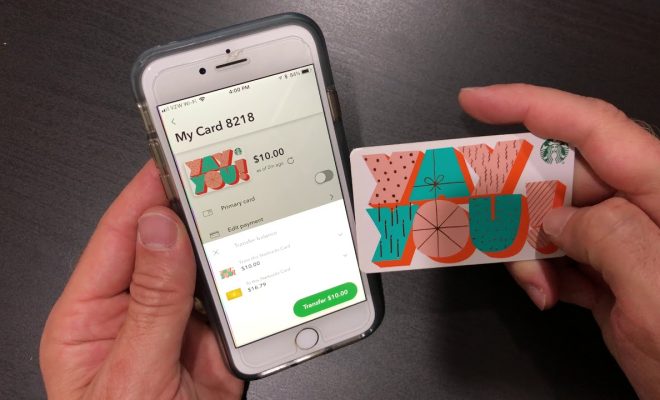
The Starbucks Card Mobile App has transformed the way customers purchase and enjoy their favorite beverages at Starbucks. With this user-friendly app, you can easily manage your Starbucks Card balance, earn rewards, and even order ahead to skip the line. In this article, we will guide you through the process of using the Starbucks Card Mobile App.

1. Download and Install

To get started, download the Starbucks app from the Google Play Store (Android) or App Store (iOS). Once it is installed on your smartphone, tap to open the application.

2. Create an Account

If you are a new user, you will need to create a Starbucks account. Tap “Join Now” or “Sign Up” and follow the on-screen instructions to set up your account with an email address and password.

3. Add Your Starbucks Card

After logging in, tap on “Cards” located at the bottom of the screen. Then tap on “Add Card” to link an existing physical Starbucks card or register a new digital one. Enter the card number and security code (found on the back of a physical card), then add it to your account. You can also reload your card balance by tapping “Reload.”

4. Set Up Your Payment Method

You will need to have a payment method set up in your account for making purchases and reloading your card balance within the app. Navigate to “Settings,” then select “Payment.” From here, you can securely add preferred payment methods, such as credit cards or mobile wallets like Apple Pay or Google Pay.

5. Use Mobile Order & Pay Feature

One of the great advantages of using the Starbucks Card Mobile App is ordering ahead and skipping the line! To use this feature, tap on “Order” from the bottom menu bar. Browse through menu items available at nearby locations and customize your drink as desired. Once satisfied with your order, select “Add to Cart” to proceed. Review your cart and select your preferred store location. Tap on “Checkout” and pay using your card balance or the payment method linked to your account.

6. Earn Rewards

Collecting rewards has never been easier with the Starbucks Card Mobile App! For every dollar spent using the app, you can collect Stars – Starbucks’ loyalty currency. To track your rewards progress, tap on “Rewards” at the bottom of the screen. As you accumulate Stars, you will have opportunities to redeem them for free drinks, food items, or even exclusive rewards member events.

7. Redeem Rewards

When you have earned enough Stars to redeem a reward, visit the “Rewards” tab in the app. Choose which reward you wish to claim, and it will be added to your account for future use. To redeem a reward at participating Starbucks locations, simply inform the barista while placing your order.

With these easy steps, you are now ready to enjoy all the benefits of using the Starbucks Card Mobile App. From ordering ahead and collecting rewards to managing your card balance and personal preferences, this app is designed for a seamless Starbucks experience. So grab your phone and get started on your caffeine journey today!


Previous Article

How to Call London from Canada: 10 ...

Next Article

14 Best Ski Resorts in the Midwest

Matthew Lynch

Related articles More from author

  • How To

    3 Ways to Use Kitchen Scissors

    December 16, 2023
    By Matthew Lynch
  • How To

    5 Simple Ways to Do Digital Marketing

    November 13, 2023
    By Matthew Lynch
  • How To

    How to Burn Incense Sticks

    October 26, 2023
    By Matthew Lynch
  • How To

    11 Ways to Make Artist Trading Cards

    October 6, 2023
    By Matthew Lynch
  • How To

    How to Read HL7 Messages

    April 2, 2024
    By Matthew Lynch
  • How To

    How to Do a Celtic Knot Braid

    November 4, 2023
    By Matthew Lynch

Search

Login & Registration

  • Log in
  • Entries feed
  • Comments feed
  • WordPress.org

Newsletter

Signup for The Tech Edvocate Newsletter and have the latest in EdTech news and opinion delivered to your email address!

About Us

Since technology is not going anywhere and does more good than harm, adapting is the best course of action. That is where The Tech Edvocate comes in. We plan to cover the PreK-12 and Higher Education EdTech sectors and provide our readers with the latest news and opinion on the subject. From time to time, I will invite other voices to weigh in on important issues in EdTech. We hope to provide a well-rounded, multi-faceted look at the past, present, the future of EdTech in the US and internationally.

We started this journey back in June 2016, and we plan to continue it for many more years to come. I hope that you will join us in this discussion of the past, present and future of EdTech and lend your own insight to the issues that are discussed.

Newsletter

Signup for The Tech Edvocate Newsletter and have the latest in EdTech news and opinion delivered to your email address!

Contact Us

The Tech Edvocate
910 Goddin Street
Richmond, VA 23231
(601) 630-5238
[email protected]

Copyright © 2026 Matthew Lynch. All rights reserved.