The Tech Edvocate

Top Menu

  • Advertisement
  • Apps
  • Home Page
  • Home Page Five (No Sidebar)
  • Home Page Four
  • Home Page Three
  • Home Page Two
  • Home Tech2
  • Icons [No Sidebar]
  • Left Sidbear Page
  • Lynch Educational Consulting
  • My Account
  • My Speaking Page
  • Newsletter Sign Up Confirmation
  • Newsletter Unsubscription
  • Our Brands
  • Page Example
  • Privacy Policy
  • Protected Content
  • Register
  • Request a Product Review
  • Shop
  • Shortcodes Examples
  • Signup
  • Start Here
    • Governance
    • Careers
    • Contact Us
  • Terms and Conditions
  • The Edvocate
  • The Tech Edvocate Product Guide
  • Topics
  • Write For Us
  • Advertise

Main Menu

  • Start Here
    • Our Brands
    • Governance
      • Lynch Educational Consulting, LLC.
      • Dr. Lynch’s Personal Website
      • Careers
    • Write For Us
    • The Tech Edvocate Product Guide
    • Contact Us
    • Books
    • Edupedia
    • Post a Job
    • The Edvocate Podcast
    • Terms and Conditions
    • Privacy Policy
  • Topics
    • Assistive Technology
    • Child Development Tech
    • Early Childhood & K-12 EdTech
    • EdTech Futures
    • EdTech News
    • EdTech Policy & Reform
    • EdTech Startups & Businesses
    • Higher Education EdTech
    • Online Learning & eLearning
    • Parent & Family Tech
    • Personalized Learning
    • Product Reviews
  • Advertise
  • Tech Edvocate Awards
  • The Edvocate
  • Pedagogue
  • School Ratings

logo

The Tech Edvocate

  • Start Here
    • Our Brands
    • Governance
      • Lynch Educational Consulting, LLC.
      • Dr. Lynch’s Personal Website
        • My Speaking Page
      • Careers
    • Write For Us
    • The Tech Edvocate Product Guide
    • Contact Us
    • Books
    • Edupedia
    • Post a Job
    • The Edvocate Podcast
    • Terms and Conditions
    • Privacy Policy
  • Topics
    • Assistive Technology
    • Child Development Tech
    • Early Childhood & K-12 EdTech
    • EdTech Futures
    • EdTech News
    • EdTech Policy & Reform
    • EdTech Startups & Businesses
    • Higher Education EdTech
    • Online Learning & eLearning
    • Parent & Family Tech
    • Personalized Learning
    • Product Reviews
  • Advertise
  • Tech Edvocate Awards
  • The Edvocate
  • Pedagogue
  • School Ratings
  • 10 Crucial AI Literacy Courses Every Parent Needs Now

  • The Unseen Force Quietly Reshaping Rural Life: 7 Satellite Internet Providers Battling for Supremacy

  • Best Buy’s Gamers Hub: The Unbelievable Truth About Its “Rewards” And Discounts

  • 8 Crucial Reasons Why MAI-DxO Just Obliterated Doctors in a Head-to-Head Diagnosis Battle

  • The Brutal Truth About Student Loan Refinancing for New Grads in 2024

  • The Brutal Truth: AI Just Blew Up PHP Security – Here’s How to Survive ‘Black October’

  • Sodium-ion storage maker Peak Energy raises $108 million in GM-led round – PV Magazine

  • Stunning: 93,000 Nursing School Applicants Rejected — Here’s Why It’s a Crisis

  • One Ancient PHP Bug Hid for 14 Years — Until AI Found It in 7 Days

  • The Brutal Truth: Why 12 Million Users Couldn’t Save Character.AI From Bankruptcy

Tech Advice
Home›Tech Advice›How to Use the Files App on Your iPhone or iPad

How to Use the Files App on Your iPhone or iPad
By Matthew Lynch
July 23, 2023
0
Spread the love

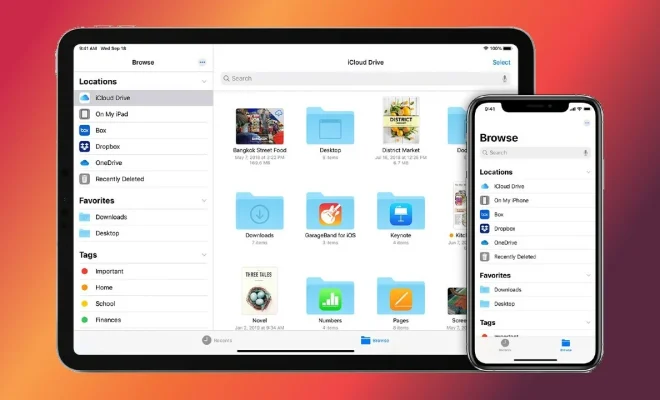
The Files app is a one-stop-shop for organizing, managing, and sharing your files on your iPhone or iPad. This app allows you to browse different storage locations, organize your files as per your needs, and conveniently locate what you are looking for in just a few taps. Here’s a comprehensive guide to using the Files app effectively on your iPhone or iPad.

Step 1: Accessing the Files App

1. Locate the Files app icon on your iPhone or iPad — it’s blue with a white file folder silhouette.

2. Tap the icon to open the app.

Step 2: Navigating Through Files

1. By default, you will see all folders, documents, and downloads under “Recents” at the bottom of the screen.

2. Tap “Browse” at the bottom of the screen to access different tabs such as iCloud Drive, On My iPhone/iPad, and other third-party cloud storage services like Google Drive or Dropbox if configured.

Step 3: Creating Folders

1. To create a new folder within any location, tap and hold a blank area within that location in the Files app.

2. Select “New Folder” from the context menu.

3. Name your folder and tap “Done.”

Step 4: Adding Tags

1. Assign tags to a file by tapping and holding on it.

2. When the context menu appears, tap “Tags.”

3. Choose an existing tag or create new ones by tapping “+Add New Tag.”

Step 5: Moving Files

1. To move files to a new location or folder, tap and hold on them.

2. Select “Move” from the context menu that appears.

3. Browse through locations and folders until you find where you want to place these items.

4. Tap “Move” again.

Step 6: Deleting Unwanted Files

1. To delete files, tap and hold on the file you want to remove.

2. Select “Delete” from the context menu that appears.

3. Confirm your action by tapping “Delete” again.

Step 7: Sharing Files

1. Tap and hold any file you want to share.

2. Select “Share” from the context menu that appears.

3. Choose a sharing method such as AirDrop, email, or messaging.

Conclusion:

With these simple steps in your arsenal, managing files using the Files app on your iPhone or iPad has never been easier. Stay organized and make the most out of this useful app to be more productive while on the go.


Previous Article

How to Wipe Your Hard Drive

Next Article

How to Use Your Digital Camera as ...

Matthew Lynch

Related articles More from author

  • Tech Advice

    Car Insurance in Atlanta, Georgia: Everything You Need to Know

    August 18, 2023
    By Matthew Lynch
  • Tech Advice

    What is an Automatic Car?

    August 22, 2023
    By Matthew Lynch
  • Tech Advice

    2024 Hyundai Tucson XRT 4dr All-Wheel Drive SUV: Trim Details, Reviews, Prices, Specs, and Incentives

    August 21, 2023
    By Matthew Lynch
  • Tech Advice

    The Metals Inside Your iPhone Are More Precious Than You Thought: Here’s Why

    July 15, 2023
    By Matthew Lynch
  • Tech Advice

    How Honda’s VTEC Variable-Timing System Works

    August 19, 2023
    By Matthew Lynch
  • Tech Advice

    2025 Jeep “Wagoneer S”: The Sporty Jeep SUV That’ll Get a New Name

    August 22, 2023
    By Matthew Lynch

Search

Login & Registration

  • Log in
  • Entries feed
  • Comments feed
  • WordPress.org

Newsletter

Signup for The Tech Edvocate Newsletter and have the latest in EdTech news and opinion delivered to your email address!

About Us

Since technology is not going anywhere and does more good than harm, adapting is the best course of action. That is where The Tech Edvocate comes in. We plan to cover the PreK-12 and Higher Education EdTech sectors and provide our readers with the latest news and opinion on the subject. From time to time, I will invite other voices to weigh in on important issues in EdTech. We hope to provide a well-rounded, multi-faceted look at the past, present, the future of EdTech in the US and internationally.

We started this journey back in June 2016, and we plan to continue it for many more years to come. I hope that you will join us in this discussion of the past, present and future of EdTech and lend your own insight to the issues that are discussed.

Newsletter

Signup for The Tech Edvocate Newsletter and have the latest in EdTech news and opinion delivered to your email address!

Contact Us

The Tech Edvocate
910 Goddin Street
Richmond, VA 23231
(601) 630-5238
[email protected]

Copyright © 2026 Matthew Lynch. All rights reserved.