The Tech Edvocate

Top Menu

  • Advertisement
  • Apps
  • Home Page
  • Home Page Five (No Sidebar)
  • Home Page Four
  • Home Page Three
  • Home Page Two
  • Home Tech2
  • Icons [No Sidebar]
  • Left Sidbear Page
  • Lynch Educational Consulting
  • My Account
  • My Speaking Page
  • Newsletter Sign Up Confirmation
  • Newsletter Unsubscription
  • Our Brands
  • Page Example
  • Privacy Policy
  • Protected Content
  • Register
  • Request a Product Review
  • Shop
  • Shortcodes Examples
  • Signup
  • Start Here
    • Governance
    • Careers
    • Contact Us
  • Terms and Conditions
  • The Edvocate
  • The Tech Edvocate Product Guide
  • Topics
  • Write For Us
  • Advertise

Main Menu

  • Start Here
    • Our Brands
    • Governance
      • Lynch Educational Consulting, LLC.
      • Dr. Lynch’s Personal Website
      • Careers
    • Write For Us
    • The Tech Edvocate Product Guide
    • Contact Us
    • Books
    • Edupedia
    • Post a Job
    • The Edvocate Podcast
    • Terms and Conditions
    • Privacy Policy
  • Topics
    • Assistive Technology
    • Child Development Tech
    • Early Childhood & K-12 EdTech
    • EdTech Futures
    • EdTech News
    • EdTech Policy & Reform
    • EdTech Startups & Businesses
    • Higher Education EdTech
    • Online Learning & eLearning
    • Parent & Family Tech
    • Personalized Learning
    • Product Reviews
  • Advertise
  • Tech Edvocate Awards
  • The Edvocate
  • Pedagogue
  • School Ratings

logo

The Tech Edvocate

  • Start Here
    • Our Brands
    • Governance
      • Lynch Educational Consulting, LLC.
      • Dr. Lynch’s Personal Website
        • My Speaking Page
      • Careers
    • Write For Us
    • The Tech Edvocate Product Guide
    • Contact Us
    • Books
    • Edupedia
    • Post a Job
    • The Edvocate Podcast
    • Terms and Conditions
    • Privacy Policy
  • Topics
    • Assistive Technology
    • Child Development Tech
    • Early Childhood & K-12 EdTech
    • EdTech Futures
    • EdTech News
    • EdTech Policy & Reform
    • EdTech Startups & Businesses
    • Higher Education EdTech
    • Online Learning & eLearning
    • Parent & Family Tech
    • Personalized Learning
    • Product Reviews
  • Advertise
  • Tech Edvocate Awards
  • The Edvocate
  • Pedagogue
  • School Ratings
  • This One Skill Is Quietly Reshaping Every Career — And How to Master It Now

  • The Silent Threat: How AI Is Reshaping Recent College Graduates’ Job Prospects

  • This Crucial Shift in AI Will Devastate Millions of College Grads

  • The Brutal Truth: Zero-Day Exploit Analysis vs. Traditional Cybersecurity Careers — Which Path Pays $300,000?

  • The Urgent Truth: Why These Certifications Are Your Only Defense Against Zero-Day Attacks

  • The FBI Investigates a Zero-Day Attack on Your Job Applications

  • The Startling Truth About AI’s Impact on Your Coding Job by 2026

  • The Shocking Truth About Your Code: AI Is Already Rewriting Your Future

  • Is This Why Code Review Is Dead? AI’s Staggering Impact on Tech Jobs

  • The Shocking Truth About CogniBoost vs Focus Drugs: What No One Is Telling You

Digital & Mobile Technology
Home›Digital & Mobile Technology›How to Use the CONCATENATE Function in Google Sheets

How to Use the CONCATENATE Function in Google Sheets
By Matthew Lynch
July 31, 2023
0
Spread the love

Google Sheets is a popular spreadsheet program that is widely used across businesses and organizations for data management and analysis. One of the most useful functions within Google Sheets is the CONCATENATE function, which is used to join multiple strings or cell values into a single value. This can be incredibly useful when working with large data sets, and can save you a lot of time and effort when performing various data manipulation tasks. In this article, we’ll explore how to use the CONCATENATE function in Google Sheets to get the most out of your data.

Understanding the CONCATENATE Function

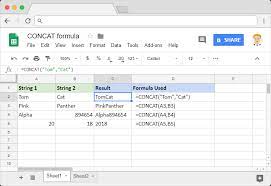
The CONCATENATE function, also known as the “Concat” function, is used to combine two or more strings or cell values into a single value. The syntax for the function is =CONCATENATE(string1, string2, …) where “string1”, “string2”, etc. are the strings or cell values that you want to concatenate. You can use as many strings or cell values as you want with this function.

One important thing to note about the CONCATENATE function is that it doesn’t separate the concatenated values with any characters or spaces by default. This means that if you’re combining two cell values, for example, you’ll get them merged without any space between them. However, you can add any necessary spaces or characters by using the “&” operator within the function.

Using the CONCATENATE Function in Google Sheets

To start using the CONCATENATE function in Google Sheets, you’ll need to create a new spreadsheet or open an existing one. Then, select the cell where you want to display the concatenated value and enter the formula =CONCATENATE(string1, string2, …) or use the shortcut key “Control + Shift + Enter” to use the function.

The function will concatenate each string or cell value you input in the order that you specify. For example, if you want to join the values in cells A1 and B1, you can use the formula =CONCATENATE(A1, B1). This will create a single value containing both the values in cells A1 and B1.

It’s important to note that the CONCATENATE function only works with text values and not with numerical values. However, if you want to concatenate numerical values, you can use the TEXT function to convert them to text first.

Adding Spaces Between Concatenated Values

As mentioned earlier, the CONCATENATE function doesn’t automatically add spaces or any other characters between concatenated strings or values. But you can easily add spaces or other characters by using the “&” operator within the formula.

For example, if you want to concatenate two cell values with a space in between them, use the formula =A1 & ” ” & B1. This will join the values in cells A1 and B1 with a space in between them.

Using CONCATENATE with Conditional Statements

The CONCATENATE function can also be used with conditional statements like IF, IFERROR etc. This allows you to concatenate only certain cell values based on specific conditions.

For example, if you want to concatenate cell values A1 and B1 only if cell C1 contains a certain value, you can use the following formula:
=IF(C1=”condition”, CONCATENATE(A1, B1), “”)

This will concatenate the values in cells A1 and B1 only when cell C1 contains the specified condition, otherwise it will display an empty cell.

Conclusion

The CONCATENATE function in Google Sheets is a powerful tool when it comes to merging text or cell values. By using this function, you can concatenate multiple strings or cell values into a single value, add spaces or any other characters between values, and even use it with conditional statements.

Using this function can help you save a lot of time and effort when working with large data sets, and can help you efficiently manipulate and analyze your data. So, give it a try and see how it can help you with your data management tasks in Google Sheets.


Previous Article

Is Your Router Slow? It Might Be ...

Next Article

How to Find Songs by Humming Lyrics: ...

Matthew Lynch

Related articles More from author

  • Digital & Mobile Technology

    How to Enable Cookies on an iPad

    June 1, 2023
    By Matthew Lynch
  • Digital & Mobile Technology

    Patch My PC v4.5 Review (Free Software Updater)

    June 4, 2023
    By Matthew Lynch
  • Digital & Mobile Technology

    How to AirPlay to Fire Stick

    June 1, 2023
    By Matthew Lynch
  • Digital & Mobile Technology

    How to Find and Open the Mac Applications Folder

    June 8, 2023
    By Matthew Lynch
  • Digital & Mobile Technology

    8 Tips on Basic Computer Safety

    June 10, 2023
    By Matthew Lynch
  • Digital & Mobile Technology

    What Is Alexa and What Does Alexa Do?

    June 15, 2023
    By Matthew Lynch

Search

Login & Registration

  • Log in
  • Entries feed
  • Comments feed
  • WordPress.org

Newsletter

Signup for The Tech Edvocate Newsletter and have the latest in EdTech news and opinion delivered to your email address!

About Us

Since technology is not going anywhere and does more good than harm, adapting is the best course of action. That is where The Tech Edvocate comes in. We plan to cover the PreK-12 and Higher Education EdTech sectors and provide our readers with the latest news and opinion on the subject. From time to time, I will invite other voices to weigh in on important issues in EdTech. We hope to provide a well-rounded, multi-faceted look at the past, present, the future of EdTech in the US and internationally.

We started this journey back in June 2016, and we plan to continue it for many more years to come. I hope that you will join us in this discussion of the past, present and future of EdTech and lend your own insight to the issues that are discussed.

Newsletter

Signup for The Tech Edvocate Newsletter and have the latest in EdTech news and opinion delivered to your email address!

Contact Us

The Tech Edvocate
910 Goddin Street
Richmond, VA 23231
(601) 630-5238
[email protected]

Copyright © 2026 Matthew Lynch. All rights reserved.