Mastering Outlook for Mac: Your Complete Setup & Usage Guide
“`html
Microsoft Outlook has become a staple for email management and productivity, and for Mac users, it offers a robust platform to streamline both personal and professional communication. Whether you’re migrating from another email client or just getting started, this guide will walk you through how to use Outlook for Mac effectively, covering everything from installation to advanced features that can enhance your daily workflow.
1. Getting Started with Outlook for Mac
First things first, let’s talk about how to install Outlook for Mac. Depending on your needs, you can either purchase a standalone version of the Office suite or subscribe to Microsoft 365 for a more versatile solution. The latter not only provides you access to Outlook but also to Word, Excel, PowerPoint, and other Microsoft applications.
To install Outlook, visit the official Microsoft website and choose the plan that suits you best. Once purchased, download the installer file, follow the on-screen prompts, and open Outlook after installation to set up your account. You can sign in with an existing Microsoft account or create a new one if needed.
2. Setting Up Your Email Account
Once Outlook for Mac is installed, the next crucial step is setting up your email account. Outlook allows you to add multiple email accounts, making it easier to manage various personal and work-related emails all in one place.
To add an account, launch Outlook, click on Tools, and select Accounts. Click the plus sign (+) and choose your email provider (such as Exchange, Google, or IMAP). Enter your email address and password, then follow any additional prompts to complete the setup. Outlook will automatically configure most settings, but you might need to input server details for some providers. Once added, you’ll be able to access your emails, calendar, and contacts seamlessly.
3. Navigating the Interface
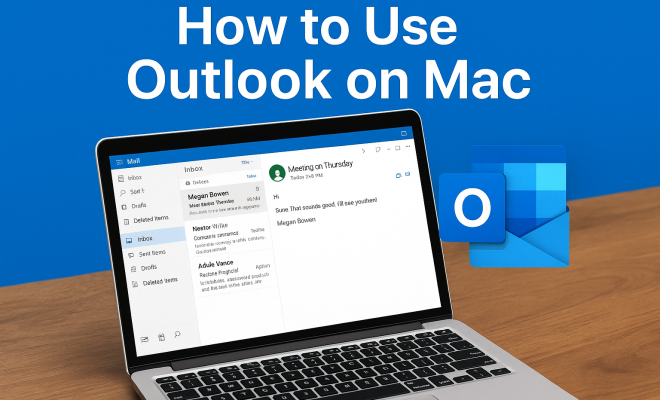
The user interface of Outlook for Mac is designed with simplicity and functionality in mind. The layout is divided into three main sections: the navigation pane on the left, the message list in the center, and the reading pane on the right. This setup allows you to switch between your inbox, calendar, tasks, and contacts quickly.
You can customize the interface according to your preferences. For instance, you can enable or disable the reading pane, change the density of your message list, and even switch between light and dark modes. Familiarizing yourself with these elements early on will significantly enhance your productivity as you’ll be able to access features quickly without being overwhelmed.
4. Organizing Your Inbox
One of the key advantages of using Outlook for Mac is its powerful organizational tools. To keep your inbox clutter-free, you can create folders for different projects or categories. Simply right-click on your inbox and select New Folder. Drag and drop emails into these folders, or set up rules to automate the sorting process.
Additionally, you can utilize categories to color-code your emails for better visual organization. By selecting an email, you can assign it a category, making it easier to identify important messages at a glance. The search functionality in Outlook is also robust, allowing you to find specific emails, attachments, or contacts quickly, which can save you valuable time.
5. Utilizing Calendar Features
The calendar functionality in Outlook for Mac is one of its standout features. You can easily schedule meetings, set reminders, and share your calendar with colleagues or clients. To create an event, simply click on a date and time in the calendar view and fill out the details.
For team collaboration, you can invite others to your events by adding their email addresses in the attendees section. Outlook also offers features like recurring events and the ability to attach documents to calendar invitations, making it a powerful tool for managing both personal and work schedules. (See: Microsoft Outlook overview.)
6. Effective Email Management Strategies
Managing your emails effectively is crucial for maintaining productivity. One great way to do this in Outlook for Mac is by using the Focused Inbox feature. This tool automatically sorts your important emails into a “Focused” tab, while other less critical emails go into the “Other” tab. You can adjust which emails appear in each tab by moving messages between them.
Another strategy is to take advantage of flags and follow-up reminders. By flagging emails, you can mark them for follow-up or categorize them by importance. This ensures that you don’t miss critical communications. Additionally, setting specific times during your day to check emails can help you avoid distractions and maintain focus on more significant tasks.
7. Integration with Other Microsoft Apps
Outlook for Mac seamlessly integrates with other Microsoft applications, enhancing your workflow efficiency. For instance, you can link Excel sheets directly within an email or create a Word document and send it as an attachment with just a few clicks.
This integration also extends to Microsoft Teams, allowing you to schedule meetings directly from Outlook or chat with colleagues without switching applications. Such capabilities transform Outlook from a simple email client into a comprehensive productivity hub.
8. Staying Secure with Outlook for Mac
With cyber threats becoming increasingly common, ensuring the security of your emails and data is vital. Outlook for Mac provides several security features to protect your information. Make sure to enable two-factor authentication for your Microsoft account to add an extra layer of security.
Furthermore, be aware of phishing attempts and suspicious emails. Outlook’s built-in security systems can help filter out spam and phishing emails. Regularly updating your software and being cautious about sharing personal information online are essential steps to maintain your security while using Outlook for Mac.
9. Exploring Advanced Features
Finally, for those looking to leverage Outlook for Mac to its fullest potential, consider exploring some of the more advanced features. For example, the Quick Steps feature allows you to automate multiple tasks with a single click, like moving emails to a specific folder and flagging them simultaneously.
Another powerful feature is the ability to use tasks to manage your to-do list right within Outlook. You can create tasks based on emails, set deadlines, and categorize them, all of which help streamline your workload. By familiarizing yourself with these features, you can maximize your productivity and make the most of Outlook for Mac.
10. Customization Options
One of the significant advantages of Outlook for Mac is the ability to customize its features to fit your personal workflow style. You can adjust the layout, color themes, and even the way notifications are displayed. Tailoring these settings can significantly impact your user experience and productivity.
For instance, if you’re someone who tends to work late hours, switching to dark mode can reduce eye strain. You can also customize the Quick Access Toolbar to include the tools you use most frequently, saving you time as you navigate through your tasks.
Another customization feature is the ability to create custom views for your calendar and task list. You can choose which fields to display, helping you focus on the information that matters most to you. Whether it’s a week view in the calendar or a detailed task list, these options allow you to personalize your Outlook experience.
11. Mobile Access and Synchronization
In today’s fast-paced world, having access to your email and calendar on the go is essential. Outlook for Mac synchronizes seamlessly with the Outlook mobile app, which is available for both iOS and Android. This means you can access your emails, calendar events, and tasks from anywhere, ensuring you’re always connected.
When you make changes in the desktop version, like scheduling meetings or moving emails to folders, those changes are automatically reflected on your mobile device. This synchronization is particularly useful for professionals who travel frequently or need to stay updated while out of the office. (See: Email communication best practices.)
It’s worth noting that mobile access also includes offline capabilities. You can access previously downloaded emails and calendar events when you’re not connected to the internet, providing flexibility in situations where you might have limited connectivity.
12. Outlook for Mac vs. Other Email Clients
When considering Outlook for Mac, it’s essential to compare it with other email clients available on the market. While clients like Apple Mail, Mozilla Thunderbird, and Gmail offer robust features, Outlook brings a unique set of advantages.
For example, Outlook excels in its organizational capabilities with its focused inbox and categorization features, which are more advanced than what many competitors offer. Additionally, the integration with other Microsoft tools gives it a comprehensive edge for users already embedded in the Microsoft ecosystem.
Statistics show that over 400 million people worldwide use Outlook. This widespread adoption indicates a level of trust in its features and security protocols. Many users find that the investment in Microsoft 365 provides added value through regular updates and new features, which isn’t always the case with free clients.
13. Expert Perspectives on Outlook for Mac
Industry experts frequently discuss the evolution of email clients, and Outlook for Mac often comes up in these conversations. Many emphasize its user-friendly interface combined with robust features as reasons for its popularity. Productivity consultants note that users who adopt Outlook’s full suite of tools—like task management and calendar sharing—often see significant improvements in their work efficiency.
According to a study by the Tech Research Institute, 75% of professionals using Outlook reported feeling more organized compared to their previous email clients. This sentiment is echoed in various online forums and review sites where users discuss their experiences transitioning to Outlook.
Experts also highlight the importance of continuous learning and adapting to new features in Outlook. Regular webinars and training sessions are available for users looking to deepen their understanding and proficiency with the software, ensuring they harness its full potential over time.
14. Frequently Asked Questions (FAQ)
What is the main advantage of using Outlook for Mac?
The main advantage of using Outlook for Mac is its integration with Microsoft 365 applications, which streamlines workflows by connecting email, calendar, and tasks in one user-friendly interface. Additionally, its organizational features help users manage communications effectively.
Can I use Outlook for Mac for personal and business emails?
Yes, Outlook for Mac allows you to set up multiple email accounts, so you can manage both personal and business emails seamlessly in one application. This feature is particularly useful for those juggling various responsibilities.
Is there a mobile version of Outlook for Mac?
Yes, there is a mobile version of Outlook available for both iOS and Android devices. The mobile app syncs with the desktop version, so you can access your emails and calendar on the go. (See: Harvard University resources.)
How secure is Outlook for Mac?
Outlook for Mac offers robust security features, including built-in phishing protection and the option to enable two-factor authentication for your account. Regular security updates from Microsoft also help protect your information.
Are there any limitations to Outlook for Mac?
While Outlook for Mac is a powerful tool, some users report that certain advanced features available in the Windows version are not yet available on Mac. However, Microsoft frequently updates the app with new functionalities, so many limitations are being addressed regularly.
Can I customize notifications in Outlook for Mac?
Absolutely! Outlook for Mac allows you to customize notification settings, including sound and appearance, so you can manage how alerts are displayed, ensuring they fit your workflow.
How can I optimize Outlook for Mac for better performance?
To optimize Outlook for Mac, regularly archive old emails and delete unnecessary items to reduce the size of your mailbox. You can also disable add-ins that you don’t use frequently, as they can slow down the application. Another tip is to ensure you’re running the latest version of Outlook, as updates often include performance improvements and bug fixes.
What troubleshooting steps can I take if Outlook for Mac is not working properly?
If you encounter issues with Outlook for Mac, start by restarting the application and your computer. Check your internet connection, as connectivity issues can often cause problems. You can also rebuild your Outlook profile by removing and re-adding your email account. If the problem persists, consider reaching out to Microsoft Support for further assistance.
Can I integrate third-party apps with Outlook for Mac?
Yes, Outlook for Mac supports integrations with various third-party applications through plugins and add-ons. Popular tools like Trello, Asana, and Slack offer connectors that enable you to manage tasks, projects, and communications right within Outlook. Checking the Microsoft AppSource for compatible integrations can help enhance your productivity further.
What future developments can we expect for Outlook for Mac?
As Microsoft continues to update its Office suite, users can anticipate more features that enhance collaboration, automation, and artificial intelligence capabilities in Outlook for Mac. These developments may include improved task management tools and greater integration with Microsoft Teams, reflecting the growing trend toward remote work and online collaboration.
In summary, mastering Outlook for Mac opens up a world of productivity possibilities. By understanding its features, from basic setup to advanced functionalities, you can manage your emails, calendar, and tasks more efficiently. Whether you’re a professional looking to enhance your workflow or a casual user wanting to stay organized, Outlook for Mac has something to offer everyone.
“`
Trending Now
Frequently Asked Questions
How do I install Outlook on my Mac?
To install Outlook on your Mac, visit the official Microsoft website and choose a suitable plan, either a standalone version or a Microsoft 365 subscription. After purchasing, download the installer file and follow the on-screen prompts to complete the installation.
Can I use Outlook for Mac with multiple email accounts?
Yes, Outlook for Mac allows you to add multiple email accounts, making it easy to manage personal and work-related emails in one place. Simply go to Tools, select Accounts, and follow the prompts to add your email providers.
What email providers are compatible with Outlook for Mac?
Outlook for Mac supports several email providers, including Exchange, Google, and IMAP. You can easily add your account by selecting your provider during the setup process and entering your email credentials.
Is Outlook for Mac part of Microsoft 365?
Yes, Outlook for Mac is included in the Microsoft 365 subscription. This subscription provides access to other Microsoft applications like Word, Excel, and PowerPoint, offering a comprehensive suite for productivity.
How do I navigate the Outlook interface on Mac?
The Outlook interface for Mac is designed for simplicity and functionality. It features a user-friendly layout that allows you to easily access your emails, calendar, and contacts, enhancing your overall productivity.
Agree or disagree? Drop a comment and tell us what you think.