How to use Google Assistant with headphones
“`html
1. The Smart Listening Revolution: Why Google Assistant Headphones Matter
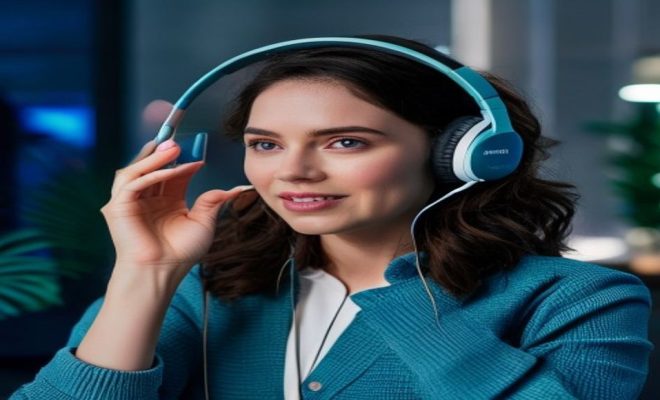
Remember when headphones were just, well, headphones? You plugged them in, maybe adjusted the volume, and that was about it. My, how times have changed! We’re not just talking about wireless convenience anymore; we’re in the era of smart audio, and at the heart of this transformation are Google Assistant headphones. These aren’t just devices for listening to music or podcasts; they’re an extension of your digital life, offering hands-free control over your phone, your information, and even your smart home.
The integration of Google Assistant into your personal audio gear is a genuine game-changer. Think about it: without ever touching your phone, you can get directions, send a text, check your calendar, or even control your lights at home. This isn’t some futuristic concept; it’s here, now, and it’s making our daily routines smoother and more efficient. For anyone who’s ever fumbled with their phone while on a run, commuting, or simply with their hands full, the appeal of truly hands-free interaction is immediately obvious. It’s about reducing friction, keeping you present, and letting technology fade into the background while still being incredibly useful.
This shift from passive listening to active interaction represents a significant leap in personal technology. It’s about context and convenience, understanding that in our fast-paced lives, every second counts. Google Assistant headphones empower you to multitask effortlessly, whether you’re navigating a busy city street, working out, or simply relaxing at home. They bridge the gap between your digital world and your physical actions, making information and control instantly accessible, always just a voice command away.
2. Getting Started: Pairing and Initial Setup for Google Assistant Headphones
Before you can unleash the full potential of your Google Assistant headphones, you’ll need to get them properly set up. This usually involves a few straightforward steps, but getting it right from the start ensures a smooth experience. First off, make sure your headphones are charged and in pairing mode. The exact method varies by manufacturer – sometimes it’s holding down a power button, other times it’s a dedicated pairing button. Check your headphone’s manual if you’re unsure.
Next, grab your Android phone or iPhone. For Android users, head into your phone’s Bluetooth settings and look for your headphones in the list of available devices. Once paired, you’ll often get a prompt from the Google Assistant app itself, asking if you want to enable Assistant features for that device. If not, open the Google Assistant app, go to Settings, then Devices, and you should see your newly paired headphones listed there. Tap on them to configure the Assistant. iPhone users will follow a similar Bluetooth pairing process, and then they’ll need to download and open the Google Assistant app from the App Store. The app will guide you through connecting your headphones and enabling Assistant features. It’s usually a quick, intuitive process designed to get you up and running with minimal fuss.
A quick tip: make sure your phone’s operating system is also up to date. Sometimes, older OS versions can cause compatibility issues with newer Assistant features or headphone firmware. Also, for the best experience, ensure the Google Assistant app itself has all the necessary permissions enabled on your phone, such as access to your microphone, notifications, and location. These permissions are crucial for the Assistant to function optimally and provide personalized responses. Don’t skip these initial setup steps; they lay the groundwork for a truly integrated and frustration-free experience.
3. “Hey Google” and Beyond: Activating the Assistant
Once your Google Assistant headphones are paired and configured, activating the Assistant is wonderfully simple. For many models, the classic “Hey Google” or “Ok Google” voice command will do the trick. Just speak naturally, and the Assistant will spring to life, ready to take your command. This hands-free activation is incredibly convenient, especially when you’re on the go and can’t easily reach for a button.
However, not all Google Assistant headphones support continuous listening for the “Hey Google” command. Many models, especially those from brands like Sony, Bose, or Jabra, feature a dedicated button for Assistant activation. This button is typically marked with the Google Assistant logo or a generic voice assistant icon. A single press usually activates the Assistant, allowing you to speak your command directly. Some headphones might require a press and hold. It’s worth checking your specific headphone’s instructions, but once you know the method, it becomes second nature. This physical button provides a reliable way to access the Assistant even in noisy environments where voice activation might struggle.
It’s also worth noting the difference in battery consumption between continuous voice activation and button activation. Headphones constantly listening for “Hey Google” will generally use more battery power than those that rely solely on a button press. If battery life is a top priority for you, consider a model with a dedicated button. Some headphones even offer a customizable tap gesture on an ear cup to activate the Assistant, providing a discreet and intuitive alternative to both voice and physical buttons. Experiment with the activation methods your specific headphones offer to find what feels most natural and efficient for your daily use.
4. The Daily Commute Companion: Navigation and Information on the Go
Commuting can be a drag, but Google Assistant headphones can make it a lot more productive and a whole lot safer. Imagine this: you’re driving, and suddenly you realize you need to reroute because of traffic. Instead of fumbling with your phone, you simply say, “Hey Google, give me directions to the nearest gas station,” or “How’s the traffic on the way to work?” The Assistant will provide spoken directions, traffic updates, and estimated arrival times directly into your ears, allowing you to keep your eyes on the road.
It’s not just about navigation. You can ask for weather updates (“What’s the weather like today?”), check your calendar (“What’s on my schedule for tomorrow?”), or even get quick facts (“Who won the World Series in 2022?”)—all without breaking stride. This seamless access to information is invaluable, whether you’re walking, biking, or taking public transport. It transforms your headphones from a passive listening device into an active, intelligent assistant, always ready to help you stay informed and on track, reducing the need to pull out your phone constantly. (See: BBC coverage on smart audio technology.)
Consider the safety aspect here. Studies have consistently shown that distracted driving, even for a few seconds, significantly increases accident risk. By allowing you to keep your hands on the wheel and your eyes on the road, Google Assistant headphones directly contribute to safer commutes. The same applies to pedestrians or cyclists; keeping your phone tucked away reduces the chances of dropping it or being less aware of your surroundings. This hands-free information retrieval isn’t just convenient; it’s a vital safety feature for anyone on the move.
5. Staying Connected: Calls, Messages, and Notifications
One of the most practical applications of Google Assistant headphones is how they streamline communication. Receiving a call while your phone is in your pocket or bag used to mean a frantic scramble. Now, with Assistant-enabled headphones, you’ll hear the incoming call announcement, and you can simply say, “Answer call” or “Decline call.” It’s that easy. For outgoing calls, a simple, “Hey Google, call Mom” will initiate the connection. The microphone built into your headphones ensures clear two-way communication.
Beyond calls, managing messages becomes effortless. When you receive a new text message, the Assistant can announce it and even read it aloud to you. You can then dictate a reply: “Hey Google, reply ‘I’m on my way, be there in five minutes.'” This functionality is a lifesaver when your hands are occupied, whether you’re carrying groceries, working out, or simply don’t want to interrupt what you’re doing. It keeps you connected without requiring constant physical interaction with your device, making multitasking genuinely feasible.
This extends to other notifications too. Imagine getting an alert from your banking app or a calendar reminder. The Assistant can subtly notify you, often with a chime, and then read out the content if you prompt it. You can customize which apps are allowed to deliver audible notifications through your headphones in the Google Assistant app settings. This granular control means you only hear what’s important, avoiding notification fatigue while still staying informed about crucial updates. It transforms your headphones into a personalized, discreet notification center, always keeping you in the loop without constant phone checking.
6. Your Personal DJ and Podcast Host: Media Control with Voice
For many, the primary use of headphones is entertainment, and Google Assistant integration elevates this experience significantly. Imagine you’re deep into a workout, and a song comes on that just isn’t hitting the spot. Instead of fumbling with tiny buttons or pulling out your phone, you simply say, “Hey Google, skip this song” or “Play something by Taylor Swift.” The Assistant instantly responds, giving you uninterrupted control over your music.
This extends beyond simple playback controls. You can ask the Assistant to “Play my workout playlist,” “Turn up the volume,” or “Pause this podcast.” It works across various streaming services you have linked to your Google account, whether it’s Spotify, YouTube Music, or others. For podcast listeners, you can easily jump to the next episode, rewind a few seconds, or even switch to a different show. It’s like having a personal DJ who knows exactly what you want to hear, all controllable with just your voice, making your listening experience truly seamless and hands-free.
The beauty here lies in the natural language processing. You don’t have to remember specific commands; you can speak much like you would to a person. “Hey Google, what’s this song called?” or “Who sings this?” are perfectly valid queries that will yield instant answers. This deep integration with Google’s vast knowledge graph means you’re not just controlling media, you’re interacting with it. For audiobooks, you can ask to “Go back 30 seconds” or “Read chapter three.” This level of conversational control makes your audio experience far richer and more engaging.
7. Smart Home Integration: Controlling Your Environment from Anywhere
The beauty of Google Assistant is its pervasive nature, and this extends seamlessly to your smart home devices through your headphones. If you’ve got smart lights, thermostats, or even smart plugs set up with Google Home, your headphones become a portable command center. Imagine this: you’re walking home from work, and it’s getting chilly. Instead of waiting until you get inside, you can say, “Hey Google, set the thermostat to 72 degrees.” By the time you walk through the door, your home is already warming up to a comfortable temperature.
Similarly, you can turn lights on or off, adjust their brightness, or activate routines. “Hey Google, turn on the living room lights” or “Activate movie night routine.” This level of control, accessible from virtually anywhere you have an internet connection and your phone, adds a remarkable layer of convenience to managing your home. It’s a powerful demonstration of how Google Assistant headphones aren’t just about personal productivity but also about extending your digital reach into your physical environment.
The real power of smart home integration via headphones comes into play when you’re transitioning between different environments. You might be leaving the house and remember you left a light on, or you’re already in bed and want to dim the lights without getting up. A quick voice command through your headphones handles it. This functionality supports the broader trend of ubiquitous computing, where your technology proactively adapts to and enhances your surroundings, making your living space more responsive to your needs, even when you’re not physically there.
8. Beyond the Basics: Advanced Features and Customization
While the core functions are incredibly useful, Google Assistant headphones often offer more advanced features and customization options that can further enhance your experience. Many premium models include active noise cancellation (ANC), and you can sometimes control these settings directly through the Assistant. For instance, you might be able to say, “Hey Google, turn on noise cancellation” or “Adjust ambient sound mode.” This allows you to fine-tune your listening environment without ever touching your headphones or phone.
Another powerful feature is real-time translation. Google Translate integration means you can hold a conversation with someone speaking a different language, with the Assistant translating in real-time through your headphones. It’s a truly futuristic application that’s already a reality. Furthermore, you can often customize what the Assistant button does or personalize your notification settings within the Google Assistant app, choosing which apps can announce alerts. Diving into these settings allows you to truly tailor your Google Assistant headphones to your specific needs and preferences, making them an even more indispensable part of your tech arsenal.
Consider features like battery level checks (“Hey Google, what’s my headphone battery level?”), which can save you from unexpected power-offs. Some headphones also offer “Find My Device” capabilities, allowing you to ping your headphones if they’re misplaced nearby. For productivity, you can ask the Assistant to create reminders or add items to your shopping list. The ecosystem is constantly evolving, with new capabilities being added regularly, so regularly checking for software updates for both your headphones and the Google Assistant app will ensure you’re always getting the most out of your device.
9. Troubleshooting and Tips for Optimal Performance
Even with the best technology, you might occasionally run into a snag. If your Google Assistant headphones aren’t responding as expected, a few common troubleshooting steps can often resolve the issue. First, check your phone’s internet connection. Google Assistant relies heavily on a stable connection to process commands. No internet, no Assistant. Next, ensure your headphones are fully charged and properly paired via Bluetooth. Sometimes, simply unpairing and re-pairing them can fix connectivity glitches.
Another common culprit is outdated software. Make sure both your Google Assistant app and your headphone’s firmware are up to date. Manufacturers frequently release updates to improve performance and add new features. If voice commands aren’t registering, check the microphone on your headphones for any obstructions and try speaking more clearly or adjusting your proximity. Lastly, remember to check the specific settings for your headphones within the Google Assistant app – sometimes a permission or a specific feature might be toggled off. A quick review of these points usually gets you back to seamless, hands-free control, allowing you to fully enjoy the convenience and power that Google Assistant headphones bring to your daily life.
If you’re still facing issues, try testing the Google Assistant directly on your phone without the headphones connected. This helps determine if the problem lies with the Assistant itself or the headphone connection. Also, if you use multiple Google accounts, ensure the correct account is selected within the Assistant settings, as personalized features are tied to specific accounts. Sometimes, a simple restart of your phone can clear up lingering software conflicts. Don’t hesitate to consult your headphone manufacturer’s support page or forums; many common issues have well-documented solutions. Related reading: Sony WH-1000XM5 insights.
10. Choosing the Right Google Assistant Headphones for You
With so many options on the market, picking the perfect pair of Google Assistant headphones can feel a bit overwhelming. It’s important to consider your primary use cases, budget, and personal preferences. Are you an audiophile who prioritizes sound quality above all else? Or is battery life for long commutes your main concern? Let’s break down some key factors.
- Form Factor: Do you prefer over-ear headphones for immersive sound and strong noise cancellation, or do you need something more portable like on-ear or true wireless earbuds? True wireless earbuds are incredibly discreet and convenient for quick voice commands, while over-ear models often offer superior battery life and sound.
- Sound Quality: While all Google Assistant headphones facilitate voice commands, their audio fidelity varies wildly. Brands like Sony, Bose, and Sennheiser are renowned for their sound. If music is your passion, invest in a pair known for excellent audio reproduction.
- Noise Cancellation (ANC): For commuters, frequent travelers, or anyone working in noisy environments, ANC is a game-changer. High-quality ANC can drastically improve your listening experience and make Assistant commands clearer in loud surroundings.
- Battery Life: This is crucial. Over-ear headphones generally offer the longest battery life (20-40+ hours), while true wireless earbuds typically range from 4-8 hours per charge, with extra charges provided by their case. Think about how long you’ll be using them between charges.
- Microphone Quality: Since you’ll be using your voice frequently, a good microphone is essential for clear calls and accurate Assistant recognition. Look for headphones with multiple microphones and noise-reducing technology.
- Comfort and Fit: You’ll be wearing these for extended periods, so comfort is paramount. Try on different styles if possible, or read reviews that specifically address fit for various ear shapes and head sizes.
- Price: Google Assistant headphones range from budget-friendly options to premium devices. Set a budget and research models that offer the best features within that price range. Remember, sometimes paying a little more upfront can lead to a much better long-term experience.
- App Ecosystem and Customization: Some brands offer companion apps that allow extensive customization of sound profiles, ANC levels, and even Assistant button remapping. If you like to tinker, look for models with robust app support.
By weighing these factors against your daily habits, you can narrow down the choices and find a pair of Google Assistant headphones that perfectly complements your lifestyle, making your digital interactions even more intuitive and enjoyable.
11. The Future of Smart Audio: What’s Next for Google Assistant Headphones?
The current capabilities of Google Assistant headphones are impressive, but the technology isn’t standing still. We’re on the cusp of even more exciting advancements that will further blur the lines between listening device and personal assistant. One major area of development is enhanced context awareness.
Imagine headphones that not only understand your commands but also infer your needs based on your location, time of day, and even biometric data. For example, if your headphones detect you’re at the gym and your heart rate is elevated, the Assistant might proactively suggest a new workout playlist or offer hydration reminders. Or, if you’re at an airport, it could automatically pull up your flight status or gate information without you even asking.
Another frontier is even more sophisticated real-time translation, moving beyond simple phrase-by-phrase translation to more fluid, natural conversational interpretation, making global communication genuinely seamless. We might also see deeper integration with augmented reality (AR) applications, where audio cues from your headphones complement visual overlays from smart glasses, creating a truly multimodal interactive experience.
Improvements in battery efficiency and smaller, more powerful processors will lead to even more compact and long-lasting devices. Expect advancements in personalized sound, where headphones adapt their audio profile to your unique hearing characteristics, or even offer dynamic noise cancellation that intelligently adjusts based on the specific type of noise around you. The future of Google Assistant headphones is undoubtedly headed towards an even more intuitive, proactive, and deeply integrated personal assistant that truly understands and anticipates your needs, making technology an almost invisible part of your daily life.
12. Frequently Asked Questions (FAQ) about Google Assistant Headphones
It’s natural to have questions when diving into new tech. Here are some of the most common questions people ask about Google Assistant headphones:
Q1: Do Google Assistant headphones work with iPhones?
Yes, absolutely! While Google Assistant is deeply integrated into Android, you can download the Google Assistant app from the App Store on your iPhone. Once the app is installed and your headphones are paired via Bluetooth, you can enable Assistant features and use most of its functionalities, just like on an Android phone.
Q2: Do I need an internet connection for Google Assistant to work on my headphones?
Mostly, yes. Google Assistant relies on cloud processing to understand your commands, fetch information, and integrate with various services. Therefore, your phone needs an active internet connection (Wi-Fi or cellular data) for most Assistant features to function. Some very basic, offline commands might eventually become available, but for now, assume an internet connection is required.
Q3: Will using Google Assistant drain my headphone battery faster?
It can. If your headphones support “Hey Google” voice activation, they’re constantly listening for your command, which consumes more power than if you only activate the Assistant with a button press. Making frequent requests, especially those that require complex processing or network data, will also contribute to faster battery drain on both your headphones and your connected phone.
Q4: Can I use Google Assistant and another voice assistant (like Siri or Alexa) on the same headphones?
Generally, no, not simultaneously. Most headphones are designed to work primarily with one voice assistant at a time. While some headphones might have a physical button that can be configured to trigger either Assistant (e.g., a long press for Siri, a short press for Google Assistant), they won’t both be actively listening or responding at the same time. You usually choose your preferred assistant during the initial setup or within the headphone’s companion app.
Q5: How do I ensure my privacy when using Google Assistant headphones?
Google has several privacy controls. You can review and delete your Assistant activity on Google’s My Activity page. You can also pause activity saving, choose what data is used to personalize your experience, and control microphone access for the Google Assistant app on your phone. It’s always a good idea to familiarize yourself with these settings within the Google Assistant app and your overall Google account privacy settings.
Q6: My Assistant isn’t responding or understanding me. What should I do?
First, check your internet connection and ensure your headphones are properly paired and charged. Speak clearly and directly into the microphone. Make sure the Google Assistant app and your headphone’s firmware are updated. Sometimes, unpairing and re-pairing the headphones can resolve connectivity issues. Check the Assistant settings in the app to confirm microphone permissions are enabled. If the problem persists, try a full restart of your phone.
Q7: Can I customize what the Assistant button on my headphones does?
It depends on the specific headphone model and its companion app. Some manufacturers allow you to remap the Assistant button to other functions, like controlling noise cancellation or activating a different voice assistant. Check your headphone’s manual or its dedicated app for available customization options.
Q8: Are all wireless headphones compatible with Google Assistant?
No. Only headphones specifically designed and advertised as “Google Assistant enabled” or “Google Assistant built-in” will offer the full, integrated experience. Many standard Bluetooth headphones can play audio from your phone, but they won’t have the dedicated hardware or software integration to activate and interact with Google Assistant directly through voice or a dedicated button on the headphones themselves.
“`
Trending Now
Frequently Asked Questions
How do I set up Google Assistant with my headphones?
To set up Google Assistant with your headphones, first ensure they are charged and in pairing mode. Then, open the Bluetooth settings on your smartphone, select your headphones from the list, and follow the prompts to complete the connection. Once paired, you can activate Google Assistant with voice commands or a designated button.
What can I do with Google Assistant on my headphones?
With Google Assistant on your headphones, you can perform a variety of tasks hands-free, including getting directions, sending texts, checking your calendar, controlling smart home devices, and playing music. This makes it easier to multitask while on the go.
Are Google Assistant headphones worth it?
Yes, Google Assistant headphones are worth it if you value convenience and hands-free interaction. They streamline your daily tasks and enhance your audio experience by integrating smart technology, allowing you to stay connected without needing to reach for your phone.
Can I use Google Assistant headphones for phone calls?
Absolutely! Google Assistant headphones allow you to make and receive phone calls hands-free. You can simply use voice commands to dial numbers or answer calls, making it a practical choice for those who need to stay connected while on the move.
How do I activate Google Assistant on my headphones?
You can activate Google Assistant on your headphones by using a dedicated button on the headphones or by saying 'Hey Google' or 'OK Google,' depending on the model. Ensure your headphones are connected to your device for optimal performance.
What did we miss? Let us know in the comments and join the conversation.