The Tech Edvocate

Top Menu

  • Advertisement
  • Apps
  • Home Page
  • Home Page Five (No Sidebar)
  • Home Page Four
  • Home Page Three
  • Home Page Two
  • Home Tech2
  • Icons [No Sidebar]
  • Left Sidbear Page
  • Lynch Educational Consulting
  • My Account
  • My Speaking Page
  • Newsletter Sign Up Confirmation
  • Newsletter Unsubscription
  • Our Brands
  • Page Example
  • Privacy Policy
  • Protected Content
  • Register
  • Request a Product Review
  • Shop
  • Shortcodes Examples
  • Signup
  • Start Here
    • Governance
    • Careers
    • Contact Us
  • Terms and Conditions
  • The Edvocate
  • The Tech Edvocate Product Guide
  • Topics
  • Write For Us
  • Advertise

Main Menu

  • Start Here
    • Our Brands
    • Governance
      • Lynch Educational Consulting, LLC.
      • Dr. Lynch’s Personal Website
      • Careers
    • Write For Us
    • The Tech Edvocate Product Guide
    • Contact Us
    • Books
    • Edupedia
    • Post a Job
    • The Edvocate Podcast
    • Terms and Conditions
    • Privacy Policy
  • Topics
    • Assistive Technology
    • Child Development Tech
    • Early Childhood & K-12 EdTech
    • EdTech Futures
    • EdTech News
    • EdTech Policy & Reform
    • EdTech Startups & Businesses
    • Higher Education EdTech
    • Online Learning & eLearning
    • Parent & Family Tech
    • Personalized Learning
    • Product Reviews
  • Advertise
  • Tech Edvocate Awards
  • The Edvocate
  • Pedagogue
  • School Ratings

logo

The Tech Edvocate

  • Start Here
    • Our Brands
    • Governance
      • Lynch Educational Consulting, LLC.
      • Dr. Lynch’s Personal Website
        • My Speaking Page
      • Careers
    • Write For Us
    • The Tech Edvocate Product Guide
    • Contact Us
    • Books
    • Edupedia
    • Post a Job
    • The Edvocate Podcast
    • Terms and Conditions
    • Privacy Policy
  • Topics
    • Assistive Technology
    • Child Development Tech
    • Early Childhood & K-12 EdTech
    • EdTech Futures
    • EdTech News
    • EdTech Policy & Reform
    • EdTech Startups & Businesses
    • Higher Education EdTech
    • Online Learning & eLearning
    • Parent & Family Tech
    • Personalized Learning
    • Product Reviews
  • Advertise
  • Tech Edvocate Awards
  • The Edvocate
  • Pedagogue
  • School Ratings
  • Revealed: The Unseen Dangers of Your EcoSense Smart Home Energy Monitor

  • Unbelievable: Disney Buys AI Startup After Teen Suicide Link, Bankruptcy

  • Uncovering the Shocking Truth Behind the OpenEvidence-Doximity AI Legal Battle

  • Xbox Cloud Gaming Price Hike: The Unspoken Truth Behind Microsoft’s Latest Move

  • Unprecedented: Tech Firm Offers Cash for Law Firm Emails – Is Privilege Dead?

  • 40% of Young Investors Trust This Unseen Danger — Are You One of Them?

  • This Elite University’s AI Ban Reveals a Bizarre Truth About Learning

  • This One Regulation Could Cost Your Business Millions – Are You Ready?

  • 84% of Ransomware Attacks Now Use AI — Here’s Why You’re a Target

  • Why a Court Just Stymied Buyers Suing Over Tesla Self-Driving Claims

Tech Advice
Home›Tech Advice›How to Upgrade Your Mac to macOS Big Sur

How to Upgrade Your Mac to macOS Big Sur
By Matthew Lynch
July 20, 2023
0
Spread the love

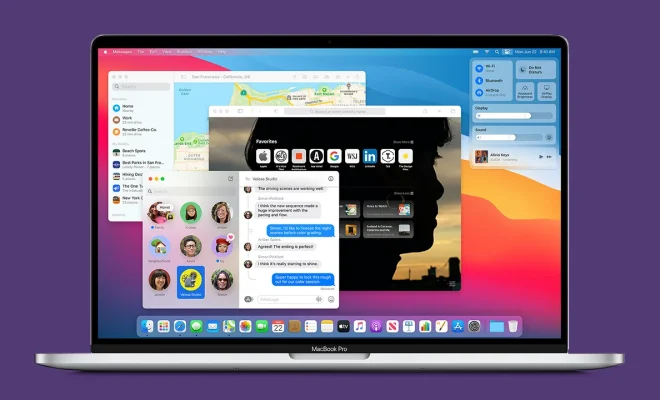
The macOS Big Sur, also known as macOS 11, is Apple’s latest operating system. With a refined design, improved performance, and a host of new features, it’s an excellent choice for Mac users. In this article, we will walk you through the process of upgrading your Mac to macOS Big Sur.

1. Check Compatibility

Before upgrading to macOS Big Sur, ensure that your Mac is compatible with the new operating system. Apple has provided a list of compatible devices:

– MacBook (2015 or later)

– MacBook Air (2013 or later)

– MacBook Pro (Late 2013 or later)

– Mac mini (2014 or later)

– iMac (2014 or later)

– iMac Pro (2017 or later)

– Mac Pro (2013 or later)

If your device is not on this list, it is not eligible for the macOS Big Sur upgrade.

2. Backup Your Data

Upgrading your operating system always carries some risk of data loss. Before proceeding with the upgrade, create a backup of your essential data to an external storage device or use a cloud-based backup service like iCloud.

3. Update Your Apps

Older applications may not be compatible with macOS Big Sur. Update your apps before starting the installation process to ensure compatibility and a smooth transition.

4. Download macOS Big Sur

To begin the upgrade process, visit the Mac App Store and search for “macOS Big Sur.” Click on “Get” to download the installer file. The download may take a while due to its size (approximately 12 GB).

5. Install macOS Big Sur

Once the installer has finished downloading:

a) Open the installer file from either Finder or your Downloads folder.

b) Read and agree to the Software License Agreement.

c) Select your target drive for installation – usually, this will be your primary Macintosh HD.

d) Click “Install” and let the process complete. Your Mac will restart several times during the installation.

6. Set Up macOS Big Sur

After the installation is complete, your Mac will reboot, and you will be greeted with the macOS Big Sur setup screen. Follow the on-screen instructions to set up your new operating system, including signing in with your Apple ID, choosing your region and language, and more.

7. Enjoy Your Upgraded Mac

Congratulations! You’ve successfully upgraded to macOS Big Sur. Take time to explore the new features and improvements that are now available on your Mac.

In conclusion, upgrading to macOS Big Sur is a relatively simple process. Ensure your Mac is compatible, back up your data, update apps, download the installer, and follow the on-screen setup instructions. With just a few steps, you can enjoy the latest version of macOS and all its new features on your compatible device.


Previous Article

Games Every Nintendo Wii U Player Needs

Next Article

How to Move PC Games to a ...

Matthew Lynch

Related articles More from author

  • Tech Advice

    Sunrun Solar Panels Review: Does Biggest Mean Best?

    July 8, 2023
    By Matthew Lynch
  • Tech Advice

    Best Hookup Sites: Top 10 List for Casual Dating

    August 11, 2023
    By Matthew Lynch
  • Tech Advice

    Calculator: What are Best Western Points Worth

    October 20, 2023
    By Matthew Lynch
  • Tech Advice

    Noom Review: Revolutionizing Weight Loss with a Personalized Approach

    July 7, 2023
    By Matthew Lynch
  • Tech Advice

    Tools for More Productive Email

    July 24, 2023
    By Matthew Lynch
  • Tech Advice

    2024 Porsche Cayenne First Drive: The Excellent One-Car Solution

    August 11, 2023
    By Matthew Lynch

Search

Login & Registration

  • Log in
  • Entries feed
  • Comments feed
  • WordPress.org

Newsletter

Signup for The Tech Edvocate Newsletter and have the latest in EdTech news and opinion delivered to your email address!

About Us

Since technology is not going anywhere and does more good than harm, adapting is the best course of action. That is where The Tech Edvocate comes in. We plan to cover the PreK-12 and Higher Education EdTech sectors and provide our readers with the latest news and opinion on the subject. From time to time, I will invite other voices to weigh in on important issues in EdTech. We hope to provide a well-rounded, multi-faceted look at the past, present, the future of EdTech in the US and internationally.

We started this journey back in June 2016, and we plan to continue it for many more years to come. I hope that you will join us in this discussion of the past, present and future of EdTech and lend your own insight to the issues that are discussed.

Newsletter

Signup for The Tech Edvocate Newsletter and have the latest in EdTech news and opinion delivered to your email address!

Contact Us

The Tech Edvocate
910 Goddin Street
Richmond, VA 23231
(601) 630-5238
[email protected]

Copyright © 2026 Matthew Lynch. All rights reserved.