Unlock Secured PDFs: Your Guide to Accessing Documents
“`html
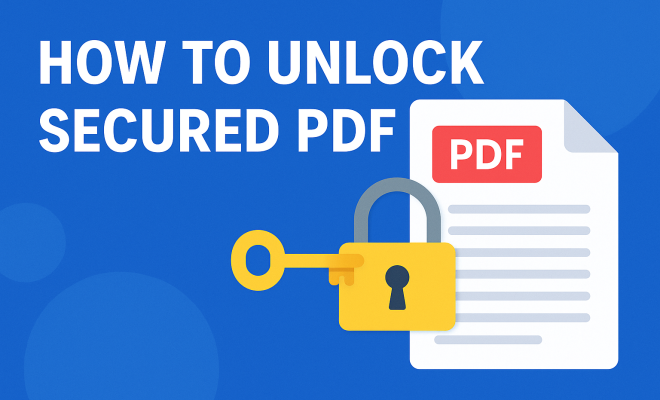
PDFs have become the standard for document sharing in both personal and professional realms. However, you may have encountered secured PDFs that restrict access or editing features. Knowing how to unlock secured PDF documents is crucial for seamless workflow, especially when you need access to important files. This article outlines various methods to unlock secured PDFs, offering a comprehensive guide to help you regain control of your documents.
1. Understanding Secured PDFs
Before diving into unlocking methods, it’s essential to comprehend what a secured PDF is. A secured PDF is a document that has restrictions placed on it by its creator. These restrictions can prevent printing, copying, editing, or even opening the file without a password. Security features are often used to protect sensitive information, ensuring that only authorized users can view or manipulate the data contained within.
The primary purpose of securing a PDF is to maintain confidentiality and protect intellectual property. However, there are legitimate reasons why someone might need to unlock secured PDF files, such as when the document contains important information that you need for work or study, but the original creator is unavailable to provide access.
2. Using Adobe Acrobat Pro
Adobe Acrobat Pro is one of the most recognized tools for handling PDF files, and it offers a feature to unlock secured PDFs. If you have a legitimate copy of Adobe Acrobat Pro, you can easily remove restrictions. Open the secured PDF in Adobe Acrobat Pro, then go to the ‘File’ menu, select ‘Properties,’ and navigate to the ‘Security’ tab. If you have the password, enter it to change the security settings.
After entering the password, you can select ‘No Security’ from the security method dropdown. This action will remove all restrictions from the document, allowing you to edit, copy, or print the PDF as needed. Remember, this method only works if you have the password required to remove the security features.
3. Utilizing Online PDF Unlockers
For those who do not have access to Adobe Acrobat Pro, numerous online tools can help unlock secured PDFs. Websites like Smallpdf, ILovePDF, or PDF2Go provide user-friendly interfaces to unlock PDF files. Simply upload your secured PDF to the website, and the tool will process the document, removing any restrictions.
However, while online PDF unlockers are convenient, you should be cautious about uploading sensitive documents to these platforms. Ensure that the website uses encryption and has a privacy policy in place to protect your data. Once the document is unlocked, you can download it to your device without restrictions.
4. Using Preview on macOS
If you’re using a Mac, Preview offers a straightforward way to unlock secured PDFs. Open the secured PDF in Preview. If the document prompts for a password, enter it. Once opened, you can create a duplicate of the document by selecting ‘File’ and then ‘Duplicate.’ This new file will often be free of restrictions.
To ensure that your duplicated PDF is fully unlocked, navigate to ‘File’ again and choose ‘Export as PDF.’ This export option creates a new PDF file that may not carry over the original security settings, allowing you to edit or share it freely.
5. Unlocking with Google Drive
Google Drive can serve as a useful tool for unlocking secured PDFs. Upload the locked PDF to your Google Drive account. Once uploaded, open the file with Google Docs. While Google Docs might not allow direct editing of the PDF, it will convert the PDF into an editable document format. After conversion, you can save the document back to PDF format, effectively removing any restrictions.
This method is particularly handy if you do not have any software specifically designed for managing PDFs. Just be mindful that this conversion can sometimes alter the formatting or layout of the original document, so always double-check your final output. (See: Understanding PDF file format.)
6. Employing PDF Unlocking Software
If you’re frequently dealing with secured PDFs, investing in dedicated PDF unlocking software may be a wise choice. Tools like PDF Unlocker, Wondershare PDF Element, or Nitro Pro can effectively remove restrictions and enable editing capabilities. After purchasing and installing the software, simply load the secured PDF, follow the prompts to unlock it, and save the unrestricted version.
Make sure to choose software that is reputable and well-reviewed to avoid potential security threats. Most of these applications offer free trials, so you can test their effectiveness before committing to a purchase.
7. Using Print to PDF Feature
Another simple way to unlock secured PDFs is by utilizing the Print to PDF feature available on most operating systems. Open the secured PDF and attempt to print it. If the print option is available, select ‘Print’ and then choose ‘Save as PDF’ instead of a printer. This process creates a new PDF file based on the visible content, usually without the original security restrictions.
However, this method only works if the document allows printing. If printing is restricted, you won’t be able to utilize this workaround. Still, it’s a quick solution for many secured PDFs that permit printing functionality.
8. Seeking Permission from the Document Owner
When in doubt, the most straightforward way to unlock a secured PDF is to contact the document owner. If you need access for legitimate reasons, a simple email or message explaining your situation can often lead to the owner providing you with the password or a non-secured version of the document.
This approach is not only ethical but also often yields the quickest results. Many document owners appreciate direct communication and may be more than willing to assist you in accessing the information you need.
9. Legal and Ethical Considerations
While the methods mentioned above can effectively unlock secured PDFs, it’s crucial to consider the legal and ethical implications of doing so. Unlocking a secured PDF without permission can violate copyright laws or terms of service agreements, especially if the document contains proprietary information or is protected by intellectual property rights.
Always ensure that you have proper authorization or a legitimate reason for accessing secured PDFs. If in doubt, consult legal advice or the document owner to avoid any potential legal ramifications. Respecting the intentions behind the security settings is not only a legal obligation but also a matter of ethical conduct.
10. Common Issues and Troubleshooting
Even with various methods available to unlock secured PDFs, users may encounter common issues. These can include problems with password entry, software compatibility, or file corruption. Here are some tips to troubleshoot these common issues:
- Incorrect Password: When attempting to unlock a secured PDF, verify that you’ve entered the correct password. Sometimes, copying and pasting can inadvertently include extra spaces or characters. If you’re unsure of the password, consult with the document’s creator.
- Software Crashes: If your PDF unlocking software crashes or freezes during the unlocking process, ensure you have the latest version installed. Additionally, check for any updates that may be available for your operating system.
- File Corruption: If a PDF won’t open or displays errors, it might be corrupted. In such cases, try using file repair tools or restoring from a backup if available.
- Compatibility Issues: Some PDF unlocking methods may not work on certain operating systems or with specific versions of software. Always check compatibility before attempting to unlock a secured PDF.
11. Statistics on PDF Usage and Security
The PDF format remains one of the most popular document formats globally, with statistics showing its widespread use across various sectors. According to a report by Adobe, over 2.5 trillion PDFs are shared every year across the globe. This figure emphasizes the importance of understanding how to manage and unlock secured PDFs effectively.
Interestingly, a survey conducted by the International Data Corporation (IDC) revealed that 66% of organizations report encountering secured PDFs regularly. This highlights a critical need for tools and methods to access essential documents while respecting security protocols.
12. Expert Perspectives on PDF Security
Experts in document management emphasize the balance between security and accessibility. For instance, Sarah Lopez, a digital security consultant, states, “While security is paramount to protecting sensitive information, organizations must also provide alternate pathways for legitimate users to access necessary documents.” This viewpoint underscores the importance of having clear communication channels and protocols in place regarding secured PDFs. (See: Importance of document security.)
Another expert, James O’Sullivan, a technology analyst, adds, “The use of secured PDFs should align with company policies and industry regulations. Understanding how to unlock secured PDFs is essential for maintaining productivity without compromising data security.”
13. Frequently Asked Questions (FAQ)
1. Can I unlock a secured PDF without a password?
In most cases, unlocking a secured PDF without a password is not possible through standard methods. However, some advanced software tools may offer workarounds, but they should be used cautiously and ethically.
2. Is it legal to unlock a secured PDF?
Unlocking a secured PDF is legal only if you have permission from the document owner or if the document is not protected by copyright. Always check the legality of accessing secured documents in your jurisdiction.
3. What is the safest way to unlock a secured PDF?
The safest way is to contact the document owner directly, asking for the password or an unlocked version. If that’s not an option, using reputable software or trusted online services with strong privacy policies is advisable.
4. Will using an online PDF unlocker affect the quality of the document?
Generally, reputable online PDF unlockers maintain the quality of the document. However, some complex formatting may be altered, so it’s best to check the document thoroughly after unlocking it.
5. Are there free tools to unlock secured PDFs?
Yes, several free tools and online services can unlock secured PDFs. However, be cautious about the security of your files and always choose platforms with good reviews and privacy policies.
6. How can I prevent my PDFs from being secured by others?
When creating PDFs, you can choose not to apply security settings. If you need to share documents without restrictions, consider using collaborative platforms that allow for easy sharing while maintaining document integrity.
14. Advanced Techniques for Unlocking Secured PDFs
If you’re looking for more robust methods to unlock secured PDFs beyond the standard options, consider these advanced techniques. These can be particularly useful for technical users or those dealing with more complicated documents.
Using Command Line Tools
For tech-savvy users, command line tools like QPDF and PDFtk can unlock secured PDFs efficiently. These tools work by processing the PDF files through command-line commands to remove passwords or restrictions. For example, with QPDF, you can execute the following command:
qpdf --decrypt secured.pdf unlocked.pdfThis command will create an unlocked version of the PDF without needing the password, assuming the security settings aren’t excessively stringent. Command line tools are powerful but require a bit of expertise, so they might not be suitable for everyone. (See: Recent trends in PDF security.)
Using Virtual Machines
Another advanced technique involves using a virtual machine (VM) to run older or specialized software that might have the capabilities to unlock secured PDFs. This can be particularly beneficial if you have access to legacy software that has been phased out. By creating a VM, you can isolate the software environment and operate without compromising your main system’s security.
Utilizing Mobile Apps
For users on the go, there are several mobile apps specifically designed to unlock secured PDFs. Apps such as PDF Unlocker for Android or PDF Reader Pro for iOS can help you manage and unlock PDFs directly from your mobile device. These apps may have built-in features to handle secured files and often provide a user-friendly interface for easier access.
15. Potential Risks and Mitigation Strategies
While unlocking secured PDFs can provide easy access to information, it is important to be aware of the potential risks associated with this process. Here are some of the main risks and strategies to mitigate them:
- Data Breaches: Uploading sensitive documents to online platforms can expose your data to breaches. To mitigate this, always check if the service provider offers end-to-end encryption and read their privacy policies thoroughly.
- Malware Risks: Some unlocking software may bundle malware or adware. To avoid this, download software only from reputable sources and read user reviews to ensure its safety.
- Legal Consequences: As mentioned earlier, unlocking PDFs without permission may lead to legal issues. To protect yourself, always have a clear understanding of the legal framework governing document access in your region.
16. Case Studies: Successful PDF Unlocking
To illustrate the real-world application of unlocking secured PDFs, let’s explore a few case studies that highlight different scenarios where individuals successfully regained access to important documents.
Case Study 1: Corporate Access
A project manager at a marketing firm required access to a secured PDF containing sensitive client data for an upcoming presentation. Unable to get in touch with the original creator, the project manager utilized a reputable online PDF unlocking service after ensuring that the document did not contain any highly confidential information. The process was quick, and the project manager was able to prepare for the presentation without further delays.
Case Study 2: Academic Research
A student found themselves locked out of a crucial research paper that was necessary for their thesis. The paper was secured, and the professor who authored it was unavailable during the summer break. The student opted to use Google Drive to convert the PDF into an editable format. After a quick conversion, they edited the necessary sections and continued with their research, ultimately submitting their thesis on time.
Case Study 3: Legal Scenario
In a legal firm, an attorney needed to access a secured PDF containing critical evidence for a court case. The attorney reached out to the document owner, who promptly provided the password. However, the attorney also utilized Adobe Acrobat Pro to create an unrestricted copy for ease of sharing with their colleagues, ensuring that all involved parties had access to the necessary information ahead of the trial.
17. Conclusion
With these nine methods at your disposal, you can confidently tackle the challenge of securing access to your important PDF files. Whether you choose to use software, online tools, or reach out for permission, you have the resources to unlock secured PDFs safely and effectively.
“`
Trending Now
Frequently Asked Questions
How can I unlock a secured PDF without a password?
Unlocking a secured PDF without a password can be challenging and may not be legal in all circumstances. However, you can try using online PDF unlocking tools or software designed for this purpose. Keep in mind that these methods may not always work and can compromise the document's security.
What is a secured PDF?
A secured PDF is a document that has restrictions imposed by its creator, preventing actions like printing, copying, or editing. These security features are often used to protect sensitive information and maintain confidentiality, allowing only authorized users to access the content.
Can Adobe Acrobat unlock secured PDFs?
Yes, Adobe Acrobat Pro can unlock secured PDFs, provided you have the password. You can open the secured file, access the 'File' menu, go to 'Properties,' and change the security settings to remove restrictions once the password is entered.
Are there free tools to unlock secured PDFs?
Yes, there are several free online tools available that claim to unlock secured PDFs. However, their effectiveness can vary, and it's essential to ensure that the tools you use are reputable to avoid security risks or data loss.
Why would someone need to unlock a secured PDF?
Someone might need to unlock a secured PDF to access important information needed for work or study when the original creator is unavailable. Removing restrictions can facilitate editing, copying, or printing of the document, which is crucial for various professional and personal tasks.
Agree or disagree? Drop a comment and tell us what you think.