The Tech Edvocate

Top Menu

  • Advertisement
  • Apps
  • Home Page
  • Home Page Five (No Sidebar)
  • Home Page Four
  • Home Page Three
  • Home Page Two
  • Home Tech2
  • Icons [No Sidebar]
  • Left Sidbear Page
  • Lynch Educational Consulting
  • My Account
  • My Speaking Page
  • Newsletter Sign Up Confirmation
  • Newsletter Unsubscription
  • Our Brands
  • Page Example
  • Privacy Policy
  • Protected Content
  • Register
  • Request a Product Review
  • Shop
  • Shortcodes Examples
  • Signup
  • Start Here
    • Governance
    • Careers
    • Contact Us
  • Terms and Conditions
  • The Edvocate
  • The Tech Edvocate Product Guide
  • Topics
  • Write For Us
  • Advertise

Main Menu

  • Start Here
    • Our Brands
    • Governance
      • Lynch Educational Consulting, LLC.
      • Dr. Lynch’s Personal Website
      • Careers
    • Write For Us
    • The Tech Edvocate Product Guide
    • Contact Us
    • Books
    • Edupedia
    • Post a Job
    • The Edvocate Podcast
    • Terms and Conditions
    • Privacy Policy
  • Topics
    • Assistive Technology
    • Child Development Tech
    • Early Childhood & K-12 EdTech
    • EdTech Futures
    • EdTech News
    • EdTech Policy & Reform
    • EdTech Startups & Businesses
    • Higher Education EdTech
    • Online Learning & eLearning
    • Parent & Family Tech
    • Personalized Learning
    • Product Reviews
  • Advertise
  • Tech Edvocate Awards
  • The Edvocate
  • Pedagogue
  • School Ratings

logo

The Tech Edvocate

  • Start Here
    • Our Brands
    • Governance
      • Lynch Educational Consulting, LLC.
      • Dr. Lynch’s Personal Website
        • My Speaking Page
      • Careers
    • Write For Us
    • The Tech Edvocate Product Guide
    • Contact Us
    • Books
    • Edupedia
    • Post a Job
    • The Edvocate Podcast
    • Terms and Conditions
    • Privacy Policy
  • Topics
    • Assistive Technology
    • Child Development Tech
    • Early Childhood & K-12 EdTech
    • EdTech Futures
    • EdTech News
    • EdTech Policy & Reform
    • EdTech Startups & Businesses
    • Higher Education EdTech
    • Online Learning & eLearning
    • Parent & Family Tech
    • Personalized Learning
    • Product Reviews
  • Advertise
  • Tech Edvocate Awards
  • The Edvocate
  • Pedagogue
  • School Ratings
  • A Visitors Guide to Santa Maria, Brazil

  • Uncovering the Truth: This Salmonella Outbreak Sprouts Warning You Can’t Ignore

  • This One Flaw Just Melted an RTX 5090 — What Happens Next?

  • This Startup Just Raised $40 Million to Revolutionize Women’s Health

  • This AI Coding Startup Just Tripled Its Value to $5 Billion Overnight

  • The Blood Of Dawnwalker: 10 Burning Questions After Its Console Demo Scandal

  • Gamers vs. Critics: Why Wolverine Game Reviews Are Sparking a Culture War

  • AI-Generated Content Is Flooding Social Media, Research Shows

  • Florida’s Latest Education Scandal: The Climate Change Curriculum You Won’t Believe

  • Millions Face a Brutal Student Loan Payment Hike — What You MUST Do Now

Digital & Mobile Technology
Home›Digital & Mobile Technology›How to Turn Your PC Into a Router

How to Turn Your PC Into a Router
By Matthew Lynch
June 10, 2023
0
Spread the love

With the increasing demand for internet connectivity in homes and small businesses, routers have become essential devices for creating Wi-Fi networks. However, not everyone can afford to buy an expensive router or may have a spare computer lying around that they can use as their router. Fortunately, it’s possible to turn your PC into a router with a few easy steps. Here’s how to do it.

1. Choose the Right Network Card

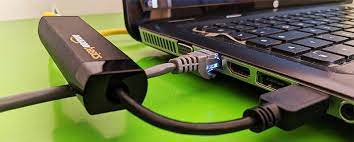
Firstly, you need to make sure that your PC is equipped with two network cards. One card should be connected to the internet source (like a modem or a DSL line), and the other will be used to distribute the internet to other devices. You can check the specifications of your computer to see if it has two network adapters or purchase a separate one.

2. Install the Right Operating System

You cannot turn your PC into a router just by installing any operating system. You need to use an operating system that supports routing functionality. Windows, macOS, and Linux are the most commonly used operating systems that can be used to create a router. Windows and macOS operating systems have built-in networking features that allow you to create a wireless access point, but it’s important to note that this functionality is only limited to sharing an existing internet connection via Wi-Fi.

3. Configure Network Settings

After installing the operating system, you need to configure its network settings. To do this, navigate to the control panel or settings menu and select the network and sharing center. From there, you can configure network settings like IP address, subnet mask, default gateway, and DNS servers. These settings will depend on your internet service provider, so it’s best to contact them for assistance.

4. Enable Routing and NAT

To enable routing between the two network interfaces in your PC, you need to make sure that network address translation (NAT) is enabled. NAT is a protocol used to map the private IP addresses of computers on your local network to the public IP address of your internet connection. This step will allow multiple devices to access the internet using one IP address. You can enable NAT through your operating system’s network settings.

5. Enable DHCP

The last step is to enable the Dynamic Host Configuration Protocol (DHCP) server in your PC, which will assign IP addresses to devices on your local network. You can configure DHCP through your operating system’s network settings. Once enabled, you can connect devices to your PC’s network card to access the internet.

Turning your PC into a router is an excellent option if you need a Wi-Fi network for a small business or home. While it may require some technical knowledge, it’s a cost-effective way of creating a network without having to spend money on an expensive router. By following the steps above, you can create a secure and stable internet connection that will allow multiple devices to access the network


Previous Article

How to Set up FaceTime on an ...

Next Article

How to Access an AOL Email Account ...

Matthew Lynch

Related articles More from author

  • Digital & Mobile Technology

    Intel Arc A750 vs. Intel Arc 770: What’s Best for Gaming and What Should You Buy?

    June 11, 2023
    By Matthew Lynch
  • Digital & Mobile Technology

    Microsoft Windows XP on New Computers: A Thing of the Past

    July 24, 2023
    By Matthew Lynch
  • Digital & Mobile Technology

    Empowering Students with Technology

    June 13, 2022
    By Matthew Lynch
  • Digital & Mobile Technology

    How to Retrieve Text Messages From a Cell Phone Carrier

    May 5, 2023
    By Matthew Lynch
  • Digital & Mobile Technology

    Reasons the Base Model Mac Studio Is Good Enough for Most People

    June 22, 2023
    By Matthew Lynch
  • Digital & Mobile Technology

    Locast Alternatives to Watch Local TV Channels

    September 8, 2023
    By Matthew Lynch

Search

Login & Registration

  • Log in
  • Entries feed
  • Comments feed
  • WordPress.org

Newsletter

Signup for The Tech Edvocate Newsletter and have the latest in EdTech news and opinion delivered to your email address!

About Us

Since technology is not going anywhere and does more good than harm, adapting is the best course of action. That is where The Tech Edvocate comes in. We plan to cover the PreK-12 and Higher Education EdTech sectors and provide our readers with the latest news and opinion on the subject. From time to time, I will invite other voices to weigh in on important issues in EdTech. We hope to provide a well-rounded, multi-faceted look at the past, present, the future of EdTech in the US and internationally.

We started this journey back in June 2016, and we plan to continue it for many more years to come. I hope that you will join us in this discussion of the past, present and future of EdTech and lend your own insight to the issues that are discussed.

Newsletter

Signup for The Tech Edvocate Newsletter and have the latest in EdTech news and opinion delivered to your email address!

Contact Us

The Tech Edvocate
910 Goddin Street
Richmond, VA 23231
(601) 630-5238
[email protected]

Copyright © 2026 Matthew Lynch. All rights reserved.