The Tech Edvocate

Top Menu

  • Advertisement
  • Apps
  • Home Page
  • Home Page Five (No Sidebar)
  • Home Page Four
  • Home Page Three
  • Home Page Two
  • Home Tech2
  • Icons [No Sidebar]
  • Left Sidbear Page
  • Lynch Educational Consulting
  • My Account
  • My Speaking Page
  • Newsletter Sign Up Confirmation
  • Newsletter Unsubscription
  • Our Brands
  • Page Example
  • Privacy Policy
  • Protected Content
  • Register
  • Request a Product Review
  • Shop
  • Shortcodes Examples
  • Signup
  • Start Here
    • Governance
    • Careers
    • Contact Us
  • Terms and Conditions
  • The Edvocate
  • The Tech Edvocate Product Guide
  • Topics
  • Write For Us
  • Advertise

Main Menu

  • Start Here
    • Our Brands
    • Governance
      • Lynch Educational Consulting, LLC.
      • Dr. Lynch’s Personal Website
      • Careers
    • Write For Us
    • The Tech Edvocate Product Guide
    • Contact Us
    • Books
    • Edupedia
    • Post a Job
    • The Edvocate Podcast
    • Terms and Conditions
    • Privacy Policy
  • Topics
    • Assistive Technology
    • Child Development Tech
    • Early Childhood & K-12 EdTech
    • EdTech Futures
    • EdTech News
    • EdTech Policy & Reform
    • EdTech Startups & Businesses
    • Higher Education EdTech
    • Online Learning & eLearning
    • Parent & Family Tech
    • Personalized Learning
    • Product Reviews
  • Advertise
  • Tech Edvocate Awards
  • The Edvocate
  • Pedagogue
  • School Ratings

logo

The Tech Edvocate

  • Start Here
    • Our Brands
    • Governance
      • Lynch Educational Consulting, LLC.
      • Dr. Lynch’s Personal Website
        • My Speaking Page
      • Careers
    • Write For Us
    • The Tech Edvocate Product Guide
    • Contact Us
    • Books
    • Edupedia
    • Post a Job
    • The Edvocate Podcast
    • Terms and Conditions
    • Privacy Policy
  • Topics
    • Assistive Technology
    • Child Development Tech
    • Early Childhood & K-12 EdTech
    • EdTech Futures
    • EdTech News
    • EdTech Policy & Reform
    • EdTech Startups & Businesses
    • Higher Education EdTech
    • Online Learning & eLearning
    • Parent & Family Tech
    • Personalized Learning
    • Product Reviews
  • Advertise
  • Tech Edvocate Awards
  • The Edvocate
  • Pedagogue
  • School Ratings
  • A Visitor’s Guide to Fresno (CA), United States

  • A Visitors Guide to New Orleans (LA), United States

  • A Visitors Guide to Sacramento (CA), United States

  • A Visitors Guide to Lyon, France

  • JisuLife Ultra2 Portable Fan: A Powerful Multi-Function Cooling Solution

  • A Visitors Guide to Viña del Mar, Chile

  • A Visitors Guide to Århus, Denmark

  • A Visitors Guide to Bakersfield (CA), United States

  • A Visitors Guide to Aurora (CO), United States

  • A Visitor’s Guide to Toledo (OH), United States

Tech Advice
Home›Tech Advice›How to Turn an iPad Into a Second Display for Your Mac

How to Turn an iPad Into a Second Display for Your Mac
By Matthew Lynch
July 13, 2023
0
Spread the love

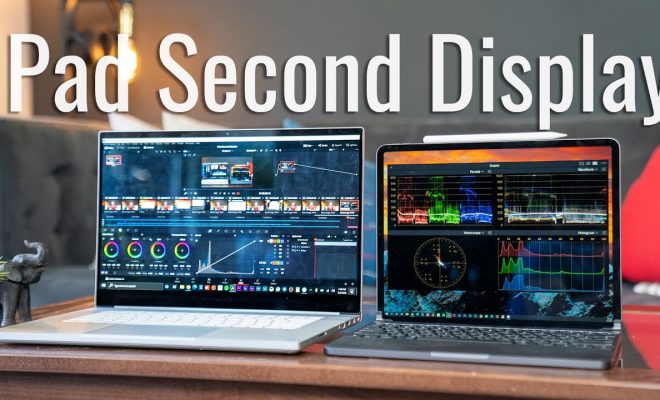
In today’s fast-paced world, multitasking has become an essential skill, and having a second display can significantly boost productivity. But did you know that you can easily turn your iPad into a second display for your Mac? In this article, we will guide you through the process step-by-step.

Requirements:

1. A compatible Mac running macOS Catalina (10.15) or later

2. A compatible iPad running iPadOS 13 or later

3. Both devices signed in to the same iCloud account with two-factor authentication enabled

4. Both devices connected to the same Wi-Fi network or connected through Bluetooth

Step 1: Check Compatibility

Before proceeding, make sure your Mac and iPad are compatible with Sidecar – Apple’s technology that enables this functionality. Compatible Mac models include MacBook Pro (2016 and later), MacBook (2016 and later), MacBook Air (2018 and later), iMac (2015 and later), iMac Pro, Mac mini (2018 and later), and Mac Pro (2019). Compatible iPads include all models of iPad Pro, the 5th, 6th, 7th, and 8th generation iPad, the iPad Air 3rd generation or later, and the iPad mini 5th generation.

Step 2: Enable Bluetooth and Wi-Fi

Ensure that both your Mac and iPad have Bluetooth and Wi-Fi enabled. This will ensure seamless connectivity between both devices.

Step 3: Establish a Connection via Sidecar

There are two methods to connect your iPad as a second display using Sidecar:

Method 1: From the Mac toolbar

1. Click on the AirPlay icon in the menu bar at the top of your screen.

2. Choose your iPad from the list of available devices.

3. Your iPad should now appear as an extended display for your Mac.

Method 2: From System Preferences

1. Open System Preferences on your Mac.

2. Click on “Sidecar.”

3. In the “Connect to” dropdown menu, select your iPad.

4. Your iPad should now appear as an extended display for your Mac.

Step 4: Customize Display Settings

Once you have successfully connected your iPad as a second display, you can adjust its settings in the Sidecar preferences panel on your Mac or directly from the iPad’s touch bar options.

You can customize settings, such as:

– Showing or hiding Sidecar’s sidebar and on-screen touch controls

– Adjusting the position of the sidebar and touch controls

– Placing the second display to either the left or right of your primary display

Step 5: Disconnecting Sidecar

To disconnect your iPad as a second display, simply click on the AirPlay icon in your Mac’s menu bar and select “Disconnect,” or open Sidecar preferences and click “Disconnect” next to your iPad’s name.

Conclusion

Turning your iPad into a second display for your Mac is an easy and efficient way to enhance productivity for both work and leisure activities. With just a few clicks, you can create an extended workspace and enjoy the benefits of multitasking seamlessly across two screens.

Previous Article

How to Take a Screenshot on a ...

Next Article

How to Turn an Old Laptop Into ...

Matthew Lynch

Related articles More from author

  • Tech Advice

    TV vs. Projector: Which Big Screen Should You Buy in 2023

    July 16, 2023
    By Matthew Lynch
  • Tech Advice

    Honda’s cutesy U Be electric scooter only costs $475

    July 12, 2023
    By Matthew Lynch
  • Tech Advice

    5 Apps That Tell You When and Where Something’s Streaming on TV

    July 24, 2023
    By Matthew Lynch
  • Tech Advice

    Make your own screen-cleaning spray on the cheap

    July 14, 2023
    By Matthew Lynch
  • Tech Advice

    Mad Max: Fury Road vehicles are going to auction, all shiny and chrome

    July 13, 2023
    By Matthew Lynch
  • Tech Advice

    2024 Ford Ranger XLT 4×4 SuperCrew 5 ft. box 128 in. WB Truck: Trim Details, Reviews, Prices, Specs, and ...

    August 21, 2023
    By Matthew Lynch

Search

Login & Registration

  • Register
  • Log in
  • Entries feed
  • Comments feed
  • WordPress.org

Newsletter

Signup for The Tech Edvocate Newsletter and have the latest in EdTech news and opinion delivered to your email address!

About Us

Since technology is not going anywhere and does more good than harm, adapting is the best course of action. That is where The Tech Edvocate comes in. We plan to cover the PreK-12 and Higher Education EdTech sectors and provide our readers with the latest news and opinion on the subject. From time to time, I will invite other voices to weigh in on important issues in EdTech. We hope to provide a well-rounded, multi-faceted look at the past, present, the future of EdTech in the US and internationally.

We started this journey back in June 2016, and we plan to continue it for many more years to come. I hope that you will join us in this discussion of the past, present and future of EdTech and lend your own insight to the issues that are discussed.

Newsletter

Signup for The Tech Edvocate Newsletter and have the latest in EdTech news and opinion delivered to your email address!

Contact Us

The Tech Edvocate
910 Goddin Street
Richmond, VA 23231
(601) 630-5238
[email protected]

Copyright © 2025 Matthew Lynch. All rights reserved.