
How to toggle removable and full disk access for apps in macOS Sequoia
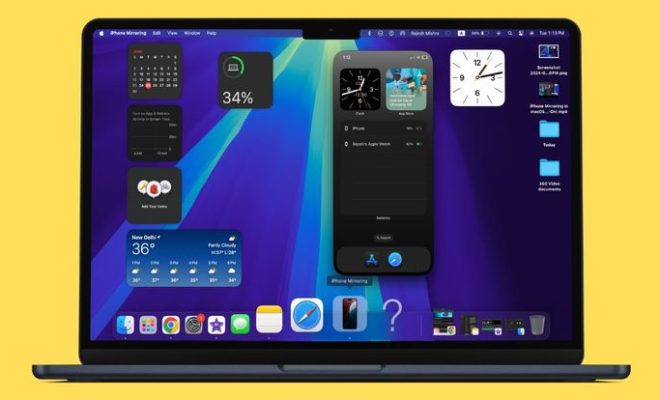
In the ever-evolving landscape of macOS, the “Sequoia” update brings a renewed focus on privacy and security. One aspect of this enhanced security is the control you have over apps accessing your data, particularly on removable drives and your entire system. Here’s how to manage these permissions effectively:
1. Accessing System Preferences:
Begin by navigating to System Preferences in your macOS menu bar. Look for the Privacy & Security option, and click on it.
2. Navigating Permissions:
Within the Privacy & Security window, you’ll find several tabs, including “Files & Folders.” This is where you manage access to removable drives and your entire system.
3. Granting or Revoking Access:
Clicking on “Files & Folders” reveals a list of applications. For each app, you can toggle the access switch to either grant or revoke permissions.
Full Disk Access: This grants an app access to any file or folder on your entire system. Be cautious when granting this level of access, as it potentially exposes your entire system to the app.
Removable Disk Access: This allows apps to read and write data on external drives like USB sticks, SD cards, and external hard drives.
4. Specific Folder Permissions:
For more fine-grained control, use the “+” button to add specific folders that apps can access. This is ideal for managing access to specific project files or sensitive documents.
5. Rebooting for Changes to Take Effect:
After making any changes to these permissions, you’ll need to restart your Mac for the new settings to take effect.
By carefully controlling access to removable drives and your entire system, you strengthen the security posture of your macOS environment. Regularly review and adjust these permissions based on your usage patterns and trust in specific applications.




