How to sync Microsoft To Do across devices
“`html
If you’re looking to enhance your productivity, you’ve likely come across Microsoft To Do. This powerful task management tool is designed to help you keep track of your tasks across multiple devices. But how do you effectively sync Microsoft To Do across devices? In this comprehensive guide, we’ll explore how to ensure your to-do lists are seamlessly updated, regardless of the device you’re using. From basic functionalities to advanced features, we’ll cover everything you need to know to make the most out of Microsoft To Do.
1. Understanding Microsoft To Do
Microsoft To Do is part of the Microsoft 365 suite and is integrated with other Microsoft services like Outlook and OneNote. Originally launched as a successor to Wunderlist, it boasts a clean interface and powerful features that cater to individuals and teams alike. The app allows you to create tasks, set reminders, add due dates, and categorize tasks with lists and tags.
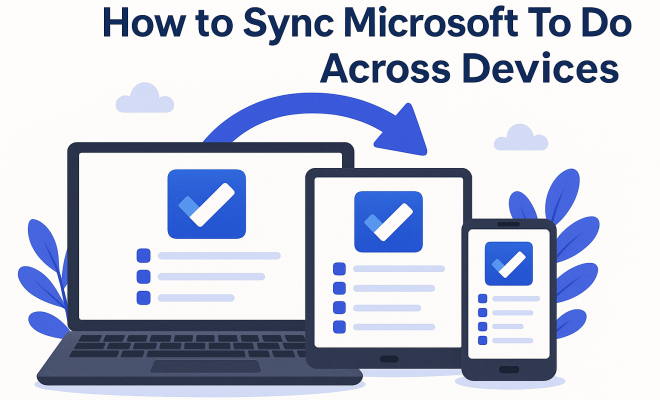
One of the key benefits of Microsoft To Do is its ability to sync tasks across devices. Whether you’re using a Windows PC, Mac, iOS, or Android device, Microsoft To Do ensures that your to-do lists are updated in real-time. This capability is essential for maintaining productivity, especially in our fast-paced world where switching between devices is commonplace.
2. How to Set Up Microsoft To Do
Before you can sync Microsoft To Do across devices, you need to set up the application on your devices. The process is straightforward:
- Download the App: Microsoft To Do is available on various platforms. You can download it from the Microsoft Store for Windows, the Mac App Store for macOS, or the Google Play Store and Apple App Store for mobile devices.
- Sign In: After downloading, open the app and sign in with your Microsoft account. If you don’t have one, you’ll need to create a Microsoft account to use the app’s features.
- Allow Permissions: Microsoft To Do may request permissions to access certain features on your device, such as notifications and contacts. Grant these permissions to fully utilize the app’s capabilities.
Having set it up, you can start creating tasks and lists. Every time you add or modify a task, it will sync automatically across your devices as long as you’re connected to the internet.
3. How Syncing Works
Syncing in Microsoft To Do is generally seamless, but it’s beneficial to understand how it works under the hood. Each time you make changes in the app—whether adding a task, completing it, or deleting it—these changes are sent to Microsoft’s servers. Your other devices then download the updated data. This process happens automatically as long as you have a stable internet connection.
If you have multiple devices logged into the same Microsoft account, they will all reflect the same tasks and changes. This design ensures that you’re never out of sync, no matter where you are. However, if you experience syncing issues, such as tasks not updating, it may be due to connectivity problems or issues with your Microsoft account. (popular productivity tools)
4. Troubleshooting Sync Issues
Despite its robust design, users occasionally encounter syncing issues. Here are some troubleshooting tips:
- Check Your Internet Connection: Ensure that you have a stable internet connection on all devices. Without connectivity, the app cannot sync data.
- Sign Out and Back In: Sometimes, simply signing out of your Microsoft account and signing back in can resolve syncing issues.
- Update the App: Ensure that you’re using the latest version of Microsoft To Do. An outdated version may have bugs that affect syncing.
- Check Microsoft Service Status: Occasionally, Microsoft services may experience outages. You can check the Microsoft Service Status page to see if any services are down.
By addressing these common issues, you can ensure that your tasks remain synchronized across all your devices. (See: Microsoft To Do overview on Wikipedia.)
5. Using Lists for Better Organization
Microsoft To Do allows you to create multiple lists for different categories of tasks, such as work, personal projects, or groceries. By utilizing lists effectively, you can enhance your productivity and clarity.
When you create a list, it’s automatically synced across devices. This means that if you add a grocery item on your phone, it will appear on your tablet or PC. Customizing lists with colors or emojis can also help you visually differentiate between different projects, making it easier to locate specific tasks quickly.
Moreover, you can share lists with others. This feature is particularly useful for collaborative projects or shared to-do lists within families or teams. Shared lists sync automatically for everyone involved, ensuring complete transparency on task progress.
6. Integrating with Other Microsoft Services
One of the standout features of Microsoft To Do is its integration with other Microsoft applications. If you use Outlook for email and calendar, you can sync tasks from Outlook directly into To Do. This integration allows you to view your tasks alongside your emails and appointments, giving you a comprehensive view of your obligations.
Additionally, tasks created in To Do can be flagged emails in Outlook, allowing you to manage your tasks in one central location. This integration enhances your productivity and ensures that your tasks are always in sync, whether you’re working in Outlook or To Do.
7. Utilizing Reminders and Due Dates
Microsoft To Do features reminders and due dates to help you stay on top of your tasks. You can set reminders to notify you when a task is due, which will sync across all devices. For instance, if you set a reminder on your phone, you’ll receive the same notification on your computer.
These features are especially useful for managing deadlines. You can create recurring tasks for daily, weekly, or monthly obligations, and Microsoft To Do will handle the rest. The ability to set reminders ensures you won’t forget important tasks, and the synchronization feature keeps you updated, even if you switch devices.
8. Cross-Platform Functionality
Microsoft To Do is available on a variety of platforms, including Windows, macOS, Android, and iOS. Each version is designed to provide a similar user experience, allowing you to easily sync Microsoft To Do across devices without any hassles. This cross-platform functionality is essential for users who work on multiple devices throughout the day.
For instance, you can start a task on your desktop during work hours and finish it on your phone while commuting. The consistent interface across platforms means you can navigate the app easily, regardless of the device you’re using. This seamless integration significantly boosts productivity, allowing you to manage tasks wherever you are.
9. Advanced Features for Power Users
If you’re looking to take your task management to the next level, Microsoft To Do offers several advanced features. You can use tags to categorize tasks further, making it easier to filter tasks based on specific criteria. This is particularly useful for complex projects with numerous tasks. (See: CDC on productivity and health.)
Additionally, you can customize your to-do lists with different themes and colors, which can enhance your user experience and make task management more enjoyable. The My Day feature allows you to focus on the tasks you want to accomplish each day, helping to prioritize effectively. These tools, combined with seamless syncing, make Microsoft To Do a powerhouse for task management.
10. Maximizing Productivity with Microsoft To Do
To get the most out of Microsoft To Do, consider implementing some best practices that can elevate your productivity. Here are a few strategies:
- Daily Reviews: Take a few minutes each day to review your tasks. This helps you stay on top of your to-do list and allows you to adjust priorities as needed.
- Break Down Projects: For larger projects, break down tasks into smaller, manageable steps. This not only makes them less daunting but also allows for tracking progress effectively.
- Set Specific Goals: Define clear goals for what you wish to accomplish daily. Specific, measurable goals can help you stay focused and improve your efficiency.
- Utilize Keyboard Shortcuts: Familiarize yourself with keyboard shortcuts for Microsoft To Do. This can significantly speed up your workflow, especially if you rely on the desktop version.
- Limit Your Daily To-Dos: It can be tempting to overload your daily task list, but try to limit it to a manageable number of items. This ensures that you remain productive without feeling overwhelmed.
11. Microsoft To Do vs. Competitors
When considering a task management tool, it’s helpful to compare Microsoft To Do with its competitors. Popular alternatives include Todoist, Trello, and Asana. Each of these tools has its own strengths and weaknesses:
- Todoist: Todoist is known for its intuitive interface and robust organization features. It includes advanced filtering and task prioritization but might not integrate as seamlessly with other Microsoft products as To Do does.
- Trello: Trello uses a card-based system that’s excellent for visual project management and team collaboration. However, it may not be as straightforward for individual task management as Microsoft To Do.
- Asana: Asana offers powerful project management capabilities, especially for team settings. It features comprehensive reporting tools that Microsoft To Do lacks but can feel overwhelming for simple task tracking.
Ultimately, your choice may depend on your specific needs and workflow preferences. If you’re heavily integrated into the Microsoft ecosystem, To Do is likely the most efficient option.
12. FAQ: Syncing Microsoft To Do Across Devices
Here are some commonly asked questions regarding syncing Microsoft To Do across devices:
- Q1: Is Microsoft To Do free to use?
- A1: Yes, Microsoft To Do is free to use. However, some features may require a Microsoft 365 subscription.
- Q2: Can I use Microsoft To Do offline?
- A2: Yes, you can create and edit tasks while offline. Changes will sync automatically once you’re back online.
- Q3: What happens if I delete a task on one device?
- A3: If you delete a task on one device, it will be removed from all devices once they sync with Microsoft’s servers.
- Q4: Can I recover deleted tasks?
- A4: Yes, you can recover deleted tasks within 30 days. Go to the “Deleted Tasks” section to restore them.
- Q5: Can I share tasks with people who don’t use Microsoft To Do?
- A5: Tasks can only be shared with users who have a Microsoft account and use Microsoft To Do, making collaboration easier within the Microsoft ecosystem.
- Q6: How does Microsoft To Do manage recurring tasks?
- A6: You can set a task to repeat daily, weekly, monthly, or yearly. Recurring tasks will automatically sync across devices and update after each completion.
13. Exploring Additional Features of Microsoft To Do
Beyond the core functionalities, Microsoft To Do offers additional features that can significantly enhance your task management experience. One such feature is the integration with Microsoft Planner. If you’re using Microsoft Planner for team projects, tasks can be linked to ensure that everyone is aligned on project deadlines. This integration means that you can manage personal tasks alongside team responsibilities without losing sight of either.
Another notable feature is the ability to attach files to your tasks. This is handy for keeping relevant documents or links readily accessible right next to the task that needs them. Whether it’s a reference document or a link to a webpage, you can store these directly within To Do, allowing for a more organized approach to task management.
Utilizing the “My Day” feature effectively can also boost your daily productivity. By selecting tasks from various lists to focus on, you can customize your daily agenda, ensuring that your most pressing tasks are prioritized. This feature allows for a more tailored approach to daily productivity, permitting you to adapt your task selection to what needs the most attention each day.
14. Best Practices for Task Management with Microsoft To Do
To maximize the benefits of Microsoft To Do, here are some best practices to consider:
- Prioritize Tasks: Use the priority feature to mark tasks as important or urgent. This helps you to focus on what truly matters first.
- Use Descriptive Task Names: When creating tasks, be as descriptive as possible. This makes it easier to understand what needs to be done at a glance.
- Regularly Review and Refresh: Set aside time weekly to review your tasks. Remove any tasks that are no longer relevant, and adjust due dates as necessary.
- Take Advantage of Custom Lists: Create custom lists that suit your workflow. Whether you’re managing projects or personal tasks, tailored lists can enhance your task management experience.
- Incorporate Feedback Loops: If you’re working in teams, regularly seek feedback on task progress. This not only keeps you informed but also encourages accountability among team members.
15. Future of Task Management with Microsoft To Do
The future of task management is heading towards more integration and automation. As technology continues to evolve, Microsoft To Do is likely to incorporate more AI-driven features that can help you predict deadlines and set reminders based on your habits. Imagine a scenario where the app suggests tasks based on your previous activities or automatically adjusts deadlines based on your workload.
Additionally, the increasing popularity of remote work means that collaboration features will likely expand. Expect improvements in real-time collaboration tools, allowing teams to work together more effectively within Microsoft To Do, further blurring the lines between personal and professional task management.
As Microsoft continues to update and improve its ecosystem, users can look forward to more robust integrations across its suite of applications, enhancing the overall experience for those utilizing Microsoft products for both personal and professional use. This builds on essential apps for parents.
16. Final Thoughts
Syncing Microsoft To Do across devices is not just about convenience; it’s about enhancing your productivity and ensuring that you can access your tasks anytime, anywhere. By understanding how to set up the app, troubleshoot issues, and utilize its features effectively, you can transform how you manage your tasks.
Whether you’re a casual user needing to keep track of simple tasks or a power user managing complex projects, Microsoft To Do provides a flexible and efficient solution. With constant updates and integrations with other Microsoft services, it remains a top choice for task management in a digitally connected world.
So, if you haven’t already, give Microsoft To Do a try and experience the benefits of having your tasks synced across all your devices!
“`
Trending Now
Frequently Asked Questions
How do I sync Microsoft To Do on multiple devices?
To sync Microsoft To Do across devices, download the app on each device and sign in with your Microsoft account. Ensure you allow necessary permissions for the app to access features, and your tasks will automatically sync in real-time across all devices.
Is Microsoft To Do free to use?
Yes, Microsoft To Do is free to use. You can download it from the Microsoft Store, Mac App Store, or mobile app stores. A Microsoft account is required to access its features, but there are no subscription fees.
Can I access Microsoft To Do offline?
Yes, you can access Microsoft To Do offline. However, any changes you make while offline will sync to the cloud once you reconnect to the internet, ensuring your tasks remain updated across all devices.
What devices support Microsoft To Do?
Microsoft To Do is available on multiple platforms, including Windows PCs, Macs, iOS devices, and Android devices. This cross-platform support allows you to manage your tasks seamlessly, regardless of the device you are using.
How does Microsoft To Do integrate with other Microsoft services?
Microsoft To Do integrates with other Microsoft services like Outlook and OneNote, allowing you to manage your tasks efficiently. You can view tasks from Outlook directly in To Do, and any updates will sync across all platforms.
What did we miss? Let us know in the comments and join the conversation.