The Tech Edvocate

Top Menu

  • Advertisement
  • Apps
  • Home Page
  • Home Page Five (No Sidebar)
  • Home Page Four
  • Home Page Three
  • Home Page Two
  • Home Tech2
  • Icons [No Sidebar]
  • Left Sidbear Page
  • Lynch Educational Consulting
  • My Account
  • My Speaking Page
  • Newsletter Sign Up Confirmation
  • Newsletter Unsubscription
  • Our Brands
  • Page Example
  • Privacy Policy
  • Protected Content
  • Register
  • Request a Product Review
  • Shop
  • Shortcodes Examples
  • Signup
  • Start Here
    • Governance
    • Careers
    • Contact Us
  • Terms and Conditions
  • The Edvocate
  • The Tech Edvocate Product Guide
  • Topics
  • Write For Us
  • Advertise

Main Menu

  • Start Here
    • Our Brands
    • Governance
      • Lynch Educational Consulting, LLC.
      • Dr. Lynch’s Personal Website
      • Careers
    • Write For Us
    • The Tech Edvocate Product Guide
    • Contact Us
    • Books
    • Edupedia
    • Post a Job
    • The Edvocate Podcast
    • Terms and Conditions
    • Privacy Policy
  • Topics
    • Assistive Technology
    • Child Development Tech
    • Early Childhood & K-12 EdTech
    • EdTech Futures
    • EdTech News
    • EdTech Policy & Reform
    • EdTech Startups & Businesses
    • Higher Education EdTech
    • Online Learning & eLearning
    • Parent & Family Tech
    • Personalized Learning
    • Product Reviews
  • Advertise
  • Tech Edvocate Awards
  • The Edvocate
  • Pedagogue
  • School Ratings

logo

The Tech Edvocate

  • Start Here
    • Our Brands
    • Governance
      • Lynch Educational Consulting, LLC.
      • Dr. Lynch’s Personal Website
        • My Speaking Page
      • Careers
    • Write For Us
    • The Tech Edvocate Product Guide
    • Contact Us
    • Books
    • Edupedia
    • Post a Job
    • The Edvocate Podcast
    • Terms and Conditions
    • Privacy Policy
  • Topics
    • Assistive Technology
    • Child Development Tech
    • Early Childhood & K-12 EdTech
    • EdTech Futures
    • EdTech News
    • EdTech Policy & Reform
    • EdTech Startups & Businesses
    • Higher Education EdTech
    • Online Learning & eLearning
    • Parent & Family Tech
    • Personalized Learning
    • Product Reviews
  • Advertise
  • Tech Edvocate Awards
  • The Edvocate
  • Pedagogue
  • School Ratings
  • JisuLife Ultra2 Portable Fan: A Powerful Multi-Function Cooling Solution

  • A Visitors Guide to Viña del Mar, Chile

  • A Visitors Guide to Århus, Denmark

  • A Visitors Guide to Bakersfield (CA), United States

  • A Visitors Guide to Aurora (CO), United States

  • A Visitor’s Guide to Toledo (OH), United States

  • A Visitors Guide to Cincinnati (OH), United States

  • The MagicEagle Cam 5: Revolutionizing Wildlife Monitoring with Smart 4G Technology

  • A Visitors Guide to Pittsburgh (PA), United States

  • A Visitors Guide to Colorado Springs (CO), United States

Assistive Technology
Home›Assistive Technology›How to Stop Windows 10 From Turning Off Your Screen

How to Stop Windows 10 From Turning Off Your Screen
By Matthew Lynch
June 23, 2023
0
Spread the love

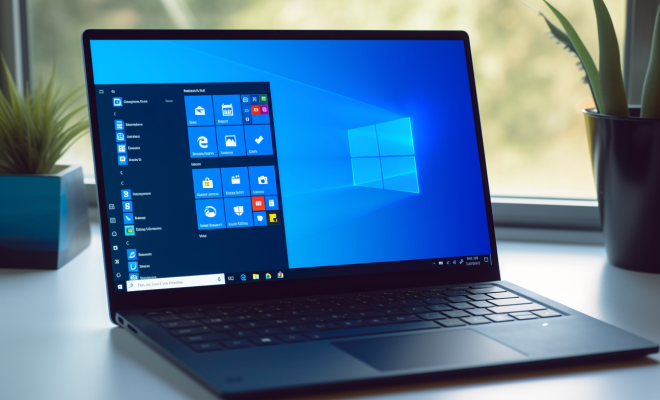
As a Windows 10 user, you may have noticed that the screen of your computer can turn off automatically after a certain period of inactivity. This feature can be handy to save battery life on a laptop or to prevent screen burn-in on a desktop monitor, but it can also be annoying if it happens too quickly or too often, especially when you’re watching a video or giving a presentation. Fortunately, you can adjust the power settings of your Windows 10 device to stop it from turning off your screen, or at least extend the time before it does. Here’s how to do it.

  1. Use the Control Panel

The easiest way to change the power settings of your Windows 10 device is to use the Control Panel. To access it, click on the Start menu, search for “Control Panel”, and open it. Then, go to the “Power Options” section. Here, you’ll see a list of power plans that you can choose from, such as Balanced, Power saver, or High performance. Click on the one you’re currently using or want to customize, and then click on “Change plan settings”.

In the next window, you’ll see two options: “Turn off the display” and “Put the computer to sleep”. The former controls how long the screen stays on before it dims or goes black, while the latter controls how long the whole computer stays on before it goes to sleep mode (which is different from turning off the screen). You can adjust these settings by using the drop-down menus next to them. For example, if you want to prevent the screen from turning off automatically, set the “Turn off the display” option to “Never”. Don’t forget to click on “Save changes” once you’re done.

  1. Use the Settings app

If you prefer to use the modern interface of Windows 10, you can also change the power settings using the Settings app. To do so, open the Start menu, click on the gear icon to open the Settings app, and then go to the “System” section. Here, you’ll find a tab called “Power & sleep” that lets you customize the same options as in the Control Panel.

Simply select the desired values for “Screen” and “Sleep” based on how long you want your Windows 10 device to stay active before the screen turns off or the computer goes to sleep. You can also choose different times for when the device is plugged in and when it’s running on battery power. Additionally, you can enable or disable the “Turn off screen after idle time” feature, which lets you set a specific time limit for when the screen should turn off, regardless of whether there’s any activity on the device.

  1. Use a third-party tool

If you want more control over your Windows 10 power settings, you can use a third-party tool that offers advanced features and options. One such tool is called “PowerToys”, which is a free and open-source software suite developed by Microsoft. Among its many utilities, PowerToys includes a “PowerRename” module that lets you bulk rename files, a “FancyZones” module that lets you organize and resize windows, and a “PowerPlan” module that lets you create and switch between power plans easily.

To use PowerToys, you’ll need to download and install it from the official website. Once installed, open the PowerToys app and go to the “Power” tab. Here, you’ll see the current power plan and its settings, including a graph that shows how much energy your device is consuming. You can create a new power plan by clicking on the “Create new” button and then customizing the values for “Monitor off”, “System standby”, and “System hibernate”. You can also edit an existing power plan by clicking on the “Edit” button and changing the values as you wish. Once you’re satisfied with the settings, click on “Apply” to save them.


Previous Article

Best Sites to Sell 3D Models

Next Article

What Is a DMG File and How ...

Matthew Lynch

Related articles More from author

  • Assistive Technology

    How to Unbrick Your Android Phone: 4 Methods for Recovery

    June 14, 2023
    By Matthew Lynch
  • Assistive Technology

    How to Make a Checklist in Microsoft Word

    June 15, 2023
    By Matthew Lynch
  • Assistive Technology

    How to Find the Fastest DNS to Optimize Your Internet Speed

    June 23, 2023
    By Matthew Lynch
  • Assistive Technology

    How to Copy a Sheet in Excel

    June 7, 2023
    By Matthew Lynch
  • Assistive Technology

    How to Hide Files, Folders, and Drives in Windows 10

    June 22, 2023
    By Matthew Lynch
  • Assistive Technology

    How to Access GMX Mail in Gmail

    June 10, 2023
    By Matthew Lynch

Search

Login & Registration

  • Register
  • Log in
  • Entries feed
  • Comments feed
  • WordPress.org

Newsletter

Signup for The Tech Edvocate Newsletter and have the latest in EdTech news and opinion delivered to your email address!

About Us

Since technology is not going anywhere and does more good than harm, adapting is the best course of action. That is where The Tech Edvocate comes in. We plan to cover the PreK-12 and Higher Education EdTech sectors and provide our readers with the latest news and opinion on the subject. From time to time, I will invite other voices to weigh in on important issues in EdTech. We hope to provide a well-rounded, multi-faceted look at the past, present, the future of EdTech in the US and internationally.

We started this journey back in June 2016, and we plan to continue it for many more years to come. I hope that you will join us in this discussion of the past, present and future of EdTech and lend your own insight to the issues that are discussed.

Newsletter

Signup for The Tech Edvocate Newsletter and have the latest in EdTech news and opinion delivered to your email address!

Contact Us

The Tech Edvocate
910 Goddin Street
Richmond, VA 23231
(601) 630-5238
[email protected]

Copyright © 2025 Matthew Lynch. All rights reserved.