The Tech Edvocate

Top Menu

  • Advertisement
  • Apps
  • Home Page
  • Home Page Five (No Sidebar)
  • Home Page Four
  • Home Page Three
  • Home Page Two
  • Home Tech2
  • Icons [No Sidebar]
  • Left Sidbear Page
  • Lynch Educational Consulting
  • My Account
  • My Speaking Page
  • Newsletter Sign Up Confirmation
  • Newsletter Unsubscription
  • Our Brands
  • Page Example
  • Privacy Policy
  • Protected Content
  • Register
  • Request a Product Review
  • Shop
  • Shortcodes Examples
  • Signup
  • Start Here
    • Governance
    • Careers
    • Contact Us
  • Terms and Conditions
  • The Edvocate
  • The Tech Edvocate Product Guide
  • Topics
  • Write For Us
  • Advertise

Main Menu

  • Start Here
    • Our Brands
    • Governance
      • Lynch Educational Consulting, LLC.
      • Dr. Lynch’s Personal Website
      • Careers
    • Write For Us
    • The Tech Edvocate Product Guide
    • Contact Us
    • Books
    • Edupedia
    • Post a Job
    • The Edvocate Podcast
    • Terms and Conditions
    • Privacy Policy
  • Topics
    • Assistive Technology
    • Child Development Tech
    • Early Childhood & K-12 EdTech
    • EdTech Futures
    • EdTech News
    • EdTech Policy & Reform
    • EdTech Startups & Businesses
    • Higher Education EdTech
    • Online Learning & eLearning
    • Parent & Family Tech
    • Personalized Learning
    • Product Reviews
  • Advertise
  • Tech Edvocate Awards
  • The Edvocate
  • Pedagogue
  • School Ratings

logo

The Tech Edvocate

  • Start Here
    • Our Brands
    • Governance
      • Lynch Educational Consulting, LLC.
      • Dr. Lynch’s Personal Website
        • My Speaking Page
      • Careers
    • Write For Us
    • The Tech Edvocate Product Guide
    • Contact Us
    • Books
    • Edupedia
    • Post a Job
    • The Edvocate Podcast
    • Terms and Conditions
    • Privacy Policy
  • Topics
    • Assistive Technology
    • Child Development Tech
    • Early Childhood & K-12 EdTech
    • EdTech Futures
    • EdTech News
    • EdTech Policy & Reform
    • EdTech Startups & Businesses
    • Higher Education EdTech
    • Online Learning & eLearning
    • Parent & Family Tech
    • Personalized Learning
    • Product Reviews
  • Advertise
  • Tech Edvocate Awards
  • The Edvocate
  • Pedagogue
  • School Ratings
  • This One Skill Is Quietly Reshaping Every Career — And How to Master It Now

  • The Silent Threat: How AI Is Reshaping Recent College Graduates’ Job Prospects

  • This Crucial Shift in AI Will Devastate Millions of College Grads

  • The Brutal Truth: Zero-Day Exploit Analysis vs. Traditional Cybersecurity Careers — Which Path Pays $300,000?

  • The Urgent Truth: Why These Certifications Are Your Only Defense Against Zero-Day Attacks

  • The FBI Investigates a Zero-Day Attack on Your Job Applications

  • The Startling Truth About AI’s Impact on Your Coding Job by 2026

  • The Shocking Truth About Your Code: AI Is Already Rewriting Your Future

  • Is This Why Code Review Is Dead? AI’s Staggering Impact on Tech Jobs

  • The Shocking Truth About CogniBoost vs Focus Drugs: What No One Is Telling You

Assistive Technology
Home›Assistive Technology›How to Set Up Wi-Fi on Your Nintendo 3DS

How to Set Up Wi-Fi on Your Nintendo 3DS
By Matthew Lynch
June 10, 2023
0
Spread the love

Nintendo 3DS is a popular portable gaming console from Nintendo. It offers a wide range of features that make it one of the best gaming consoles on the market. With its advanced wireless capabilities, you can easily connect your 3DS to a Wi-Fi network and enjoy online gaming, updates, and browsing the internet.

If you’re wondering how to set up Wi-Fi on your Nintendo 3DS, this article will guide you through it. Here are the steps to take:

Step 1: Turn On Your Nintendo 3DS

The first step is to turn on your Nintendo 3DS. You can do this by pressing the power button located at the bottom of the console. Once the console is on, you can access the Home menu by tapping the Home button.

Step 2: Navigate to the System Settings Menu

Now that your 3DS is on, it’s time to navigate to the system settings menu. Navigate to the bottom screen of your console and tap the wrench icon. This will take you to the System Settings menu.

Step 3: Select the Internet Settings Option

Once you’re in the System Settings menu, scroll down until you see the “Internet Settings” option and tap it.

Step 4: Choose Your Connection Type

The next step is to choose your connection type. You will see three options: “Nintendo DS,” “Nintendo DSi,” and “Nintendo 3DS.” Choose “Nintendo 3DS” to connect to a wireless network.

Step 5: Search for a Wireless Network

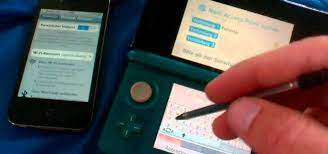
After selecting “Nintendo 3DS,” you will see two options: “Search for an Access Point” and “Manual Setup.” Choose “Search for an Access Point” to automatically search for a wireless network.

Step 6: Choose Your Wireless Network

Your 3DS will now search for available wireless networks. Once it finds them, a list will appear on the screen. Choose your desired wireless network by tapping on it.

Step 7: Enter Your Wi-Fi Password

If your wireless network has a password, you will need to enter it at this point. Use the virtual keyboard to enter the password.

Step 8: Test Your Connection

After entering your Wi-Fi password, your 3DS will automatically test the connection. If successful, you will see a message indicating the connection is successful, and you’re ready to go.

Congratulations, your Nintendo 3DS is now connected to your Wi-Fi network. With a stable network connection, you can now enjoy online gaming, browsing the internet, and accessing various online features on the console. It’s worth noting that you need a stable network connection to get the most out of your Nintendo 3DS, so make sure you’re always connected to a stable Wi-Fi network.


Previous Article

Here’s Why Your Network Might Need a ...

Next Article

How to Create a Column Chart in ...

Matthew Lynch

Related articles More from author

  • Assistive Technology

    How to Clean a Mechanical Keyboard

    June 8, 2023
    By Matthew Lynch
  • Assistive Technology

    How to Fix Wi-Fi Authentication Problems on Android

    June 8, 2023
    By Matthew Lynch
  • Assistive Technology

    How to Disable Widgets in Windows 11

    June 22, 2023
    By Matthew Lynch
  • Assistive Technology

    How to Check Successful or Failed Login Attempts on Your Windows Computer

    July 15, 2023
    By Matthew Lynch
  • Assistive Technology

    How to Scan From Any Printer to Your Computer

    June 6, 2023
    By Matthew Lynch
  • Assistive Technology

    How to Bookmark All Tabs in Chrome, Firefox, Edge, Brave, and Safari

    June 14, 2023
    By Matthew Lynch

Search

Login & Registration

  • Log in
  • Entries feed
  • Comments feed
  • WordPress.org

Newsletter

Signup for The Tech Edvocate Newsletter and have the latest in EdTech news and opinion delivered to your email address!

About Us

Since technology is not going anywhere and does more good than harm, adapting is the best course of action. That is where The Tech Edvocate comes in. We plan to cover the PreK-12 and Higher Education EdTech sectors and provide our readers with the latest news and opinion on the subject. From time to time, I will invite other voices to weigh in on important issues in EdTech. We hope to provide a well-rounded, multi-faceted look at the past, present, the future of EdTech in the US and internationally.

We started this journey back in June 2016, and we plan to continue it for many more years to come. I hope that you will join us in this discussion of the past, present and future of EdTech and lend your own insight to the issues that are discussed.

Newsletter

Signup for The Tech Edvocate Newsletter and have the latest in EdTech news and opinion delivered to your email address!

Contact Us

The Tech Edvocate
910 Goddin Street
Richmond, VA 23231
(601) 630-5238
[email protected]

Copyright © 2026 Matthew Lynch. All rights reserved.