The Tech Edvocate

Top Menu

  • Advertisement
  • Apps
  • Home Page
  • Home Page Five (No Sidebar)
  • Home Page Four
  • Home Page Three
  • Home Page Two
  • Home Tech2
  • Icons [No Sidebar]
  • Left Sidbear Page
  • Lynch Educational Consulting
  • My Account
  • My Speaking Page
  • Newsletter Sign Up Confirmation
  • Newsletter Unsubscription
  • Our Brands
  • Page Example
  • Privacy Policy
  • Protected Content
  • Register
  • Request a Product Review
  • Shop
  • Shortcodes Examples
  • Signup
  • Start Here
    • Governance
    • Careers
    • Contact Us
  • Terms and Conditions
  • The Edvocate
  • The Tech Edvocate Product Guide
  • Topics
  • Write For Us
  • Advertise

Main Menu

  • Start Here
    • Our Brands
    • Governance
      • Lynch Educational Consulting, LLC.
      • Dr. Lynch’s Personal Website
      • Careers
    • Write For Us
    • The Tech Edvocate Product Guide
    • Contact Us
    • Books
    • Edupedia
    • Post a Job
    • The Edvocate Podcast
    • Terms and Conditions
    • Privacy Policy
  • Topics
    • Assistive Technology
    • Child Development Tech
    • Early Childhood & K-12 EdTech
    • EdTech Futures
    • EdTech News
    • EdTech Policy & Reform
    • EdTech Startups & Businesses
    • Higher Education EdTech
    • Online Learning & eLearning
    • Parent & Family Tech
    • Personalized Learning
    • Product Reviews
  • Advertise
  • Tech Edvocate Awards
  • The Edvocate
  • Pedagogue
  • School Ratings

logo

The Tech Edvocate

  • Start Here
    • Our Brands
    • Governance
      • Lynch Educational Consulting, LLC.
      • Dr. Lynch’s Personal Website
        • My Speaking Page
      • Careers
    • Write For Us
    • The Tech Edvocate Product Guide
    • Contact Us
    • Books
    • Edupedia
    • Post a Job
    • The Edvocate Podcast
    • Terms and Conditions
    • Privacy Policy
  • Topics
    • Assistive Technology
    • Child Development Tech
    • Early Childhood & K-12 EdTech
    • EdTech Futures
    • EdTech News
    • EdTech Policy & Reform
    • EdTech Startups & Businesses
    • Higher Education EdTech
    • Online Learning & eLearning
    • Parent & Family Tech
    • Personalized Learning
    • Product Reviews
  • Advertise
  • Tech Edvocate Awards
  • The Edvocate
  • Pedagogue
  • School Ratings
  • Navigating the Challenges of Neurodiversity Support in Schools

  • The Best European Cities for Graduates to Live and Work

  • States With the Biggest School Enrollment Drops Revealed

  • Empowering Future Innovators: The Role of STEAM Education in Tribal Communities

  • The Personal Liability of Founders in AI Misrepresentation Cases

  • The Rise of Skilled Trades: A Viable Alternative to Traditional College Degrees

  • The Rise of U.S. Youth Soccer: A New Frontier for Investment

  • The Human Element in Language Learning: A Challenge with Preply

  • What Can Healthcare Engagement Learn From Sports Betting?

  • Addressing the Rise of Fatigue: Expert Insights from Patrice Bonfiglio

Digital & Mobile Technology
Home›Digital & Mobile Technology›How to Set up and Use Apple Watch Nightstand Mode

How to Set up and Use Apple Watch Nightstand Mode
By Matthew Lynch
June 23, 2023
0
Spread the love

Apple Watch Nightstand Mode is a unique feature that enables your watch to function as an alarm clock when it’s charging, and you had it lying on its side. If you’re a frequent traveler or a busy professional, this feature can be useful in signaling you when it’s time to get up or attend a meeting. This article provides a step by step guide on how to set up and use Apple Watch Nightstand mode.

Step 1: Charge your Apple Watch to above 10% battery level

The Nightstand mode only works when the watch is charging, and the battery is above 10%. So, to enable it, make sure you’ve connected the watch to its charging cable and wait until the battery is stable.

Step 2: Turn on Nightstand mode

Open your Apple Watch app on your iPhone, go to ‘My Watch’ and tap on ‘General.’ In the General settings, enable the ‘Nightstand Mode’ feature. This will make the Apple Watch screen to appear in landscape mode whenever you place it on its side.

Step 3: Connect your watch to the charging cable and place it on its side

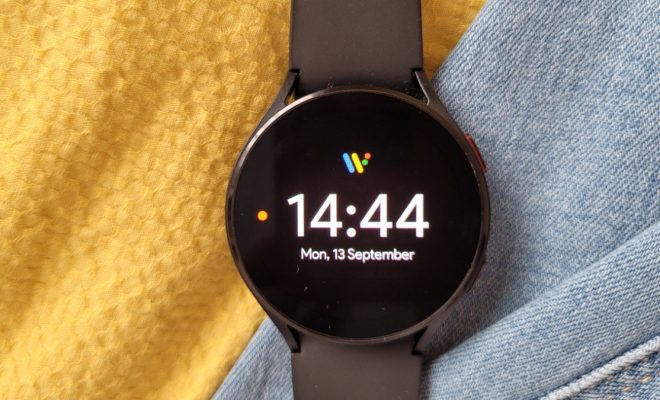
To use the Nightstand mode feature, connect your Apple Watch to the charging cable, and then lay it on its flat side with the watch face pointing upwards. This position will prompt the watch display to turn on, and it will show the current time and date.

Step 4: Check the alarm settings

You can now set an alarm using the Apple Watch in Nightstand mode. To do this, just touch the digital crown, and the screen will show the current alarm settings. You can adjust your alarm time using the turning gesture on the digital crown.

Step 5: Wake up to your alarm signal

When the alarm goes off, the Apple Watch screen will light up gradually, and the alarm tone will start to play. You can turn off the alarm by tapping on the screen or by pressing the watch’s side button.

Using the Nightstand mode feature on your Apple Watch is a great way to wake up to the alarm that suits you best. Besides, you can customize the watch’s display and choose which information is displayed on the screen. You can have information like the weather, battery life, or even your fitness goals set up to show when you wake up.

Conclusion

Using the Nightstand mode feature on your Apple Watch is a useful way to ensure you wake up on time, especially when you’re traveling or in a noisy environment. The above steps provide a basic guide on how to set up and use Apple Watch Nightstand mode. Make sure you have the latest Apple Watch version and software to enable this feature properly.


Previous Article

Best Samsung Galaxy Watch Faces of 2023

Next Article

How to Check a Graphics Card on ...

Matthew Lynch

Related articles More from author

  • Digital & Mobile Technology

    What Is Apple’s ProMotion Display? Everything You Need to Know

    June 6, 2023
    By Matthew Lynch
  • Digital & Mobile Technology

    How Many People Can Watch HBO Max At Once?

    August 5, 2023
    By Matthew Lynch
  • Digital & Mobile Technology

    What Is Roblox and Is It Safe for Kids?

    June 14, 2023
    By Matthew Lynch
  • Digital & Mobile Technology

    Netflix Not Working? Here’s How to Fix It

    June 6, 2023
    By Matthew Lynch
  • Digital & Mobile Technology

    Nintendo Switch Apps All Switch Owners Should Install

    June 15, 2023
    By Matthew Lynch
  • Digital & Mobile Technology

    How to View Your Facebook Profile as Public

    July 15, 2023
    By Matthew Lynch

Search

Login & Registration

  • Log in
  • Entries feed
  • Comments feed
  • WordPress.org

Newsletter

Signup for The Tech Edvocate Newsletter and have the latest in EdTech news and opinion delivered to your email address!

About Us

Since technology is not going anywhere and does more good than harm, adapting is the best course of action. That is where The Tech Edvocate comes in. We plan to cover the PreK-12 and Higher Education EdTech sectors and provide our readers with the latest news and opinion on the subject. From time to time, I will invite other voices to weigh in on important issues in EdTech. We hope to provide a well-rounded, multi-faceted look at the past, present, the future of EdTech in the US and internationally.

We started this journey back in June 2016, and we plan to continue it for many more years to come. I hope that you will join us in this discussion of the past, present and future of EdTech and lend your own insight to the issues that are discussed.

Newsletter

Signup for The Tech Edvocate Newsletter and have the latest in EdTech news and opinion delivered to your email address!

Contact Us

The Tech Edvocate
910 Goddin Street
Richmond, VA 23231
(601) 630-5238
[email protected]

Copyright © 2026 Matthew Lynch. All rights reserved.