The Tech Edvocate

Top Menu

  • Advertisement
  • Apps
  • Home Page
  • Home Page Five (No Sidebar)
  • Home Page Four
  • Home Page Three
  • Home Page Two
  • Home Tech2
  • Icons [No Sidebar]
  • Left Sidbear Page
  • Lynch Educational Consulting
  • My Account
  • My Speaking Page
  • Newsletter Sign Up Confirmation
  • Newsletter Unsubscription
  • Our Brands
  • Page Example
  • Privacy Policy
  • Protected Content
  • Register
  • Request a Product Review
  • Shop
  • Shortcodes Examples
  • Signup
  • Start Here
    • Governance
    • Careers
    • Contact Us
  • Terms and Conditions
  • The Edvocate
  • The Tech Edvocate Product Guide
  • Topics
  • Write For Us
  • Advertise

Main Menu

  • Start Here
    • Our Brands
    • Governance
      • Lynch Educational Consulting, LLC.
      • Dr. Lynch’s Personal Website
      • Careers
    • Write For Us
    • The Tech Edvocate Product Guide
    • Contact Us
    • Books
    • Edupedia
    • Post a Job
    • The Edvocate Podcast
    • Terms and Conditions
    • Privacy Policy
  • Topics
    • Assistive Technology
    • Child Development Tech
    • Early Childhood & K-12 EdTech
    • EdTech Futures
    • EdTech News
    • EdTech Policy & Reform
    • EdTech Startups & Businesses
    • Higher Education EdTech
    • Online Learning & eLearning
    • Parent & Family Tech
    • Personalized Learning
    • Product Reviews
  • Advertise
  • Tech Edvocate Awards
  • The Edvocate
  • Pedagogue
  • School Ratings

logo

The Tech Edvocate

  • Start Here
    • Our Brands
    • Governance
      • Lynch Educational Consulting, LLC.
      • Dr. Lynch’s Personal Website
        • My Speaking Page
      • Careers
    • Write For Us
    • The Tech Edvocate Product Guide
    • Contact Us
    • Books
    • Edupedia
    • Post a Job
    • The Edvocate Podcast
    • Terms and Conditions
    • Privacy Policy
  • Topics
    • Assistive Technology
    • Child Development Tech
    • Early Childhood & K-12 EdTech
    • EdTech Futures
    • EdTech News
    • EdTech Policy & Reform
    • EdTech Startups & Businesses
    • Higher Education EdTech
    • Online Learning & eLearning
    • Parent & Family Tech
    • Personalized Learning
    • Product Reviews
  • Advertise
  • Tech Edvocate Awards
  • The Edvocate
  • Pedagogue
  • School Ratings
  • The Chew That Changed My Training: Why Nitraflex Pre-Workout Chews Deliver Unbelievable Pumps

  • The Brutal Truth: Why Your AI Skills Training Is Failing (And How to Fix It)

  • 8 Essential AI Upskilling Programs Your Business Needs to Thrive Now

  • One Critical Mistake Companies Make With AI Skills Training

  • The AI Career Showdown: Which Path Pays More And Fits You Best?

  • The Shocking Truth About the Highest Paying AI Jobs in 2026

  • The Staggering Truth About 5 AI Job Roles That Will Redefine Your Career by 2026

  • Crypto Crackdown: Is the FCA’s Iron Fist Crushing Innovation, or Just Protecting You?

  • 7 Critical Steps to Survive the Crypto Crackdown: How to Navigate FCA Regulations

  • This One Thing Is Quietly Reshaping Illegal Crypto Trading — And Regulators Are Panicking

Assistive Technology
Home›Assistive Technology›How to Set Up and Use a Google Nest Hub

How to Set Up and Use a Google Nest Hub
By Matthew Lynch
June 10, 2023
0
Spread the love

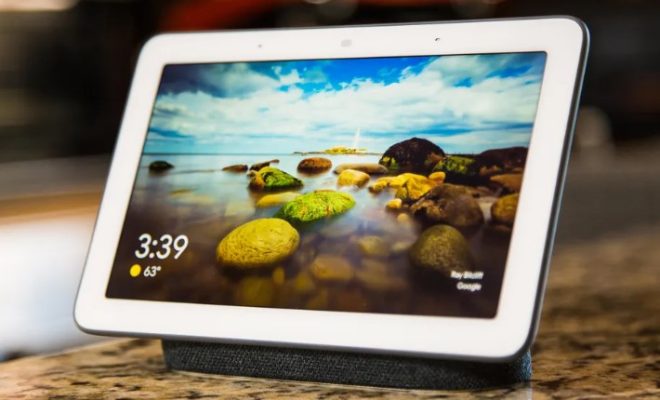
The Google Nest Hub is a smart home device that combines the convenience of a voice assistant with a touch screen display. It can control your smart home devices, play music, display photos, and even provide hands-free access to Google Assistant.

If you’ve just received your Google Nest Hub, setting it up is easy. Here’s how you can set up your Google Nest Hub to enjoy all its features.

1. Set up your Google Nest Hub:

First, download the Google Home app on your smartphone or tablet. Open the app, and click on the “+” icon located at the top left corner of the screen. After selecting the “Set up Device,” choose “New Device” and follow the steps. Ensure that your smartphone or tablet is connected to the same Wi-Fi network as the device you want to set up.

2. Connect to Wi-Fi:

The Google Nest Hub requires a Wi-Fi connection to function. Make sure your Wi-Fi router is turned on and secure, with the appropriate login details. The Google Home app will ask for your Wi-Fi network name and password. Enter the details, and the device will connect to your Wi-Fi network.

3. Google Assistant settings:

After the device is connected to the Wi-Fi network, you can customize your Google Assistant settings. These settings include setting up voice recognition, choosing a language, and choosing Google Assistant’s default location, which can help the device deliver location-based information.

4. Set up Smart Home devices:

You can also connect your smart home devices with the Google Nest Hub. To set up your Smart Home device, go to the Google Home app, select the “+” icon, and click on “Set up Device.” When prompted, select “Works with Google,” and choose your device type. Follow the instructions provided to connect your Smart Home device to your Google Nest Hub.

5. Customization and Personalization:

You can customize and personalize your Google Nest Hub to suit your preferences. Change the background images, choose the temperature unit for weather updates, add or remove services that Google Assistant uses to provide you with information, manage reminders, and view your activity history.

Having set up your Google Nest Hub, here’s how you can use it effectively:

1. Voice-activated features:

Mostly, users control the Google Nest Hub using their voice. Say “Hey, Google” or “Okay, Google” to initiate verbal commands. Commands could include playing music, controlling volume, setting timers, or asking questions.

2. Touch screen features:

The Google Nest Hub also features a large touch screen display that allows you to interact with it using touch. You can swipe to scroll, tap to select, and long-press options for more action.

3. Media streaming:

You can play music and videos from various streaming platforms. Connect your Nest Hub to your preferred provider, then use voice commands to search for music, albums or playlists to play.

4. Smart Home Controls:

You can use your Google Nest Hub to control devices such as smart lights, smart plugs, smart thermostats, or other devices that integrate with the Google Assistant platform.

5. Photo Gallery and Memory feature:

You can use your Google Nest Hub as a digital photo frame that displays your Google Photos library. There’s also a memory feature that uses Google Assistant to remind you of significant moments like birthdays, anniversaries and other important dates.

In conclusion, by following these simple steps and commands, you can enjoy your Google Nest Hub to the fullest. With a little customization and personalization, the device will be a valuable addition to your smart home.


Previous Article

Effective Household Apps to Manage Your Home ...

Next Article

Why Your Dog Needs Its Own Video ...

Matthew Lynch

Related articles More from author

  • Assistive Technology

    How to Use Private Share on Samsung Phones to Send Files Securely

    June 23, 2023
    By Matthew Lynch
  • Assistive Technology

    How to Remove Write Protection on Windows 10, 8, and 7

    June 7, 2023
    By Matthew Lynch
  • Assistive Technology

    How to Overclock a Monitor

    June 10, 2023
    By Matthew Lynch
  • Assistive Technology

    How to Access and Use Internet Recovery on Mac

    June 15, 2023
    By Matthew Lynch
  • Assistive Technology

    How to Make a Bootable USB Drive With Etcher in Linux

    June 14, 2023
    By Matthew Lynch
  • Assistive Technology

    How to Authorize a Computer for Apple TV

    June 10, 2023
    By Matthew Lynch

Search

Login & Registration

  • Log in
  • Entries feed
  • Comments feed
  • WordPress.org

Newsletter

Signup for The Tech Edvocate Newsletter and have the latest in EdTech news and opinion delivered to your email address!

About Us

Since technology is not going anywhere and does more good than harm, adapting is the best course of action. That is where The Tech Edvocate comes in. We plan to cover the PreK-12 and Higher Education EdTech sectors and provide our readers with the latest news and opinion on the subject. From time to time, I will invite other voices to weigh in on important issues in EdTech. We hope to provide a well-rounded, multi-faceted look at the past, present, the future of EdTech in the US and internationally.

We started this journey back in June 2016, and we plan to continue it for many more years to come. I hope that you will join us in this discussion of the past, present and future of EdTech and lend your own insight to the issues that are discussed.

Newsletter

Signup for The Tech Edvocate Newsletter and have the latest in EdTech news and opinion delivered to your email address!

Contact Us

The Tech Edvocate
910 Goddin Street
Richmond, VA 23231
(601) 630-5238
[email protected]

Copyright © 2026 Matthew Lynch. All rights reserved.