
The Tech Edvocate

Top Menu

  • Advertisement
  • Apps
  • Home Page
  • Home Page Five (No Sidebar)
  • Home Page Four
  • Home Page Three
  • Home Page Two
  • Home Tech2
  • Icons [No Sidebar]
  • Left Sidbear Page
  • Lynch Educational Consulting
  • My Account
  • My Speaking Page
  • Newsletter Sign Up Confirmation
  • Newsletter Unsubscription
  • Our Brands
  • Page Example
  • Privacy Policy
  • Protected Content
  • Register
  • Request a Product Review
  • Shop
  • Shortcodes Examples
  • Signup
  • Start Here
    • Governance
    • Careers
    • Contact Us
  • Terms and Conditions
  • The Edvocate
  • The Tech Edvocate Product Guide
  • Topics
  • Write For Us
  • Advertise

Main Menu

  • Start Here
    • Our Brands
    • Governance
      • Lynch Educational Consulting, LLC.
      • Dr. Lynch’s Personal Website
      • Careers
    • Write For Us
    • The Tech Edvocate Product Guide
    • Contact Us
    • Books
    • Edupedia
    • Post a Job
    • The Edvocate Podcast
    • Terms and Conditions
    • Privacy Policy
  • Topics
    • Assistive Technology
    • Child Development Tech
    • Early Childhood & K-12 EdTech
    • EdTech Futures
    • EdTech News
    • EdTech Policy & Reform
    • EdTech Startups & Businesses
    • Higher Education EdTech
    • Online Learning & eLearning
    • Parent & Family Tech
    • Personalized Learning
    • Product Reviews
  • Advertise
  • Tech Edvocate Awards
  • The Edvocate
  • Pedagogue
  • School Ratings

logo

The Tech Edvocate

  • Start Here
    • Our Brands
    • Governance
      • Lynch Educational Consulting, LLC.
      • Dr. Lynch’s Personal Website
        • My Speaking Page
      • Careers
    • Write For Us
    • The Tech Edvocate Product Guide
    • Contact Us
    • Books
    • Edupedia
    • Post a Job
    • The Edvocate Podcast
    • Terms and Conditions
    • Privacy Policy
  • Topics
    • Assistive Technology
    • Child Development Tech
    • Early Childhood & K-12 EdTech
    • EdTech Futures
    • EdTech News
    • EdTech Policy & Reform
    • EdTech Startups & Businesses
    • Higher Education EdTech
    • Online Learning & eLearning
    • Parent & Family Tech
    • Personalized Learning
    • Product Reviews
  • Advertise
  • Tech Edvocate Awards
  • The Edvocate
  • Pedagogue
  • School Ratings
  • Your Home Insurance Bill Just Exploded: 5 Reasons Why — And What Comes Next

  • Your Home Insurance Premiums Are Skyrocketing: Is Your State On This List?

  • The Brutal Truth: Why 30-Year vs. 15-Year Fixed Mortgage Rates in 2026 Could CRUSH Your Homeownership Dreams

  • 7 Things First-Time Homebuyers MUST Know About the New 6.89% Mortgage Rates

  • Your Dream Home Just Got Pricier: Why Mortgage Rates 2026 Are Soaring Toward 7%

  • Unbelievable: The True Cost of CRISPR Anti-Aging Will Absolutely Shock You

  • Your Genes Hold The Key: How CRISPR Could Restore Youthful Function

  • The Mind-Blowing Way CRISPR Could End Aging As We Know It

  • Why Millions Are Rushing to Install Home Battery Storage Now

  • Google’s €13 Billion Bet: The Unseen Renewable Energy Funds Quietly Reshaping Your Portfolio

Tech Advice
Home›Tech Advice›How to Set Up a New Nintendo Switch OLED the Right Way

How to Set Up a New Nintendo Switch OLED the Right Way
By Matthew Lynch
July 17, 2023
0
Spread the love

Setting up a new Nintendo Switch OLED console may seem daunting at first, but with these simple steps, it will be as easy as pie. Follow this comprehensive guide to get your Nintendo Switch OLED set up perfectly and maximize your gaming experience.

1. Unboxing and Charging

Once you have unboxed your brand-new Nintendo Switch OLED, connect the charging cable to the USB-C port on the bottom of the console. Make sure you charge it completely before setting it up. This will ensure that you have enough battery life throughout the setup process.

2. Attach the Joy-Con controllers

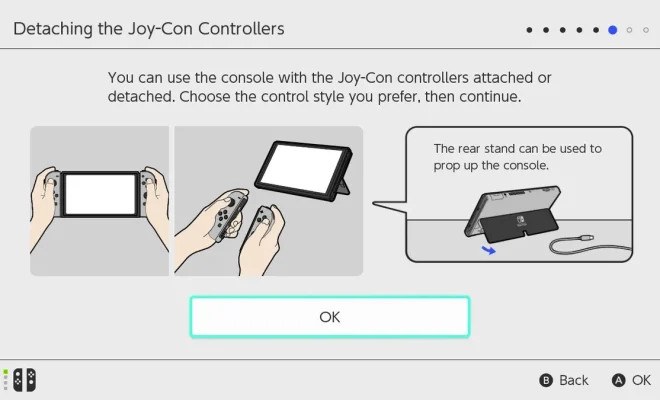
On both sides of the Switch OLED, slide in the Joy-Con controllers until they click into place. To detach them, press and hold the small button on the back of each controller and slide them upward.

3. Powering On and Initial Setup

Press and hold the power button located on the top left side of the console until you see the Nintendo logo. Continue through it by selecting your language, region, and connecting to Wi-Fi.

4. Creating or Linking a Nintendo Account

During setup, you’ll be prompted to create a new account or link an existing one. A Nintendo Account grants access to online features, eShop purchases, and other benefits. If you don’t have one yet, follow the prompts or visit https://accounts.nintendo.com/ on another device.

5. Setting Parental Controls (Optional)

If you want to set up parental controls, follow the on-screen instructions or download the Nintendo Switch Parental Controls app for iOS and Android.

6. Updating Your Console

A prompt will appear asking if you would like to install any system updates available. It is recommended to update your console for improved performance and latest features.

7. Detaching and Using Joy-Cons in Different Modes

Learn how to use Joy-Cons in different modes by detaching them and using them as individual controllers, or attach the Joy-Con strap to each one. Also, learn how to use the kickstand and play in tabletop mode.

8. Docking the Console for TV Mode

To play on your television, insert the Switch OLED into the dock connected to your TV via the HDMI cable. Make sure your TV input is set accordingly, and the console will automatically switch to TV mode.

9. Downloading Games and Apps

Visit Nintendo eShop on your console, browse through various games and apps, and download your desired content. Make sure you have a stable internet connection and sufficient storage space.

10. Accessing Your Existing Digital Purchases

If you have already purchased digital games on another Switch console with your Nintendo Account, go to “Redownload” under your account information in the eShop to access those titles.

Now that you’ve set up your Nintendo Switch OLED correctly, it’s time for endless hours of gaming fun! Remember to keep your system updated and enjoy seamless gameplay in both handheld and TV modes. Happy gaming!

Previous Article

MultiVersus Guide: Gameplay, Perks and Every Playable ...

Next Article

A Memoir Blue Is a Puzzle Game ...

Matthew Lynch

Related articles More from author

  • Tech Advice

    Remove a Stripped Screw in Seconds with this Office Supply

    July 9, 2023
    By Matthew Lynch
  • Tech Advice

    Best Chequing Accounts in Canada

    October 20, 2023
    By Matthew Lynch
  • Tech Advice

    Best Phone to Buy for 2023

    July 17, 2023
    By Matthew Lynch
  • Tech Advice

    Windows 11 Regret? You Have 10 Days to Go Back to Windows 10

    July 14, 2023
    By Matthew Lynch
  • Tech Advice

    Navigating Parental Controls in 1317

    July 8, 2023
    By Matthew Lynch
  • Tech Advice

    HP Spectre x360 14 offers 2-in-1 buyers another tall-screen option

    July 13, 2023
    By Matthew Lynch

Search

Login & Registration

  • Log in
  • Entries feed
  • Comments feed
  • WordPress.org

Newsletter

Signup for The Tech Edvocate Newsletter and have the latest in EdTech news and opinion delivered to your email address!

About Us

Since technology is not going anywhere and does more good than harm, adapting is the best course of action. That is where The Tech Edvocate comes in. We plan to cover the PreK-12 and Higher Education EdTech sectors and provide our readers with the latest news and opinion on the subject. From time to time, I will invite other voices to weigh in on important issues in EdTech. We hope to provide a well-rounded, multi-faceted look at the past, present, the future of EdTech in the US and internationally.

We started this journey back in June 2016, and we plan to continue it for many more years to come. I hope that you will join us in this discussion of the past, present and future of EdTech and lend your own insight to the issues that are discussed.

Newsletter

Signup for The Tech Edvocate Newsletter and have the latest in EdTech news and opinion delivered to your email address!

Contact Us

The Tech Edvocate
910 Goddin Street
Richmond, VA 23231
(601) 630-5238
[email protected]

Copyright © 2026 Matthew Lynch. All rights reserved.
