Master Your Availability: How to Set Slack Status Effectively
“`html
In today’s hybrid work environment, communication tools like Slack have become essential for collaboration among remote teams. One of the most useful features that Slack offers is the ability to set a status. Not only does it help inform your colleagues of your availability, but it also allows you to express what you’re currently working on or any other relevant information. This guide will walk you through the ins and outs of how to set Slack status effectively, ensuring clear communication in your workspace.
1. Understanding Slack Status: What Is It?
Before diving into the mechanics of how to set Slack status, it’s important to understand what a status is and why it matters. In essence, a Slack status is a brief message that provides context about your current state. You can use it to indicate whether you’re available for a chat, in a meeting, or taking a break.
This feature is particularly useful in a remote work setup where team members may be spread across different time zones. A well-crafted status can reduce interruptions and help maintain workflow efficiency. It can also show your personality—some users opt for fun or quirky statuses, while others prefer straightforward messages.
2. Why You Should Set a Status
Setting a status in Slack is not just a matter of etiquette; it has practical benefits. For starters, it communicates your availability to your team. When people can see whether you’re busy or free, they can decide whether to reach out or wait. This can prevent unnecessary distractions and improve overall productivity.
Moreover, your status can foster a sense of solidarity and support within the team. Sharing an indication of your workload can help teammates empathize with one another during particularly busy times. It also encourages a culture of openness, where employees feel comfortable sharing their work states without fear of judgment.
3. How to Set Your Status on Desktop
Setting your Slack status on a desktop is a straightforward process. Here’s how you can do it:
- Open Slack and log in to your workspace.
- Click on your profile picture located in the top right corner of the window.
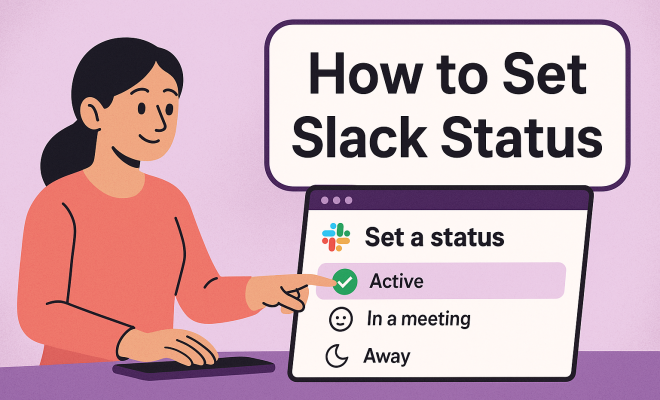
- Select “Set a Status” from the dropdown menu.
- A pop-up will appear where you can type your custom status. You can also choose from a predefined list of options.
- If you want to add an emoji to your status, click on the emoji icon to browse or search for one.
- After setting your status, you can choose a timeframe for how long it should remain active—options range from clearing it immediately to several hours or even days.
- Finally, click “Save” to apply your new status.
Now, your colleagues will be able to see your status next to your name, offering them insight into your current availability.
4. How to Set Your Status on Mobile
If you’re on the go, setting your status in the Slack mobile app is just as easy. Here’s a step-by-step guide:
- Open the Slack app on your mobile device.
- Tap on the “You” tab at the bottom-right corner of the screen.
- Tap on “Set a Status.”
- Similar to the desktop version, you can type in a custom status or select from the available options.
- Add an emoji if you’d like by tapping the emoji icon.
- Select the duration for your status.
- Tap “Save” to update your status.
With just a few taps, you can inform your team about your availability, even when you’re away from your desk.
5. Creative Status Ideas
While it’s easy to stick with the standard statuses like “In a Meeting” or “Out to Lunch,” getting creative can add a personal touch to your communication. Here are some unique status ideas you might consider:
- Themed Statuses: Use seasonal themes, like “Spooky Season in Progress” during Halloween or “Winter Wonderland” during snowy months.
- Motivational Quotes: Share a quote that inspires you, such as “Working hard or hardly working?”
- Humor: Lighten the mood with a funny status like “Currently avoiding all responsibilities.”
- Project Updates: Instead of just saying “Working on Project X,” provide a brief update like “Finalizing slides for Project X presentation.”
These creative statuses can not only inform your team about your current state but also spark conversations and build camaraderie among coworkers.
6. Managing Your Status: Automatic Settings
Slack also allows you to set automatic statuses based on your calendar events. This can be particularly handy for those who have packed schedules. For instance, if you have a meeting scheduled, Slack can automatically change your status to “In a Meeting” so that your colleagues are aware of your availability. Here’s how to set this up: (See: Understanding remote work dynamics.)
- Open Slack and go to Preferences.
- Select “Notifications,” then scroll down to find the “Set Status Automatically” option.
- Enable the feature, and Slack will sync your calendar to adjust your status according to your meetings.
This feature saves you time and keeps your colleagues informed without any extra effort on your part.
7. Changing Your Status: Best Practices
While it’s important to set your status, knowing when and how to change it is just as crucial. Here are some best practices to follow:
- Be Updated: Regularly update your status to reflect your current availability. If you’re going into a meeting, change it beforehand to avoid interruptions.
- Keep It Professional: While creative statuses can be fun, ensure they remain appropriate for your workplace environment. Aim for a balance between professionalism and personality.
- Use Clear Language: Avoid jargon or vague terms. Use clear and concise language so that your colleagues can quickly understand your status.
Following these best practices can help you maintain effective communication with your team and avoid misunderstandings.
8. The Impact of Status on Team Dynamics
Using statuses in Slack can significantly impact team dynamics. A well-set status fosters transparency, allowing team members to know when you’re available or busy. This can reduce unnecessary interruptions, leading to a more focused work environment.
Additionally, when team members share their statuses, it promotes a culture of respect and consideration. Knowing not to disturb someone who is focused on a project can enhance collaboration and create a more supportive atmosphere. The result is a team that works more cohesively, with everyone understanding and respecting each other’s time.
9. Common Mistakes to Avoid
While setting your Slack status is relatively easy, there are common pitfalls to watch out for:
- Neglecting to Update: One of the biggest mistakes is leaving your status unchanged for too long. If you’re in a meeting for two hours but don’t change your status, colleagues might be confused about your availability.
- Using Ambiguous Language: Avoid using acronyms or jargon that might not be clear to everyone. Be straightforward in your communication.
- Overcomplicating It: Keep your status simple. A long, detailed explanation can be overwhelming and might not get read. Stick to the essentials.
Avoiding these common mistakes can ensure your use of Slack status is effective and helps maintain smooth communication.
10. The Future of Slack Status
As Slack continues to evolve, so too will the features surrounding status settings. Currently, there are discussions about integrating AI capabilities that can learn your habits and set statuses automatically based on your behavior and activity patterns. Such advancements could further streamline communication and reduce the manual effort involved.
Ultimately, how you set Slack status will continue to play a crucial role in workplace communication. By leveraging the tools available and being mindful of how you present your availability, you can significantly enhance your interactions with colleagues, paving the way for a more efficient and enjoyable work environment.
11. Integrating Slack Status with Other Tools
As businesses increasingly adopt a suite of tools for communication and project management, integrating your Slack status with these platforms can further enhance your productivity. For instance, if you use tools like Google Calendar or Outlook, syncing these calendars with Slack can ensure that your status updates in real-time based on your scheduled events.
By integrating with task management apps like Trello or Asana, you can also create automatic status updates to reflect your current tasks. For instance, if you’re working on a specific task in Trello, you could set your Slack status to indicate your focus on that task. This kind of integration not only keeps your team informed but also helps you manage your time better by setting clear boundaries around your work.
12. Statistics: The Importance of Effective Status Communication
Understanding the significance of setting your Slack status can be highlighted through some compelling statistics:
- Increased Productivity: According to a survey conducted by Slack, teams that effectively communicate their statuses report a 25% increase in productivity.
- Reduction in Meetings: Organizations that utilize status updates effectively have seen a 30% reduction in unnecessary meetings, with team members able to discern each other’s availability at a glance.
- Employee Satisfaction: A report from Buffer found that 67% of employees feel more satisfied with their work environment when they can communicate their status openly and effectively with their colleagues.
These statistics illustrate that setting your Slack status is more than just a communicative tool; it plays a crucial role in enhancing overall productivity and employee satisfaction. (See: CDC resources on telework.)
13. Expert Perspectives on Slack Status
To gain deeper insights into the impact of Slack statuses, we reached out to several workplace communication experts. Here are some perspectives:
Dr. Lisa B. Henderson, Organizational Psychologist: “The ability to communicate availability and workload through tools like Slack allows teams to function more cohesively. It minimizes the guessing game of whether someone is free to talk, which can often lead to frustration.”
Mark J. Thompson, CEO of a Tech Startup: “In our remote-first company, we’ve integrated an automatic status update feature with our project management tools. This has streamlined communication and made it easier for team members to understand where everyone stands in terms of availability.”
These expert insights confirm the practical advantages of effectively utilizing Slack statuses for smoother workplace communication.
14. Frequently Asked Questions (FAQ)
What happens if I forget to update my Slack status?
If you don’t update your Slack status, your colleagues may assume you are still in your previous status, which can lead to misunderstandings. Try to make a habit of regularly updating it, especially before meetings or when you start new tasks.
Can I customize the emojis in my status?
Yes! Slack provides a wide variety of emojis to choose from. You can also upload custom emojis for a more personalized touch—perfect for reflecting your team’s unique culture.
Is there a limit to how long my status can be set?
You can set your status for various durations, ranging from clearing it immediately to lasting for several hours or days. This flexibility allows for better management of your availability based on your schedule.
Are there any best practices for using status emojis?
Yes! While emojis can add a fun element to your status, it’s best to keep them relevant to your current task or mood. Avoid using too many or overly complex emojis, as they can dilute the clarity of your status.
Can my status be seen by everyone in my workspace?
Yes, your Slack status is visible to everyone in your workspace. This transparency is beneficial for team dynamics, as it allows colleagues to understand your availability and current focus.
Can I set my status in a direct message or group chat?
While you cannot set your status specifically for a direct message or group chat, your status will be visible to everyone, regardless of where they are in Slack. This ensures all your coworkers have the same insight into your availability.
15. Real-World Examples of Slack Status Use
Understanding how different teams utilize Slack statuses can offer valuable insights. Here are a few real-world examples: (See: AP News on communication tools.)
- Marketing Teams: A marketing team might set creative statuses like “Crafting catchy taglines” or “Brainstorming new campaign ideas” to keep their colleagues in the loop about their ongoing projects.
- Development Teams: Developers often use statuses like “Debugging code” or “Focused on feature development,” providing transparency on their availability while working on complex tasks.
- Sales Teams: Sales professionals may set statuses such as “On a call with a client” or “Preparing for a pitch,” which helps to communicate their unavailability while still engaging with potential clients.
These examples reflect how various teams adapt their Slack statuses to suit their specific needs, enhancing communication and collaboration across the organization.
16. Enhancing Communication with Slack Status
Effective communication isn’t just about the words you use; it’s also about how you convey your current state and availability. Setting your Slack status thoughtfully can enhance overall team communication. For instance, using clear and relevant statuses can reduce the number of messages sent back and forth when trying to determine if someone is available for a discussion.
Consider implementing a team agreement on status updates. This could include guidelines like “Always set your status when stepping away for more than 15 minutes” or “Use specific project statuses to keep everyone informed.” When everyone on the team adheres to these agreements, it creates a more organized workspace.
17. Slack Status in Different Work Cultures
The way Slack statuses are used can vary significantly across different companies and cultures. In more casual workplaces, you may find team members using humorous or whimsical statuses that reflect personal interests, while in more traditional organizations, you might see straightforward professional language.
For example, in tech startups, it’s common to see statuses like “Building the future” or “MVP in progress,” whereas in corporate environments, you might find statuses such as “In client meetings” or “Reviewing quarterly reports.” Understanding the culture of your organization can help you choose a status that aligns with your team’s expectations and communication style.
18. Future Developments in Slack Status Features
As workplace communication continues to evolve, so will the tools we use. Future developments in Slack could include more personalized or predictive status settings. Imagine a feature where Slack learns your work habits and automatically updates your status based on your calendar, current activities, or even your typing patterns.
This could streamline communication further, allowing teams to focus more on collaboration rather than checking availability. As these technologies develop, staying informed and adaptive will be key in leveraging these advancements for your benefit.
19. Conclusion: The Power of a Simple Status Update
Setting your Slack status might seem like a small task, but it carries significant implications for team dynamics and productivity. By being mindful of how you communicate your availability, you can contribute to a culture of respect and efficiency in your workplace. So, whether you’re diving deep into a project, attending meetings, or simply taking a break, take the time to set your status. It’s a simple yet powerful way to enhance your team’s collaboration and performance.
“`
Trending Now
Frequently Asked Questions
How do I set my status on Slack?
To set your status on Slack, click on your profile picture in the top right corner. Select 'Set a status' from the dropdown menu, choose an emoji if desired, and type your message indicating your availability or current activity.
What is the purpose of setting a Slack status?
Setting a Slack status helps communicate your availability to colleagues, indicating whether you're busy, in a meeting, or taking a break. This reduces interruptions and enhances productivity, especially in a remote work environment.
Can I customize my Slack status?
Yes, you can customize your Slack status by adding a message and selecting an emoji that represents your current state. You can also set a duration for how long you want the status to appear.
Why is it important to update your Slack status?
Updating your Slack status is important as it provides transparency about your availability and workload to your team. This helps manage expectations and fosters a collaborative work culture.
How can I see my colleagues' Slack statuses?
You can see your colleagues' Slack statuses by looking at their profile pictures or names in the Slack sidebar. Their status message will appear below their name, giving you insight into their availability.
What did we miss? Let us know in the comments and join the conversation.